 gtag("event", "purchase", {
                transaction_id: "T_12345_2",
                value: 30.03,
                tax: 4.90,
                shipping: 5.99,
                currency: "USD",
   items_count: 3
                coupon: "SUMMER_SALE",
                items: [
                {
                  item_id: "SKU_12345",
                  item_name: "Stan and Friends Tee",
                  affiliation: "Google Merchandise Store",
                  coupon: "SUMMER_FUN",
                  discount: 2.22,
                  index: 0,
                  item_brand: "Google",
                  item_category: "Apparel",
                  item_category2: "Adult",
                  item_category3: "Shirts",
                  item_category4: "Crew",
                  item_category5: "Short sleeve",
                  item_list_id: "related_products",
                  item_list_name: "Related Products",
                  item_variant: "green",
                  location_id: "ChIJIQBpAG2ahYAR_6128GcTUEo",
                  price: 10.01,
                  quantity: 3
                }]
          });
      });
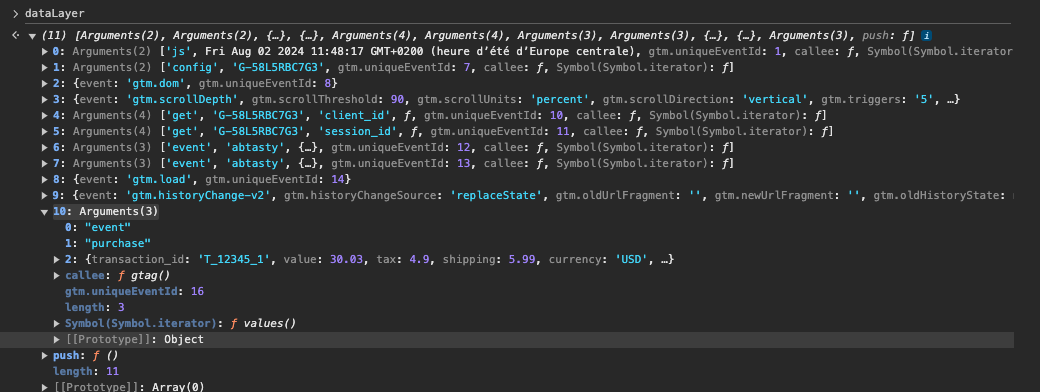
Once an order is made on your website and once a purchase event is triggerred on your DataLayer, the event must be pushed inside your Google Tag Manager DataLayer this way (see items 10 of this DataLayer):
 ## Tracking the value of a key in your DataLayer
### Create a rule of Transaction Tracker
To create a new rule of Transaction tracker via DataLayer:
1. From the Transaction Tracker page (Settings > Implementation > Transaction Tracker Management) :
2. Click *New Transaction Tracker* on the top right of the table. A modal is displayed:
## Tracking the value of a key in your DataLayer
### Create a rule of Transaction Tracker
To create a new rule of Transaction tracker via DataLayer:
1. From the Transaction Tracker page (Settings > Implementation > Transaction Tracker Management) :
2. Click *New Transaction Tracker* on the top right of the table. A modal is displayed:
 {% hint style="info" %}
**Custom keys in your DataLayer**\
In order to avoid bugs or wrong configuration, and if you have some basic GA4 event, most of the inputs are already set up by default.
{% endhint %}
Please verify them and, if needed, enter the correct information in order to have a match between our keys (name of the field you can have on this modal and the keys/values provided by the GA4 event purchase).
**Mandatory Fields:**
Specify the event to check: By default, the name of this event is **purchase.** \
But it can be another one, and it’s not necessary to enter “purchase”**.** \
\
**You need to define which event corresponds to your own purchase event on your datalayer.** \
**(*****e.g : transaction\_collected, achat, checkout\_completed, etc ..*****)**
Enter a name for your Transaction Affiliation (ta) \
Here you can define a name of the transaction. **It’s not necessary to enter “purchase”** (but you can). You can enter the name of your choice.
**Transaction ID (tid)\*** : Refers to the ***transaction\_id*** field (ex : **T\_12345\_2** of the event inside [this doc](https://developers.google.com/analytics/devguides/collection/ga4/set-up-ecommerce)).
**Transaction revenue (tr)\***: Refers to the ***value*** field (ex : **30.03** of the event inside [this doc](https://developers.google.com/analytics/devguides/collection/ga4/set-up-ecommerce)).
**Number of items (icn)**\* : Refers to the ***items*** field. If you select:
* *Default* : If you have one key with the number of items. Let’s imagine a key ***items\_count***. This key should be a number.
* *Sum* : If your key contains the quantity of each purchased item, select Sum (ex : **3**)**.**
* *Count* : If your key contains unitary purchased items, select Count. (ex : **1**).
Optional Fields:
In addition to the required fields, you can add some optional fields in order to have more details inside your transaction.
* **Shipping (ts)** : Refers to the ***shipping*** field (ex : **5.99** of the event inside [this doc](https://developers.google.com/analytics/devguides/collection/ga4/set-up-ecommerce)).
* **Transaction tax rate (tt)** : Refers to the ***tax*** field (ex : **4.90** of the event inside [this doc](https://developers.google.com/analytics/devguides/collection/ga4/set-up-ecommerce)).
* **Currency (tc)**: Refers to the ***currency*** field (ex : **USD** of the event inside [this doc](https://developers.google.com/analytics/devguides/collection/ga4/set-up-ecommerce)).
* **Coupon Code (tcc)**: Refers to the ***coupon*** field (ex : **SUMMER\_SALE** of the event inside [this doc](https://developers.google.com/analytics/devguides/collection/ga4/set-up-ecommerce)).
* **Payment method (pm)**: Define which method the visitor uses to pay. There’s no native link with the purchase method of GA4.
* **Shipping method (sm)**: Define which shipping method the visitor wants to have. There’s no native link with the purchase method of GA4.
* **Array of items (items)**: Coincides with the key corresponding to the array of objects of all items purchased during the transaction and their information. Allows you to define the following:
* **Item name (in)** : Coincides with the name of the item purchased.
* **Item price (ip)** : Coincides with the price of the item purchased.
* **Item quantity (iq)** : Coincides with the number of times an item was purchased during the transaction.
* **Item SKU (ic)** : Coincides with the product reference (SKU or product ID) of the item purchased.
* **Item category (iv)** : Coincides with the category of the item purchased.
### Matching between the purchase GA4 event and the transaction Hit from AB Tasty
#### Native purchase GA4 event
If you have some purchase events from GA4 with the **same structure** as in the screenshot (or inside the documentation of GA4), you don’t need to edit the fields. The only action you have to is:
* Define one Transaction Name (not necessarily *purchase*. It’s at your discretion)
* Click Save
#### Custom purchase GA4 event
You can have another structure for your purchase event. **The only requirement is that the name of the event must be *****purchase*****.**
**USE CASE 1**
If you have another structure, you could define by yourself the correct key. Let’s imagine you have one purchase event with this structure:
{% hint style="info" %}
**Custom keys in your DataLayer**\
In order to avoid bugs or wrong configuration, and if you have some basic GA4 event, most of the inputs are already set up by default.
{% endhint %}
Please verify them and, if needed, enter the correct information in order to have a match between our keys (name of the field you can have on this modal and the keys/values provided by the GA4 event purchase).
**Mandatory Fields:**
Specify the event to check: By default, the name of this event is **purchase.** \
But it can be another one, and it’s not necessary to enter “purchase”**.** \
\
**You need to define which event corresponds to your own purchase event on your datalayer.** \
**(*****e.g : transaction\_collected, achat, checkout\_completed, etc ..*****)**
Enter a name for your Transaction Affiliation (ta) \
Here you can define a name of the transaction. **It’s not necessary to enter “purchase”** (but you can). You can enter the name of your choice.
**Transaction ID (tid)\*** : Refers to the ***transaction\_id*** field (ex : **T\_12345\_2** of the event inside [this doc](https://developers.google.com/analytics/devguides/collection/ga4/set-up-ecommerce)).
**Transaction revenue (tr)\***: Refers to the ***value*** field (ex : **30.03** of the event inside [this doc](https://developers.google.com/analytics/devguides/collection/ga4/set-up-ecommerce)).
**Number of items (icn)**\* : Refers to the ***items*** field. If you select:
* *Default* : If you have one key with the number of items. Let’s imagine a key ***items\_count***. This key should be a number.
* *Sum* : If your key contains the quantity of each purchased item, select Sum (ex : **3**)**.**
* *Count* : If your key contains unitary purchased items, select Count. (ex : **1**).
Optional Fields:
In addition to the required fields, you can add some optional fields in order to have more details inside your transaction.
* **Shipping (ts)** : Refers to the ***shipping*** field (ex : **5.99** of the event inside [this doc](https://developers.google.com/analytics/devguides/collection/ga4/set-up-ecommerce)).
* **Transaction tax rate (tt)** : Refers to the ***tax*** field (ex : **4.90** of the event inside [this doc](https://developers.google.com/analytics/devguides/collection/ga4/set-up-ecommerce)).
* **Currency (tc)**: Refers to the ***currency*** field (ex : **USD** of the event inside [this doc](https://developers.google.com/analytics/devguides/collection/ga4/set-up-ecommerce)).
* **Coupon Code (tcc)**: Refers to the ***coupon*** field (ex : **SUMMER\_SALE** of the event inside [this doc](https://developers.google.com/analytics/devguides/collection/ga4/set-up-ecommerce)).
* **Payment method (pm)**: Define which method the visitor uses to pay. There’s no native link with the purchase method of GA4.
* **Shipping method (sm)**: Define which shipping method the visitor wants to have. There’s no native link with the purchase method of GA4.
* **Array of items (items)**: Coincides with the key corresponding to the array of objects of all items purchased during the transaction and their information. Allows you to define the following:
* **Item name (in)** : Coincides with the name of the item purchased.
* **Item price (ip)** : Coincides with the price of the item purchased.
* **Item quantity (iq)** : Coincides with the number of times an item was purchased during the transaction.
* **Item SKU (ic)** : Coincides with the product reference (SKU or product ID) of the item purchased.
* **Item category (iv)** : Coincides with the category of the item purchased.
### Matching between the purchase GA4 event and the transaction Hit from AB Tasty
#### Native purchase GA4 event
If you have some purchase events from GA4 with the **same structure** as in the screenshot (or inside the documentation of GA4), you don’t need to edit the fields. The only action you have to is:
* Define one Transaction Name (not necessarily *purchase*. It’s at your discretion)
* Click Save
#### Custom purchase GA4 event
You can have another structure for your purchase event. **The only requirement is that the name of the event must be *****purchase*****.**
**USE CASE 1**
If you have another structure, you could define by yourself the correct key. Let’s imagine you have one purchase event with this structure:
gtag("event", "purchase", {
                 transactionID: "T_12345_2",
                 value: 30.03,
                 tax: 4.90,
                 shipping: 5.99,
                curr: "USD",
   coupon_discount: "SUMMER_SALE",
                 articles: [.....]
          });
      });
You must enter the correct values inside the input. To illustrate and to track Coupon code (tcc) the correct input in our modal would be as follows: Coupon Code (tcc) : coupon\_discount
**USE CASE 2 (Managing the dot (“.”) inside a key)**
For any reason, you could have another structure with some sub-objects. Let’s imagine your purchase event has this kind of structure:
gtag("event", "purchase", {
 transaction : {
  id: T_12345_2
 },
 financial : {
  tax: 4.90,
value: 30.03,
shipping: 5.99,
tax: 4.90,
curr: "USD",
},
order: {
coupon: "SUMMER_SALE",
},
articles: [...]
});
If you have some sub-objects, we are able to retrieve the associated value. Indeed, thanks to the dot (“.”), you can go inside a deeper object. That’s why, for this case, you could configure the rule of transaction tracker like this: order.coupon
## Retrieving the transaction hit on your own website
{% hint style="info" %}
**URL Page**
We are able to catch any purchase event on all pages, and it’s not specific to the checkout URL page. If your IRL is /checkout or /confirmation, or anything else, it’s not a problem. The only requirements are:
* Having a purchase event with the name *purchase*
* This event must be pushed inside the DataLayer used to create the transaction tracker and connected to AB Tasty
{% endhint %}
### Check the AB Tasty hit
Once a transaction is done on your website, and the purchase event is pushed inside your DataLayer, automatically, an AB Tasty hit (ariane.abtasty.com) is also sent into our AB Tasty collect. You can check it inside the network tab:
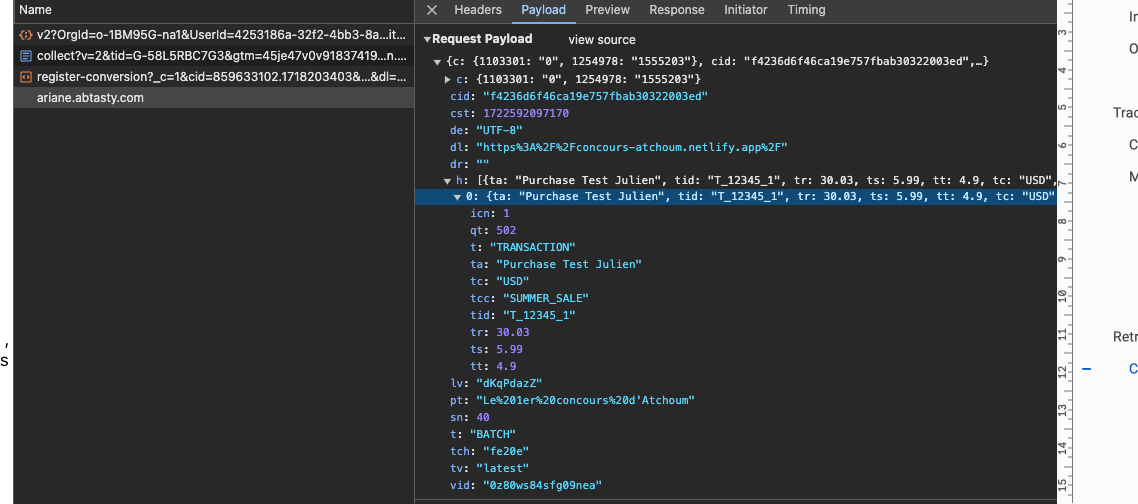 A TRANSACTION hit will be sent into your AB Tasty account.
## Retrieving the transaction hit inside AB Tasty
Once a TRANSACTION hit is sent into your AB Tasty account, you will retrieve the transaction affiliation inside your Goal manager.
On this page : , all transaction affiliations are available.
A TRANSACTION hit will be sent into your AB Tasty account.
## Retrieving the transaction hit inside AB Tasty
Once a TRANSACTION hit is sent into your AB Tasty account, you will retrieve the transaction affiliation inside your Goal manager.
On this page : , all transaction affiliations are available.
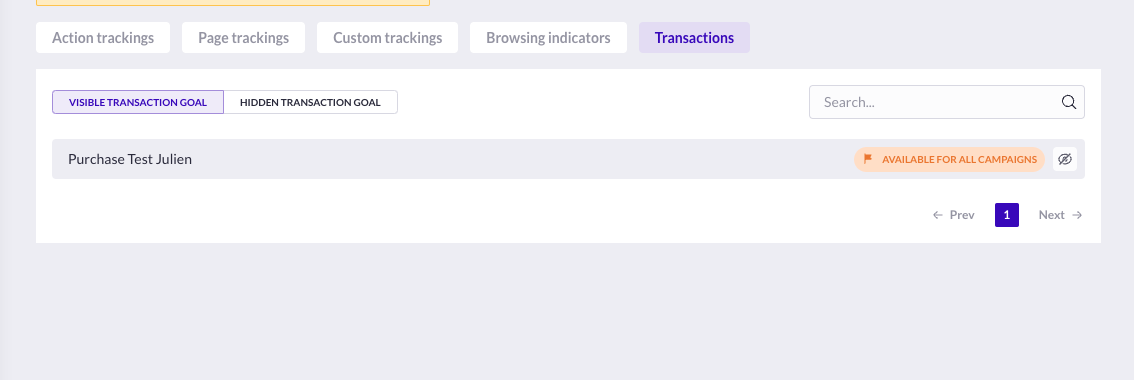 Here is an example of a transaction affiliation based on the transaction rule you have set up with the transaction tracker. You can see that the name of the transaction affiliation is exactly the same as the name of the transaction tracker you configured before.
The transaction affiliation will be displayed as soon as a few transaction hits will be sent into your AB Tasty account via our collect (cf. checking the AB Tasty hit).
As soon as a transaction affiliation is available, you are able to:
* Add the transaction tracker as a goal for your campaigns
* Export the listing of all your transactions from the Data Explorer.
---
# Agent Instructions
This documentation is published with GitBook. GitBook is the documentation platform designed so that both humans and AI agents can read, navigate, and reason over technical content effectively. Learn more at gitbook.com.
## Querying This Documentation
If you need additional information that is not directly available in this page, you can query the documentation dynamically by asking a question.
Perform an HTTP GET request on the current page URL with the `ask` query parameter, and the optional `goal` query parameter:
```
GET https://docs.abtasty.com/account/how-to-implement-the-transaction-tag/how-to-create-a-transaction-tracker-via-datalayer.md?ask=&goal=
```
`ask` is the immediate question: it should be specific, self-contained, and written in natural language.
`goal` is optional and describes the broader end goal you are ultimately trying to accomplish on behalf of the user. GitBook uses it to tailor the answer towards what is most useful for that goal.
The response will contain a direct answer to the question and relevant excerpts and sources from the documentation.
Use this mechanism when the answer is not explicitly present in the current page, you need clarification or additional context, or you want to retrieve related documentation sections.
Here is an example of a transaction affiliation based on the transaction rule you have set up with the transaction tracker. You can see that the name of the transaction affiliation is exactly the same as the name of the transaction tracker you configured before.
The transaction affiliation will be displayed as soon as a few transaction hits will be sent into your AB Tasty account via our collect (cf. checking the AB Tasty hit).
As soon as a transaction affiliation is available, you are able to:
* Add the transaction tracker as a goal for your campaigns
* Export the listing of all your transactions from the Data Explorer.
---
# Agent Instructions
This documentation is published with GitBook. GitBook is the documentation platform designed so that both humans and AI agents can read, navigate, and reason over technical content effectively. Learn more at gitbook.com.
## Querying This Documentation
If you need additional information that is not directly available in this page, you can query the documentation dynamically by asking a question.
Perform an HTTP GET request on the current page URL with the `ask` query parameter, and the optional `goal` query parameter:
```
GET https://docs.abtasty.com/account/how-to-implement-the-transaction-tag/how-to-create-a-transaction-tracker-via-datalayer.md?ask=&goal=
```
`ask` is the immediate question: it should be specific, self-contained, and written in natural language.
`goal` is optional and describes the broader end goal you are ultimately trying to accomplish on behalf of the user. GitBook uses it to tailor the answer towards what is most useful for that goal.
The response will contain a direct answer to the question and relevant excerpts and sources from the documentation.
Use this mechanism when the answer is not explicitly present in the current page, you need clarification or additional context, or you want to retrieve related documentation sections.
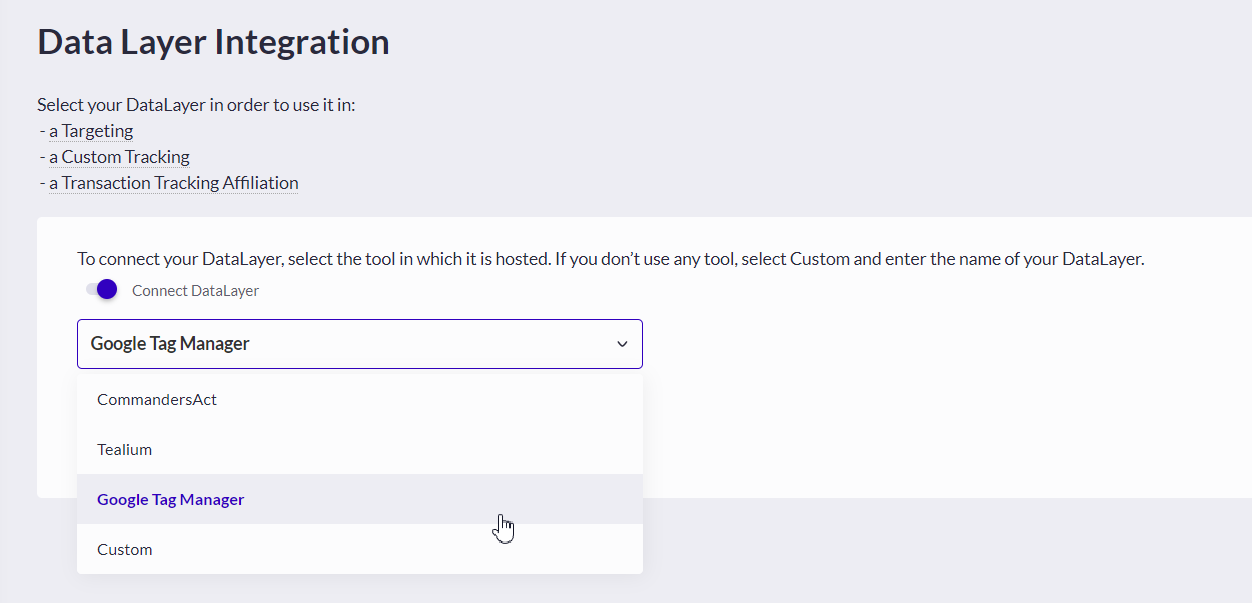 The available DataLayers are the following:
* Google Tag Manager
* Tealium
* CommandersAct
**Heads Up❗- Custom DataLayers**
We don’t manage Custom DataLayers as we can’t predict its structure, we only support GTM, CommandersAct and Tealium providers.
### On your DataLayer
The available DataLayers are the following:
* Google Tag Manager
* Tealium
* CommandersAct
**Heads Up❗- Custom DataLayers**
We don’t manage Custom DataLayers as we can’t predict its structure, we only support GTM, CommandersAct and Tealium providers.
### On your DataLayer