> For the complete documentation index, see [llms.txt](https://docs.abtasty.com/llms.txt). Markdown versions of documentation pages are available by appending `.md` to page URLs; this page is available as [Markdown](https://docs.abtasty.com/account/how-to-implement-the-transaction-tag/how-to-qa-the-transaction-tag.md).
# How to QA the Transaction tag
Once the [**transaction tag** ](broken://pages/Vcf2nmWwkzOAg642d5hu)is implemented on your website, you need to run it through **the QA process**. This will ensure that for each purchase, the information is correctly collected by the AB Tasty tag and that the transaction goal is visible on the goal configuration page.
If the transaction tag has been implemented properly, the data should be displayed after a few moment in the report. Otherwise, it means that it has not been installed the right way, and you need to review the code using [this article](/account/how-to-implement-the-transaction-tag.md). The transaction data is not retroactive and available only when the transaction tag has been implemented
There are three different ways to verify the transaction data collection:
* with the QA Assistant,
* with the console’s **Network** tab,
* with the **Application/Local Storage** tab of the console
The first part of the transaction tag generates a **type=TRANSACTION** query and the second part generates a **type=ITEM** query. Use the Chrome browser console to make sure the transaction tag hits are collected properly. Do this via your browser’s **Network** tab, in the **Local Storage** section.
## With the QA Assistant
The QA Assistant allows you to QA both tracking and transactions. Transaction data can be found in the dedicated tab:
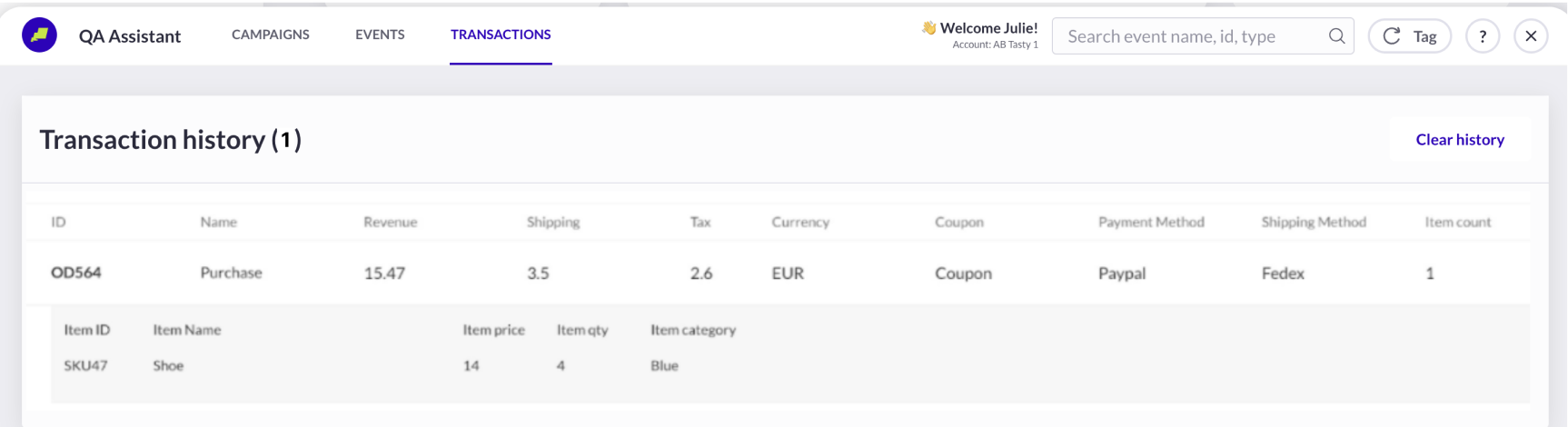 You can place a fake order on your website and access the confirmation page. If the transaction tag is correctly installed, you should see the transaction data accordingly. If nothing is sent to the QA Assistant, it means that data is not collected and that the transaction tag has not been implemented correctly. If that is the case, refer to [***How to implement the transaction tag?***](/account/how-to-implement-the-transaction-tag.md) or to the [***Transaction tag FAQ***.](/help-center/faq/faq-about-the-transaction-tag.md)
## With the Console’s Network Tab
Depending on the settings configured when implementing the transaction tag, these will also be listed with the transaction hit.\
Follow the steps below to make sure the transaction tag is sending hits properly:
1. Access your website.
2. Open your Chrome browser console.
3. Open the **Network** tab.
4. On the web page, add products to your cart and confirm your purchase.
5. In the console, select the **ariane.abtasty.com** transaction hit.
6. Click the **Headers** tab and make sure the **TRANSACTION** and **ITEM** settings are there.\
You can place a fake order on your website and access the confirmation page. If the transaction tag is correctly installed, you should see the transaction data accordingly. If nothing is sent to the QA Assistant, it means that data is not collected and that the transaction tag has not been implemented correctly. If that is the case, refer to [***How to implement the transaction tag?***](/account/how-to-implement-the-transaction-tag.md) or to the [***Transaction tag FAQ***.](/help-center/faq/faq-about-the-transaction-tag.md)
## With the Console’s Network Tab
Depending on the settings configured when implementing the transaction tag, these will also be listed with the transaction hit.\
Follow the steps below to make sure the transaction tag is sending hits properly:
1. Access your website.
2. Open your Chrome browser console.
3. Open the **Network** tab.
4. On the web page, add products to your cart and confirm your purchase.
5. In the console, select the **ariane.abtasty.com** transaction hit.
6. Click the **Headers** tab and make sure the **TRANSACTION** and **ITEM** settings are there.\
{% hint style="info" %}
**Good to know**
The transaction name (**ta**) appears just as you configured it when implementing the transaction tag. The AB Tasty tag automatically fills in the generic settings such as **vid**, **vp**, **ul**, **sn**, **sen**, **sd**, etc. to qualify the hit.
{% endhint %}
## With the Application/Local Storage Tab of the Console
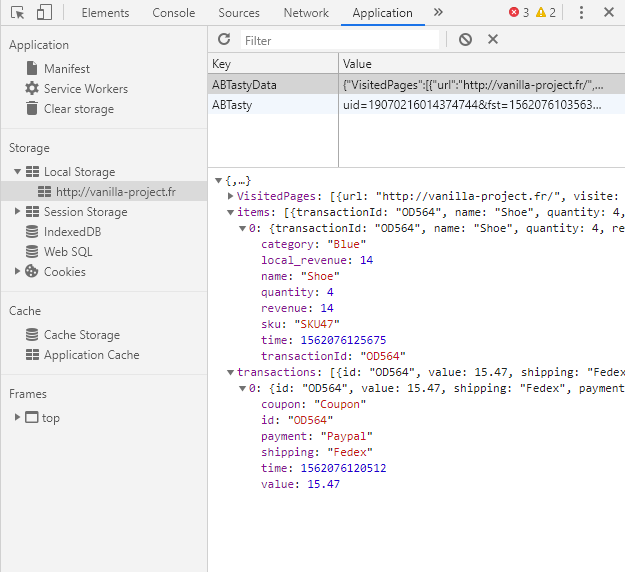
You must also make sure the **transaction** and **item** type data has been collected and is present in your browser’s local storage.\
Follow the steps below to make sure the **transaction** and **item** type data has been collected and is present in your browser’s local storage:
1. Open the **Application** tab of the console.
2. In the left-hand column, unfold the **Local Storage** entry.
3. Select the ABTastyData key: All transaction and item type information is displayed.
 {% hint style="info" %}
**Good to know 💡**
You check that your transaction tag is correctly setup, you can also run an A/A test to check if the data is pulling through the reporting.
Once the transaction hit has been collected and the usual processing time is up (between 45 minutes and 4 hours), you can add the transaction goal to your campaigns.\
For further information, refer to the Configuring Goals guide.\\
{% endhint %}
{% hint style="info" %}
**Good to know 💡**
You check that your transaction tag is correctly setup, you can also run an A/A test to check if the data is pulling through the reporting.
Once the transaction hit has been collected and the usual processing time is up (between 45 minutes and 4 hours), you can add the transaction goal to your campaigns.\
For further information, refer to the Configuring Goals guide.\\
{% endhint %}
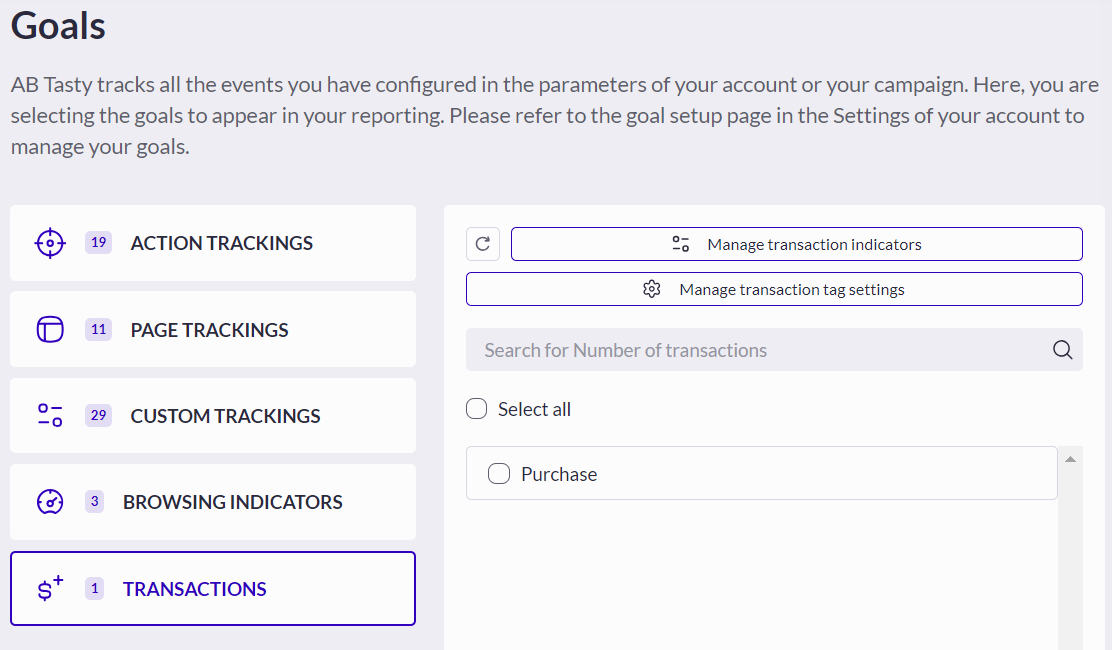 Follow the steps below to add the transaction goal to your campaigns:
1. Create a new campaign in QA mode.
2. Access the **Goals** step of your campaign.
3. Click the **Transaction** goal.
4. Select your transaction goal to add it as a main or secondary goal.
{% hint style="info" %}
**Good to know** \
The goal name matches the value assigned to the **ta** setting during transaction tag implementation.
{% endhint %}
---
# Agent Instructions
This documentation is published with GitBook. GitBook is the documentation platform designed so that both humans and AI agents can read, navigate, and reason over technical content effectively. Learn more at gitbook.com.
## Querying This Documentation
If you need additional information that is not directly available in this page, you can query the documentation dynamically by asking a question.
Perform an HTTP GET request on the current page URL with the `ask` query parameter, and the optional `goal` query parameter:
```
GET https://docs.abtasty.com/account/how-to-implement-the-transaction-tag/how-to-qa-the-transaction-tag.md?ask=&goal=
```
`ask` is the immediate question: it should be specific, self-contained, and written in natural language.
`goal` is optional and describes the broader end goal you are ultimately trying to accomplish on behalf of the user. GitBook uses it to tailor the answer towards what is most useful for that goal.
The response will contain a direct answer to the question and relevant excerpts and sources from the documentation.
Use this mechanism when the answer is not explicitly present in the current page, you need clarification or additional context, or you want to retrieve related documentation sections.
Follow the steps below to add the transaction goal to your campaigns:
1. Create a new campaign in QA mode.
2. Access the **Goals** step of your campaign.
3. Click the **Transaction** goal.
4. Select your transaction goal to add it as a main or secondary goal.
{% hint style="info" %}
**Good to know** \
The goal name matches the value assigned to the **ta** setting during transaction tag implementation.
{% endhint %}
---
# Agent Instructions
This documentation is published with GitBook. GitBook is the documentation platform designed so that both humans and AI agents can read, navigate, and reason over technical content effectively. Learn more at gitbook.com.
## Querying This Documentation
If you need additional information that is not directly available in this page, you can query the documentation dynamically by asking a question.
Perform an HTTP GET request on the current page URL with the `ask` query parameter, and the optional `goal` query parameter:
```
GET https://docs.abtasty.com/account/how-to-implement-the-transaction-tag/how-to-qa-the-transaction-tag.md?ask=&goal=
```
`ask` is the immediate question: it should be specific, self-contained, and written in natural language.
`goal` is optional and describes the broader end goal you are ultimately trying to accomplish on behalf of the user. GitBook uses it to tailor the answer towards what is most useful for that goal.
The response will contain a direct answer to the question and relevant excerpts and sources from the documentation.
Use this mechanism when the answer is not explicitly present in the current page, you need clarification or additional context, or you want to retrieve related documentation sections.

