> For the complete documentation index, see [llms.txt](https://docs.abtasty.com/llms.txt). Markdown versions of documentation pages are available by appending `.md` to page URLs; this page is available as [Markdown](https://docs.abtasty.com/account/tag-integration/implement-ab-tasty-tag/ab-tasty-integration-with-shopify/understanding-shopify-app-features.md).
# Understanding Shopify App features
The AB Tasty Shopify app (Web pixel) is one of the two options we have build to help you integrate AB TAsty in your Shopify workflows. To know more about the two options and decide which one you should use, please refer to the [AB Tasty integration with Shopify](/account/tag-integration/implement-ab-tasty-tag/ab-tasty-integration-with-shopify.md) article.
To install the app, please read [How to implement Shopify app](/account/tag-integration/implement-ab-tasty-tag/ab-tasty-integration-with-shopify/how-to-implement-the-ab-tasty-tag-via-shopify.md) article.
## Basic functionalities
Once set-up, the app will allow you to
### Retrieve Transaction & Checkout Events from Shopify through our Web Pixel
These events are available on:
* AB tasty reporting
* Data Explorer

### Select Shopify custom trackers in the AB Tasty editor to track Shopify standard events.
More than 10 events are automatically added to your custom trackers, (both for FE\&R and Web experimentation platforms).
These events can be added as Campaign Goals on the Web experimentation platform.
You can Subscribe / Unsubscribe to any event from Shopify Admin.

### Two layers of consent
The Shopify app will only run either
If AB Tasty Tag Consent has been granted / giving it authorization to run in the AB Tasty [Privacy](https://app2.abtasty.com/settings/cookies-privacy/privacy) page. (If you inspect the page, Analytics Should be “true”)

If Shopify Consent has been granted in Shopify in the Customer Privacy API page (if you inspect the page consentReady should be “true”)

If one of these 2 is missing, then web pixels won’t run.
## Advanced functionalities
### Choose to load the Tag Synchronously or Asynchronously
For performance reasons, Shopify recommends using the asynchronous tag: in this case, scripts load simultaneously, which can improve page load speed but may cause flickering as modifications are applied after the page loads. If you encounter flickering effects on your website, you can use the synchronous mode. In this case, scripts are loaded in order, minimizing flickering effects by applying modifications before the website loads.
Synchronous loading can help reduce flickering effects if it occurs, enhancing the overall user experience on Shopify stores.
To enable one option or the other:
1. Go on AB Tasty app homepage.
2. Click on edit app configuration.
3. Scroll down to advanced options
4. Toggle on or off the *Load the Tag synchronously* feature.
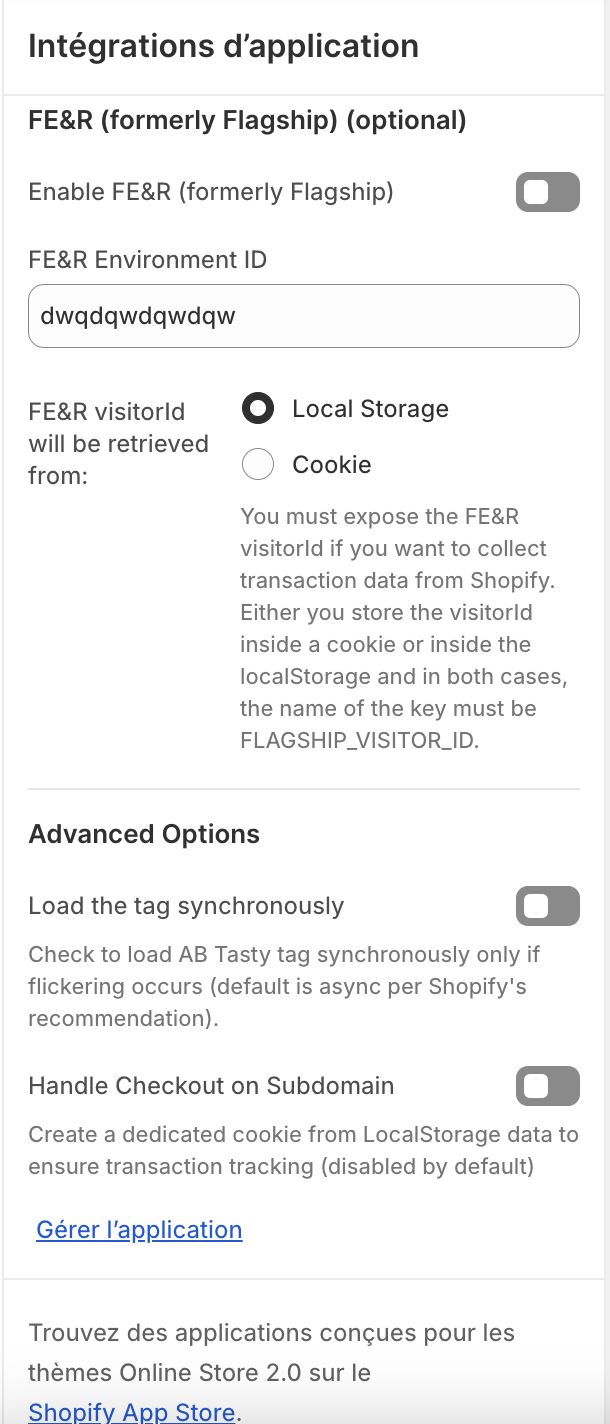 ### Track on a subdomain
Even if your checkout workflow is on a subdomain, you can track it. This option will:
* Create a dedicated cookie
* Keep the standard configuration on localstorage
* In case of 2 events sent at the same time, AB Tasty Tag will ensure reconciliation to avoid double-positive
To enable this feature:
1. Go on AB Tasty app homepage.
2. Click on edit app configuration.
3. Scroll down to advanced options
4. Toggle *Handle checkout on Subdomain* on.
## How the Shopify App is functionning?
The AB Tasty generic tag will be placed **on all pages of your website, except for checkout pages** (by checkout, we mean the whole payment funnel, excluding the shopping cart). This restriction applies to all Shopify partner tools. More information in the Shopify [developer documentation](https://shopify.dev/docs/api/checkout-ui-extensions).
This means that you will be able to:
* Test and personalize your entire website, including the shopping cart page, except for checkout pages.
* Track any event on your website, including transactions, since the AB Tasty Shopify app retrieves the Shopify transaction natively. There is no need to install a transaction tag.
The AB Tasty tag or the Shopify app can be blocked by browsers add-ons, privacy settings, etc. Some discrepancies in transactions reports should be expected.
### Shopify events
#### Standard events
With Shopify, you can track a variety of events that occur on your website. Once you have installed the AB Tasty app on Shopify, these events are automatically created.
You can retrieve them in the [Trackers page](https://app2.abtasty.com/library/tracking/indicators?indicatorType=customTracking\&page=1) (in the *Custom trackings* tab, marked with a Shopify label) of the Web experimentation & Personalization platform. These events can be used as goals for your campaigns from the Goal step of any campaign, under the *Custom trackings* category to monitor your campaign performance. For more information on goals, refer to [Campaign flow: Goals step.](/web-experimentation-and-personalization/campaign-flow-goals-step.md)
You can't edit, delete or hide a Shopify event from the WE\&P interface.
Here is the list of Shopify events available in Web Experimentation & Rollouts:
| **Event name** | **Description** | **Usage** |
| ----------------------------------- | -------------------------------------------------------------------------- | ------------------------------------------------------------------------ |
| cart\_viewed | When a user views their shopping cart. | Helps track user engagement with the cart page. |
| checkout\_address\_info\_submitted | When a user submits their address information during the checkout process. | Useful for tracking the progression through the checkout stages. |
| checkout\_completed | When a user successfully completes a purchase. | Crucial for tracking conversions and sales performance. |
| checkout\_contact\_info\_submitted | When a user submits their contact information during checkout. | Helps in understanding user interactions at this stage. |
| checkout\_shipping\_info\_submitted | When a user submits their shipping information during checkout. | Useful for analyzing the shipping step in the checkout process. |
| checkout\_started | When a user initiates the checkout process. | Helps in identifying the number of users who start the checkout process. |
| collection\_viewed | When a user views a product collection page. | Helps in tracking user interest in different product categories. |
| page\_viewed | Whenever a user views a page on the site. | Essential for understanding user navigation and page popularity. |
| payment\_info\_submitted | When a user submits their payment information. | Crucial for tracking the payment step in the checkout process. |
| product\_added\_to\_cart | When a user adds a product to their cart. | Helps in analyzing product interest and cart additions. |
| product\_removed\_from\_cart | When a user removes a product from their cart. | Useful for understanding cart abandonment behavior. |
| product\_viewed | When a user views a product page. | Helps in tracking product interest and engagement. |
| search\_submitted | When a user performs a search on the site. | Helps in understanding user search behavior and popular search terms. |
#### Checkout events
To track events on the checkout, it is not possible to directly use the AB Tasty tag (which cannot be executed there). For these pages, the extension uses the Shopify API. This way, you'll be able to track, **for all your campaigns**:
* **Transactions and associated metrics**: transaction rate, number of visitors who have done at least one transaction, total number of transactions, average basket, number of items per transaction, average item price per transaction, and so on.
The name of the associated transaction goal will be "Purchase".
* **The dimensions associated with each transaction**: currency, voucher use, payment method, delivery method, and so on.
* Page views: cart page, review page
For other click tracking and custom tracking events, you need to declare the events to be tracked directly in your Shopify admin. See tracker set-up section.
**Collecting the "voucher" dimension**
If a discount code ("voucher") has been entered by the buyer, it will be sent to data collection and available in AB Tasty reporting. The associated transaction amount will be the one with the discount applied.
### Privacy
When using Shopify, privacy is based on the configuration you have set up in the Web Experimentation & Personalization platform ([Privacy page](https://app2.abtasty.com/settings/cookies-privacy/privacy) of the Settings). You don't have to configure anything privacy-related in Shopify.\
This way, when using Shopify, visitor tracking is consistent and campaigns reliable.
---
# Agent Instructions
This documentation is published with GitBook. GitBook is the documentation platform designed so that both humans and AI agents can read, navigate, and reason over technical content effectively. Learn more at gitbook.com.
## Querying This Documentation
If you need additional information that is not directly available in this page, you can query the documentation dynamically by asking a question.
Perform an HTTP GET request on the current page URL with the `ask` query parameter, and the optional `goal` query parameter:
```
GET https://docs.abtasty.com/account/tag-integration/implement-ab-tasty-tag/ab-tasty-integration-with-shopify/understanding-shopify-app-features.md?ask=&goal=
```
`ask` is the immediate question: it should be specific, self-contained, and written in natural language.
`goal` is optional and describes the broader end goal you are ultimately trying to accomplish on behalf of the user. GitBook uses it to tailor the answer towards what is most useful for that goal.
The response will contain a direct answer to the question and relevant excerpts and sources from the documentation.
Use this mechanism when the answer is not explicitly present in the current page, you need clarification or additional context, or you want to retrieve related documentation sections.
### Track on a subdomain
Even if your checkout workflow is on a subdomain, you can track it. This option will:
* Create a dedicated cookie
* Keep the standard configuration on localstorage
* In case of 2 events sent at the same time, AB Tasty Tag will ensure reconciliation to avoid double-positive
To enable this feature:
1. Go on AB Tasty app homepage.
2. Click on edit app configuration.
3. Scroll down to advanced options
4. Toggle *Handle checkout on Subdomain* on.
## How the Shopify App is functionning?
The AB Tasty generic tag will be placed **on all pages of your website, except for checkout pages** (by checkout, we mean the whole payment funnel, excluding the shopping cart). This restriction applies to all Shopify partner tools. More information in the Shopify [developer documentation](https://shopify.dev/docs/api/checkout-ui-extensions).
This means that you will be able to:
* Test and personalize your entire website, including the shopping cart page, except for checkout pages.
* Track any event on your website, including transactions, since the AB Tasty Shopify app retrieves the Shopify transaction natively. There is no need to install a transaction tag.
The AB Tasty tag or the Shopify app can be blocked by browsers add-ons, privacy settings, etc. Some discrepancies in transactions reports should be expected.
### Shopify events
#### Standard events
With Shopify, you can track a variety of events that occur on your website. Once you have installed the AB Tasty app on Shopify, these events are automatically created.
You can retrieve them in the [Trackers page](https://app2.abtasty.com/library/tracking/indicators?indicatorType=customTracking\&page=1) (in the *Custom trackings* tab, marked with a Shopify label) of the Web experimentation & Personalization platform. These events can be used as goals for your campaigns from the Goal step of any campaign, under the *Custom trackings* category to monitor your campaign performance. For more information on goals, refer to [Campaign flow: Goals step.](/web-experimentation-and-personalization/campaign-flow-goals-step.md)
You can't edit, delete or hide a Shopify event from the WE\&P interface.
Here is the list of Shopify events available in Web Experimentation & Rollouts:
| **Event name** | **Description** | **Usage** |
| ----------------------------------- | -------------------------------------------------------------------------- | ------------------------------------------------------------------------ |
| cart\_viewed | When a user views their shopping cart. | Helps track user engagement with the cart page. |
| checkout\_address\_info\_submitted | When a user submits their address information during the checkout process. | Useful for tracking the progression through the checkout stages. |
| checkout\_completed | When a user successfully completes a purchase. | Crucial for tracking conversions and sales performance. |
| checkout\_contact\_info\_submitted | When a user submits their contact information during checkout. | Helps in understanding user interactions at this stage. |
| checkout\_shipping\_info\_submitted | When a user submits their shipping information during checkout. | Useful for analyzing the shipping step in the checkout process. |
| checkout\_started | When a user initiates the checkout process. | Helps in identifying the number of users who start the checkout process. |
| collection\_viewed | When a user views a product collection page. | Helps in tracking user interest in different product categories. |
| page\_viewed | Whenever a user views a page on the site. | Essential for understanding user navigation and page popularity. |
| payment\_info\_submitted | When a user submits their payment information. | Crucial for tracking the payment step in the checkout process. |
| product\_added\_to\_cart | When a user adds a product to their cart. | Helps in analyzing product interest and cart additions. |
| product\_removed\_from\_cart | When a user removes a product from their cart. | Useful for understanding cart abandonment behavior. |
| product\_viewed | When a user views a product page. | Helps in tracking product interest and engagement. |
| search\_submitted | When a user performs a search on the site. | Helps in understanding user search behavior and popular search terms. |
#### Checkout events
To track events on the checkout, it is not possible to directly use the AB Tasty tag (which cannot be executed there). For these pages, the extension uses the Shopify API. This way, you'll be able to track, **for all your campaigns**:
* **Transactions and associated metrics**: transaction rate, number of visitors who have done at least one transaction, total number of transactions, average basket, number of items per transaction, average item price per transaction, and so on.
The name of the associated transaction goal will be "Purchase".
* **The dimensions associated with each transaction**: currency, voucher use, payment method, delivery method, and so on.
* Page views: cart page, review page
For other click tracking and custom tracking events, you need to declare the events to be tracked directly in your Shopify admin. See tracker set-up section.
**Collecting the "voucher" dimension**
If a discount code ("voucher") has been entered by the buyer, it will be sent to data collection and available in AB Tasty reporting. The associated transaction amount will be the one with the discount applied.
### Privacy
When using Shopify, privacy is based on the configuration you have set up in the Web Experimentation & Personalization platform ([Privacy page](https://app2.abtasty.com/settings/cookies-privacy/privacy) of the Settings). You don't have to configure anything privacy-related in Shopify.\
This way, when using Shopify, visitor tracking is consistent and campaigns reliable.
---
# Agent Instructions
This documentation is published with GitBook. GitBook is the documentation platform designed so that both humans and AI agents can read, navigate, and reason over technical content effectively. Learn more at gitbook.com.
## Querying This Documentation
If you need additional information that is not directly available in this page, you can query the documentation dynamically by asking a question.
Perform an HTTP GET request on the current page URL with the `ask` query parameter, and the optional `goal` query parameter:
```
GET https://docs.abtasty.com/account/tag-integration/implement-ab-tasty-tag/ab-tasty-integration-with-shopify/understanding-shopify-app-features.md?ask=&goal=
```
`ask` is the immediate question: it should be specific, self-contained, and written in natural language.
`goal` is optional and describes the broader end goal you are ultimately trying to accomplish on behalf of the user. GitBook uses it to tailor the answer towards what is most useful for that goal.
The response will contain a direct answer to the question and relevant excerpts and sources from the documentation.
Use this mechanism when the answer is not explicitly present in the current page, you need clarification or additional context, or you want to retrieve related documentation sections.