
Using and creating Segments in the campaign Targeting Step
 You may not have access to all segments, depending on your plan. You can still test those you can't access but you won't be able to use them for your campaigns unless you upgrade your plan.
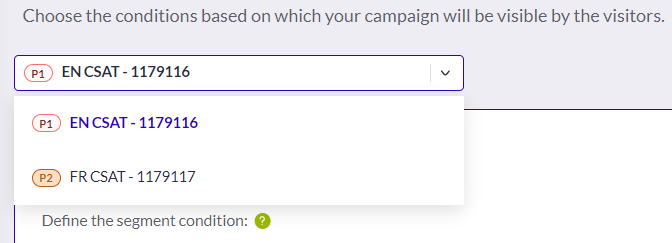
You can also create segments directly in any campaign, in the dropdown of the Who section of the [**Targeting step.**](/web-experimentation-and-personalization/targeting-step.md)
You may not have access to all segments, depending on your plan. You can still test those you can't access but you won't be able to use them for your campaigns unless you upgrade your plan.
You can also create segments directly in any campaign, in the dropdown of the Who section of the [**Targeting step.**](/web-experimentation-and-personalization/targeting-step.md)
Using and creating Segments in the campaign Targeting Step
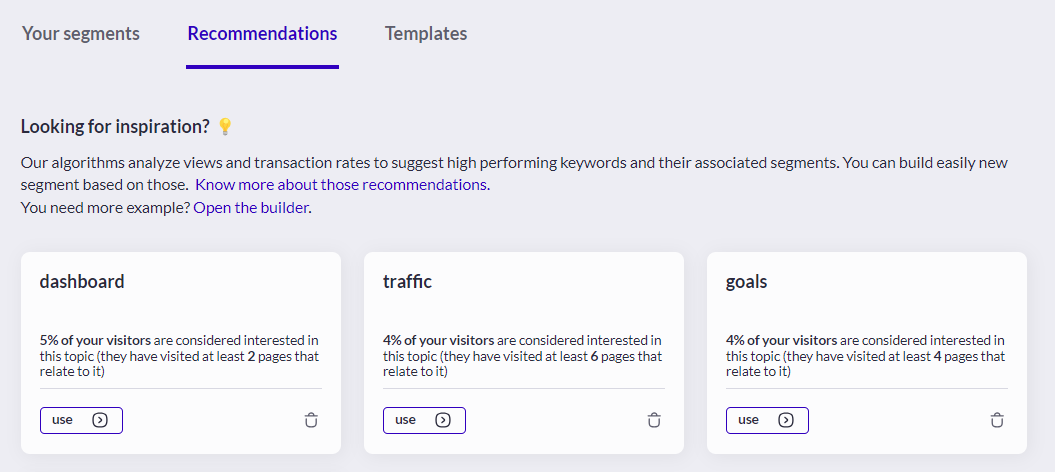 This use case uses our AI-based [**Content Interest targeting criterion**](/assets-library/creating-and-managing-segments/list-of-segment-criteria/content-interest-criterion.md), which allows you to create segments based on the interests of your website visitors. **Each week, we display** **the top 10 recommendations in terms of keywords**.
The ranking of the keywords is based on a score calculated from the following metrics:
* **Number of views of each keyword** (i.e., the number of occurrences within page titles)
* **View rate of each keyword** on the total number of page title occurrences
* **Transactions** - The sum of transactions for all products with names containing the keywords
* **Transaction rate** - The number of transactions for keyword-related products on the total number of transactions
The highest-scored keywords are displayed to give you an idea of the hot topics of interest on your website and to inspire potential campaigns based on those interests. If you want to explore the keywords further, you can go directly to the segment builder to browse all the keywords detected by the service in the past weeks.
### Creating a Segment with Templates
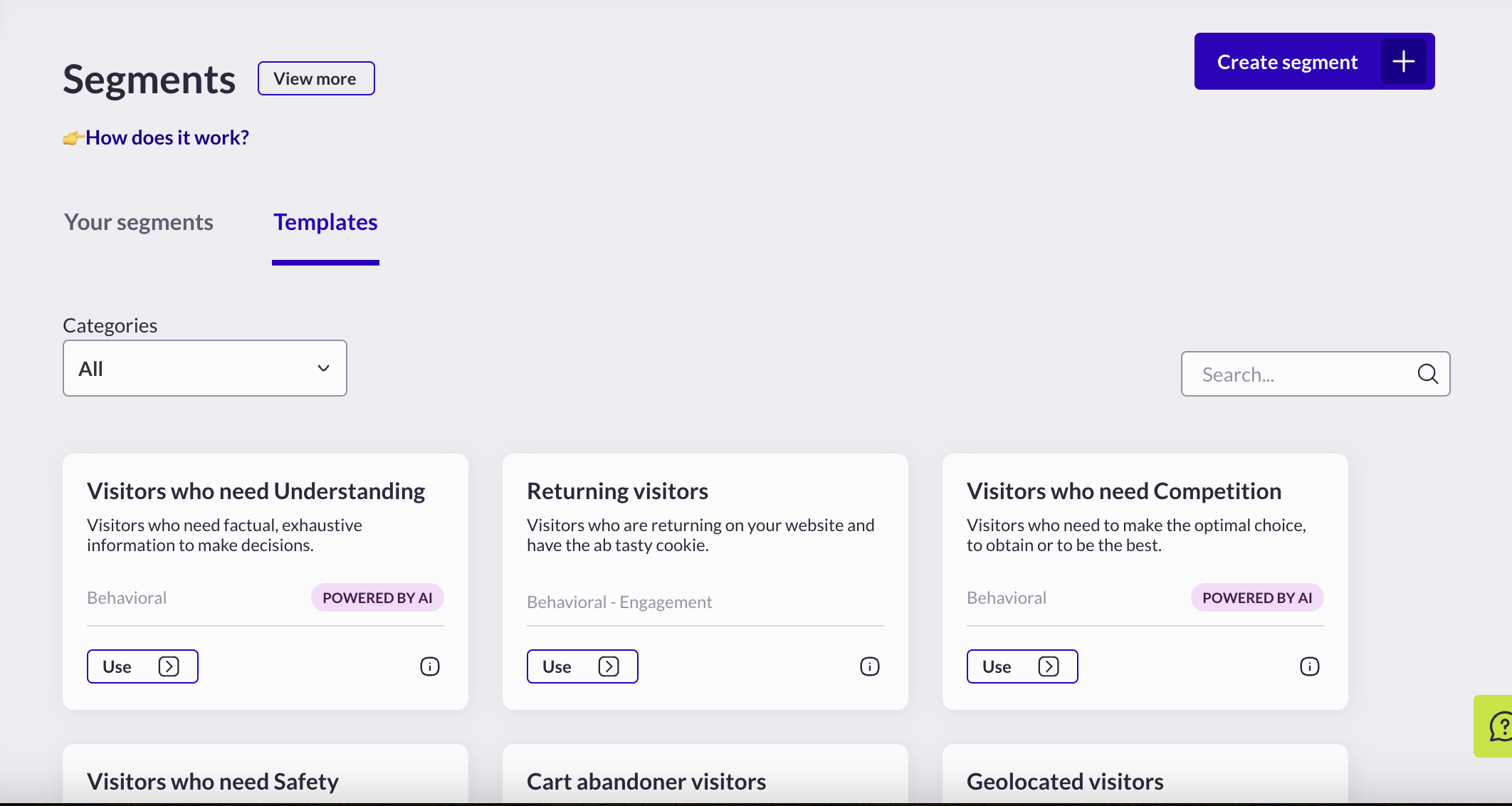
[**The Templates tab** ](https://app2.abtasty.com/library/segment-template)provides you with segment suggestions through specific templates.\
AB Tasty provides **22 pre-made templates** to ease your segment creation and inspire you on the most-used cases for Test and Personalization campaigns. You can go through our suggestions by scrolling the list or choosing specific criteria categories (with the “all segmentation” dropdown) and business categories (with the “all categories” dropdown).\
Each card represents a specific premade template. By clicking on the card, it will open the Segment Builder for you to validate the segment configuration we suggest, and to save the segment to finally create it.
Below, you’ll find the content that makes up the different templates we offer. For a more detailed overview, please refer to our [**segment criteria**](/assets-library/creating-and-managing-segments/list-of-segment-criteria.md) documentation.
| **Templates** | **Criteria used in the template** | **Suggested value** |
| ----------------------------------- | ------------------------------------- | ------------------------------------------------------------------------------------------------------------------------------ |
| **Disengaged** | Engagement level | Is disengaged |
| **Returning visitors** | New/Returning visitors | The visitor is returning to your website |
| **Visitors who need Competition** | EmotionsAI | The visitor need competition |
| **Visitors who need Safety** | EmotionsAI | The visitor need safety |
| **Cart abandoner visitors** | Cart abandonment | The visitor has abandoned their cart |
| **Geolocated visitors** | Geolocation | Is {the value that matches best your specific context} |
| **Tablet visitors** | Device | Is tablet |
| **Desktop visitors** | Device | Is desktop |
| **Mobile visitors** | Device | Is mobile |
| **Non-buyer in the month** | Purchase frequency |
This use case uses our AI-based [**Content Interest targeting criterion**](/assets-library/creating-and-managing-segments/list-of-segment-criteria/content-interest-criterion.md), which allows you to create segments based on the interests of your website visitors. **Each week, we display** **the top 10 recommendations in terms of keywords**.
The ranking of the keywords is based on a score calculated from the following metrics:
* **Number of views of each keyword** (i.e., the number of occurrences within page titles)
* **View rate of each keyword** on the total number of page title occurrences
* **Transactions** - The sum of transactions for all products with names containing the keywords
* **Transaction rate** - The number of transactions for keyword-related products on the total number of transactions
The highest-scored keywords are displayed to give you an idea of the hot topics of interest on your website and to inspire potential campaigns based on those interests. If you want to explore the keywords further, you can go directly to the segment builder to browse all the keywords detected by the service in the past weeks.
### Creating a Segment with Templates
[**The Templates tab** ](https://app2.abtasty.com/library/segment-template)provides you with segment suggestions through specific templates.\
AB Tasty provides **22 pre-made templates** to ease your segment creation and inspire you on the most-used cases for Test and Personalization campaigns. You can go through our suggestions by scrolling the list or choosing specific criteria categories (with the “all segmentation” dropdown) and business categories (with the “all categories” dropdown).\
Each card represents a specific premade template. By clicking on the card, it will open the Segment Builder for you to validate the segment configuration we suggest, and to save the segment to finally create it.
Below, you’ll find the content that makes up the different templates we offer. For a more detailed overview, please refer to our [**segment criteria**](/assets-library/creating-and-managing-segments/list-of-segment-criteria.md) documentation.
| **Templates** | **Criteria used in the template** | **Suggested value** |
| ----------------------------------- | ------------------------------------- | ------------------------------------------------------------------------------------------------------------------------------ |
| **Disengaged** | Engagement level | Is disengaged |
| **Returning visitors** | New/Returning visitors | The visitor is returning to your website |
| **Visitors who need Competition** | EmotionsAI | The visitor need competition |
| **Visitors who need Safety** | EmotionsAI | The visitor need safety |
| **Cart abandoner visitors** | Cart abandonment | The visitor has abandoned their cart |
| **Geolocated visitors** | Geolocation | Is {the value that matches best your specific context} |
| **Tablet visitors** | Device | Is tablet |
| **Desktop visitors** | Device | Is desktop |
| **Mobile visitors** | Device | Is mobile |
| **Non-buyer in the month** | Purchase frequency | Less than 1 times
Within 1 month
Days Since First
Session
| The number of days elapsed since the first session is equal or lower than 7 | | **Coupon lovers** | Purchase Frequency |More than 0 time
Within 1 month
Coupon has been used
| | **Buyers this month** | Last purchase | Within 31 days | | **One-time shoppers** | Last purchase | Within 31 days | | Number of sessions | = 1 | | | **Specific delivery method** | Purchase frequency |More than 1 time
Within 1 month
Delivery method is {the value that matches best your specific context}
| | **Big spenders in the month** | Purchase frequency |More than 1 time
Within 1 month
The amount is more than {the value that matches best your specific context}
| | **Content interest** | Content interest |Past Week
The amount is to be searched in the search bar
| | **Loyal clients** | Engagement level | Is loyal | | **Valuable visitors** | Engagement level | Is valuable | | **Visitors who need Understanding** | EmotionsAI | The visitor needs understanding | ## Managing Segments ### Information The [**Segment page**](https://app2.abtasty.com/library/segment-list) is by default on the “**All**” tab, which is a category for all the available and relevant segments that have not been archived or deleted. In the “**Archived**” section, you will find the list of all the segments that you manually archived from the beginning of your account activity. The archive option can be used to put aside segments (without permanently deleting them) that you know are not relevant to your short- or midterm testing or personalization strategy, but could be relevant again in the future.Segments table

Segment overview and other actions (on hover in the Targeting Step)
Using Segments in the campaign Targeting Step
 AB Tasty also offers a [**Replicate**](/web-experimentation-and-personalization/targeting-step/how-to-use-the-replicate-targeting-option.md) option that allows you to replicate the full targeting setup or one part of the targeting setup of any experience in another experience, or in all experiences. For more information about the Targeting, refer to this [**article**](/web-experimentation-and-personalization/targeting-step.md).
## Data Collection
AB Tasty starts collecting your visitor's browsing data (sessions, page views, behavior) as soon as the generic tag is integrated into your website.
Each visitor is assigned an AB Tasty cookie with a unique visitor ID when they go to your website and accept cookies. This cookie is valid for 13 months unless the visitor uses incognito browsing or clears their cookies. We store the navigation data and specific custom data generated by the tag (for instance the visitor attributes) inside the ABTasty cookie and through the tag mediation.
---
# Agent Instructions
This documentation is published with GitBook. GitBook is the documentation platform designed so that both humans and AI agents can read, navigate, and reason over technical content effectively. Learn more at gitbook.com.
## Querying This Documentation
If you need additional information that is not directly available in this page, you can query the documentation dynamically by asking a question.
Perform an HTTP GET request on the current page URL with the `ask` query parameter, and the optional `goal` query parameter:
```
GET https://docs.abtasty.com/assets-library/creating-and-managing-segments.md?ask=
AB Tasty also offers a [**Replicate**](/web-experimentation-and-personalization/targeting-step/how-to-use-the-replicate-targeting-option.md) option that allows you to replicate the full targeting setup or one part of the targeting setup of any experience in another experience, or in all experiences. For more information about the Targeting, refer to this [**article**](/web-experimentation-and-personalization/targeting-step.md).
## Data Collection
AB Tasty starts collecting your visitor's browsing data (sessions, page views, behavior) as soon as the generic tag is integrated into your website.
Each visitor is assigned an AB Tasty cookie with a unique visitor ID when they go to your website and accept cookies. This cookie is valid for 13 months unless the visitor uses incognito browsing or clears their cookies. We store the navigation data and specific custom data generated by the tag (for instance the visitor attributes) inside the ABTasty cookie and through the tag mediation.
---
# Agent Instructions
This documentation is published with GitBook. GitBook is the documentation platform designed so that both humans and AI agents can read, navigate, and reason over technical content effectively. Learn more at gitbook.com.
## Querying This Documentation
If you need additional information that is not directly available in this page, you can query the documentation dynamically by asking a question.
Perform an HTTP GET request on the current page URL with the `ask` query parameter, and the optional `goal` query parameter:
```
GET https://docs.abtasty.com/assets-library/creating-and-managing-segments.md?ask=