
Action & Custom Tracker in ABTastyData
Action & Custom Tracker in ABTastyData
 ## 💡 Use case
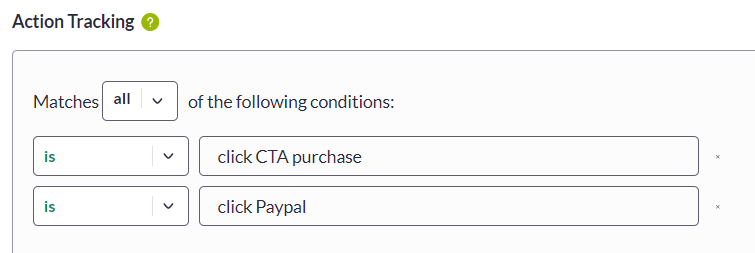
On certain websites, to join a loyalty program or confirm a newsletter subscription, visitors are asked to click a confirm button on a specific page. You can then choose this click tracking to create a new “subscriber” or “VIP member” segment.
**Need additional information?**
Submit your request at
## 💡 Use case
On certain websites, to join a loyalty program or confirm a newsletter subscription, visitors are asked to click a confirm button on a specific page. You can then choose this click tracking to create a new “subscriber” or “VIP member” segment.
**Need additional information?**
Submit your request at  ---
# Agent Instructions
This documentation is published with GitBook. GitBook is the documentation platform designed so that both humans and AI agents can read, navigate, and reason over technical content effectively. Learn more at gitbook.com.
## Querying This Documentation
If you need additional information that is not directly available in this page, you can query the documentation dynamically by asking a question.
Perform an HTTP GET request on the current page URL with the `ask` query parameter, and the optional `goal` query parameter:
```
GET https://docs.abtasty.com/assets-library/creating-and-managing-segments/list-of-segment-criteria/action-tracker-criterion.md?ask=
---
# Agent Instructions
This documentation is published with GitBook. GitBook is the documentation platform designed so that both humans and AI agents can read, navigate, and reason over technical content effectively. Learn more at gitbook.com.
## Querying This Documentation
If you need additional information that is not directly available in this page, you can query the documentation dynamically by asking a question.
Perform an HTTP GET request on the current page URL with the `ask` query parameter, and the optional `goal` query parameter:
```
GET https://docs.abtasty.com/assets-library/creating-and-managing-segments/list-of-segment-criteria/action-tracker-criterion.md?ask=