# Page Interest criterion

The **Page interest** criterion is a segmentation criterion that enables defining a [segment](/assets-library/creating-and-managing-segments.md).

To learn how to create a segment, please refer to this [article](/web-experimentation-and-personalization/targeting-step/how-to-create-a-segment-who-section.md).

## Definition <a href="#h_01hhpvgn16rtg2v7d253efda6k" id="h_01hhpvgn16rtg2v7d253efda6k"></a>

The **Page interest** triggering criterion enables you to create a segment of visitors based on specific URLs viewed during a defined period of time.

## How does it work? <a href="#h_01hhpcyeh3r9x758f97wt1cbn8" id="h_01hhpcyeh3r9x758f97wt1cbn8"></a>

With the tag, we created a Local storage object called `ABTastyData`, that contains information about your visitors’ journey. Inside this object, we store visited pages’ data in a location called **VisitedPages**. This is performed every time a user loads a new page. The following information is stored:

* Current page URL
* Current page title
* Current session number (from the `ns` variable of the `ABTasty` cookie)
* Current timestamp

<figure><img src="/files/1hubRZN9KSBfZpTLERlT" alt="" width="563"><figcaption><p>VisitedPages stored in ABTastyData</p></figcaption></figure>

{% hint style="warning" %}
Technically and for confidentiality reasons, **the Page Interest criterion is based on local storage information thus information continuity is restricted to subdomain only.**

⇒ This means that even if the tag is implemented on  another subdomains, page logs remain specific to each subdomain. **Cross-subdomain targeting is not possible for this criterion.**
{% endhint %}

For the Page Interest criterion, our targeting service is using this URL information stored in our global object to perform the page interest targeting.

## Configuration <a href="#h_01hhpvgn16nqq3grmp7d8ckea4" id="h_01hhpvgn16nqq3grmp7d8ckea4"></a>

To configure the **Page interest** criterion, you must:

1. **Define the period of time the URL(s) have been viewed.** From the dropdown list, select `Past 2 weeks`, `Past month`, `Past year` or `Last session`.
2. **Specify the minimum number of times the URL(s) has been viewed.** To do so, select or enter a number in the input field.
3. **Declare one or several URLs** by selecting the URL operator from the dropdown list and entering the corresponding string (an entire URL, a regex, a part of a URL and so on, depending on the selected operator).

<figure><img src="/files/GQ5EQdTvdL82Sk1Mo9vH" alt="" width="563"><figcaption></figcaption></figure>

To add several URLs, click *Add condition*:

* **When including 2 or more URLs** (is, is exactly, contains, is regular expression, is saved Page), the `SOME` operator is applied, meaning that at least one condition needs to be met.
* **When excluding 2 or more URLs** (is not, is not exactly, does not contain, is not regular expression, is not saved Page), the `ALL` operator is applied, meaning that all conditions need to be met.
* **When including at least one URL and excluding at least one URL**, the `ALL` operator is applied, meaning that all conditions need to be met.

For more information, refer to [Configuring several conditions with ALL and SOME operators](/web-experimentation-and-personalization/targeting-step/how-to-use-url-operators-to-build-url-patterns.md).

{% hint style="info" %}
The configuration and function is the same as in the *Where* section.
{% endhint %}

## Use case <a href="#h_01hhpvgn16txjj8c8mqrfedkd8" id="h_01hhpvgn16txjj8c8mqrfedkd8"></a>

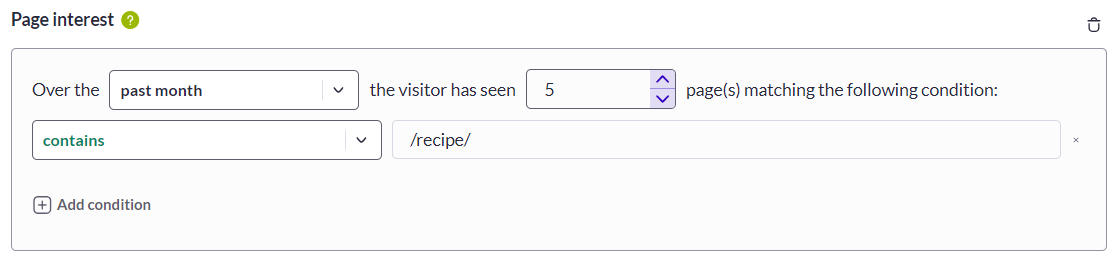
Display a coupon code on the Basket Page for visitors interested in recipes.

**Targeting criteria:** Visitors who have viewed 5 or more pages containing */recipe/* in the URL during their session(s) over the past month.&#x20;

To do so:

1. Choose the **Page interest** segment criterion in the *Who* section of the targeting step of your campaign.
2. From the first dropdown list, select *Past month*.
3. In the input field, enter the number of times the URL has been seen (in this case, enter 5).
4. Select *contains* > */recipe/*
5. In the *Where* section, select the *is* operator and enter the URL corresponding to the Basket Page.

<img src="/files/o6fkKH5EMirmL0tJwCGh" alt="" width="563">

**Need additional information?**

Submit your request at <product.feedback@abtasty.com>

Always happy to help!

<img src="/files/tyyLEoBmbriy06VwXqNV" alt="" width="146">


---

# Agent Instructions: Querying This Documentation

If you need additional information that is not directly available in this page, you can query the documentation dynamically by asking a question.

Perform an HTTP GET request on the current page URL with the `ask` query parameter:

```
GET https://docs.abtasty.com/assets-library/creating-and-managing-segments/list-of-segment-criteria/page-interest-criterion.md?ask=<question>
```

The question should be specific, self-contained, and written in natural language.
The response will contain a direct answer to the question and relevant excerpts and sources from the documentation.

Use this mechanism when the answer is not explicitly present in the current page, you need clarification or additional context, or you want to retrieve related documentation sections.