> For the complete documentation index, see [llms.txt](https://docs.abtasty.com/llms.txt). Markdown versions of documentation pages are available by appending `.md` to page URLs; this page is available as [Markdown](https://docs.abtasty.com/assets-library/creating-and-managing-triggers.md).
# Creating and managing Triggers
This documentation will guide you through the creation and use of Triggers in AB Tasty.
**A trigger is a temporary user condition that enables you to display your campaign in a specific context.** The trigger enables the campaign to be displayed to the configured audience only when additional conditions are met.
Please refer to this article to learn [**how to create a** **trigger**](/web-experimentation-and-personalization/targeting-step/how-to-create-a-trigger-how-section.md) and find the **entire list of available trigger criteria** [**here**](/assets-library/creating-and-managing-triggers/list-of-trigger-criteria.md)**.**
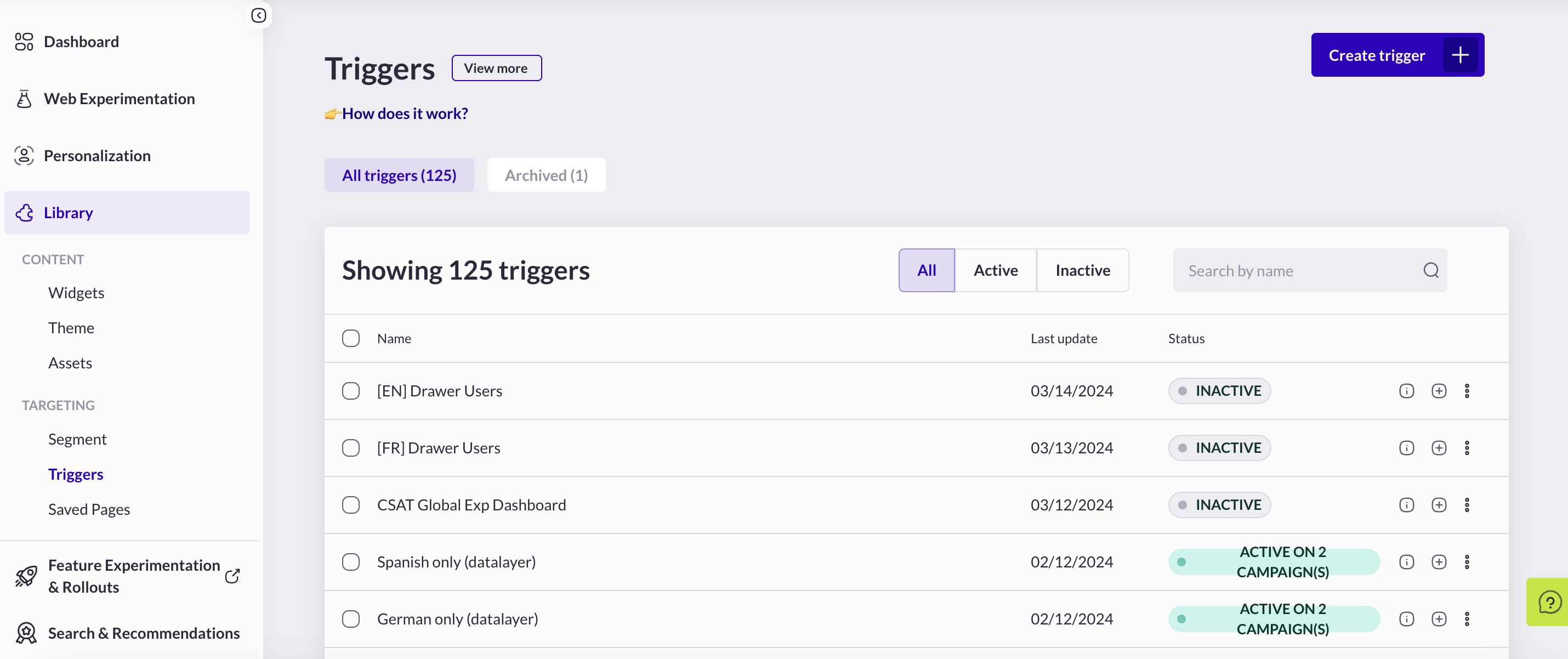
**You'll find the** [**Trigger page**](https://app2.abtasty.com/library/trigger-list) **in the Library section of the main navigation.**
## Creating Triggers
You can create your Triggers from the Triggers library page **by clicking the Create trigger button:** the Trigger Builder is displayed to start building a new trigger from scratch.
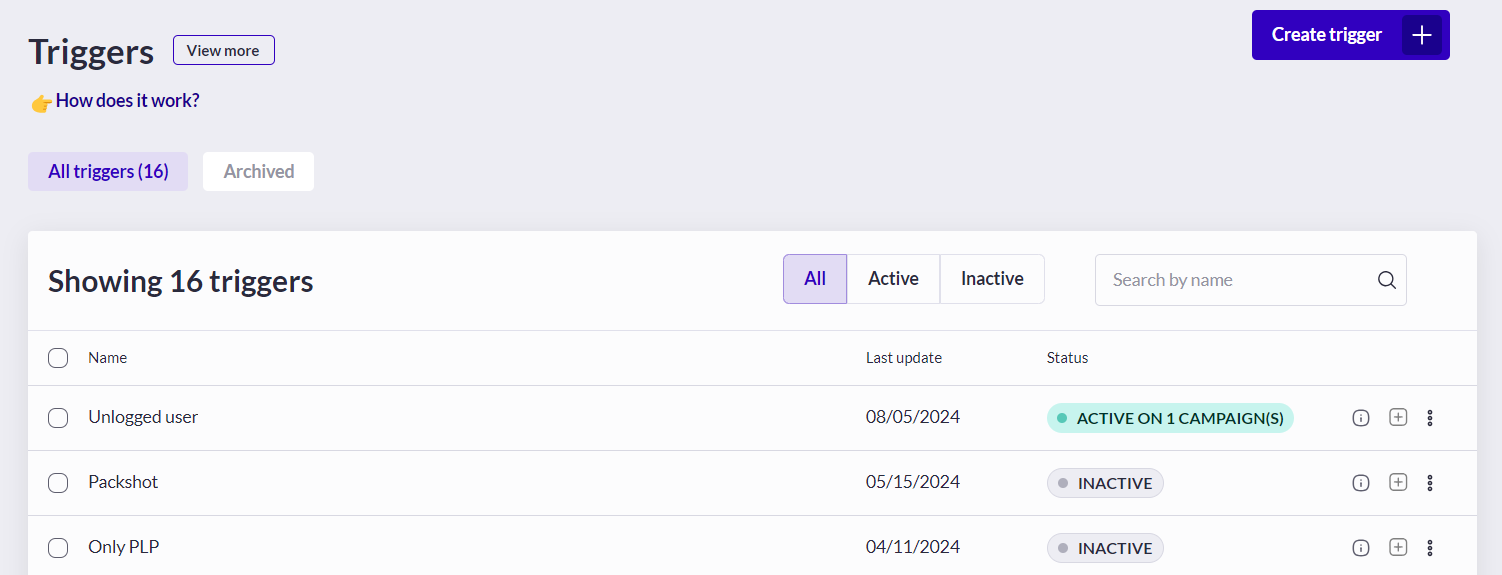
You can also create triggers directly in any campaign, in the dropdown of the [**How section of the Targeting step**](/web-experimentation-and-personalization/targeting-step.md)**:**
To create a new trigger to display your campaign, you need to select [**the triggering criteria**](/assets-library/creating-and-managing-triggers/list-of-trigger-criteria.md) to be applied to your campaign.
For more information about how To create a Trigger, please refer to the following [**article**](/web-experimentation-and-personalization/targeting-step/how-to-create-a-trigger-how-section.md).
## Managing Triggers
### Information
[**The trigger list**](https://app2.abtasty.com/library/trigger-list) is by default on the “**All**” tab, which is a category for all the available and relevant triggers that have not been archived or deleted.
In the “**Archived**” section, you will find the list of all the triggers that you manually archived from the beginning of your account activity. The archive option can be used to put aside trigger (without permanently deleting them) that you know are not relevant to your short- or midterm testing or personalization strategy, but could be relevant again in the future.
In the list, you will find the following information about each trigger:
* **The trigger name**: Each trigger needs to have a declared name when it is created.
* **Last update:** The date of the last update made to that trigger, which is used to rank the trigger in the list.
* **Status:** If a trigger is used inside the targeting configuration of a campaign, you will have a dedicated label that highlights the number of campaigns using the trigger.
### Actions
You can **`edit`**, **`duplicate`**, **`delete`**, **`archive`** or **`create`** **`a campaign`** from an existing trigger from the trigger list (Trigger page) or from the dropdown menu of the T[**argeting step of your campaign**](/web-experimentation-and-personalization/targeting-step.md). These options are accessible by hovering over the segment you want to change:
To edit an existing trigger, click the pen icon to open the [**Trigger builder**](/web-experimentation-and-personalization/targeting-step/how-to-create-a-trigger-how-section.md), which is the interface to configure your trigger. You can then modify the name of your trigger or its configuration. Click **Save** at the bottom right of your screen to record your changes.
If your trigger is currently being used in a live campaign or is live in QA, you won’t be able to save any modifications. In this case, you’ll see a yellow disclaimer with the details of the campaigns that are using the trigger and are currently live or live in QA. To make edits to this trigger, you should pause the ongoing campaigns or duplicate the trigger to create a new one with the same configuration that you can freely edit.
* To `delete` an existing trigger, you can click on the trash icon. A confirmation pop-in will ask you to confirm that you want to delete the selected trigger. Click **Delete** to confirm or **Cancel** to return to the previous screen.
* To `duplicate` an existing trigger, click the duplicate icon. The selected trigger will be duplicated and appear just under the selected one in your dropdown list. You can now edit the new trigger and change its name and configuration.
You can’t delete a trigger that is already being used in a live campaign or is live in a QA campaign. You need to pause the campaigns that use this trigger to be able to delete the trigger from your account.
From the trigger list (Trigger page), you can also:
* **`Archive`**: Click, and the trigger will be moved to the Archive section of the trigger page.
* **`Create new campaign`:** Hovering over this call to action, AB Tasty will allow you to choose between creating a Test or a Personalization campaign. Depending on which option you’ll choose, you will be sent through the Test or Personalization campaign creation process.
## Using Triggers
### General usage
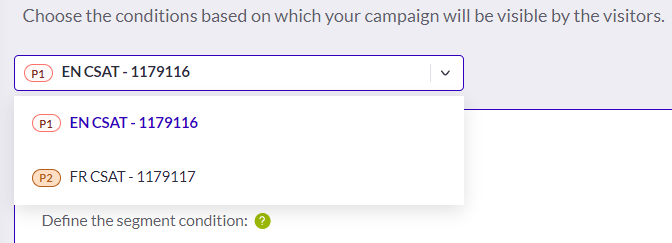
To use a trigger that has already been configured, you can find it directly in the dropdown list:
Click on it to select it for your campaign: the trigger setup is now complete. You can save your targeting configuration by clicking **`Save`** on the bottom right.
The trigger applies to your whole A/B Test – the original version (V0) plus all its variations (V1, V2, and V3 for an A/B/C/D test, for example)
For example, if you have built the following trigger: “Trigger the campaign when at least 4 pages of the website have been visited”, the A/B Test will be triggered on the 5th page of the visitor’s session, with a random chance to see the original, V1, V2 or V3.
### Single-page Experiences vs. Multipage Experiences
👉For **A/B Tests, Simple Personalizations, and Patches**, you’ll have to define one single trigger rule for your campaign because these types of campaigns have only one “experience” (one type of new content generated with AB Tasty to display).
👉 For **Multipage Tests, Multivariate Tests, Multipage Personalizations, and Multi-experience Personalizations**, you’ll have to define a trigger rule for each “experience”. This rule can be the same or can be different depending on your needs.
⭐️ Tips:
* Use the **same** trigger on all experiences when this trigger is linked to your visitor’s current situation\
e.g., geolocation criteria, device criteria, etc.
* Use a **different** trigger on all experiences when the trigger is linked to a contextual behavior.\
e.g., Experience 1 is a pop-in that will be triggered after 5 viewed pages to promote sales (trigger = minimum viewed pages). Experience 2 is a banner in the basket (no specific trigger).
* Consider using **different triggers** in case of Multi-experience personalization. This kind of campaign has been designed to help you launch several messages to different segments in the same campaign and to ensure no overlap between messages.\
To learn more, refer to [***this article***.](/web-experimentation-and-personalization/campaign-creation-and-dashboard/how-to-create-a-campaign/personalizations/how-to-create-a-multi-experience-personalization.md)
Always use the dropdown menu on the **Targeting** page to switch between experiences and set up triggers for each one.
AB Tasty also offers a Replicate option that allows you to replicate the full targeting setup or one part of the targeting setup of any experience in another experience, or in all experiences. For more information, refer to this guide.
## Trigger execution in the tag
Some criteria can’t technically be checked at the load of the page when the tag tries to check the targeting conditions and execute the campaigns in case of conditions are met.\
Please go back to the targeting article, section [**“**](https://support.abtasty.com/hc/en-us/articles/4710638053404-Targeting-Guide#h_01G910Q41TE33BZF7CE8N926SJ)[**Defining targeting conditions**](/web-experimentation-and-personalization/targeting-step/how-to-set-up-a-campaign-targeting.md)**”** to get more information about this option.
---
# Agent Instructions
This documentation is published with GitBook. GitBook is the documentation platform designed so that both humans and AI agents can read, navigate, and reason over technical content effectively. Learn more at gitbook.com.
## Querying This Documentation
If you need additional information that is not directly available in this page, you can query the documentation dynamically by asking a question.
Perform an HTTP GET request on the current page URL with the `ask` query parameter, and the optional `goal` query parameter:
```
GET https://docs.abtasty.com/assets-library/creating-and-managing-triggers.md?ask=&goal=
```
`ask` is the immediate question: it should be specific, self-contained, and written in natural language.
`goal` is optional and describes the broader end goal you are ultimately trying to accomplish on behalf of the user. GitBook uses it to tailor the answer towards what is most useful for that goal.
The response will contain a direct answer to the question and relevant excerpts and sources from the documentation.
Use this mechanism when the answer is not explicitly present in the current page, you need clarification or additional context, or you want to retrieve related documentation sections.

 You can also create triggers directly in any campaign, in the dropdown of the [**How section of the Targeting step**](/web-experimentation-and-personalization/targeting-step.md)**:**
 ### Actions
You can **`edit`**, **`duplicate`**, **`delete`**, **`archive`** or **`create`** **`a campaign`** from an existing trigger from the trigger list (Trigger page) or from the dropdown menu of the T[**argeting step of your campaign**](/web-experimentation-and-personalization/targeting-step.md). These options are accessible by hovering over the segment you want to change:
### Actions
You can **`edit`**, **`duplicate`**, **`delete`**, **`archive`** or **`create`** **`a campaign`** from an existing trigger from the trigger list (Trigger page) or from the dropdown menu of the T[**argeting step of your campaign**](/web-experimentation-and-personalization/targeting-step.md). These options are accessible by hovering over the segment you want to change:


 AB Tasty also offers a Replicate option that allows you to replicate the full targeting setup or one part of the targeting setup of any experience in another experience, or in all experiences. For more information, refer to this guide.
## Trigger execution in the tag
Some criteria can’t technically be checked at the load of the page when the tag tries to check the targeting conditions and execute the campaigns in case of conditions are met.\
Please go back to the targeting article, section [**“**](https://support.abtasty.com/hc/en-us/articles/4710638053404-Targeting-Guide#h_01G910Q41TE33BZF7CE8N926SJ)[**Defining targeting conditions**](/web-experimentation-and-personalization/targeting-step/how-to-set-up-a-campaign-targeting.md)**”** to get more information about this option.
---
# Agent Instructions
This documentation is published with GitBook. GitBook is the documentation platform designed so that both humans and AI agents can read, navigate, and reason over technical content effectively. Learn more at gitbook.com.
## Querying This Documentation
If you need additional information that is not directly available in this page, you can query the documentation dynamically by asking a question.
Perform an HTTP GET request on the current page URL with the `ask` query parameter, and the optional `goal` query parameter:
```
GET https://docs.abtasty.com/assets-library/creating-and-managing-triggers.md?ask=
AB Tasty also offers a Replicate option that allows you to replicate the full targeting setup or one part of the targeting setup of any experience in another experience, or in all experiences. For more information, refer to this guide.
## Trigger execution in the tag
Some criteria can’t technically be checked at the load of the page when the tag tries to check the targeting conditions and execute the campaigns in case of conditions are met.\
Please go back to the targeting article, section [**“**](https://support.abtasty.com/hc/en-us/articles/4710638053404-Targeting-Guide#h_01G910Q41TE33BZF7CE8N926SJ)[**Defining targeting conditions**](/web-experimentation-and-personalization/targeting-step/how-to-set-up-a-campaign-targeting.md)**”** to get more information about this option.
---
# Agent Instructions
This documentation is published with GitBook. GitBook is the documentation platform designed so that both humans and AI agents can read, navigate, and reason over technical content effectively. Learn more at gitbook.com.
## Querying This Documentation
If you need additional information that is not directly available in this page, you can query the documentation dynamically by asking a question.
Perform an HTTP GET request on the current page URL with the `ask` query parameter, and the optional `goal` query parameter:
```
GET https://docs.abtasty.com/assets-library/creating-and-managing-triggers.md?ask=