> For the complete documentation index, see [llms.txt](https://docs.abtasty.com/llms.txt). Markdown versions of documentation pages are available by appending `.md` to page URLs; this page is available as [Markdown](https://docs.abtasty.com/assets-library/how-to-set-up-your-libraries.md).
# How to set-up your libraries
A crucial step in onboarding your account is the creation of your assets in our various libraries:
* [**Content libraries:**](#h_01j8mahqh6rcd6hbbst7bzbtrv) all customized useful resources to build enriched experiences on your website\\
* [Widgets](#h_01j8m9h01w386v1xz2paw4t703)
* [Theme](#id-01j8majax27m4da31f7jf28cmf)
* [Assets](#h_01j8mamjc7sspj9qdch4y0twzp)
* [**Targeting**](#h_01j8mahqh6rcd6hbbst7bzbtrv-1)**:** pre-set conditions to set-up and trigger your campaigns in seconds, and to get useful insights about your audience
* [Segments](#h_01j8m9h01w386v1xz2paw4t703-1)
* [Triggers](#h_01j8mefj09n8a9rdge30p7q174)
* [Saved pages](#h_01j8mem7wneezywdw174br6wjt)
* [**Trackers**](#h_01j8metdj3txt82axggeffzwnw)**:** a unique builder to find all your trackers to follow though campaigns
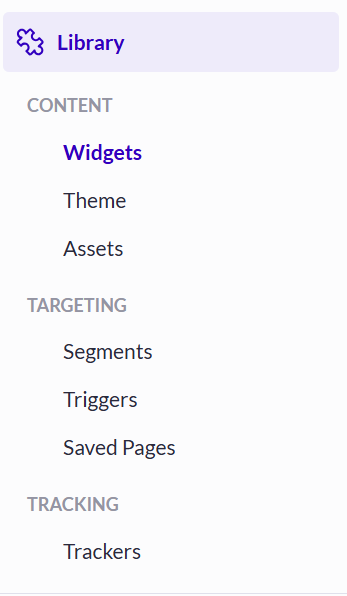
These libraries are all directly accessible in the left navigation, section "*Library*":
## Content libraries
### **Widgets**
You'll find 3 different sets of widgets:
* **AB Tasty Widgets:** find the entire list [here](/web-experimentation-and-personalization/editors-and-widget/list-of-widgets.md)
* **Widget presets:** your personal list of widgets; use an AB Tasty widget, personalize it (colors, shapes, text, etc.) and save it “ready to use” in your personal library. To find how to create your pre-sets, please refer to this [article](/assets-library/widget-library/how-to-create-a-preset-widget.md).
* **Your widgets - Custom widgets:** create your own widgets to enrich the library and fit you own needs in terms of content. To learn how to create your custom widgets, refer to this [article](/assets-library/widget-library/how-to-create-a-custom-widget.md).
### **Theme**
The "Widget Theme" enables you to create and apply themes for your widgets based on your brand guidelines, making the widget creation process faster and more consistent. By specifying graphical properties such as colors, font styles, and default button configurations, you can define a theme and apply it to any new widget created in a test or personalization campaign. This guide will walk you through the steps of creating a theme, applying it to a widget, and managing your themes.
To learn how to declare your theme, refer to this [article](/assets-library/widget-library/how-to-declare-your-widget-theme.md).
### **Assets**
The Asset Library allows you to **create** and **manage** assets in your library. Those assets are images that then belong to your AB Tasty portal, receive their own “assets-manager.abtasty.com” URL and can be used in your campaigns, widgets, etc.
To learn how to upload your assets, refer to this [article](/assets-library/assets-library.md).
## Targeting libraries
### **Segments**
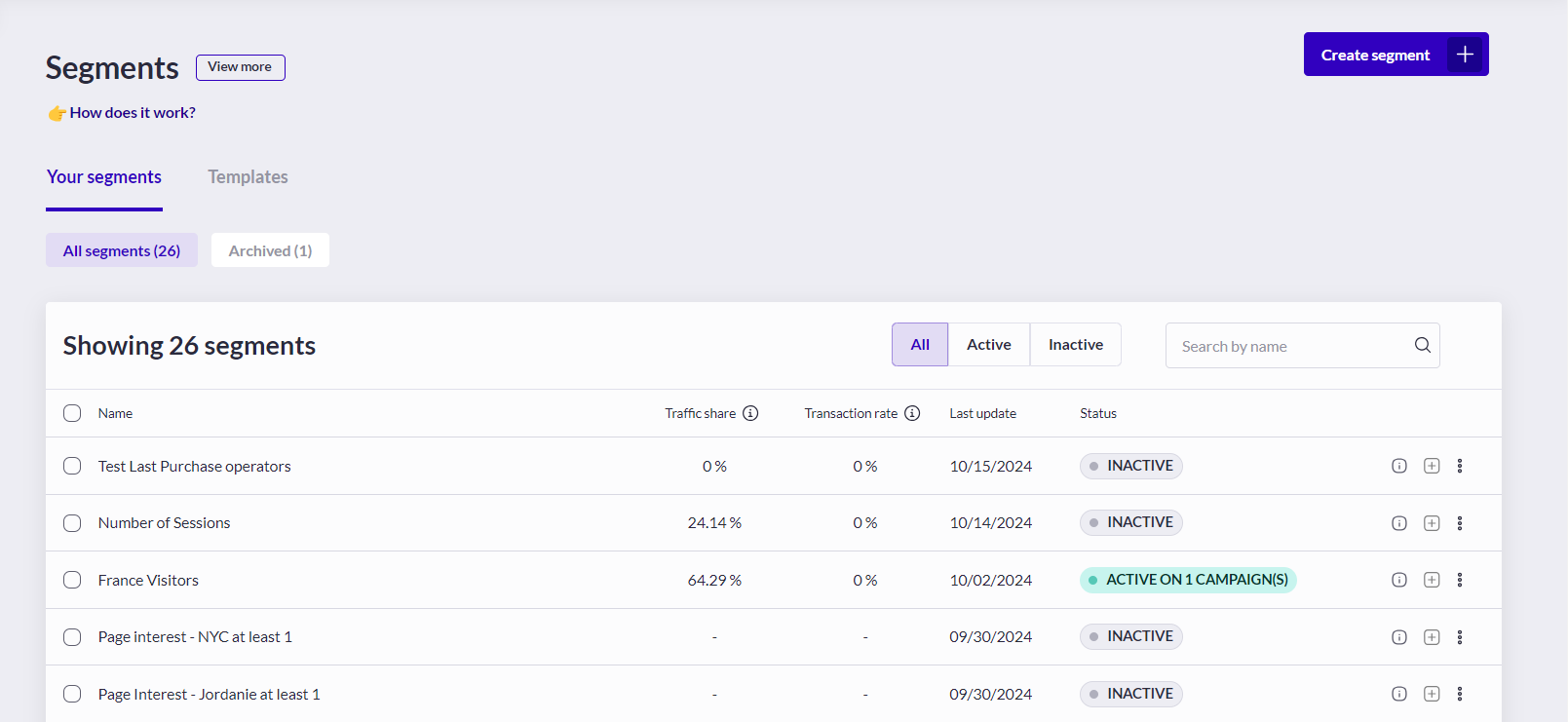
A segment is a cluster of visitors that share some identical traits, as defined by you, though sessions. Visitors who match these segment criteria are the only ones who will see the campaign on your website. For more information about segments, please refer to the following [**tutorial**](/assets-library/creating-and-managing-segments.md).
By creating your segments right from the onboarding stage, you'll benefit from insights into their traffic share and conversion rate (you'll need to set the [transaction tag](broken://pages/Vcf2nmWwkzOAg642d5hu) to obtain this indicator).
\
You can also integrate your CDP/CRM with AB Tasty. This will enable you to create [AB Tasty segments based on those you already use in your CDP/CRM](/assets-library/creating-and-managing-segments/list-of-segment-criteria/dmp-cdp-rd-party-tool-criterion.md). For more information on our partners, please refer to this [article](/integrations/integrations-general-information.md).
To learn how to create your segments, refer to this [article](/web-experimentation-and-personalization/targeting-step/how-to-create-a-segment-who-section.md).
### **Triggers**
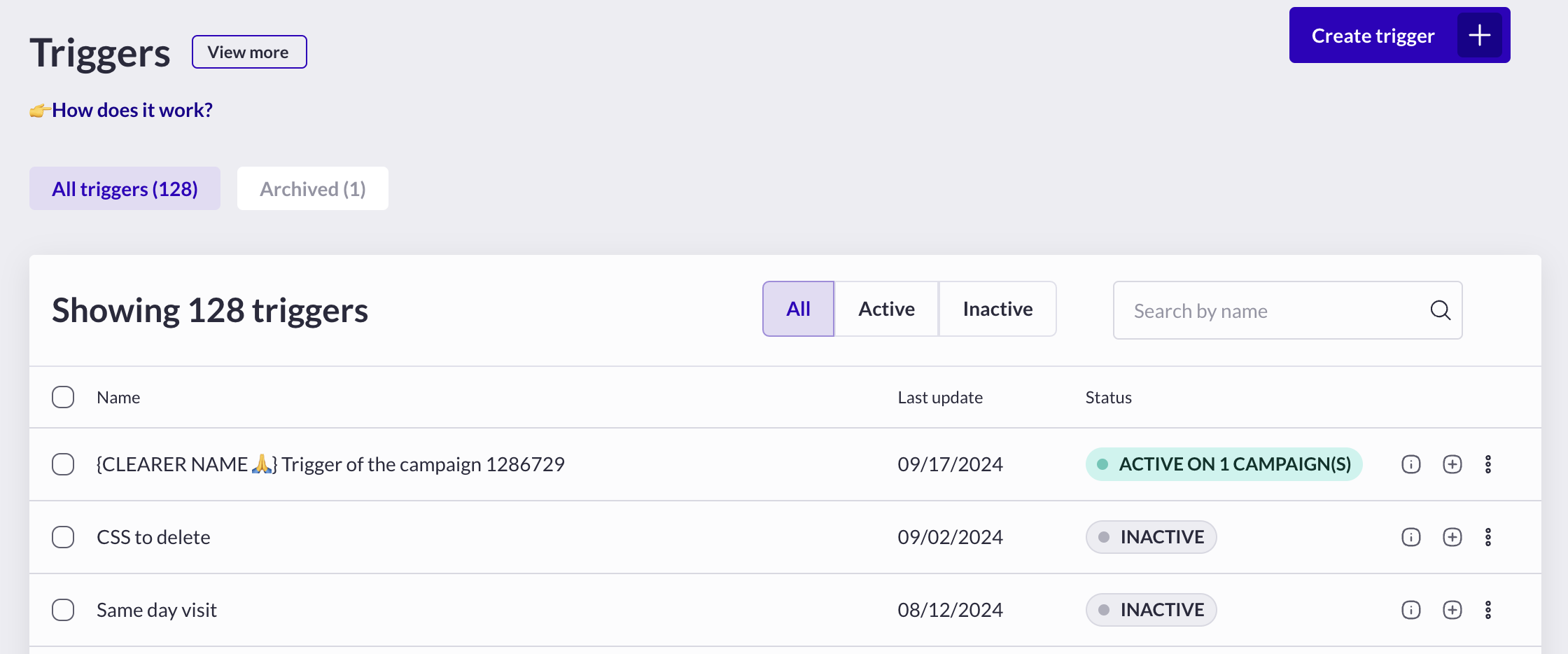
**A trigger is a temporary user condition that enables you to display your campaign in a specific context.** The trigger enables the campaign to be displayed to the configured audience only when additional conditions are met.
### **Saved Pages**
The creation of saved pages is useful for declaring the url structure of your site's pages once, and then using these saved pages as a targting criterion or filter in reporting.
For more information about saved pages usage in the application, please refer to our tutorial about [saved pages and pages builder](/assets-library/creating-and-managing-saved-pages.md).
To learn how to create your saved pages, refer to this [article](/assets-library/how-to-create-a-saved-page.md).
## Trackers
The Trackers page (**Library** > **Tracking** > **Trackers**) enables you to view and manage all active and hidden trackers for your tests and personalizations.
It shows all the trackers you’ve set up, including their status and type. You can also use this page to create new trackers, edit existing ones, change campaigns for which they are available, hide trackers from the tracker setup step of your campaign creation flow, and delete trackers that are no longer relevant.
Setting up and managing trackers is an important part of running successful tests and personalization campaigns. By tracking the right trackers, you can gain valuable insights into user behavior and make data-driven decisions to improve your website’s performance.
To learn how to create your trackers, refer to this [article](/assets-library/trackers-page.md).
---
# Agent Instructions
This documentation is published with GitBook. GitBook is the documentation platform designed so that both humans and AI agents can read, navigate, and reason over technical content effectively. Learn more at gitbook.com.
## Querying This Documentation
If you need additional information that is not directly available in this page, you can query the documentation dynamically by asking a question.
Perform an HTTP GET request on the current page URL with the `ask` query parameter, and the optional `goal` query parameter:
```
GET https://docs.abtasty.com/assets-library/how-to-set-up-your-libraries.md?ask=&goal=
```
`ask` is the immediate question: it should be specific, self-contained, and written in natural language.
`goal` is optional and describes the broader end goal you are ultimately trying to accomplish on behalf of the user. GitBook uses it to tailor the answer towards what is most useful for that goal.
The response will contain a direct answer to the question and relevant excerpts and sources from the documentation.
Use this mechanism when the answer is not explicitly present in the current page, you need clarification or additional context, or you want to retrieve related documentation sections.
 ## Content libraries
### **Widgets**
You'll find 3 different sets of widgets:
## Content libraries
### **Widgets**
You'll find 3 different sets of widgets:
 ### **Saved Pages**
The creation of saved pages is useful for declaring the url structure of your site's pages once, and then using these saved pages as a targting criterion or filter in reporting.
For more information about saved pages usage in the application, please refer to our tutorial about [saved pages and pages builder](/assets-library/creating-and-managing-saved-pages.md).
To learn how to create your saved pages, refer to this [article](/assets-library/how-to-create-a-saved-page.md).
### **Saved Pages**
The creation of saved pages is useful for declaring the url structure of your site's pages once, and then using these saved pages as a targting criterion or filter in reporting.
For more information about saved pages usage in the application, please refer to our tutorial about [saved pages and pages builder](/assets-library/creating-and-managing-saved-pages.md).
To learn how to create your saved pages, refer to this [article](/assets-library/how-to-create-a-saved-page.md).