> For the complete documentation index, see [llms.txt](https://docs.abtasty.com/llms.txt). Markdown versions of documentation pages are available by appending `.md` to page URLs; this page is available as [Markdown](https://docs.abtasty.com/feature-experimentation-and-rollout/user-and-access-management/user-rights-and-user-management.md).
# User Rights & User Management
User management in **Feature Experimentation & Rollouts (FE\&R)** allows you to control who can access your account and what actions they are allowed to perform.
This page focuses exclusively on **FE\&R user management and account-level permissions**.
{% hint style="info" %}
## **Feature Experimentation & Rollouts** provides dedicated and granular user management, independent from **Web Experimentation**.
To manage users and permissions for **Web Experimentation**, refer to the dedicated documentation: [How to manage users?](/account/account-management/how-to-manage-users.md)
{% endhint %}
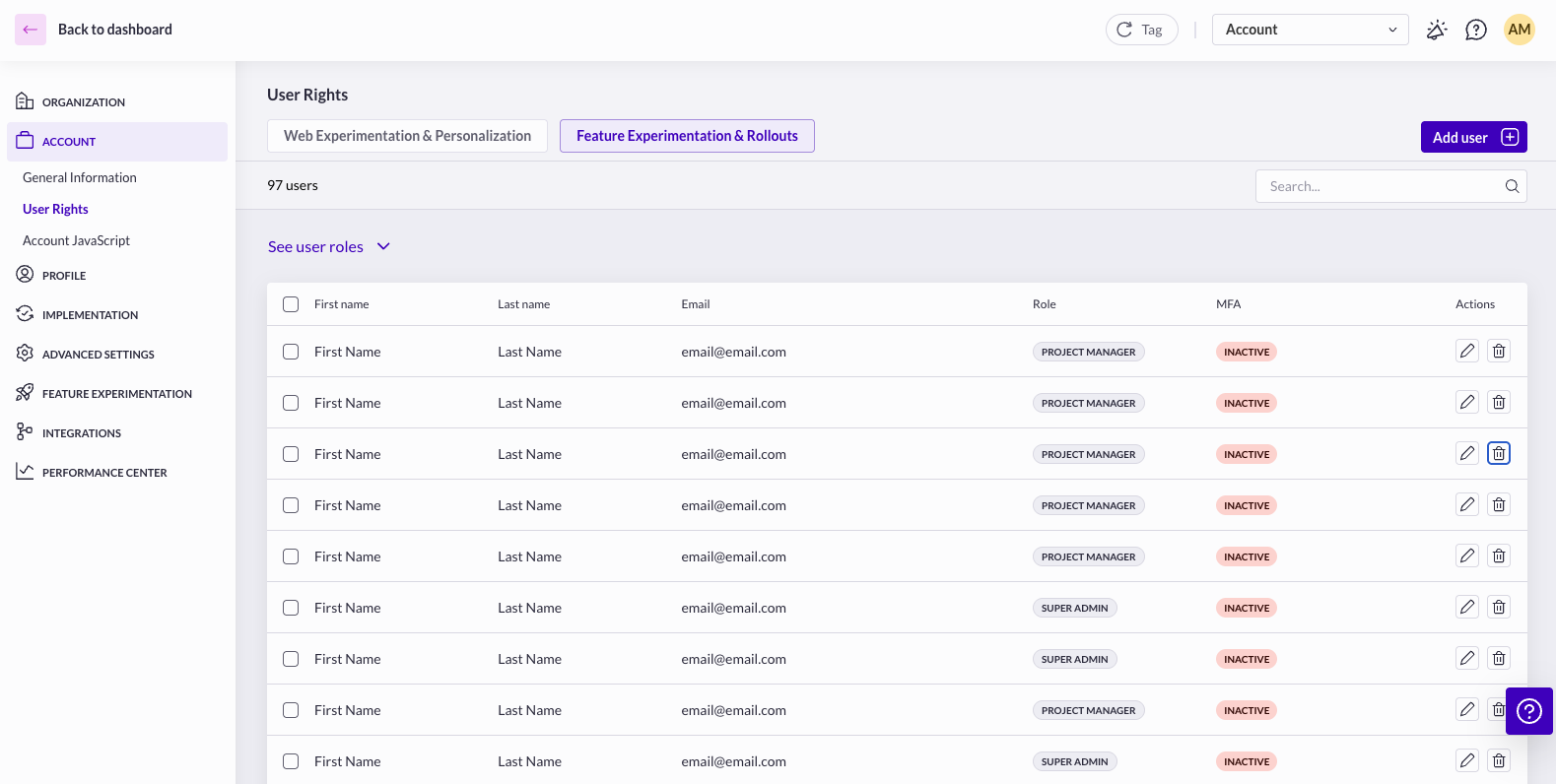
📍 **Access path:** [**Settings > Account > User Rights > Tab Feature Experimentation & Rollouts**](https://app2.abtasty.com/settings/user-management)
### Account roles
FE\&R provides five account roles. Each role determines what a user can manage at the account level.
#### 1. Super Admin
Super Admins have access to all folders and can configure them. The Super Admin role has full user rights in every environment.
**Capabilities include:**
* Managing users (add, edit roles, remove)
* Creating, editing, and deleting teams
* Editing account settings
* Creating, editing, and deleting environments
* Accessing sensitive information (API keys, environment IDs)
* Managing integrations
* Creating, editing, launching, pausing, and archiving campaigns
* Creating, renaming, and deleting folders
#### 2. Account Owner
The Account Owner has the exact same permissions as a Super Admin. There are no additional privileges attached to this title.
#### 3. Project Manager
Project Managers can access assigned folders and manage campaigns within them. They have extended operational rights but limited governance permissions.
**Capabilities include:**
* Adding users (except Super Admin)
* Managing campaigns within assigned folders
* Accessing account settings (read-only)
* Viewing environment settings (read-only)
#### 4. Member
Members can access assigned folders and operate campaigns depending on folder-level permissions.
**Capabilities include:**
* Accessing assigned folders
* Creating and editing campaigns (if permitted)
* Viewing reports
#### 5. Guest
Guests can access assigned folders with restricted permissions.
**Capabilities include:**
* Viewing assigned folders
* Viewing campaign details and reports (if permitted)
### Adding a User
**To add a new user:**
1. Go to **Settings**
2. Navigate to **Account > User Rights**
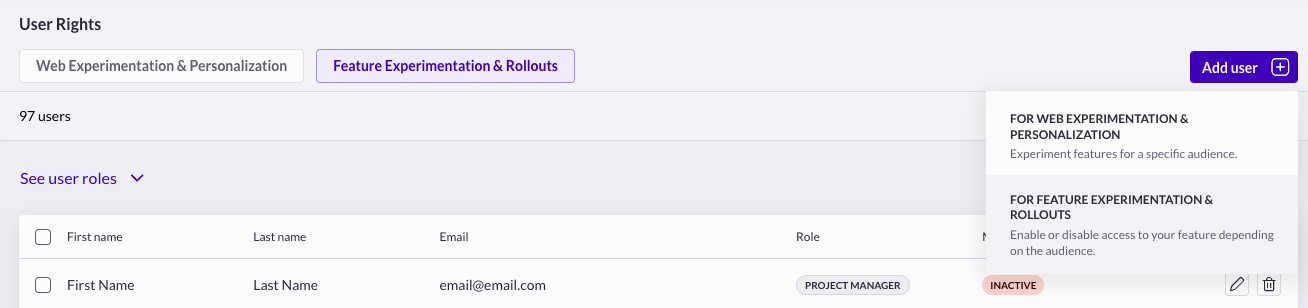
3. Hover **Add user**
4. Click **For** **Feature Experimentation & Rollouts**
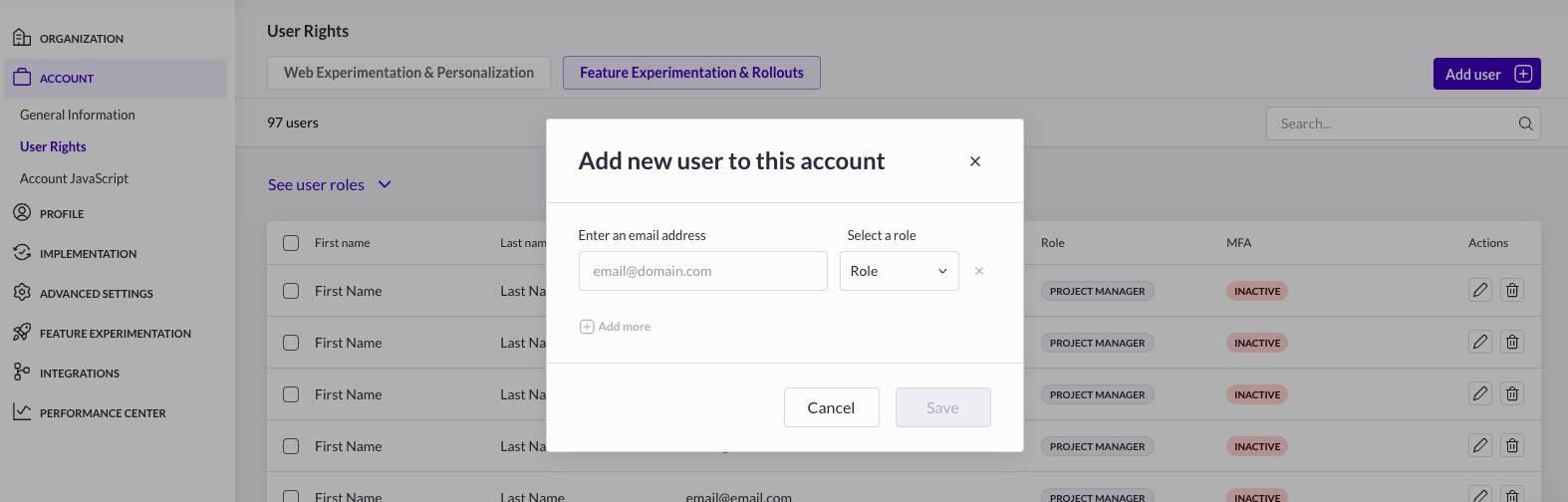
5. Enter:
* Email address
* Role
6. Validate the form
The user will receive an email invitation.
{% hint style="warning" %}
**Assigning Admin Roles**
Only assign **Super Admin** roles to trusted administrators. These roles grant access to sensitive account settings, environments, and integrations.
{% endhint %}
### Editing a User’s Role
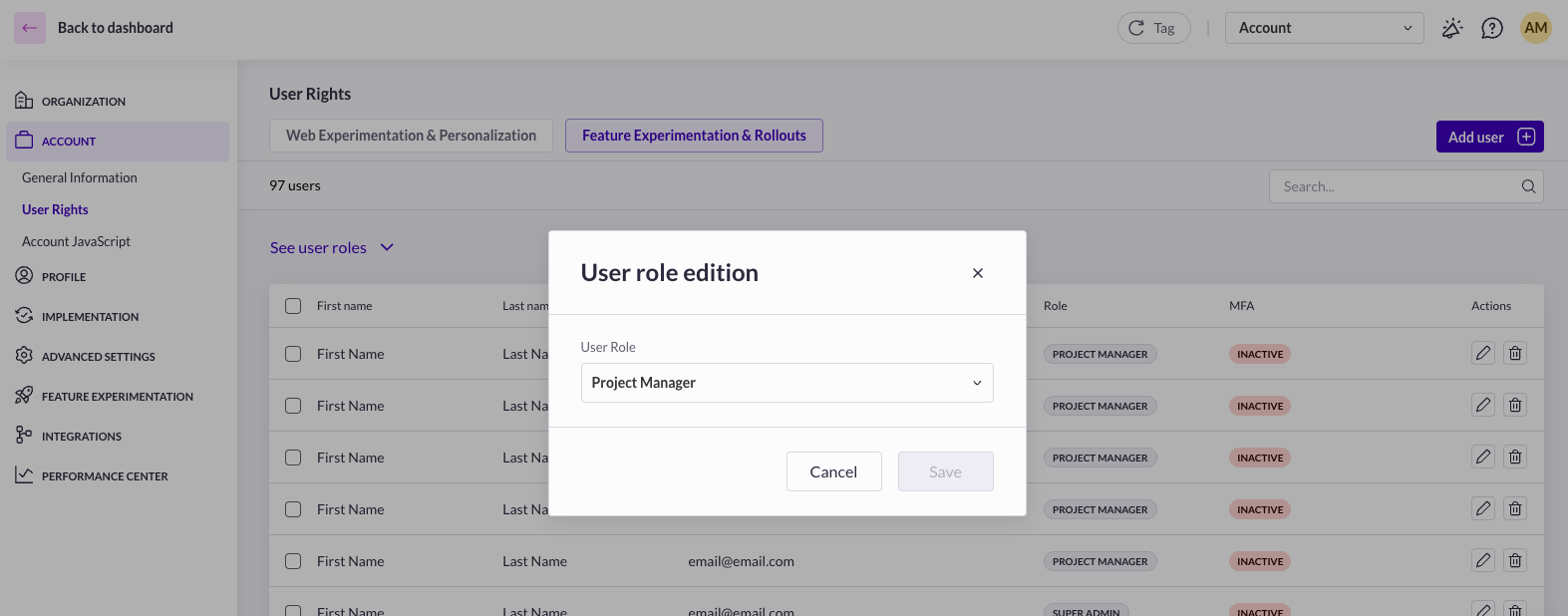
To modify an existing user’s role:
1. Go to **Settings > Account > User Rights > Tab Feature Experimentation & Rollouts**
2. Locate the user in the list
3. Click the **pen icon button**
4. Choose the new role
5. Confirm
### Removing a User
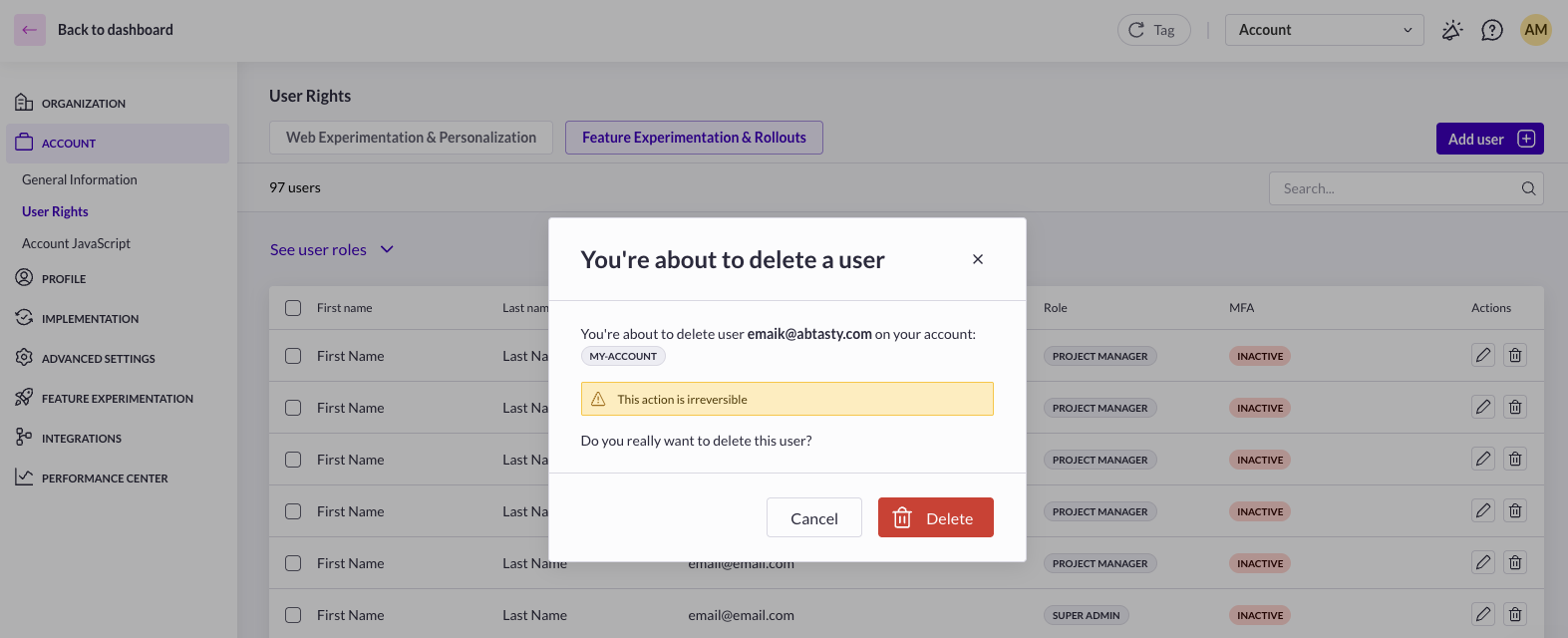
**To remove a user:**
1. Go to **Settings > Account > User Rights > Tab Feature Experimentation & Rollouts**
2. Click the **trash icon button** next to the user
3. Confirm the action
**Removing a user:**
* Revokes access to all folders
* Removes access to all environments
* Deletes all associated permissions
{% hint style="warning" %}
**Offboarding Best Practice**
Users who leave your organization should immediately have their FE\&R access removed as part of the offboarding process. Retaining access of former employees (especially administrators) can create significant security risks.
{% endhint %}
## Account-Level permissions matrix
Below is an overview of permissions associated with each role at the account level.
Account Settings
| Action | Account Owner | Super Admin | Project Manager | Member | Guest |
| ------------------------------- | ------------- | ----------- | --------------- | ------ | ----- |
| Access Account settings | ✅ | ✅ | ✅ | ✅ | ❌ |
| Edit Account settings | ✅ | ✅ | ❌ | ❌ | ❌ |
| Access User Rights | ✅ | ✅ | ✅ | ✅ | ✅ |
| Add/Edit/Delete a team | ✅ | ✅ | ❌ | ❌ | ❌ |
| Add/Edit users | ✅ | ✅ | ✅ | ❌ | ❌ |
| Access Integrations | ✅ | ✅ | ✅ | ✅ | ❌ |
| Edit Integrations | ✅ | ✅ | ❌ | ❌ | ❌ |
| Enable/Disable Panic Mode | ✅ | ✅ | ❌ | ❌ | ❌ |
| Create/Edit/Delete Environments | ✅ | ✅ | ❌ | ❌ | ❌ |
Environment Settings
| Action | Account Owner | Super Admin | Project Manager | Member | Guest |
| ------------------------------------------ | ------------- | ----------- | --------------- | ------ | ----- |
| Access Environment settings | ✅ | ✅ | ✅ | ✅ | ❌ |
| Edit Environment settings | ✅ | ✅ | ❌ | ❌ | ❌ |
| View sensitive information (API Keys, IDs) | ✅ | ✅ | ❌ | ❌ | ❌ |
| Enable/Disable Panic Mode | ✅ | ✅ | ❌ | ❌ | ❌ |
***
---
# Agent Instructions
This documentation is published with GitBook. GitBook is the documentation platform designed so that both humans and AI agents can read, navigate, and reason over technical content effectively. Learn more at gitbook.com.
## Querying This Documentation
If you need additional information that is not directly available in this page, you can query the documentation by asking a question.
Perform an HTTP GET request on the following URL with the `ask` and `goal` query parameters:
```
GET https://docs.abtasty.com/feature-experimentation-and-rollout/user-and-access-management/user-rights-and-user-management.md?ask=&goal=
```
`ask` is the immediate question: it should be specific, self-contained, and written in natural language.
`goal` is what the user is ultimately trying to achieve, the reason they need the answer. Sharing it helps GitBook give you a better, more relevant answer. A goal is most helpful when it describes the outcome the user wants rather than restating the question. For example, with `ask=how do I create an API token`, a goal like `automate deployments from our CI pipeline` lets GitBook tailor the answer to that use case.
The response will contain a direct answer to the question and relevant excerpts and sources from the documentation.
Use this mechanism when the answer is not explicitly present in the current page, you need clarification or additional context, or you want to retrieve related documentation sections.