> For the complete documentation index, see [llms.txt](https://docs.abtasty.com/llms.txt). Markdown versions of documentation pages are available by appending `.md` to page URLs; this page is available as [Markdown](https://docs.abtasty.com/integrations/other-integrations/data-warehouse/big-query---daily-exports-from-ab-tasty-to-big-query.md).
# Big Query - Daily exports from AB Tasty to Big Query
Google BigQuery is a serverless, highly scalable and fully managed data warehouse that comes with a built-in query engine. BigQuery enables scalable analysis of petabytes of data.
The Google BigQuery integration allows you to export any data collected by AB Tasty’s tracking system to a Google BigQuery dataset, daily.
We will now proceed to configure the connector and the export.
## The connector
### Step 1: Activate BigQuery
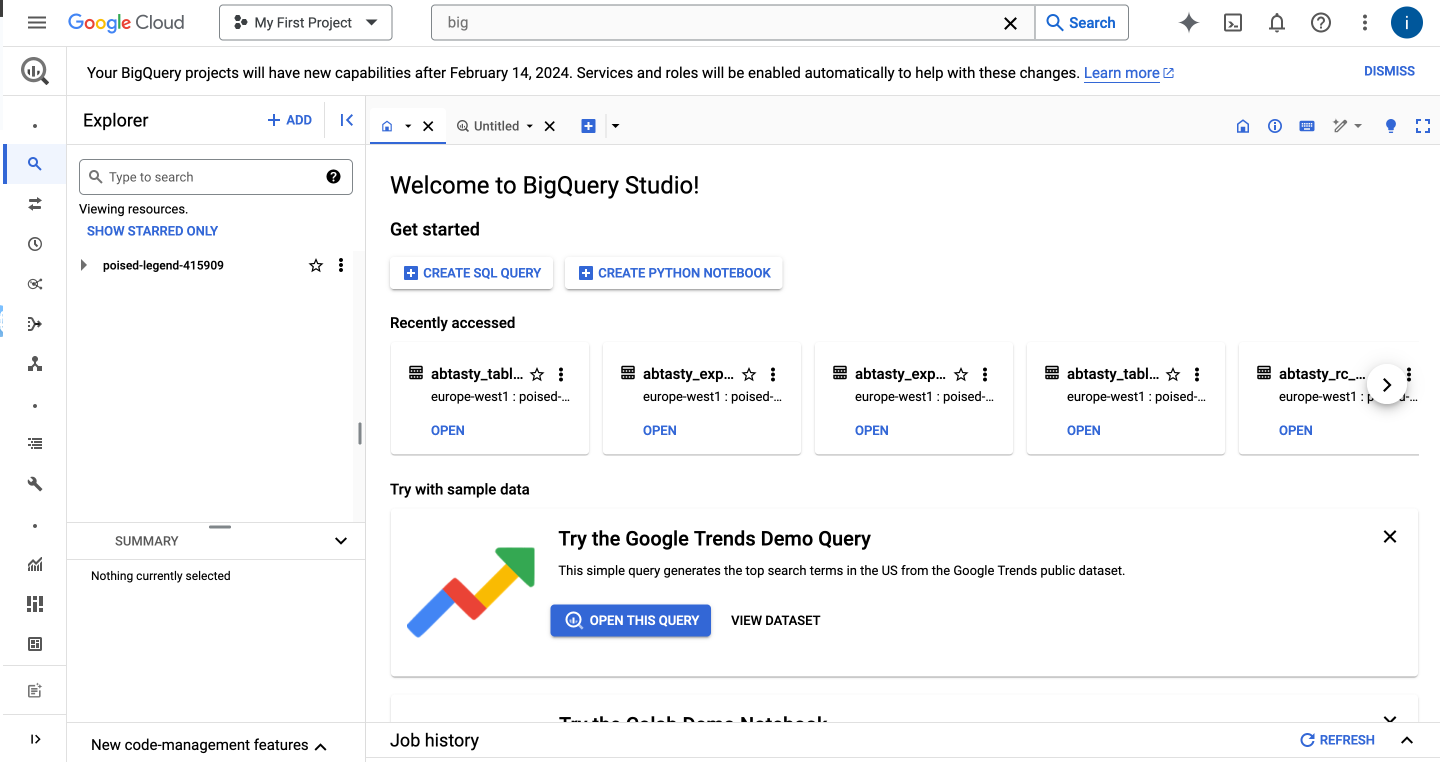
Go to your [BigQuery](https://console.cloud.google.com/bigquery) console and activate BigQuery.
### Step 2: Create a service account
The service account is used to generate your credentials (in JSON format). More information on service accounts [here](https://cloud.google.com/iam/docs/service-account-overview?hl=fr).
1. Go to the service account
2. Click on create Service account
3. Enter a name and a description
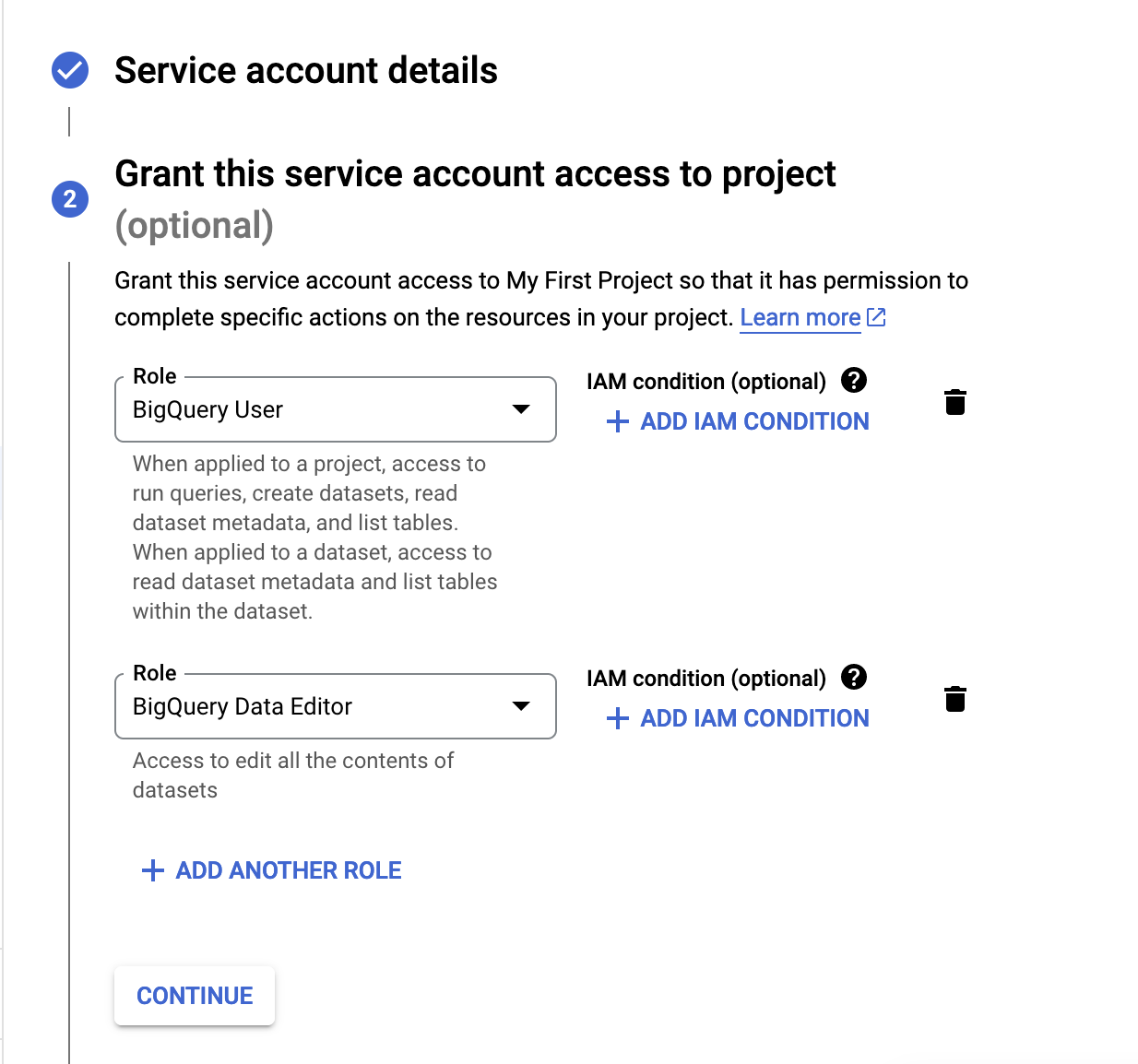
4. Add a role: you must add “BigQuery User” and “BigQuery Data Editor”
5. Click on “done” to validate.
### Step 3: Create and export keys
Now that the service account is created, we will create the credential keys and export them.
1. Click on the new services account created
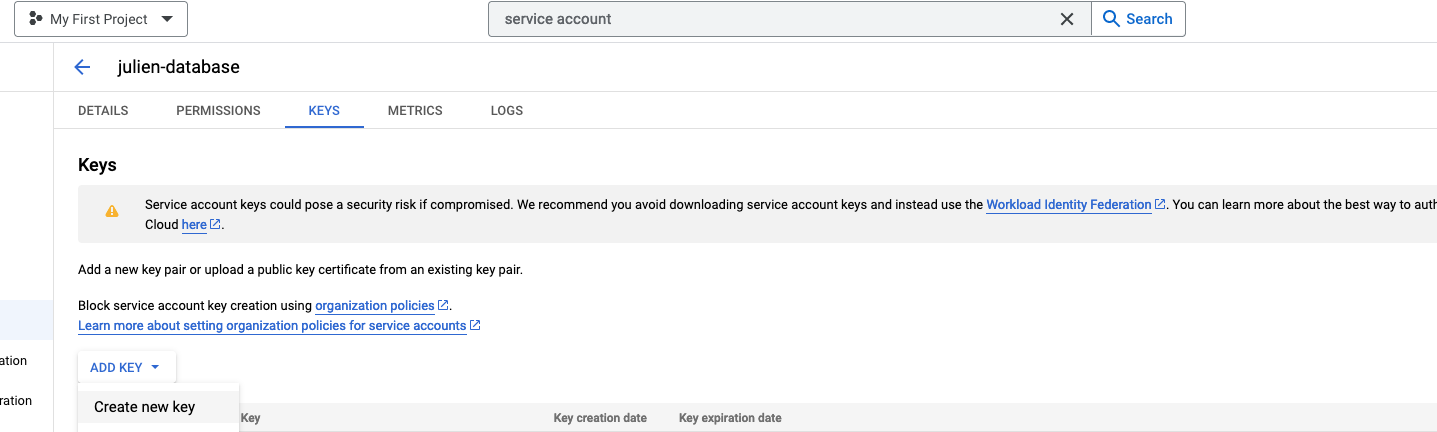
2. Go into your service account, then “Keys” and click “add key” > “create new key”
3. Select “JSON” and click “create”.
4. Download the key.
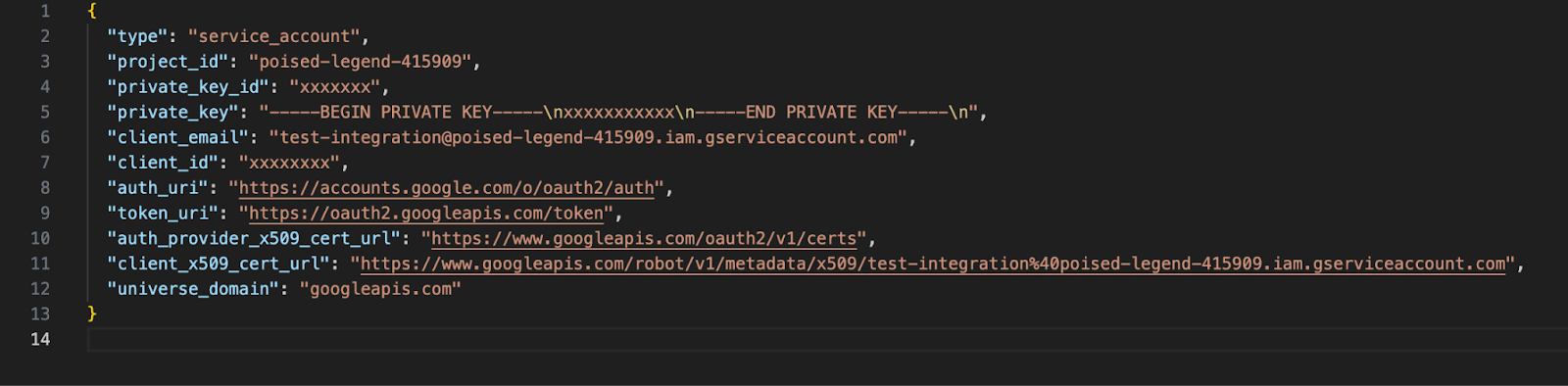
The content of the key should look like this:
### Step 4: Create a new dataset
1. Go back to BigQuery
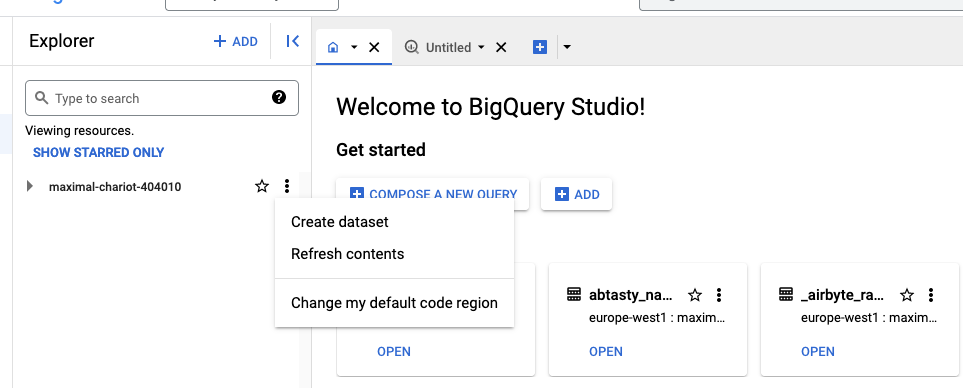
2. In the Explorer menu choose your GCP project and click the three dots, then click “Create dataset”
3. Give it an ID and a location (no other mandatory options)
4. Click “create dataset”
Your dataset is now created and should appear in the Explorer menu. By clicking on your dataset you should be able to display its details.
More information on how to create a BigQuery dataset can be found [here](https://cloud.google.com/bigquery/docs/datasets).
### Step 5: Set up the connector in AB Tasty
1. In AB Tasty, go to the Integration Hub page > Data Warehouse > BigQuery > setup connector
2. Enter a name for the connector
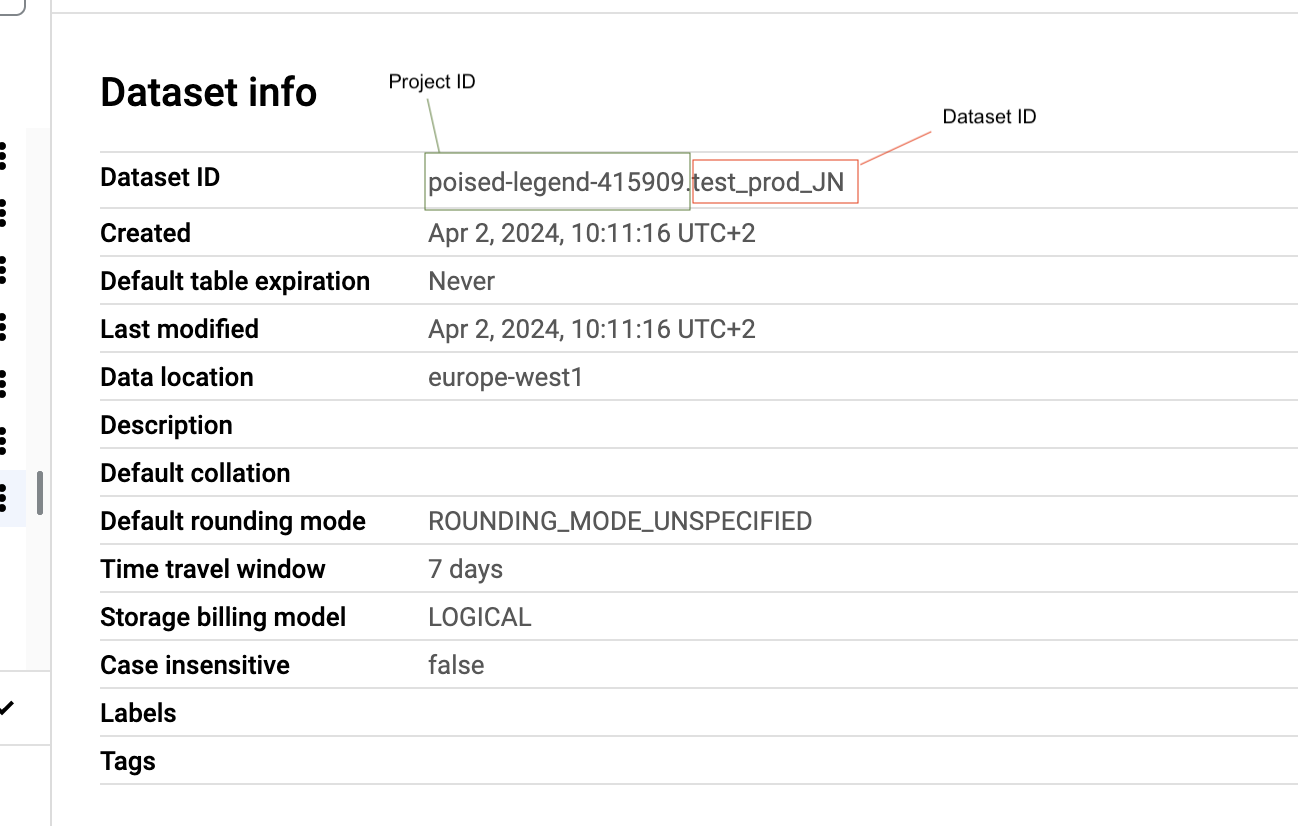
3. Enter the dataset location (info can be found in the details of the created dataset)
4. Enter the dataset ID (info can be found in the details of the created dataset). **Copy and paste the part to the right of the ". (see the above screenshot)**
5. Enter the project ID where your dataset is located. **Copy and paste the part to the left of the ". (see the above screenshot)**
6. Choose Service account as the Authorization Method
7. JSON credentials: paste the content of the key (JSON file) that was downloaded when you created the credentials.
8. Click on “Test connection”
9. Validate by clicking on “Next step”.
Your connector is now set up, and you can proceed to **set up your Export**.
You will get an error message, if one of the fields contains an error.
## The export
To set up your daily export, please refer to the guide: [Data Warehouse integrations: General information](/integrations/other-integrations/data-warehouse/data-warehouse-integrations-general-information.md).
### Step 1: Generate your payload
Refer to the [Data Warehouse](/integrations/other-integrations/data-warehouse/data-warehouse-integrations-general-information.md) article to create your payload.
### Step 2: Set up the export
1. Export name: the name of your export, give an explicit name to easily retrieve it in AB Tasty
2. Name of the table: the name of the table we will create in your BigQuery
3. Data exporter query: paste here the payload of your data explorer query
4. Click save and create.
The Google BigQuery integration is now complete, and you will soon see the data flowing into your dedicated Data Warehouse (It can take up to 2–3 hours, depending on the size of your report).
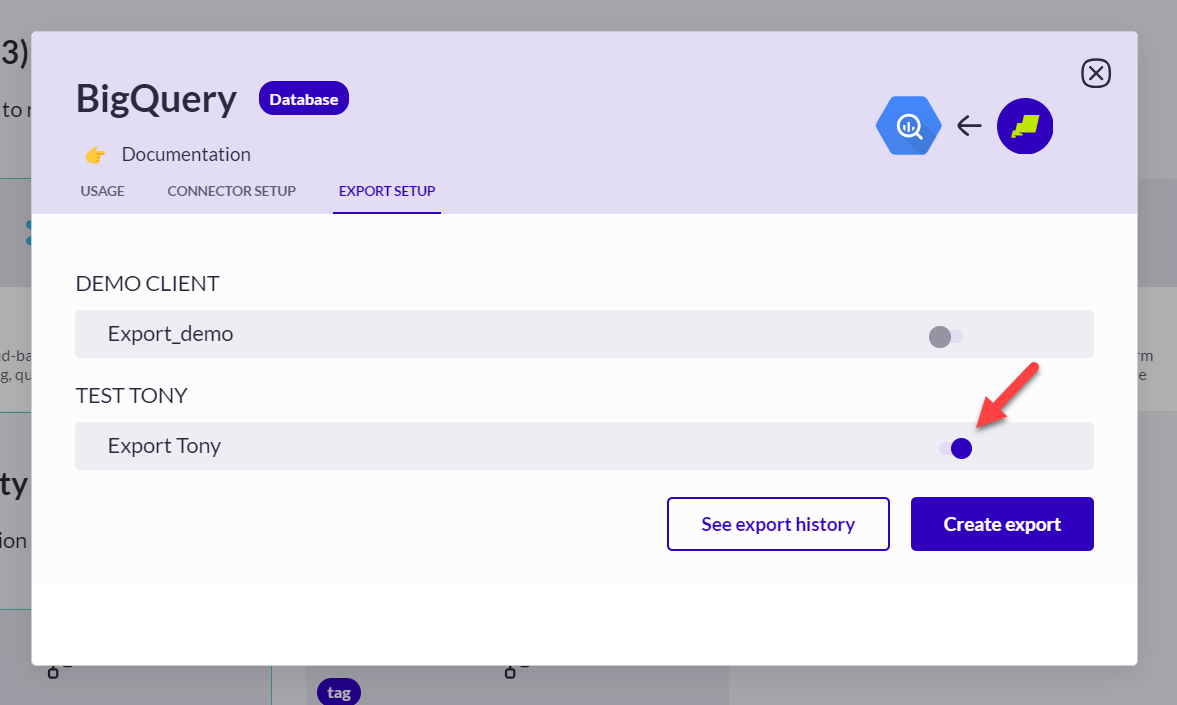
The export is activated upon creation, and new data will be appended to the current one, daily. The following screenshot shows that the export is activated on creation:
---
# Agent Instructions
This documentation is published with GitBook. GitBook is the documentation platform designed so that both humans and AI agents can read, navigate, and reason over technical content effectively. Learn more at gitbook.com.
## Querying This Documentation
If you need additional information that is not directly available in this page, you can query the documentation dynamically by asking a question.
Perform an HTTP GET request on the current page URL with the `ask` query parameter, and the optional `goal` query parameter:
```
GET https://docs.abtasty.com/integrations/other-integrations/data-warehouse/big-query---daily-exports-from-ab-tasty-to-big-query.md?ask=&goal=
```
`ask` is the immediate question: it should be specific, self-contained, and written in natural language.
`goal` is optional and describes the broader end goal you are ultimately trying to accomplish on behalf of the user. GitBook uses it to tailor the answer towards what is most useful for that goal.
The response will contain a direct answer to the question and relevant excerpts and sources from the documentation.
Use this mechanism when the answer is not explicitly present in the current page, you need clarification or additional context, or you want to retrieve related documentation sections.
 ### Step 2: Create a service account
The service account is used to generate your credentials (in JSON format). More information on service accounts [here](https://cloud.google.com/iam/docs/service-account-overview?hl=fr).
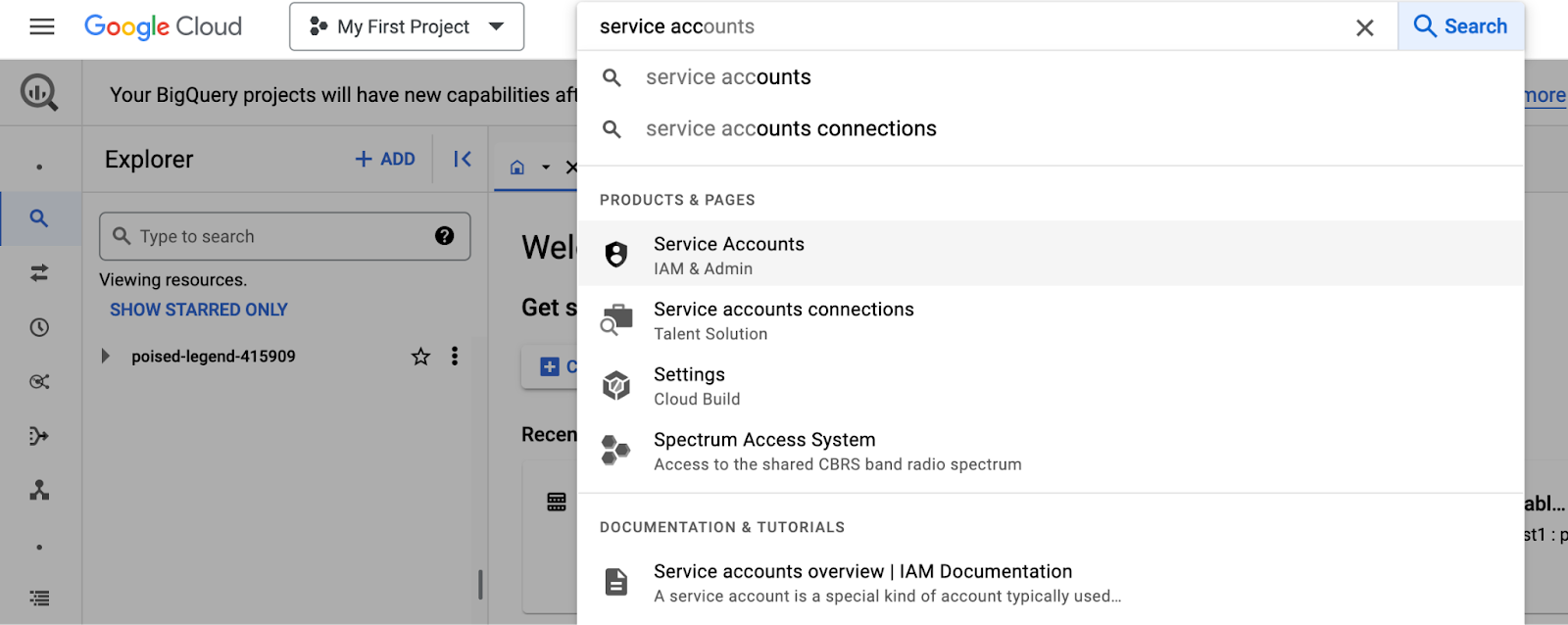
1. Go to the service account
### Step 2: Create a service account
The service account is used to generate your credentials (in JSON format). More information on service accounts [here](https://cloud.google.com/iam/docs/service-account-overview?hl=fr).
1. Go to the service account
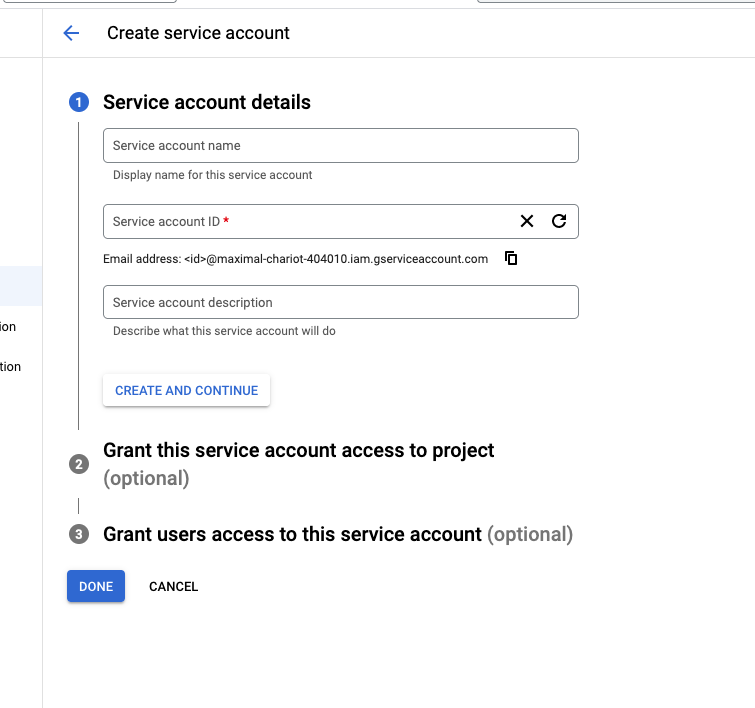 3. Enter a name and a description
4. Add a role: you must add “BigQuery User” and “BigQuery Data Editor”
3. Enter a name and a description
4. Add a role: you must add “BigQuery User” and “BigQuery Data Editor”
 5. Click on “done” to validate.
### Step 3: Create and export keys
Now that the service account is created, we will create the credential keys and export them.
1. Click on the new services account created
5. Click on “done” to validate.
### Step 3: Create and export keys
Now that the service account is created, we will create the credential keys and export them.
1. Click on the new services account created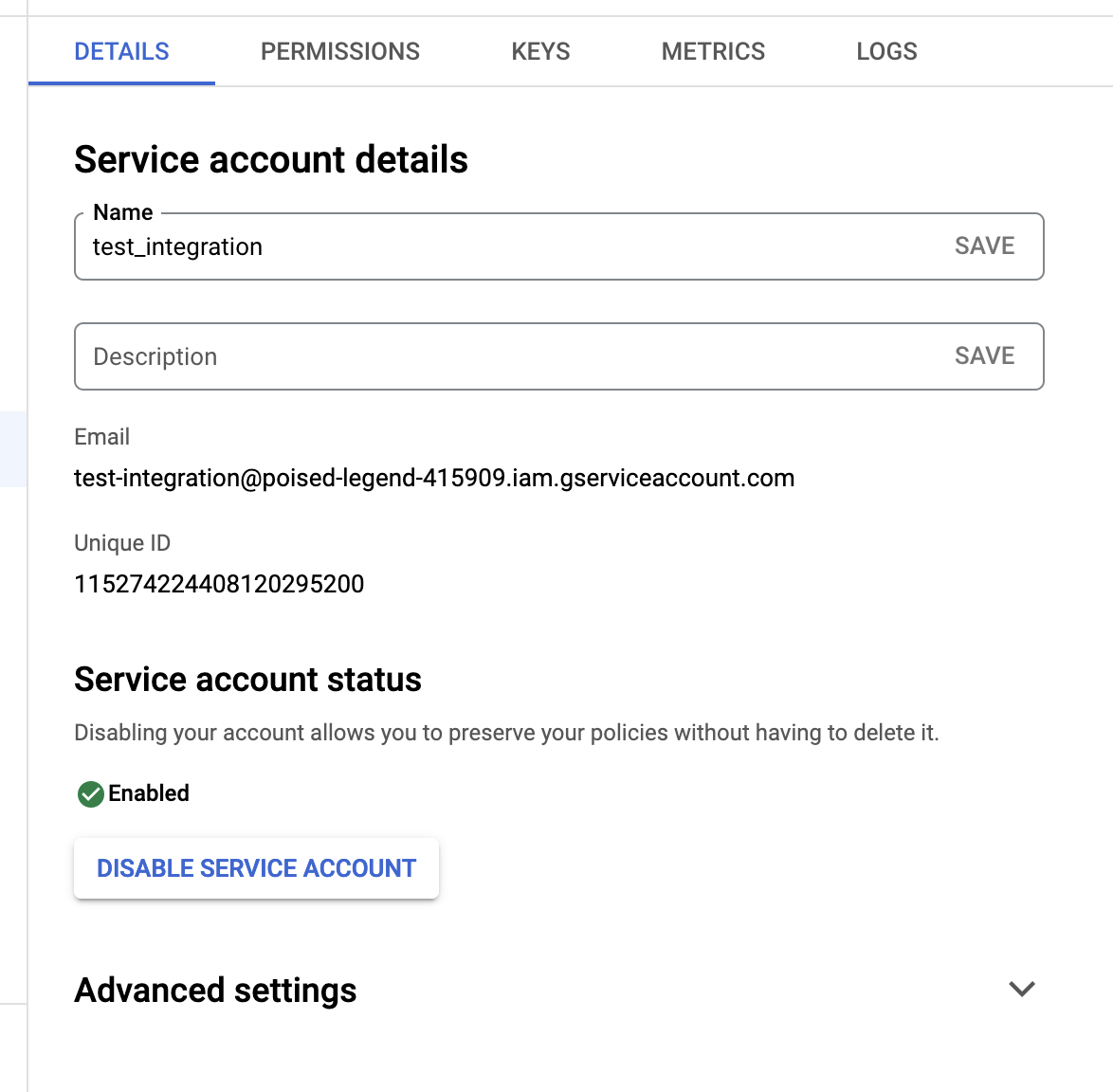
 The content of the key should look like this:
 ### Step 4: Create a new dataset
1. Go back to BigQuery
2. In the Explorer menu choose your GCP project and click the three dots, then click “Create dataset”
### Step 4: Create a new dataset
1. Go back to BigQuery
2. In the Explorer menu choose your GCP project and click the three dots, then click “Create dataset”
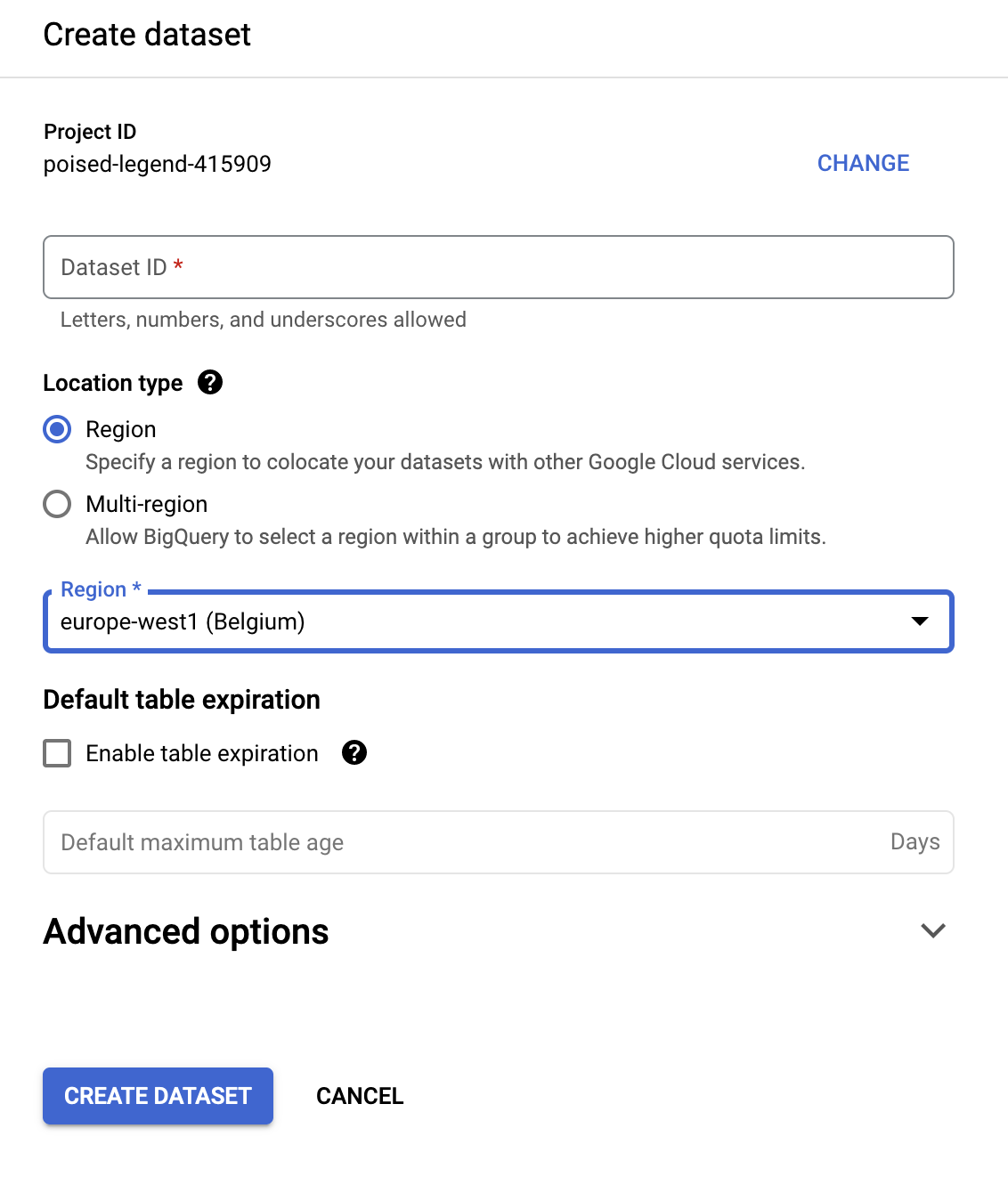 3. Give it an ID and a location (no other mandatory options)
4. Click “create dataset”
Your dataset is now created and should appear in the Explorer menu. By clicking on your dataset you should be able to display its details.
More information on how to create a BigQuery dataset can be found [here](https://cloud.google.com/bigquery/docs/datasets).
3. Give it an ID and a location (no other mandatory options)
4. Click “create dataset”
Your dataset is now created and should appear in the Explorer menu. By clicking on your dataset you should be able to display its details.
More information on how to create a BigQuery dataset can be found [here](https://cloud.google.com/bigquery/docs/datasets).
 ### Step 5: Set up the connector in AB Tasty
1. In AB Tasty, go to the Integration Hub page > Data Warehouse > BigQuery > setup connector
2. Enter a name for the connector
3. Enter the dataset location (info can be found in the details of the created dataset)
4. Enter the dataset ID (info can be found in the details of the created dataset). **Copy and paste the part to the right of the ". (see the above screenshot)**
5. Enter the project ID where your dataset is located. **Copy and paste the part to the left of the ". (see the above screenshot)**
6. Choose Service account as the Authorization Method
7. JSON credentials: paste the content of the key (JSON file) that was downloaded when you created the credentials.
8. Click on “Test connection”
9. Validate by clicking on “Next step”.
Your connector is now set up, and you can proceed to **set up your Export**.
You will get an error message, if one of the fields contains an error.
## The export
To set up your daily export, please refer to the guide: [Data Warehouse integrations: General information](/integrations/other-integrations/data-warehouse/data-warehouse-integrations-general-information.md).
### Step 1: Generate your payload
Refer to the [Data Warehouse](/integrations/other-integrations/data-warehouse/data-warehouse-integrations-general-information.md) article to create your payload.
### Step 2: Set up the export
### Step 5: Set up the connector in AB Tasty
1. In AB Tasty, go to the Integration Hub page > Data Warehouse > BigQuery > setup connector
2. Enter a name for the connector
3. Enter the dataset location (info can be found in the details of the created dataset)
4. Enter the dataset ID (info can be found in the details of the created dataset). **Copy and paste the part to the right of the ". (see the above screenshot)**
5. Enter the project ID where your dataset is located. **Copy and paste the part to the left of the ". (see the above screenshot)**
6. Choose Service account as the Authorization Method
7. JSON credentials: paste the content of the key (JSON file) that was downloaded when you created the credentials.
8. Click on “Test connection”
9. Validate by clicking on “Next step”.
Your connector is now set up, and you can proceed to **set up your Export**.
You will get an error message, if one of the fields contains an error.
## The export
To set up your daily export, please refer to the guide: [Data Warehouse integrations: General information](/integrations/other-integrations/data-warehouse/data-warehouse-integrations-general-information.md).
### Step 1: Generate your payload
Refer to the [Data Warehouse](/integrations/other-integrations/data-warehouse/data-warehouse-integrations-general-information.md) article to create your payload.
### Step 2: Set up the export
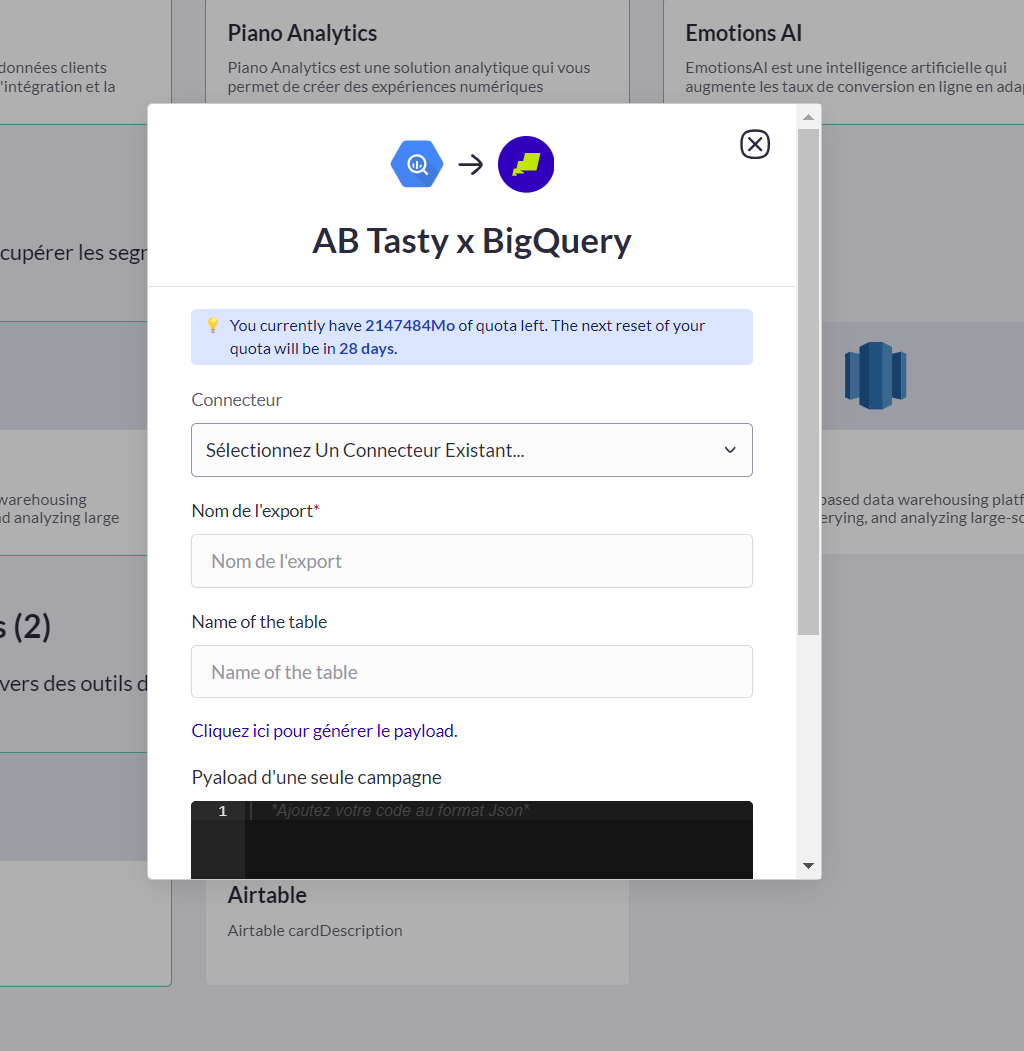 1. Export name: the name of your export, give an explicit name to easily retrieve it in AB Tasty
2. Name of the table: the name of the table we will create in your BigQuery
3. Data exporter query: paste here the payload of your data explorer query
4. Click save and create.
The Google BigQuery integration is now complete, and you will soon see the data flowing into your dedicated Data Warehouse (It can take up to 2–3 hours, depending on the size of your report).
The export is activated upon creation, and new data will be appended to the current one, daily. The following screenshot shows that the export is activated on creation:
1. Export name: the name of your export, give an explicit name to easily retrieve it in AB Tasty
2. Name of the table: the name of the table we will create in your BigQuery
3. Data exporter query: paste here the payload of your data explorer query
4. Click save and create.
The Google BigQuery integration is now complete, and you will soon see the data flowing into your dedicated Data Warehouse (It can take up to 2–3 hours, depending on the size of your report).
The export is activated upon creation, and new data will be appended to the current one, daily. The following screenshot shows that the export is activated on creation: