> For the complete documentation index, see [llms.txt](https://docs.abtasty.com/llms.txt). Markdown versions of documentation pages are available by appending `.md` to page URLs; this page is available as [Markdown](https://docs.abtasty.com/integrations/other-integrations/productivity/microsoft-teams.md).
# Microsoft Teams
## Connect your Microsoft Teams Workspace to AB Tasty
Integrating Microsoft Teams with AB Tasty lets you receive real-time updates on your experiments, personalisations, and other platform activities directly in your Microsoft Teams workspace. This integration helps streamline team collaboration by ensuring everyone stays informed without leaving their Microsoft Teams environment.
### Microsoft Teams functionalities
Once connected with AB Tasty, the Microsoft Teams integration provides:
* **Real-time notifications**: Get updates on experiment launches, creation of new campaigns and other key events.
* **Specific accounts & campaigns subscriptions:** Focus on what you want to follow.
* **Microsoft Teams commands**: Use specific commands to retrieve experiment details directly from Microsoft Teams.
* **Multi-channel support**: Choose where notifications are sent based on your team's workflow.
### Prerequisites
* The rights to install applications on your Microsoft Teams workspace
* An active AB Tasty Account
### Microsoft Teams installation steps
#### **From the Microsoft Teams marketplace**
Go to the marketplace and search for AB Tasty. Install the application.

1. Open Microsoft Teams and navigate to the **Apps** section.
2. Search for **AB Tasty**
3. **Add** the app to your workspace
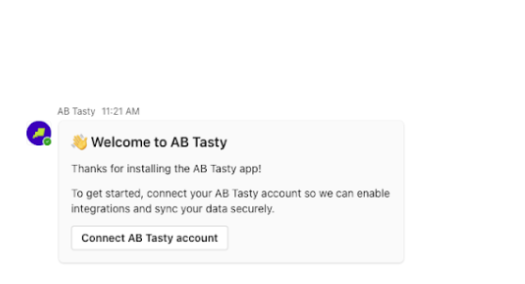
4. Upon opening the application, you will receive an automatic message stating that you need to connect to AB Tasty.
5. Click on "Connect AB Tasty account" and follow the steps.
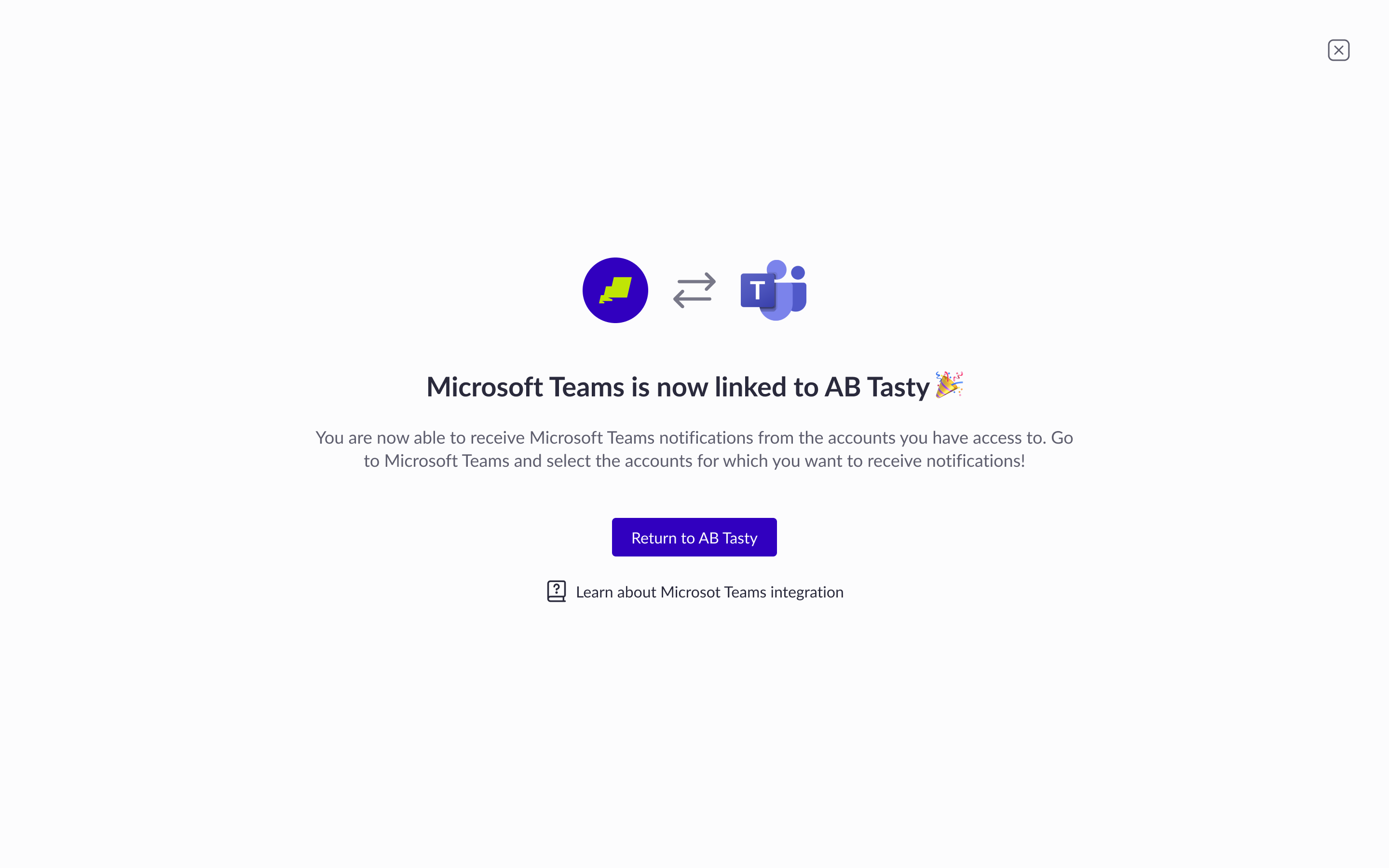
6. The AB Tasty Teams application is now connected to your AB Tasty account.
### Connect from AB Tasty
If you prefer to set up the integration directly from AB Tasty:
1. Log in to AB Tasty and go to the **Integrations** section.
2. Find Microsoft Teams and click **Create a connector**
3. Follow the authorization flow to link your Microsoft Teams workspace and AB Tasty successfully
### Microsoft Teams commands
Once the integration is active, you can use the following commands.\
To use a command, simply @mention AB Tasty bot followed by one of the keywords below (e.g., `@AB Tasty abt-campaigns`)
* `abt-campaigns` → Displays a list of active experiments from your last connected account.
* `abt-notifications` → Displays a list of active experiments from the selected account.
* `abt-campaign-info` → Displays specific details about the selected campaign.
* `help` → Provides a list of available commands.
### Notifications & subscriptions
To manage your notifications:
1. In Microsoft Teams, run the command `/abt-notifications`.
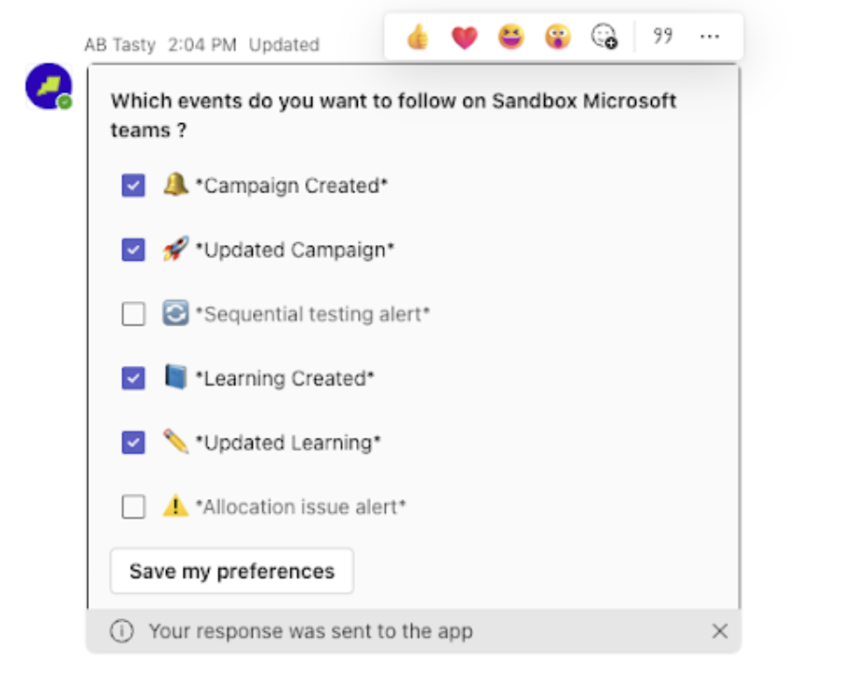
2. An Adaptive Card opens and prompts you to select the account you want to configure notifications for.
3. A second Adaptive Card displays all notification types available for the selected account.
4. Select the events you want to subscribe to, then validate your selection.
Your choices are saved immediately and apply only to the selected account. You can configure different notification preferences for each account.
**Managing notification preferences**
You can update your notification settings at any time by running the `/abt-notifications`
* Enable new notification types.
* Disable notifications you no longer want to receive.
* Fine-tune notifications per account based on your needs.
**Key notification types**
The following notifications are commonly used to track experimentation and learning activity:
* **New Campaign**\
Triggered when a new campaign is created. Useful to stay informed about new tests or personalisations being launched.
* **Change Status**\
Triggered when a campaign status changes, for example, when it starts, pauses, or stops. Helps monitor campaign lifecycle updates in real time.
* **Learning Created**\
Triggered when a new learning is added to a campaign. Ideal for keeping visibility on insights as soon as they are documented.
* **Learning Updated**\
Triggered when an existing learning is modified. Useful to track refinements, conclusions, or additional insights added over time.
### Privacy policy
To learn more about [**AB Tasty privacy policies**](https://www.abtasty.com/privacy-policy/) or [**terms of use**](https://www.abtasty.com/terms-of-use/), please read our dedicated pages.
### Need some help?
Consult our [**help center**](https://docs.abtasty.com/help-center) or contact
---
# Agent Instructions
This documentation is published with GitBook. GitBook is the documentation platform designed so that both humans and AI agents can read, navigate, and reason over technical content effectively. Learn more at gitbook.com.
## Querying This Documentation
If you need additional information that is not directly available in this page, you can query the documentation dynamically by asking a question.
Perform an HTTP GET request on the current page URL with the `ask` query parameter, and the optional `goal` query parameter:
```
GET https://docs.abtasty.com/integrations/other-integrations/productivity/microsoft-teams.md?ask=&goal=
```
`ask` is the immediate question: it should be specific, self-contained, and written in natural language.
`goal` is optional and describes the broader end goal you are ultimately trying to accomplish on behalf of the user. GitBook uses it to tailor the answer towards what is most useful for that goal.
The response will contain a direct answer to the question and relevant excerpts and sources from the documentation.
Use this mechanism when the answer is not explicitly present in the current page, you need clarification or additional context, or you want to retrieve related documentation sections.