> For the complete documentation index, see [llms.txt](https://docs.abtasty.com/llms.txt). Markdown versions of documentation pages are available by appending `.md` to page URLs; this page is available as [Markdown](https://docs.abtasty.com/integrations/pull-integrations/heap-analytics.md).
# Heap Analytics
## Heap & AB Tasty
Heap is a Product Analytics company that provides analytics infrastructure and helps their clients to focus on discovering insights and taking action, not writing tracking code.
The Heap Analytics integration allows you to import your Heap segments in AB Tasty so you can target them with AB Tasty campaigns.
A segment in Heap is any subset of users based on a particular criterion defined by you. For further information on how to use segments, please refer to the [Heap Analytics documentation](https://help.heap.io/define-analyze/data-management/segments-overview/).
## Integration
\
To enable the integration on AB Tasty, follow the steps below:
1. Access **Integrations** > **Integration Hub** > **Pull**.
2. Search for and select **Heap Analytics**.
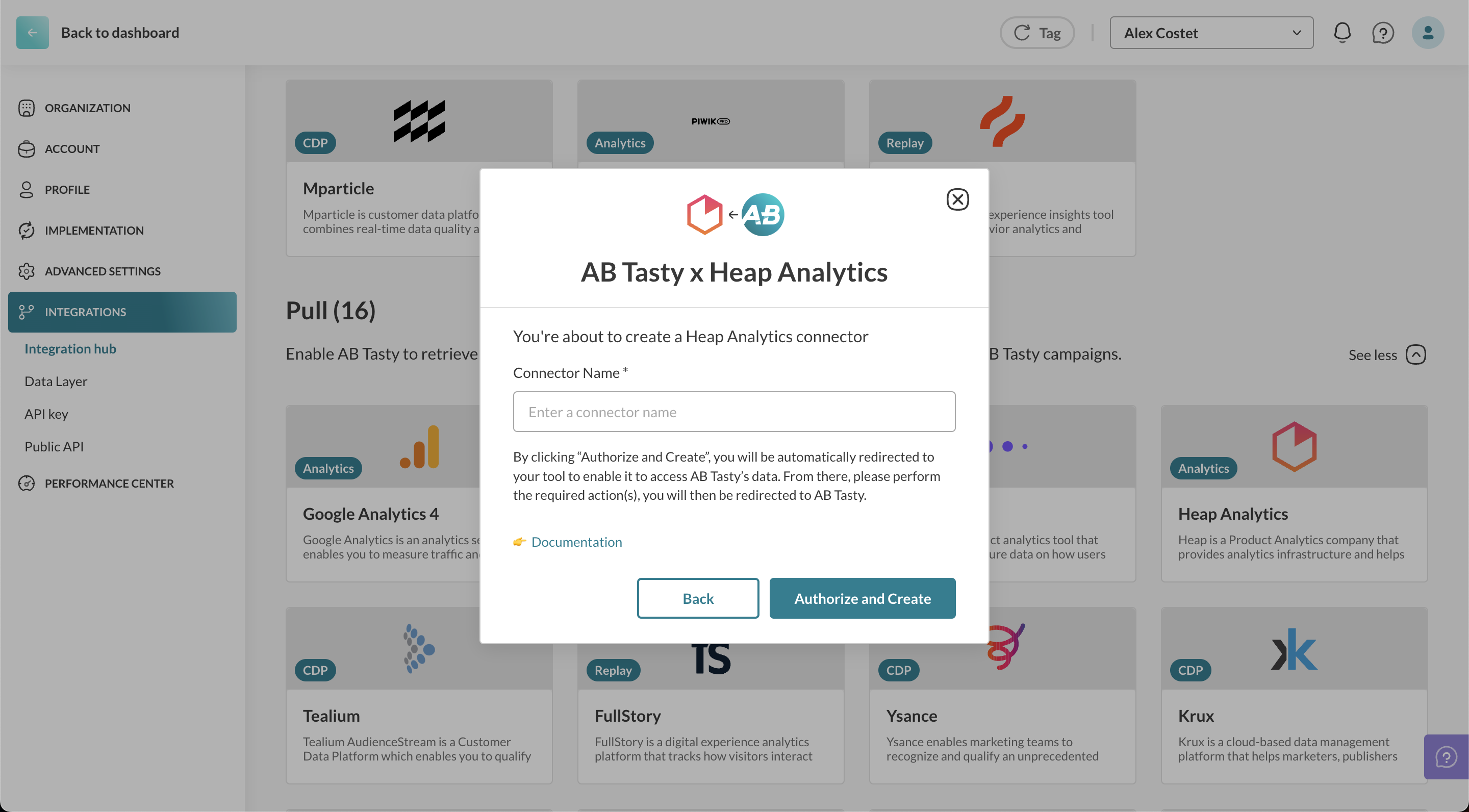
3. Click **Setup connector**.
4. Give a name to your connector so you can easily retrieve it.
5. Click **Authorize and create**.
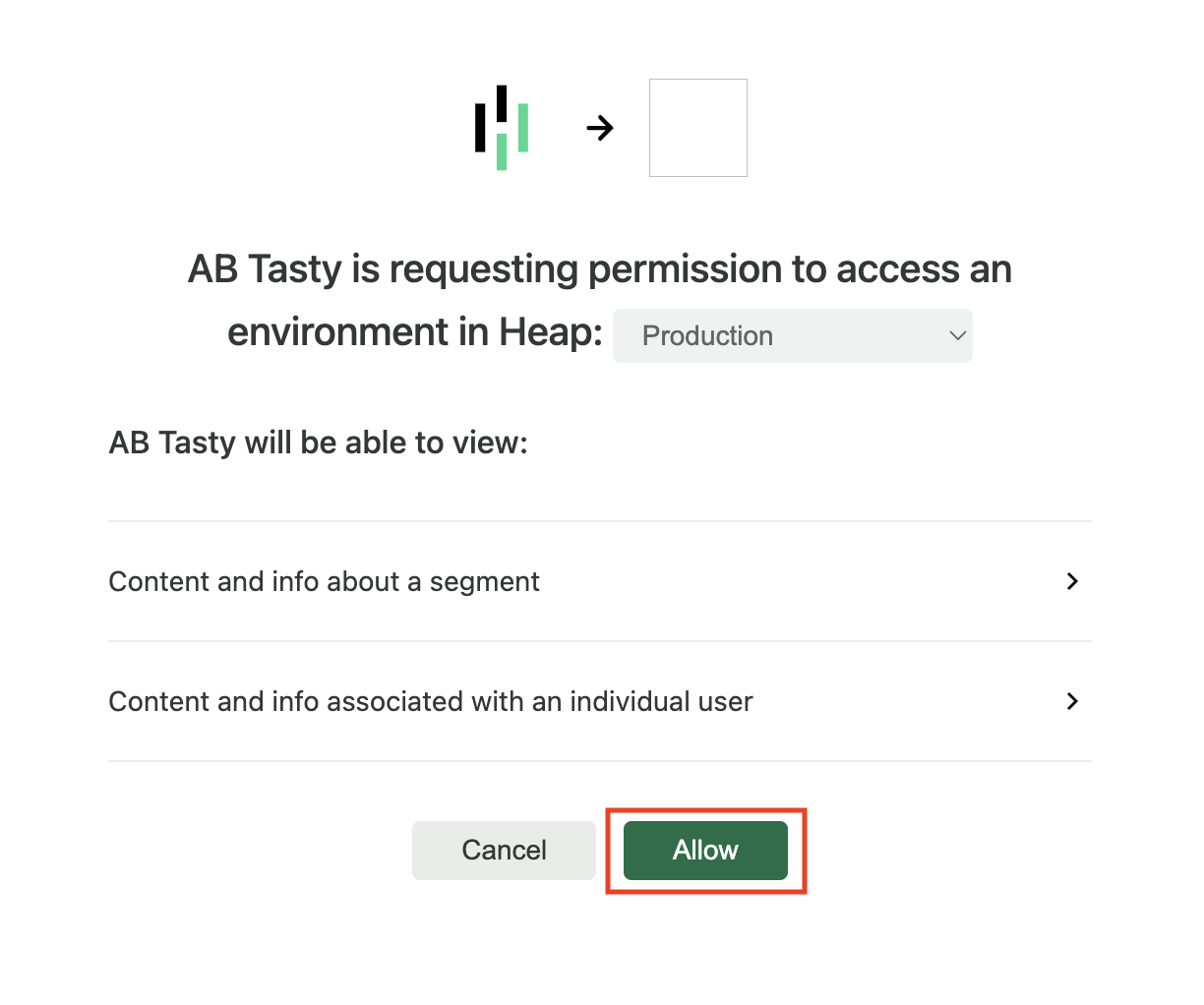
6. You will be redirected to the Heap Analytics interface, in which you will be able to allow AB Tasty integration to access your Heap environment (this is necessary to enable integration between the two tools). Click **Allow**.\
\
You will be redirected to AB Tasty's integration setting page.\
The integration is set up and you will see it in the validated list. The TokenID field is automatically filled.
You now need to export the Heap segment to AB Tasty. This is done on the Heap Analytics interface, and it is explained in the next part of this article.
### Exporting the Segments From Heap Analytics to AB Tasty
\
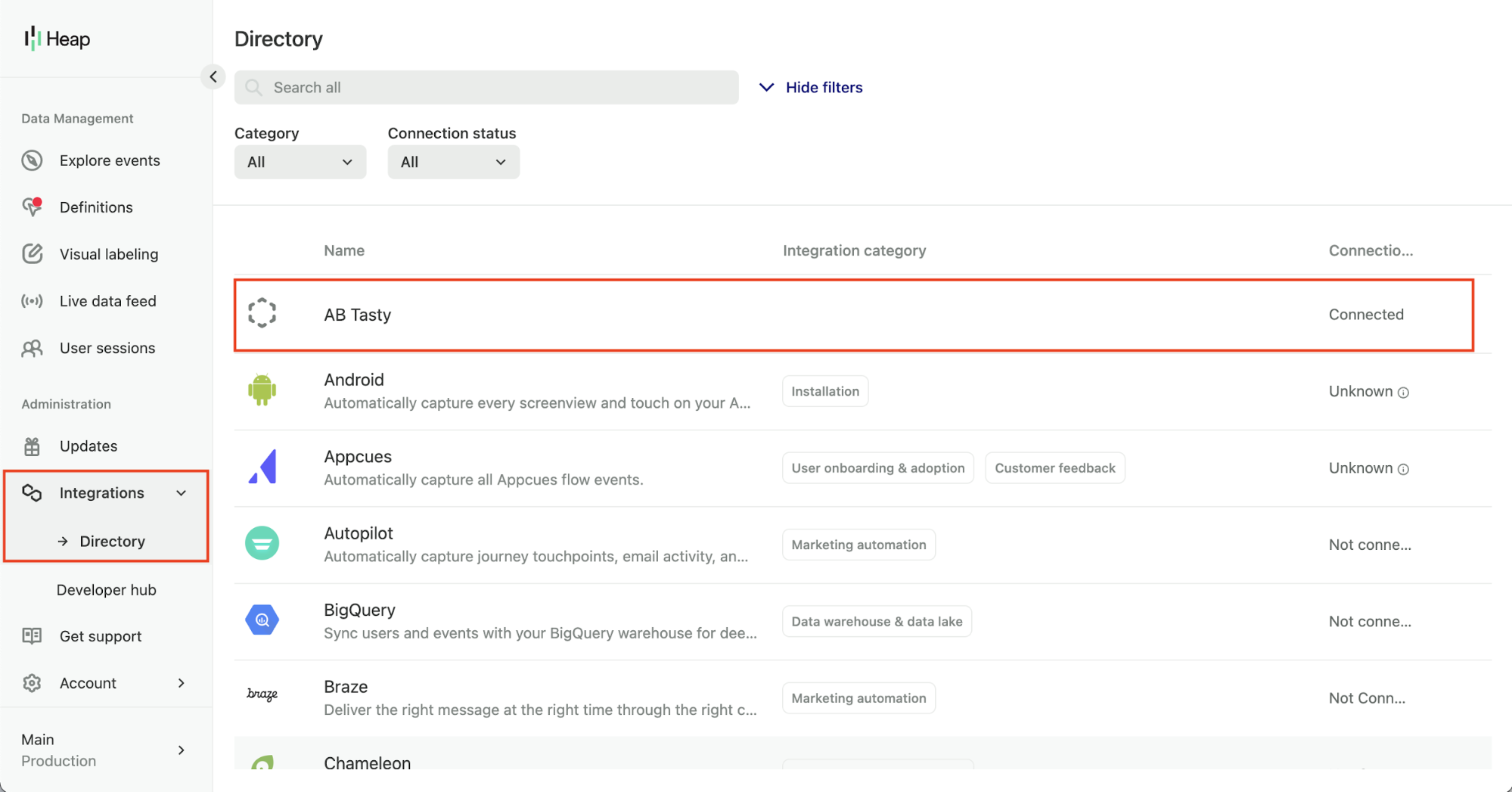
Now that the connection between the tools is established, you should see it in the Integrations > Directory (direct access through the left menu).
To be able to target your Heap segments with AB Tasty campaigns, you now need to export the desired segments to AB Tasty.
To export the segments to AB Tasty, follow the steps below:
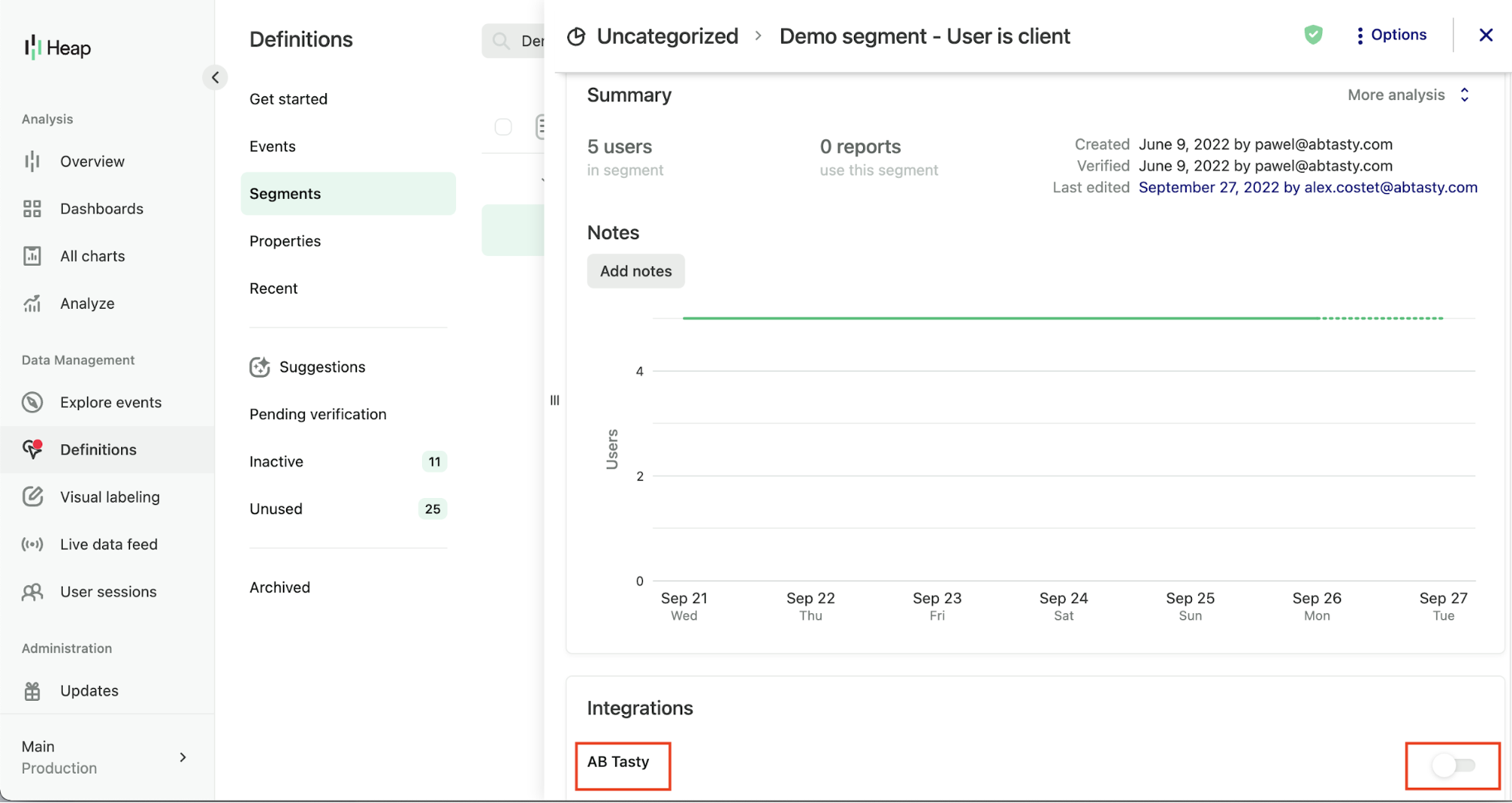
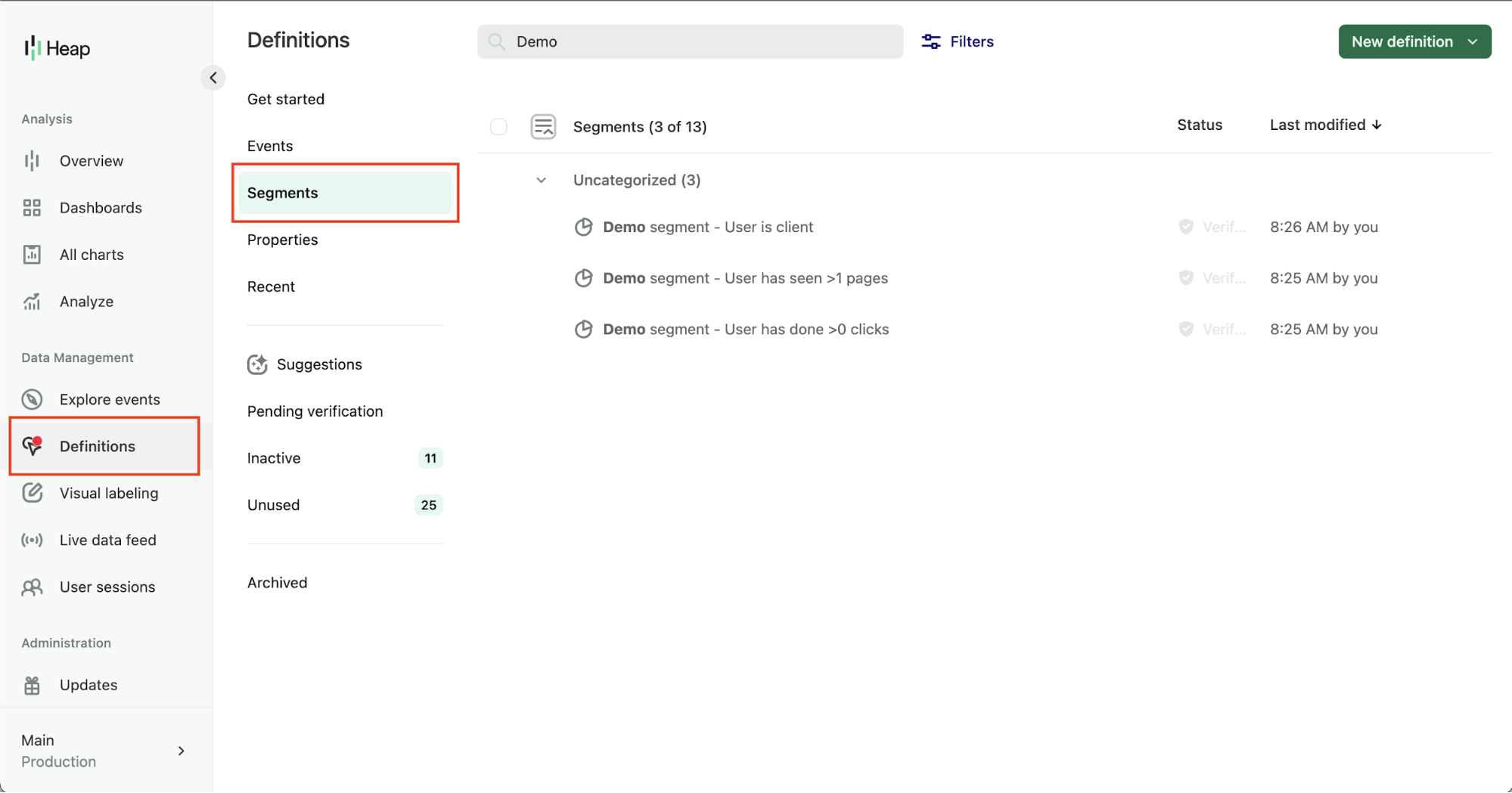
1. Access Definitions > Segments to see the list of defined segments.
2. Select the segment you want to export to AB Tasty.\
3. In the segment panel, under Integrations, turn on the AB Tasty switch.
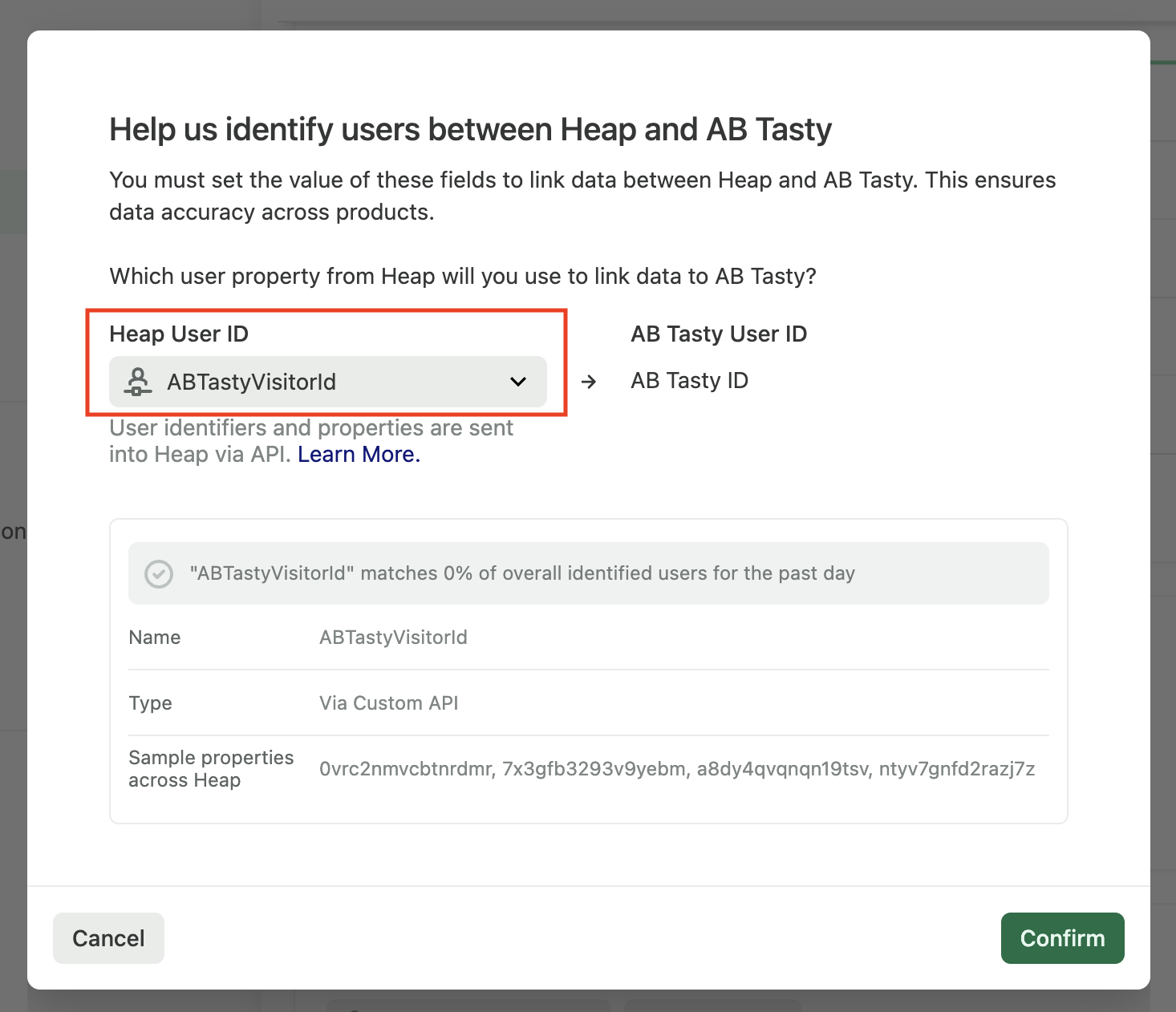
4. In the export config, choose ABTastyVisitorId as the Heap User ID. If it is the first time you export a segment, and you don't see the ABTastyVisitorId you might need to wait a few minutes/hours (time needed by Heap to collect the property).\
The ABTastyVisitorId is the matching key used for user recognition. It is sent to Heap once you enable the integration in AB Tasty (the first step of this guide).\
If it is the first time, you export a segment and you don't see the ABTastyVisitorId you might need to wait a few minutes/hours (time needed by Heap to collect the property).
5. Click Confirm.
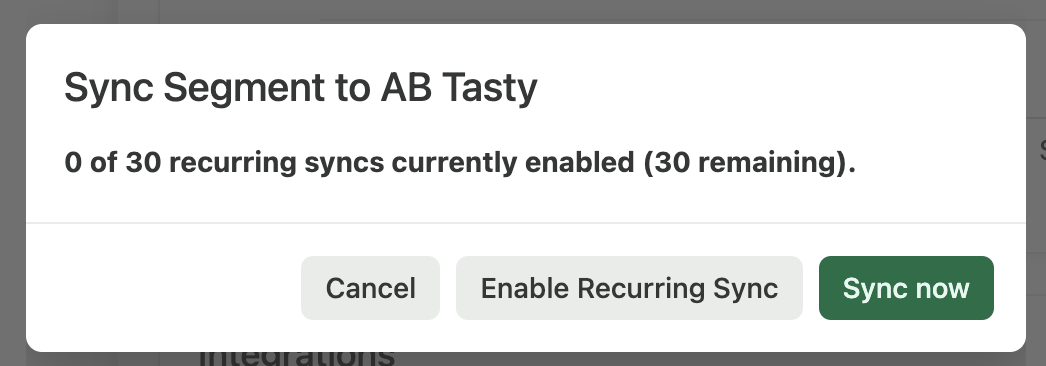
6. You will be able to choose Enable Recurring Sync. We recommend using this option to keep your segment updated in AB Tasty. Confirm by clicking Enable Recurring Sync or Sync now.
* AB tasty pushes the ABTasty Visitor Id to Heap, and Heap includes it in the segment export. The ABTasty Visitor Id is used to match the user.
* For the segments to be used in AB Tasty’s segment builder (once exported from Heap), we need to match at least one user i.e. Empty segments will not be displayed in the segment builder.
## Configuration
After you have activated and configured an integration, you will be able to retrieve Heap segments in the segment builder (available when you create a new segment).
Audiences generated by your integrations are available under the criteria group **EXTERNAL DATA**.
For each integration, you will have a corresponding item that you can drag and drop to use.
For global information on how to build a targeting segment, please refer to [how to create a segment](/web-experimentation-and-personalization/targeting-step/how-to-create-a-segment-who-section.md).
For an audience to be available in the segment builder, it must not be empty, meaning that we have to identify at least one user belonging to that audience. Once a user is identified, the audience will appear in the segment builder.
---
# Agent Instructions
This documentation is published with GitBook. GitBook is the documentation platform designed so that both humans and AI agents can read, navigate, and reason over technical content effectively. Learn more at gitbook.com.
## Querying This Documentation
If you need additional information that is not directly available in this page, you can query the documentation dynamically by asking a question.
Perform an HTTP GET request on the current page URL with the `ask` query parameter, and the optional `goal` query parameter:
```
GET https://docs.abtasty.com/integrations/pull-integrations/heap-analytics.md?ask=&goal=
```
`ask` is the immediate question: it should be specific, self-contained, and written in natural language.
`goal` is optional and describes the broader end goal you are ultimately trying to accomplish on behalf of the user. GitBook uses it to tailor the answer towards what is most useful for that goal.
The response will contain a direct answer to the question and relevant excerpts and sources from the documentation.
Use this mechanism when the answer is not explicitly present in the current page, you need clarification or additional context, or you want to retrieve related documentation sections.
 To export the segments to AB Tasty, follow the steps below:
1. Access Definitions > Segments to see the list of defined segments.
2. Select the segment you want to export to AB Tasty.\
To export the segments to AB Tasty, follow the steps below:
1. Access Definitions > Segments to see the list of defined segments.
2. Select the segment you want to export to AB Tasty.\