> For the complete documentation index, see [llms.txt](https://docs.abtasty.com/llms.txt). Markdown versions of documentation pages are available by appending `.md` to page URLs; this page is available as [Markdown](https://docs.abtasty.com/integrations/pull-integrations/mparticle.md).
# mParticle
## mParticle & AB Tasty
**mParticle** is a Customer Data Platform (CDP) that streamlines the collection, integration, and distribution of data from various channels such as mobile apps, websites, and IoT devices.\
The mParticle integration allows you to receive the audiences created in the mParticle dashboard and to target them with AB Tasty.
A segment in mParticle is any subset of users based on a particular criterion defined by you.\
For further information on how to use audiences, please refer to the [mParticle documentation.](https://docs.mparticle.com/integrations/abtasty/audience/#prerequisites)
The mParticle integration allows you to receive the audiences collected in mParticle and to use them to create segments within AB Tasty. Thus, the mParticle integration process is a process taking place on both interfaces.
## Integration
### Requirements
To make sure the integration runs without any problem, you **must** have mParticle integrated into your website.
On the console (on the browser), you can check with the following commands:
```
window.mParticle
window.mParticle?.Identity?.getCurrentUser?.()?.getMPID?.()
```
If you don’t have any response, please contact [mParticle](https://docs.mparticle.com/). It probably means that you don’t have mParticle on your website so the pull integration can’t run.
### Enabling the integration on AB Tasty
\
To enable the integration on AB Tasty, follow the steps below:
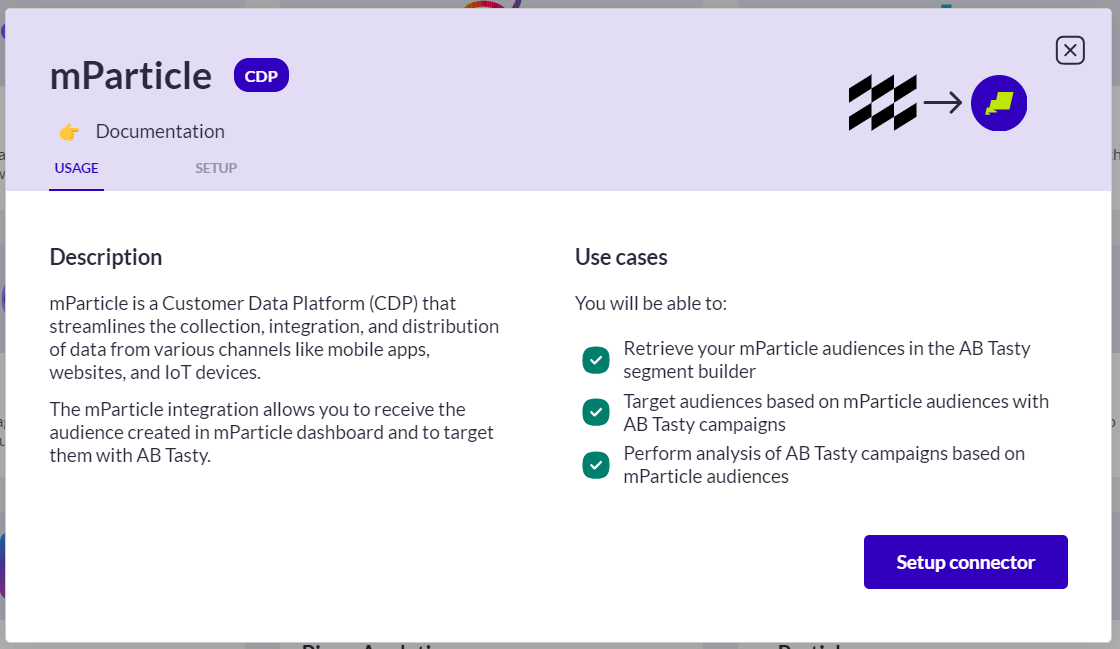
1. Access **Integrations > Integration Hub > Pull**.
2. Search for and select **mParticle**.
3. Click **Setup connector.**
4. Give a name to your connector so you can easily retrieve it.
5. Click **Save and create connector.**
mParticle is set up. No other action is required here. This will allow AB Tasty to display the audiences that will be sent by mParticle.
### Copying the AB tasty API key
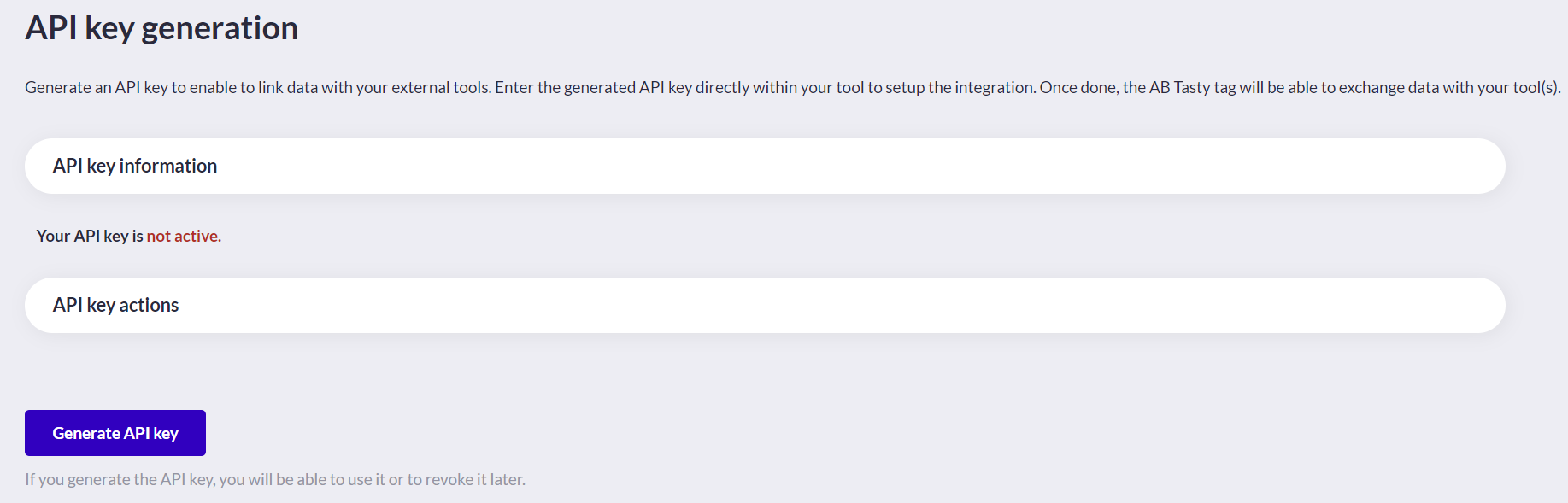
1. Access **Integrations >**[ **API key**](https://app2.abtasty.com/settings/integration/api-configuration)
2. Generate an API Key
3. Copy this new API Key (for later)
### Enabling the integration on mParticle
To enable integration on mParticle, follow the steps below:
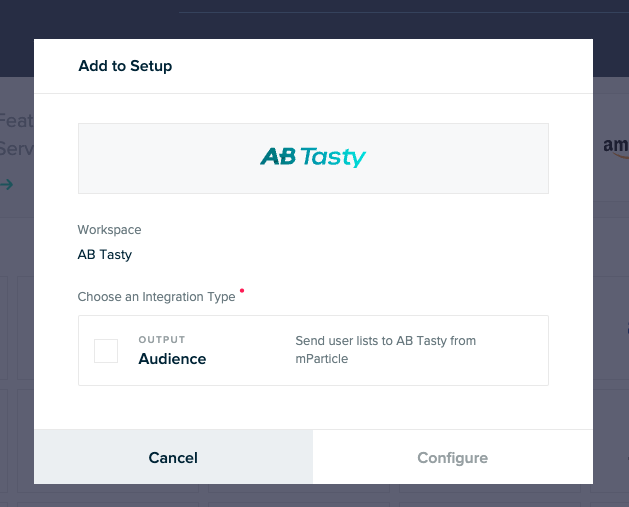
1. From the [Directory catalog](https://app.mparticle.com/directory) page in the **mParticle** App, Search for “AB Tasty” and select the **AB Tasty** destination.
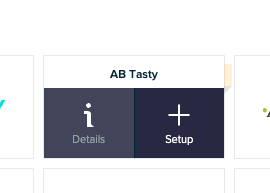
2. When hovering over the corresponding card, click on “setup”
3. Choose which **Source** should send data to the **AB Tasty** destination. (audience)
4. A new modal is displayed. Enter :
* A configuration name
* Paste the API generated inside the AB tasty dashboard
An integration API key is a unique key that allows a third-party tool to communicate with your specific AB Tasty account i.e., send data to your account.
**Technical specification**\
mParticle sends the audiences in real-time, i.e. AB Tasty will receive data each time a new audience is created.\
First, an AudienceSubscriptionRequest is sent to AB tasty. It’s not linked to a single user but only to give the information to AB tasty that a new audience is now connected\
Secondly, mParticle pushes an AudienceMembershipChangeRequest. When a user enters in an Audience or is removed from it, data is sent to AB tasty with a mParticle userID. Thanks to this ID, we are able to recognize which user belongs to which audience.
## Configuration
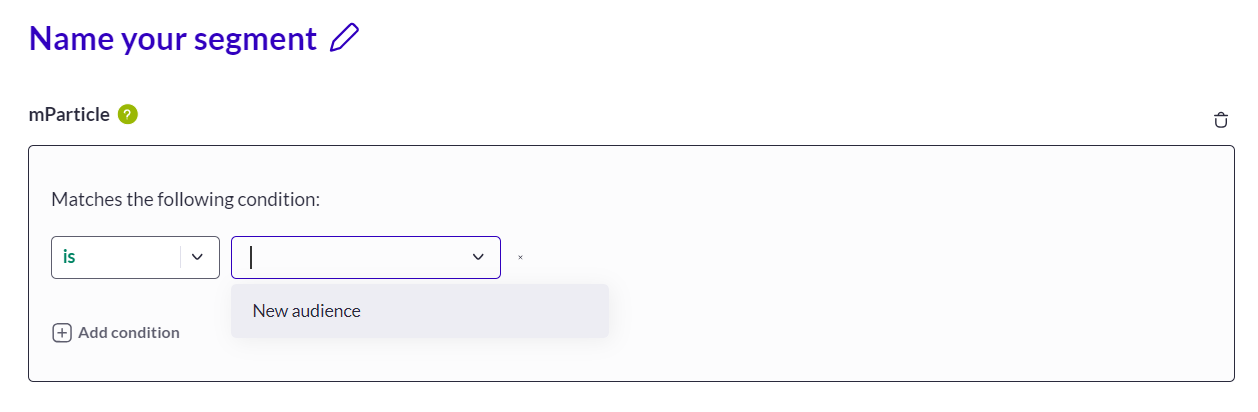
Once you have activated and configured an integration, you can retrieve mParticle audiences in the segment builder (available when you create a new segment).
Audiences or traits generated by your integrations are all to be found under the criteria group **EXTERNAL DATA**.\
For each integration, you will have a corresponding item that you can drag and drop to use.\
For global information on how to build a targeting segment, please refer to [how to create a segment](/web-experimentation-and-personalization/targeting-step/how-to-create-a-segment-who-section.md).
For an audience to be available in the segment builder it must not be empty, meaning that we have to identify at least one user belonging to that audience. Once a user is identified, the audience will appear in the segment builder.
---
# Agent Instructions
This documentation is published with GitBook. GitBook is the documentation platform designed so that both humans and AI agents can read, navigate, and reason over technical content effectively. Learn more at gitbook.com.
## Querying This Documentation
If you need additional information that is not directly available in this page, you can query the documentation dynamically by asking a question.
Perform an HTTP GET request on the current page URL with the `ask` query parameter, and the optional `goal` query parameter:
```
GET https://docs.abtasty.com/integrations/pull-integrations/mparticle.md?ask=&goal=
```
`ask` is the immediate question: it should be specific, self-contained, and written in natural language.
`goal` is optional and describes the broader end goal you are ultimately trying to accomplish on behalf of the user. GitBook uses it to tailor the answer towards what is most useful for that goal.
The response will contain a direct answer to the question and relevant excerpts and sources from the documentation.
Use this mechanism when the answer is not explicitly present in the current page, you need clarification or additional context, or you want to retrieve related documentation sections.
 If you don’t have any response, please contact [mParticle](https://docs.mparticle.com/). It probably means that you don’t have mParticle on your website so the pull integration can’t run.
### Enabling the integration on AB Tasty
\
To enable the integration on AB Tasty, follow the steps below:
If you don’t have any response, please contact [mParticle](https://docs.mparticle.com/). It probably means that you don’t have mParticle on your website so the pull integration can’t run.
### Enabling the integration on AB Tasty
\
To enable the integration on AB Tasty, follow the steps below:
 3. Copy this new API Key (for later)
### Enabling the integration on mParticle
To enable integration on mParticle, follow the steps below:
1. From the [Directory catalog](https://app.mparticle.com/directory) page in the **mParticle** App, Search for “AB Tasty” and select the **AB Tasty** destination.
2. When hovering over the corresponding card, click on “setup”
3. Copy this new API Key (for later)
### Enabling the integration on mParticle
To enable integration on mParticle, follow the steps below:
1. From the [Directory catalog](https://app.mparticle.com/directory) page in the **mParticle** App, Search for “AB Tasty” and select the **AB Tasty** destination.
2. When hovering over the corresponding card, click on “setup”
 3. Choose which **Source** should send data to the **AB Tasty** destination. (audience)
 4. A new modal is displayed. Enter :
* A configuration name
* Paste the API generated inside the AB tasty dashboard
An integration API key is a unique key that allows a third-party tool to communicate with your specific AB Tasty account i.e., send data to your account.
**Technical specification**\
mParticle sends the audiences in real-time, i.e. AB Tasty will receive data each time a new audience is created.\
First, an AudienceSubscriptionRequest is sent to AB tasty. It’s not linked to a single user but only to give the information to AB tasty that a new audience is now connected\
Secondly, mParticle pushes an AudienceMembershipChangeRequest. When a user enters in an Audience or is removed from it, data is sent to AB tasty with a mParticle userID. Thanks to this ID, we are able to recognize which user belongs to which audience.
## Configuration
Once you have activated and configured an integration, you can retrieve mParticle audiences in the segment builder (available when you create a new segment).
4. A new modal is displayed. Enter :
* A configuration name
* Paste the API generated inside the AB tasty dashboard
An integration API key is a unique key that allows a third-party tool to communicate with your specific AB Tasty account i.e., send data to your account.
**Technical specification**\
mParticle sends the audiences in real-time, i.e. AB Tasty will receive data each time a new audience is created.\
First, an AudienceSubscriptionRequest is sent to AB tasty. It’s not linked to a single user but only to give the information to AB tasty that a new audience is now connected\
Secondly, mParticle pushes an AudienceMembershipChangeRequest. When a user enters in an Audience or is removed from it, data is sent to AB tasty with a mParticle userID. Thanks to this ID, we are able to recognize which user belongs to which audience.
## Configuration
Once you have activated and configured an integration, you can retrieve mParticle audiences in the segment builder (available when you create a new segment).