> For the complete documentation index, see [llms.txt](https://docs.abtasty.com/llms.txt). Markdown versions of documentation pages are available by appending `.md` to page URLs; this page is available as [Markdown](https://docs.abtasty.com/integrations/pull-integrations/piano-analytics-pull.md).
# Piano Analytics (Pull)
## Piano Analytics & AB Tasty
[Piano Analytics](https://piano.io/) is a part of the Piano Suite, a comprehensive software package designed to help businesses optimize their digital experience. Piano Analytics is specifically designed to help companies measure their content performance and understand user behavior across platforms. With its real-time data visualization, granular reporting, and advanced segmentation capabilities, Piano Analytics has become a popular choice for media organizations.
The Piano Analytics allows you to receive the audiences collected in Piano Analytics and to use them to create audiences within AB Tasty. Thus, the Piano Analytics integration process is taking place on both interfaces.
An audience in Piano Analytics is any subset of users based on a particular criterion defined by you. For further information on how to use audiences, please refer to the [Piano Analytics documentation](https://support.piano.io/hc/en-us/articles/4465700752530-New-segmentation-engine)
## Integration
### Requirements
To make sure the integration runs without any problem, you **must** have Piano Analytics integrated into your website.
On the console (on the browser), you can check with the following commands:
```
window.pianoAnalytics
```
### Creating an AB tasty property
1. Go to your data Management interface.
2. Create a new property
* Display name: you can enter what you want, but we suggest “ABTastyId”
* Description: enter the description you want (for example: Pull Integration Piano <> AB tasty)
* Property key: abtasty\_visitor\_id (you must enter this exact key). If you change it, the connection between Piano and AB tasty won’t work anymore
* Categories: choose “User”
* Configuration
* Status: choose “Validated”
* Type: choose “String”
* Scope: choose “Visit”
### Enabling the integration on Piano Analytics
To enable integration on Piano, follow the steps below inside the Piano Analytics app:
1. Go to your Profile > API keys. Enter a name and a description.
2. Once the API key is generated, you have one Access Key and one secret key. Please copy both, you will need them later.
3. Go back to your piano Analytics dashboard. Inside the URL, you have one field “site” with a value. Example:
Please copy the value of “site”. For example, here the value is: [**636937**](https://explorer.atinternet-solutions.com/core/#/overview/overview/010101?period.shortcut=yesterday\&period.granularity=3\&site=636937\&graph.options.defaultlist=minmax\&graph.options.comparisonlist=nocomparison\&graph.options.eventloglist=eventlog\&isIgnoreNullProperties=true)
An integration API key is a unique key that allows a third-party tool to communicate with your specific AB Tasty account i.e., send data to your account.
### Enabling the integration on AB Tasty
To enable the integration on AB Tasty, follow the steps below:
1. Access **Integrations > Integration Hub > Pull**.
2. Search for and select **Piano Analytics**.
3. Click **Setup connector.**
4. Give a name to your connector so you can easily retrieve it.
5. **API Key**: paste the API key using the following format (official documentation [here](https://support.piano.io/hc/en-us/articles/4466006444306-API-Keys#CreateanAPIKey))
accessKey\_secretKey
6. **Site Id**: paste the siteID you have copied earlier
Piano Analytics is now set up. No other action is required here. This will allow AB Tasty to display the audiences that will be sent by Piano Analytics.
## Configuration
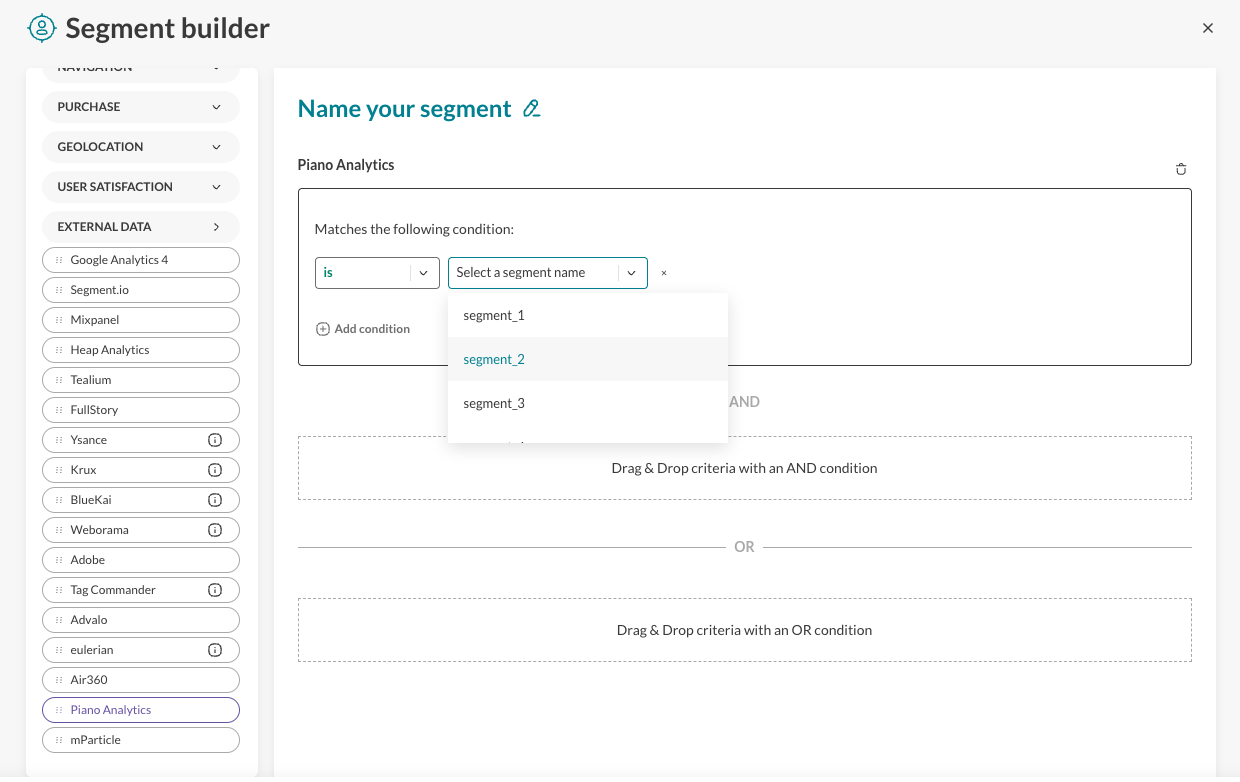
Once you have activated and configured an integration, you can retrieve your segment traits in the segment builder (available when you create a new segment).
Audiences or traits generated by your integrations are all to be found under the criteria group **EXTERNAL DATA**.\
For each integration, you will have a corresponding item that you can drag and drop to use.\
For global information on how to build a targeting segment, please refer to [how to create a segment](/web-experimentation-and-personalization/targeting-step/how-to-create-a-segment-who-section.md).
For an audience to be available in the segment builder it must not be empty, meaning that we have to identify at least one user belonging to that audience. Once a user is identified, the audience will appear in the segment builder.
---
# Agent Instructions
This documentation is published with GitBook. GitBook is the documentation platform designed so that both humans and AI agents can read, navigate, and reason over technical content effectively. Learn more at gitbook.com.
## Querying This Documentation
If you need additional information that is not directly available in this page, you can query the documentation by asking a question.
Perform an HTTP GET request on the following URL with the `ask` and `goal` query parameters:
```
GET https://docs.abtasty.com/integrations/pull-integrations/piano-analytics-pull.md?ask=&goal=
```
`ask` is the immediate question: it should be specific, self-contained, and written in natural language.
`goal` is what the user is ultimately trying to achieve, the reason they need the answer. Sharing it helps GitBook give you a better, more relevant answer. A goal is most helpful when it describes the outcome the user wants rather than restating the question. For example, with `ask=how do I create an API token`, a goal like `automate deployments from our CI pipeline` lets GitBook tailor the answer to that use case.
The response will contain a direct answer to the question and relevant excerpts and sources from the documentation.
Use this mechanism when the answer is not explicitly present in the current page, you need clarification or additional context, or you want to retrieve related documentation sections.
 ### Creating an AB tasty property
1. Go to your data Management interface.
### Creating an AB tasty property
1. Go to your data Management interface.
 2. Create a new property
* Display name: you can enter what you want, but we suggest “ABTastyId”
* Description: enter the description you want (for example: Pull Integration Piano <> AB tasty)
* Property key: abtasty\_visitor\_id (you must enter this exact key). If you change it, the connection between Piano and AB tasty won’t work anymore
* Categories: choose “User”
* Configuration
* Status: choose “Validated”
* Type: choose “String”
* Scope: choose “Visit”
2. Create a new property
* Display name: you can enter what you want, but we suggest “ABTastyId”
* Description: enter the description you want (for example: Pull Integration Piano <> AB tasty)
* Property key: abtasty\_visitor\_id (you must enter this exact key). If you change it, the connection between Piano and AB tasty won’t work anymore
* Categories: choose “User”
* Configuration
* Status: choose “Validated”
* Type: choose “String”
* Scope: choose “Visit”
 ### Enabling the integration on Piano Analytics
To enable integration on Piano, follow the steps below inside the Piano Analytics app:
1. Go to your Profile > API keys. Enter a name and a description.
### Enabling the integration on Piano Analytics
To enable integration on Piano, follow the steps below inside the Piano Analytics app:
1. Go to your Profile > API keys. Enter a name and a description.
 2. Once the API key is generated, you have one Access Key and one secret key. Please copy both, you will need them later.
3. Go back to your piano Analytics dashboard. Inside the URL, you have one field “site” with a value. Example:
2. Once the API key is generated, you have one Access Key and one secret key. Please copy both, you will need them later.
3. Go back to your piano Analytics dashboard. Inside the URL, you have one field “site” with a value. Example:
 Please copy the value of “site”. For example, here the value is: [**636937**](https://explorer.atinternet-solutions.com/core/#/overview/overview/010101?period.shortcut=yesterday\&period.granularity=3\&site=636937\&graph.options.defaultlist=minmax\&graph.options.comparisonlist=nocomparison\&graph.options.eventloglist=eventlog\&isIgnoreNullProperties=true)
An integration API key is a unique key that allows a third-party tool to communicate with your specific AB Tasty account i.e., send data to your account.
### Enabling the integration on AB Tasty
Please copy the value of “site”. For example, here the value is: [**636937**](https://explorer.atinternet-solutions.com/core/#/overview/overview/010101?period.shortcut=yesterday\&period.granularity=3\&site=636937\&graph.options.defaultlist=minmax\&graph.options.comparisonlist=nocomparison\&graph.options.eventloglist=eventlog\&isIgnoreNullProperties=true)
An integration API key is a unique key that allows a third-party tool to communicate with your specific AB Tasty account i.e., send data to your account.
### Enabling the integration on AB Tasty
 To enable the integration on AB Tasty, follow the steps below:
1. Access **Integrations > Integration Hub > Pull**.
2. Search for and select **Piano Analytics**.
3. Click **Setup connector.**
4. Give a name to your connector so you can easily retrieve it.
To enable the integration on AB Tasty, follow the steps below:
1. Access **Integrations > Integration Hub > Pull**.
2. Search for and select **Piano Analytics**.
3. Click **Setup connector.**
4. Give a name to your connector so you can easily retrieve it.
 5. **API Key**: paste the API key using the following format (official documentation [here](https://support.piano.io/hc/en-us/articles/4466006444306-API-Keys#CreateanAPIKey))
accessKey\_secretKey
6. **Site Id**: paste the siteID you have copied earlier
Piano Analytics is now set up. No other action is required here. This will allow AB Tasty to display the audiences that will be sent by Piano Analytics.
## Configuration
Once you have activated and configured an integration, you can retrieve your segment traits in the segment builder (available when you create a new segment).
5. **API Key**: paste the API key using the following format (official documentation [here](https://support.piano.io/hc/en-us/articles/4466006444306-API-Keys#CreateanAPIKey))
accessKey\_secretKey
6. **Site Id**: paste the siteID you have copied earlier
Piano Analytics is now set up. No other action is required here. This will allow AB Tasty to display the audiences that will be sent by Piano Analytics.
## Configuration
Once you have activated and configured an integration, you can retrieve your segment traits in the segment builder (available when you create a new segment).