> For the complete documentation index, see [llms.txt](https://docs.abtasty.com/llms.txt). Markdown versions of documentation pages are available by appending `.md` to page URLs; this page is available as [Markdown](https://docs.abtasty.com/integrations/push-integrations/salesforce-marketing-cloud-push.md).
# SalesForce Marketing Cloud (Push)
## SalesForce Marketing Cloud (Push)
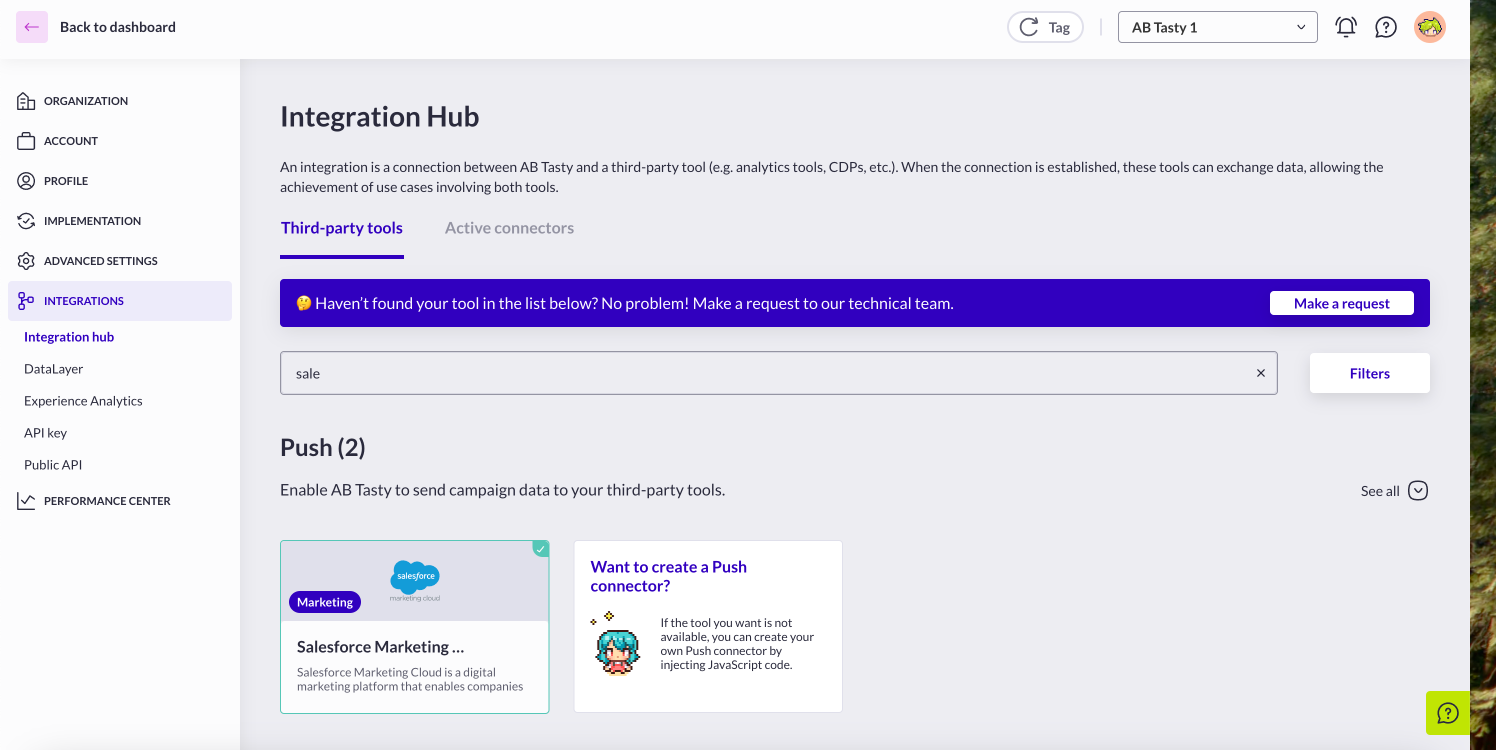
## **How to Set Up the AB Tasty Connector with SFMC (Push V2)**
This guide outlines the steps to integrate AB Tasty with Salesforce Marketing Cloud (SFMC) and send campaign data to a dedicated Data Extension (DE) in SFMC.
### **Overview**
The SFMC Push V2 integration enables AB Tasty to send campaign data to SFMC, including:
* **Campaign Name:** Name of the AB Tasty campaign live on your website.
* **Campaign ID:** ID of the AB Tasty campaign.
* **Variation Name:** Name of the variation seen by a visitor.
* **Variation ID:** ID of the variation seen by a visitor.
* **SFMC VISTOR ID (Subscriber Key):** Identifier for the visitor linked to SFMC.
The data is pushed server-side and stored in a custom Data Extension (DE) in SFMC.
### **Requirements**
#### **Visitor Identification**
Since SFMC lacks native visitor identification for websites, visitors must be uniquely identified using one of the following methods:\
\
**2 Methods which imply a modification on your side by creating either a cookie or adding a key on your Local Storage**
1. **Local Storage:** Store the visitor ID under the SFMC\_VISITOR\_ID key.
2. **Cookie:** Store the visitor ID under the SFMC\_VISITOR\_ID key.
**A third method can be used and added within the Account JS of your AB Tasty Account**
**AB Tasty Method:** Use window\.ABTasty.setSFMCVisitorID to assign the ID.
**Data Extension Setup**
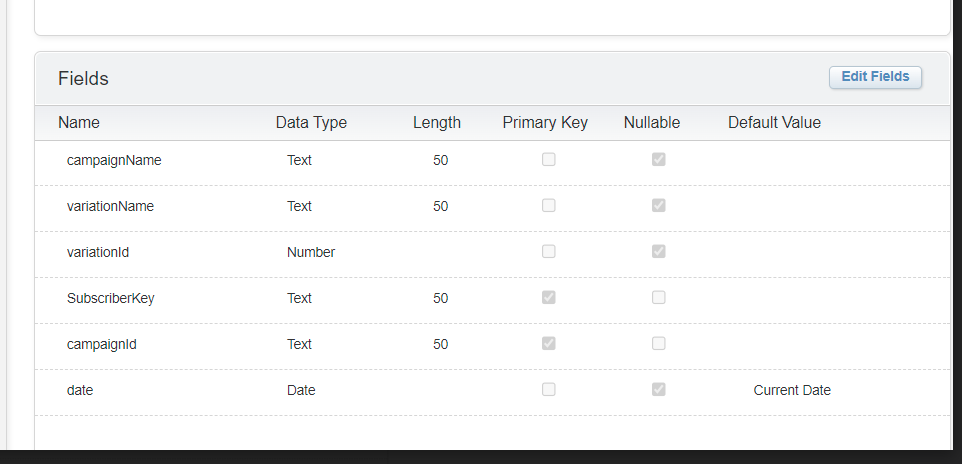
Before configuring the connector, create a dedicated Data Extension in SFMC with the following fields:
* campaignName (text)
* campaignId (text, Primary Key)
* variationName (text)
* variationId (number)
* SubscriberKey (text, Primary Key)
* Date (date)
Keep the **Data Extension ID**, as you’ll need it for the integration setup.
### **How to Set Up the Integration**
#### **Step 1: Configure Your SFMC Data Extension**
1. Log in to your SFMC account.
2. Create a dedicated Data Extension with the required fields listed above.
3. Note the **Data Extension ID** for later use.
#### **Step 2: Configure the Connector in AB Tasty**
1. Log in to your AB Tasty account.
2. Go to **Integrations** > **Integration Hub**.
3. Search for and select **Salesforce Marketing Cloud (Push section)**.
4. Click **Setup Connector** and provide the following details:\
**Connector Name:** A unique name to identify the connector.
**Client ID:** Your SFMC clientId.
**Client Secret:** Your SFMC clientSecret.
**Account ID:** Your SFMC account ID (sometimes called Merchant ID).
**Subdomain:** Your SFMC subdomain.
**Data Extension ID:** The ID of the Data Extension created in Step 1.
**Visitor ID Location:** The method used to store the SFMC\_VISITOR\_ID (e.g., Local Storage, Cookie, or AB Tasty Method).\
\
5\. **Create** the connector
#### **Step 3: Verify the Integration**
1. Create a new AB Tasty campaign.
2. In the campaign’s advanced options, activate the **SFMC Push** integration.
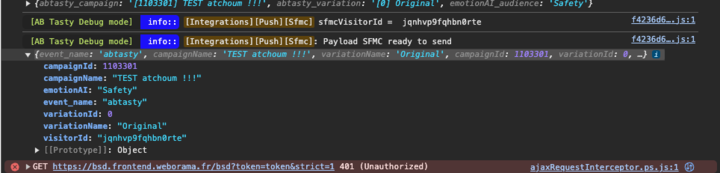
3. Go to your website and enable debug mode by running the following command in the browser console:
document.cookie="abTastyDebug=true;path=/;";
4. Refresh your browser and act to become a registered visitor (like login or form submission).\
1 - If yes, a log should be displayed like that
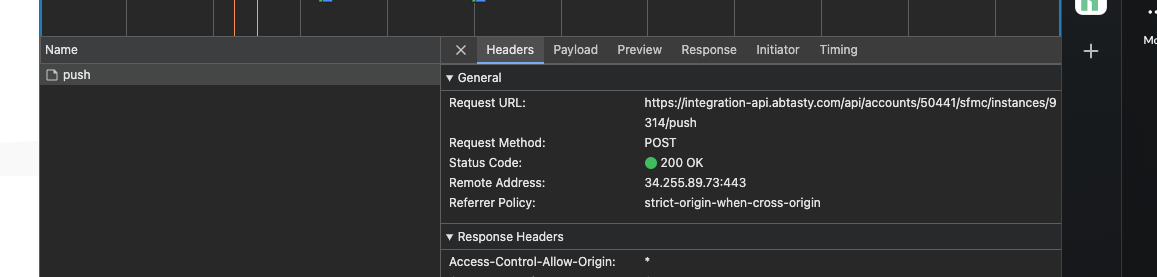
2 - You can make another check inside the network tab
```
An AB Tasty hit is sent into our integration-api
```
5. Check the SFMC Data Extension for the updated campaign data.
#### **Emotions AI for Salesforce Marketing Cloud (SFMC)**
You can seamlessly integrate emotional insights into Salesforce Marketing Cloud (SFMC) if you’re an Emotions AI Licensed user. Update your **Data Extension** by adding **a new column** with these properties :
| Name | emotionAI |
| ------------- | --------- |
| Data Type | Text |
| length | 50 |
| Nullable | True |
| Default Value | |
Please ensure that the **key matches precisely** to enable the retrieval and synchronisation of emotional data. This lets you personalise campaigns based on your audience's emotional triggers, empowering you to craft even more impactful and engaging marketing strategies.
{% hint style="info" %}
#### **Good to Know 💡**
* **Mandatory Fields:** All fields are **mandatory**. The clientId, clientSecret, accountId, subDomain, and DataExtension ID fields are required to authenticate the integration and enable data push. SFMC\_VISITOR\_ID will allow AB Tasty to identify your visitors during a campaign
* **Retroactive Application:** Integration settings apply only to campaigns created after the setup. Previously created campaigns will not be affected.
* **AB Tasty Tag Update:** Ensure you update the AB Tasty Ttag for changes to take effect.
{% endhint %}
{% hint style="warning" %}
#### **Heads Up ⚡**
* **Do Not Modify Primary Keys:** Avoid altering the campaign or SubscriberKey fields in the Data Extension, as they are crucial for syncing data.
* Please note that the setup of this integration in the account settings is not applied retroactively to previously created campaigns. **It only applies to newly created campaigns.**
{% endhint %}
\--
**By completing these steps, you’ll successfully integrate AB Tasty with SFMC, allowing you to centralise and track your campaign data directly in Salesforce Marketing Cloud. 🎉**
---
# Agent Instructions
This documentation is published with GitBook. GitBook is the documentation platform designed so that both humans and AI agents can read, navigate, and reason over technical content effectively. Learn more at gitbook.com.
## Querying This Documentation
If you need additional information that is not directly available in this page, you can query the documentation dynamically by asking a question.
Perform an HTTP GET request on the current page URL with the `ask` query parameter, and the optional `goal` query parameter:
```
GET https://docs.abtasty.com/integrations/push-integrations/salesforce-marketing-cloud-push.md?ask=&goal=
```
`ask` is the immediate question: it should be specific, self-contained, and written in natural language.
`goal` is optional and describes the broader end goal you are ultimately trying to accomplish on behalf of the user. GitBook uses it to tailor the answer towards what is most useful for that goal.
The response will contain a direct answer to the question and relevant excerpts and sources from the documentation.
Use this mechanism when the answer is not explicitly present in the current page, you need clarification or additional context, or you want to retrieve related documentation sections.
 ## **How to Set Up the AB Tasty Connector with SFMC (Push V2)**
This guide outlines the steps to integrate AB Tasty with Salesforce Marketing Cloud (SFMC) and send campaign data to a dedicated Data Extension (DE) in SFMC.
### **Overview**
The SFMC Push V2 integration enables AB Tasty to send campaign data to SFMC, including:
* **Campaign Name:** Name of the AB Tasty campaign live on your website.
* **Campaign ID:** ID of the AB Tasty campaign.
* **Variation Name:** Name of the variation seen by a visitor.
* **Variation ID:** ID of the variation seen by a visitor.
* **SFMC VISTOR ID (Subscriber Key):** Identifier for the visitor linked to SFMC.
The data is pushed server-side and stored in a custom Data Extension (DE) in SFMC.
### **Requirements**
#### **Visitor Identification**
Since SFMC lacks native visitor identification for websites, visitors must be uniquely identified using one of the following methods:\
\
**2 Methods which imply a modification on your side by creating either a cookie or adding a key on your Local Storage**
1. **Local Storage:** Store the visitor ID under the SFMC\_VISITOR\_ID key.
2. **Cookie:** Store the visitor ID under the SFMC\_VISITOR\_ID key.
**A third method can be used and added within the Account JS of your AB Tasty Account**
**AB Tasty Method:** Use window\.ABTasty.setSFMCVisitorID to assign the ID.
**Data Extension Setup**
Before configuring the connector, create a dedicated Data Extension in SFMC with the following fields:
* campaignName (text)
* campaignId (text, Primary Key)
* variationName (text)
* variationId (number)
* SubscriberKey (text, Primary Key)
* Date (date)
## **How to Set Up the AB Tasty Connector with SFMC (Push V2)**
This guide outlines the steps to integrate AB Tasty with Salesforce Marketing Cloud (SFMC) and send campaign data to a dedicated Data Extension (DE) in SFMC.
### **Overview**
The SFMC Push V2 integration enables AB Tasty to send campaign data to SFMC, including:
* **Campaign Name:** Name of the AB Tasty campaign live on your website.
* **Campaign ID:** ID of the AB Tasty campaign.
* **Variation Name:** Name of the variation seen by a visitor.
* **Variation ID:** ID of the variation seen by a visitor.
* **SFMC VISTOR ID (Subscriber Key):** Identifier for the visitor linked to SFMC.
The data is pushed server-side and stored in a custom Data Extension (DE) in SFMC.
### **Requirements**
#### **Visitor Identification**
Since SFMC lacks native visitor identification for websites, visitors must be uniquely identified using one of the following methods:\
\
**2 Methods which imply a modification on your side by creating either a cookie or adding a key on your Local Storage**
1. **Local Storage:** Store the visitor ID under the SFMC\_VISITOR\_ID key.
2. **Cookie:** Store the visitor ID under the SFMC\_VISITOR\_ID key.
**A third method can be used and added within the Account JS of your AB Tasty Account**
**AB Tasty Method:** Use window\.ABTasty.setSFMCVisitorID to assign the ID.
**Data Extension Setup**
Before configuring the connector, create a dedicated Data Extension in SFMC with the following fields:
* campaignName (text)
* campaignId (text, Primary Key)
* variationName (text)
* variationId (number)
* SubscriberKey (text, Primary Key)
* Date (date)
 Keep the **Data Extension ID**, as you’ll need it for the integration setup.
### **How to Set Up the Integration**
#### **Step 1: Configure Your SFMC Data Extension**
1. Log in to your SFMC account.
2. Create a dedicated Data Extension with the required fields listed above.
3. Note the **Data Extension ID** for later use.
#### **Step 2: Configure the Connector in AB Tasty**
1. Log in to your AB Tasty account.
2. Go to **Integrations** > **Integration Hub**.
3. Search for and select **Salesforce Marketing Cloud (Push section)**.
Keep the **Data Extension ID**, as you’ll need it for the integration setup.
### **How to Set Up the Integration**
#### **Step 1: Configure Your SFMC Data Extension**
1. Log in to your SFMC account.
2. Create a dedicated Data Extension with the required fields listed above.
3. Note the **Data Extension ID** for later use.
#### **Step 2: Configure the Connector in AB Tasty**
1. Log in to your AB Tasty account.
2. Go to **Integrations** > **Integration Hub**.
3. Search for and select **Salesforce Marketing Cloud (Push section)**.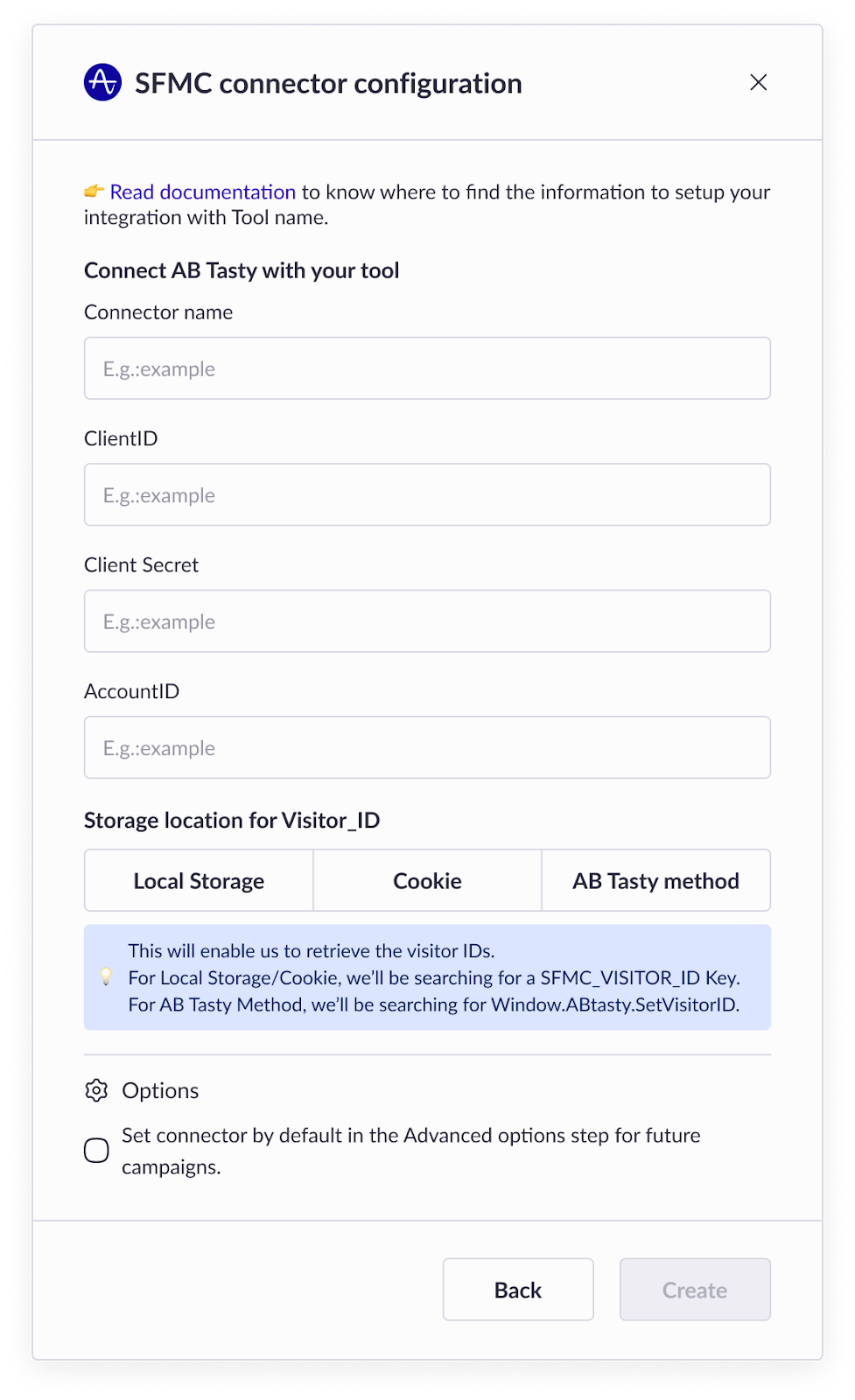
 2 - You can make another check inside the network tab
```
An AB Tasty hit is sent into our integration-api
```
2 - You can make another check inside the network tab
```
An AB Tasty hit is sent into our integration-api
```
 5. Check the SFMC Data Extension for the updated campaign data.
#### **Emotions AI for Salesforce Marketing Cloud (SFMC)**
You can seamlessly integrate emotional insights into Salesforce Marketing Cloud (SFMC) if you’re an Emotions AI Licensed user. Update your **Data Extension** by adding **a new column** with these properties :
| Name | emotionAI |
| ------------- | --------- |
| Data Type | Text |
| length | 50 |
| Nullable | True |
| Default Value | |
Please ensure that the **key matches precisely** to enable the retrieval and synchronisation of emotional data. This lets you personalise campaigns based on your audience's emotional triggers, empowering you to craft even more impactful and engaging marketing strategies.
{% hint style="info" %}
#### **Good to Know 💡**
* **Mandatory Fields:** All fields are **mandatory**. The clientId, clientSecret, accountId, subDomain, and DataExtension ID fields are required to authenticate the integration and enable data push. SFMC\_VISITOR\_ID will allow AB Tasty to identify your visitors during a campaign
* **Retroactive Application:** Integration settings apply only to campaigns created after the setup. Previously created campaigns will not be affected.
* **AB Tasty Tag Update:** Ensure you update the AB Tasty Ttag for changes to take effect.
{% endhint %}
{% hint style="warning" %}
#### **Heads Up ⚡**
* **Do Not Modify Primary Keys:** Avoid altering the campaign or SubscriberKey fields in the Data Extension, as they are crucial for syncing data.
* Please note that the setup of this integration in the account settings is not applied retroactively to previously created campaigns. **It only applies to newly created campaigns.**
{% endhint %}
\--
**By completing these steps, you’ll successfully integrate AB Tasty with SFMC, allowing you to centralise and track your campaign data directly in Salesforce Marketing Cloud. 🎉**
---
# Agent Instructions
This documentation is published with GitBook. GitBook is the documentation platform designed so that both humans and AI agents can read, navigate, and reason over technical content effectively. Learn more at gitbook.com.
## Querying This Documentation
If you need additional information that is not directly available in this page, you can query the documentation dynamically by asking a question.
Perform an HTTP GET request on the current page URL with the `ask` query parameter, and the optional `goal` query parameter:
```
GET https://docs.abtasty.com/integrations/push-integrations/salesforce-marketing-cloud-push.md?ask=
5. Check the SFMC Data Extension for the updated campaign data.
#### **Emotions AI for Salesforce Marketing Cloud (SFMC)**
You can seamlessly integrate emotional insights into Salesforce Marketing Cloud (SFMC) if you’re an Emotions AI Licensed user. Update your **Data Extension** by adding **a new column** with these properties :
| Name | emotionAI |
| ------------- | --------- |
| Data Type | Text |
| length | 50 |
| Nullable | True |
| Default Value | |
Please ensure that the **key matches precisely** to enable the retrieval and synchronisation of emotional data. This lets you personalise campaigns based on your audience's emotional triggers, empowering you to craft even more impactful and engaging marketing strategies.
{% hint style="info" %}
#### **Good to Know 💡**
* **Mandatory Fields:** All fields are **mandatory**. The clientId, clientSecret, accountId, subDomain, and DataExtension ID fields are required to authenticate the integration and enable data push. SFMC\_VISITOR\_ID will allow AB Tasty to identify your visitors during a campaign
* **Retroactive Application:** Integration settings apply only to campaigns created after the setup. Previously created campaigns will not be affected.
* **AB Tasty Tag Update:** Ensure you update the AB Tasty Ttag for changes to take effect.
{% endhint %}
{% hint style="warning" %}
#### **Heads Up ⚡**
* **Do Not Modify Primary Keys:** Avoid altering the campaign or SubscriberKey fields in the Data Extension, as they are crucial for syncing data.
* Please note that the setup of this integration in the account settings is not applied retroactively to previously created campaigns. **It only applies to newly created campaigns.**
{% endhint %}
\--
**By completing these steps, you’ll successfully integrate AB Tasty with SFMC, allowing you to centralise and track your campaign data directly in Salesforce Marketing Cloud. 🎉**
---
# Agent Instructions
This documentation is published with GitBook. GitBook is the documentation platform designed so that both humans and AI agents can read, navigate, and reason over technical content effectively. Learn more at gitbook.com.
## Querying This Documentation
If you need additional information that is not directly available in this page, you can query the documentation dynamically by asking a question.
Perform an HTTP GET request on the current page URL with the `ask` query parameter, and the optional `goal` query parameter:
```
GET https://docs.abtasty.com/integrations/push-integrations/salesforce-marketing-cloud-push.md?ask=