> For the complete documentation index, see [llms.txt](https://docs.abtasty.com/llms.txt). Markdown versions of documentation pages are available by appending `.md` to page URLs; this page is available as [Markdown](https://docs.abtasty.com/integrations/push-integrations/segment.md).
# Segment
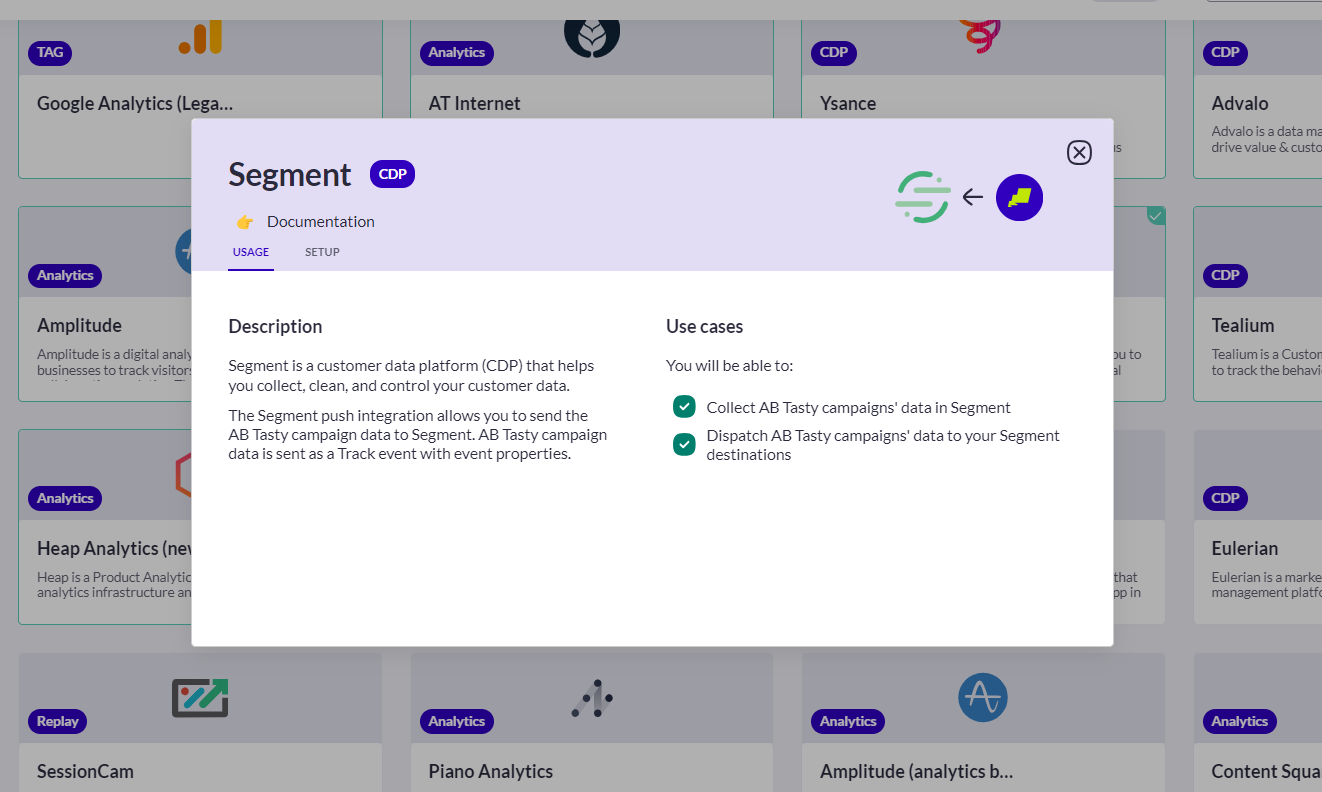
**Segment** is a customer data platform (CDP) that helps customers collect, clean, and control their customer data.
## How to Set up the Integration
1. Access **Integrations > Integration Hub**.
2. Search for and select **Segment**.
3. Click **Setup connector.**
4. Give a name to your connector so you can easily retrieve it.
5. \[Optional] Check the box to automatically add the connector to your future campaigns.
6. Click **Save and create connector.**
If you have checked the box, the connector will be automatically added to the Advanced step of your future campaigns. However, it is not applied retroactively to previously created campaigns.
If you left the box unchecked (default behavior), your connector won't be added automatically. You can still decide to send campaign data to your connector by selecting it from the *Advanced options* step of your campaign. More information on how to link a campaign is can be found in the [Advanced Options Step ](/web-experimentation-and-personalization/campaign-flow-advanced-options.md)article.
You can also modify this behavior from the Integration hub, by editing your connector configuration (check or uncheck box).
**Heads up ⚡**\
You must update the AB Tasty tag to make your changes live.
## How to Check that the Integration is working
Before testing the integration, please make sure you have created a **Source** by installing the Segment tracker on your website (instructions [***here***](https://segment.com/docs/getting-started/02-simple-install/)).
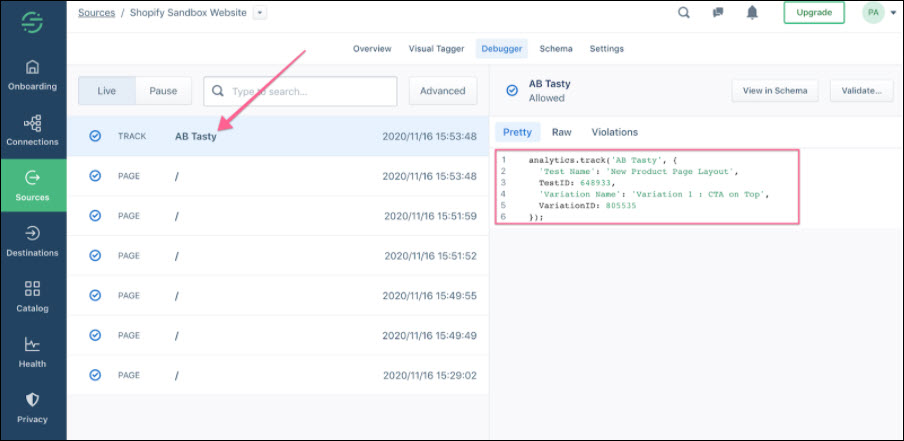
To test this integration, open the Debugger view of the Source and browse any page of your website on which an AB Tasty campaign is running (this campaign must have the Segment integration toggled on, as shown above).
In this view, you can see all the events received by the Source, and you can inspect any event by clicking on it.\
\
If the integration is working, you will see a Track event named **AB Tasty**, which contains the following properties:
* **Test Name**
* **TestID**
* **Variation Name**
* **VariationID**
## How to Use ABTasty’s Events in Segment
Segment is usually used to broadcast AB Tasty events to Destinations such as analytics tools so that they can filter AB Test Campaigns and Variations on the Dashboard. For further information on Segment’s Destination, check this [***documentation***](https://segment.com/docs/getting-started/05-data-to-destinations/).
---
# Agent Instructions
This documentation is published with GitBook. GitBook is the documentation platform designed so that both humans and AI agents can read, navigate, and reason over technical content effectively. Learn more at gitbook.com.
## Querying This Documentation
If you need additional information that is not directly available in this page, you can query the documentation dynamically by asking a question.
Perform an HTTP GET request on the current page URL with the `ask` query parameter, and the optional `goal` query parameter:
```
GET https://docs.abtasty.com/integrations/push-integrations/segment.md?ask=&goal=
```
`ask` is the immediate question: it should be specific, self-contained, and written in natural language.
`goal` is optional and describes the broader end goal you are ultimately trying to accomplish on behalf of the user. GitBook uses it to tailor the answer towards what is most useful for that goal.
The response will contain a direct answer to the question and relevant excerpts and sources from the documentation.
Use this mechanism when the answer is not explicitly present in the current page, you need clarification or additional context, or you want to retrieve related documentation sections.
 1. Access **Integrations > Integration Hub**.
2. Search for and select **Segment**.
3. Click **Setup connector.**
4. Give a name to your connector so you can easily retrieve it.
5. \[Optional] Check the box to automatically add the connector to your future campaigns.
6. Click **Save and create connector.**
If you have checked the box, the connector will be automatically added to the Advanced step of your future campaigns. However, it is not applied retroactively to previously created campaigns.
If you left the box unchecked (default behavior), your connector won't be added automatically. You can still decide to send campaign data to your connector by selecting it from the *Advanced options* step of your campaign. More information on how to link a campaign is can be found in the [Advanced Options Step ](/web-experimentation-and-personalization/campaign-flow-advanced-options.md)article.
You can also modify this behavior from the Integration hub, by editing your connector configuration (check or uncheck box).
**Heads up ⚡**\
You must update the AB Tasty tag to make your changes live.
## How to Check that the Integration is working
Before testing the integration, please make sure you have created a **Source** by installing the Segment tracker on your website (instructions [***here***](https://segment.com/docs/getting-started/02-simple-install/)).
To test this integration, open the Debugger view of the Source and browse any page of your website on which an AB Tasty campaign is running (this campaign must have the Segment integration toggled on, as shown above).
In this view, you can see all the events received by the Source, and you can inspect any event by clicking on it.\
\
If the integration is working, you will see a Track event named **AB Tasty**, which contains the following properties:
1. Access **Integrations > Integration Hub**.
2. Search for and select **Segment**.
3. Click **Setup connector.**
4. Give a name to your connector so you can easily retrieve it.
5. \[Optional] Check the box to automatically add the connector to your future campaigns.
6. Click **Save and create connector.**
If you have checked the box, the connector will be automatically added to the Advanced step of your future campaigns. However, it is not applied retroactively to previously created campaigns.
If you left the box unchecked (default behavior), your connector won't be added automatically. You can still decide to send campaign data to your connector by selecting it from the *Advanced options* step of your campaign. More information on how to link a campaign is can be found in the [Advanced Options Step ](/web-experimentation-and-personalization/campaign-flow-advanced-options.md)article.
You can also modify this behavior from the Integration hub, by editing your connector configuration (check or uncheck box).
**Heads up ⚡**\
You must update the AB Tasty tag to make your changes live.
## How to Check that the Integration is working
Before testing the integration, please make sure you have created a **Source** by installing the Segment tracker on your website (instructions [***here***](https://segment.com/docs/getting-started/02-simple-install/)).
To test this integration, open the Debugger view of the Source and browse any page of your website on which an AB Tasty campaign is running (this campaign must have the Segment integration toggled on, as shown above).
In this view, you can see all the events received by the Source, and you can inspect any event by clicking on it.\
\
If the integration is working, you will see a Track event named **AB Tasty**, which contains the following properties: