> For the complete documentation index, see [llms.txt](https://docs.abtasty.com/llms.txt). Markdown versions of documentation pages are available by appending `.md` to page URLs; this page is available as [Markdown](https://docs.abtasty.com/reporting-and-performances/reporting/campaign-reporting.md).
# Campaign reporting
A reporting is **a single and unique page that is generated for each campaign** you execute with AB Tasty, whether that’s a test or a personalization campaign. The reporting is a valuable tool that assists you in making decisions to increase your conversion rates.
## How to access the reporting
You can access the reporting by clicking on the reporting button on any campaign in your **Web experimentation** or **Personalization** list.
The green button indicates that the campaign has enough data to be fully analyzed
The yellow button indicates that the campaign does not have enough data to fully analyze the primary goal.
## Reporting layout
A campaign reporting is composed of the following information and components
### Header
The reporting header shows when the campaign was created and for how long it has been **live**. It also indicates the total number of **unique visitors** on the campaign.
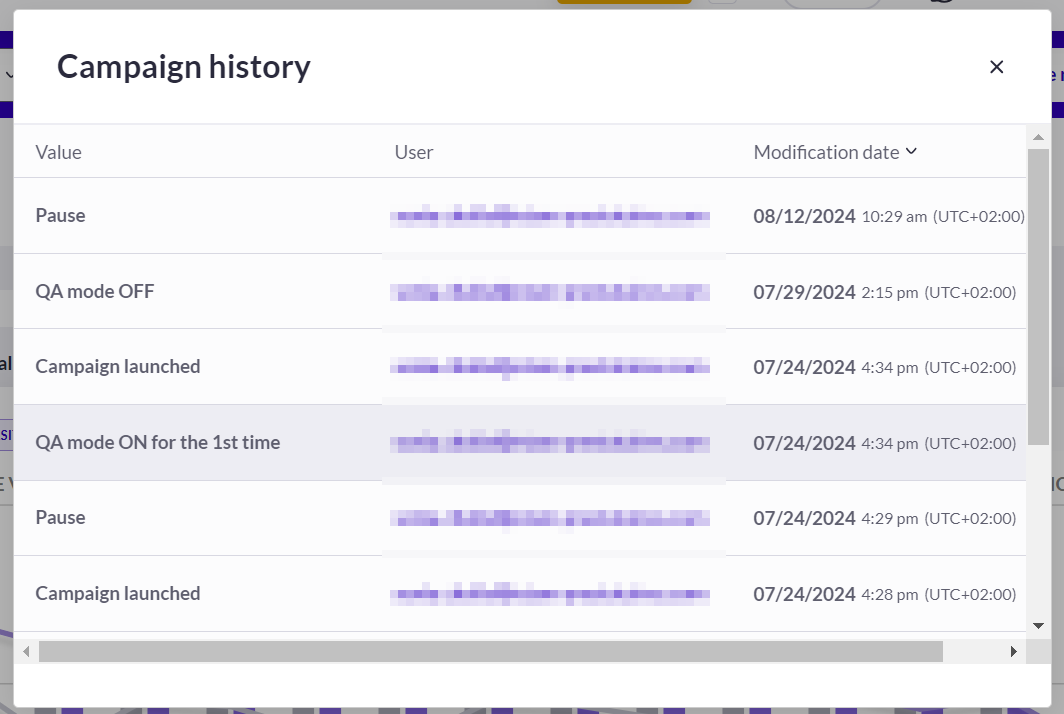
You can also trace back any modifications done to the campaign from the **Open campaign history** button.
{% hint style="success" %}
If you have opted in for AI features, a banner will automatically provide a quick, AI-generated summary of the A/B test campaign's results. The goal is to make campaign analysis more accessible, playful, and surprising with minimal effort.
{% endhint %}
## Primary goal
### Monitoring graph
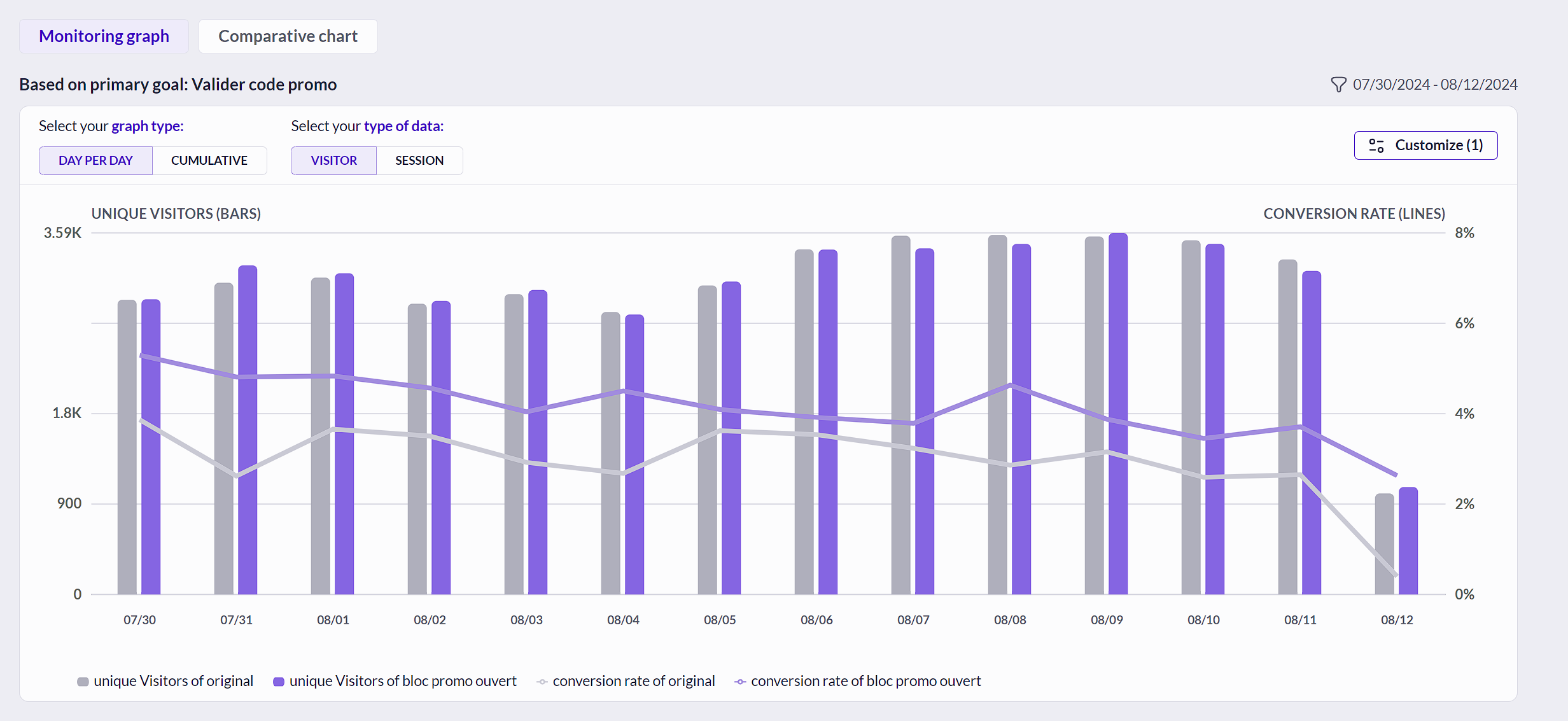
The reporting shows by default a **monitoring graph** of the **Primary goal**
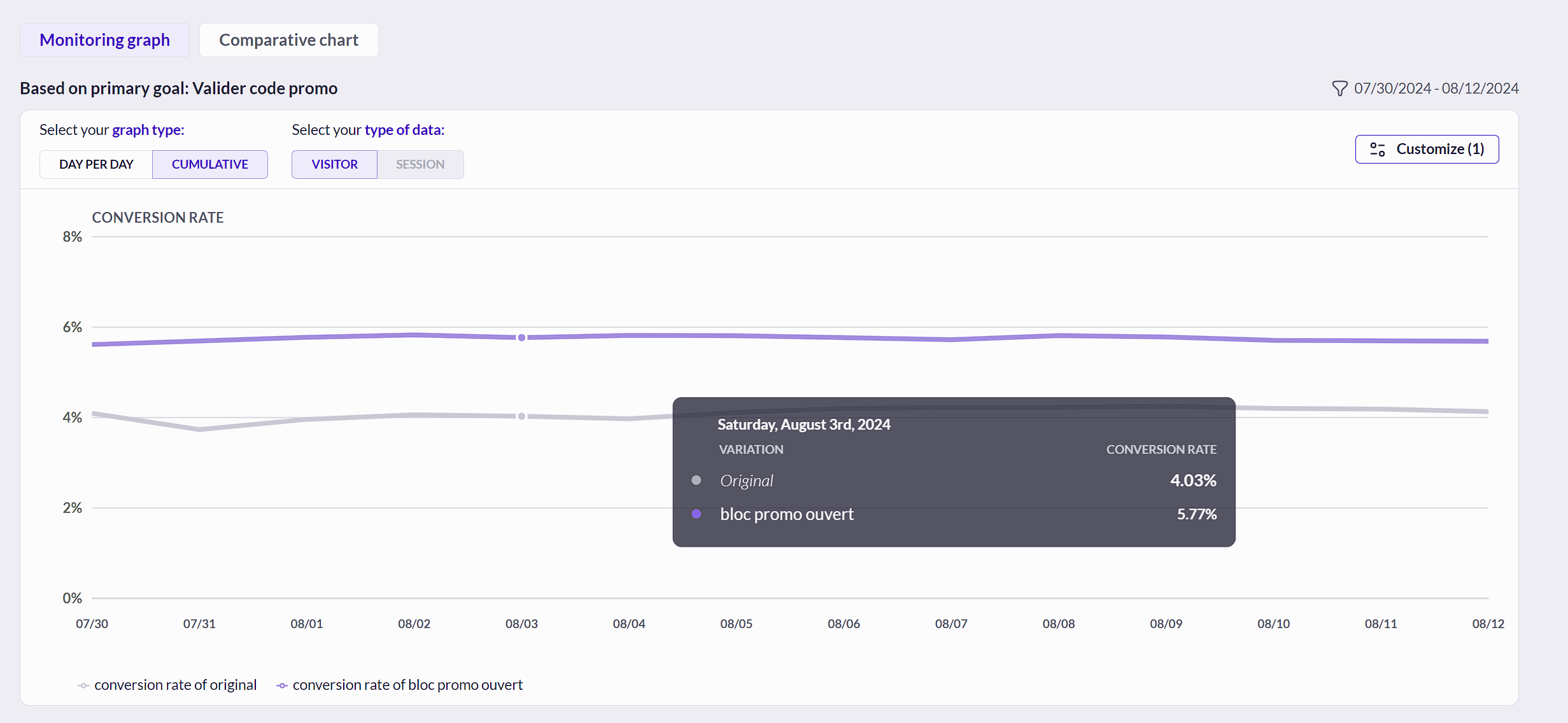
Users can switch between **Day to Day** and **Cumulative** graph views. This is particularly beneficial for users who wish to monitor the stabilization of conversion rates over time at the goal level.
Day-to-day view:
Cumulative view:
The graph switcher enables toggling between these views, with "Day to Day" as the default. The cumulative graph displays conversion rates accumulated over time, providing insights into long-term trends.
The availability of the cumulative graph depends on the selected data perspective: it is unavailable when **Sessions** is selected, but available when **Visitors** is chosen.
The cumulative graph can display data for up to 45 days, with a maximum of six variations, and users can interact with the graph to view detailed conversion statistics by hovering over the lines. Additionally, users can customize the displayed period using a date-picker, ensuring the graph reflects the desired timeframe.
You can select from either **Unique visitors** or **Unique sessions** for both the Original and variation(s) for the Primary goal of the campaign. Conversion rates are also graphed.
### Comparative chart
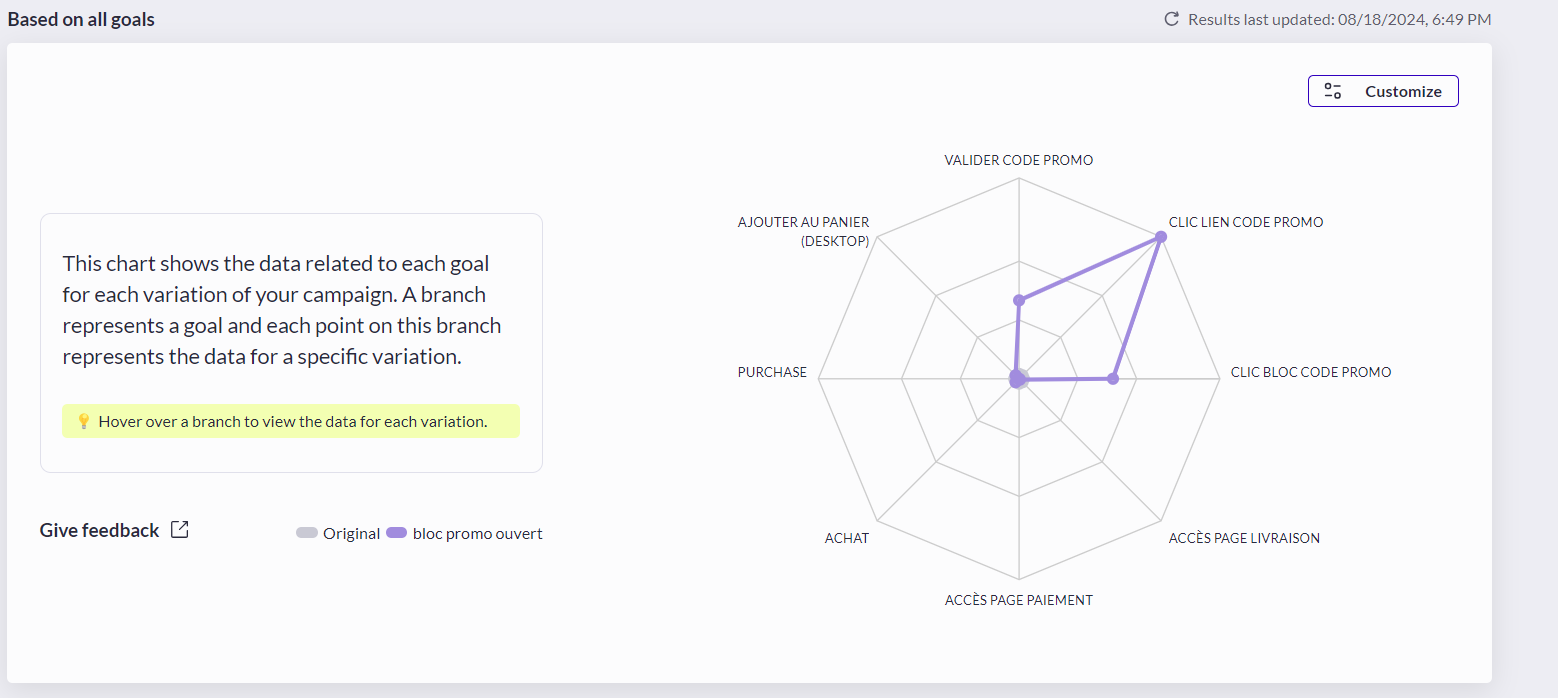
The comparative graph is based on all goals and show the number of **Unique visitors** per goal.
#### Customization
Both graphs can be customized using the following filters:
#### Monitoring graph:
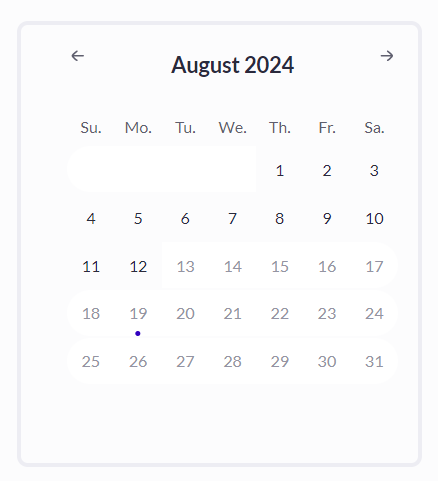
Select a date range
#### Comparative graph:
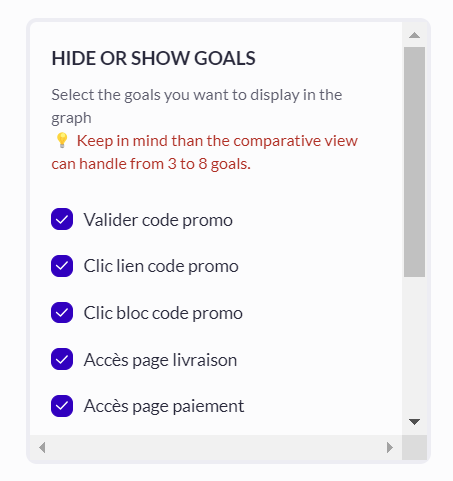
Select goals to compare
### Table view
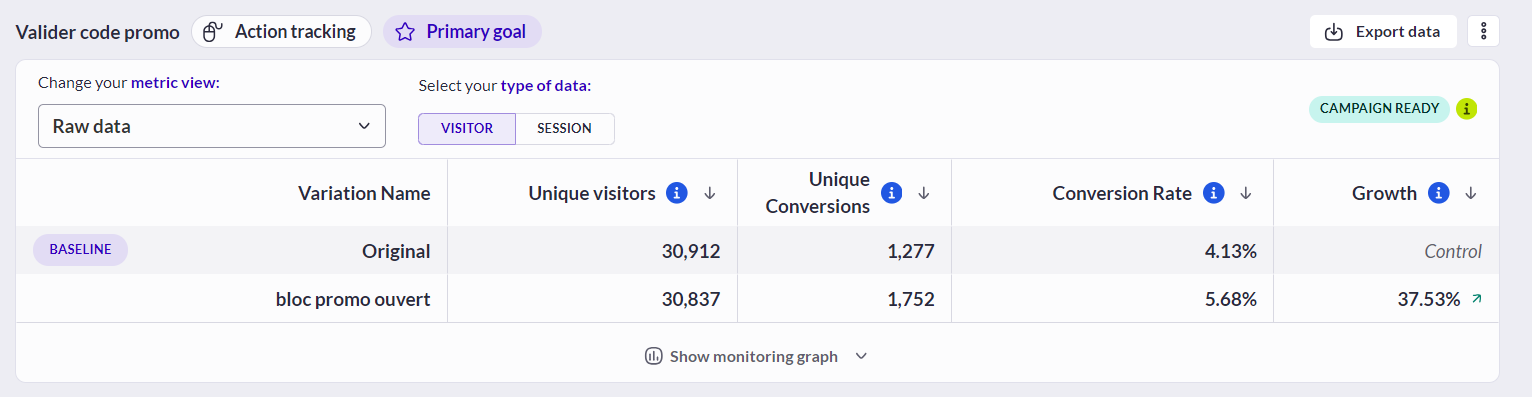
The primary goal is also displayed in table view. The table view shows the name of the Primary goal and the type of tracking used. The table view also allows you to sort data and export them. The data can be viewed generally by either **Visitor** or **Session**. However, the options available will depend on the type of **metric** chosen.
The **Variation Name** column width can also be adjusted to ease reading.\
The **Variation ID** can be copied to the clipboard by clicking on it.
### EmotionsAI filter templates
User who subscribed to the EmotionsAI feature can apply EmotionsAI filter templates on the reporting:
To learn more about using **EmotionsAI** **filter templates**, read [EmotionsAI Reporting filter templates](/reporting-and-performances/reporting/reporting-filters/emotionsai-reporting-filter-templates.md).
### Metric view
You can choose the type of metric view you want for each goal. The metric available depends on the type of **goal tracking** used.
### Data visualization
The following data can be visualized in the table:
* Growth: indicated by trending arrows
* Chance to win
* Confidence interval
* Opportunities
* Revenue uplift (for transaction goals)
Below are a few examples:
#### Opportunities
Opportunities aim at identifying losing, neutral and winning status.\
Two subviews are available out here :
* **highlights** : list sure opportunities out of the following rules :
* Winner : chance to win above 95%, AND owns more than 5000 visitors and owns more that 300 conversions (rules worth whatever it is filtered / segmented or not)
* Looser : chance to win under 5%, AND owns more than 5000 visitors and owns more that 300 conversions (rules worth whatever it is filtered / segmented or not)
*Best practices : Ideally the campaign ran more than 14 days in a raw before you make decision*\\
* **Detailed view** : list all the variations’ performances with detailed metrics
Horizontal bars in the opportunities column indicate:
* How big is the growth: Length of the bar
* Positive growth of conversion: head right
* Negative growth of conversion: head left
* How statistically valuable they are :\
\- Red : sure loser\
\- Grey : neutral\
\- Red : sure winner
The view includes several columns for in-depth analysis and is sorted by audience size by default.
**Bounce rate:**
The color logic is inverted for bounce rate. The higher the bounce rate, the lower the change to win.
The following screenshot shows a low bounce rate (trend arrow going down) but green.\\
#### Raw data
The default table view displayed when the reporting is open.
#### Statistics
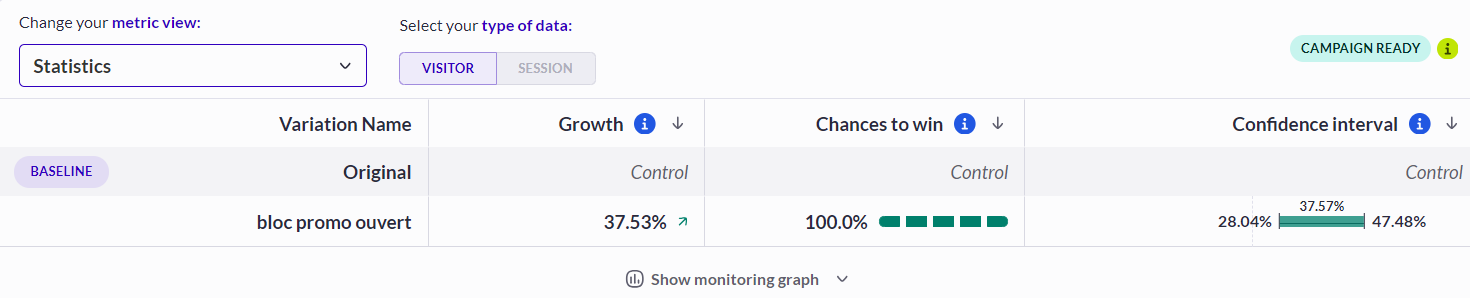
The statistics view shows the growth, chance to win and Confidence Interval:
* **Growth**: Probability that visitors will perform more tracked actions compared to baseline
* **Chance to win**: Probability that visitors will perform more tracked actions compared to baseline
* **Confidence interval**: Indicator that assures (with 95% confidence) that the variation growth rate will be between the lower and upper bounds if all traffic is allocated to the variation. The median value indicates the most probable growth rate
#### Opportunities
These segments show performance based on growth and chance to win. Segments on the right indicate strong performance, while those on the left indicate weaker performance. The length of a segment correlates with the amount of growth: longer segments on the right signify greater growth, and longer segments on the left signify lesser growth. Green segments denote the highest probability of success, whereas red segments indicate the lowest probability of success.
To learn more about the analysis process, read more on the [Reporting Copilot](/reporting-and-performances/reporting/campaign-reporting/reporting-copilot.md)
### Data reliability and campaign readiness
When enough data has been gathered for the campaign, the **CAMPAIGN READY** status is displayed on the table. Hovering it will give you a quick summary of the campaign and its **Readiness**.
Refer to [reporting readiness](/reporting-and-performances/reporting/understand-the-statistics-behind-your-reports/reporting-readiness.md) article for more details
**Cell Values in Reporting tables**
When reviewing a reporting table in AB Tasty, you may encounter three types of cell values:
1. **Figures**
* This represents an aggregated figure related to your metrics or statistics. A value of "0" is a possible figure and should be interpreted accordingly.
2. **N/A (Not Available)**
* This indicates that the figure is intentionally not provided for that cell. This usually occurs because the campaign configuration doesn't allow for analysis.
* **Example:** If there is no traffic allocated to the original variant, metrics like "Chances to Win," "Confidence Interval," and "Growth" can still be calculated, but their values are not meaningful. In such cases, comparing the performance of two variants is not possible if one variant has no traffic.
3. **No Data**
* If you encounter this value, try reloading the reporting page. If the issue persists, please contact your Customer Success Manager (CSM).
### Export data
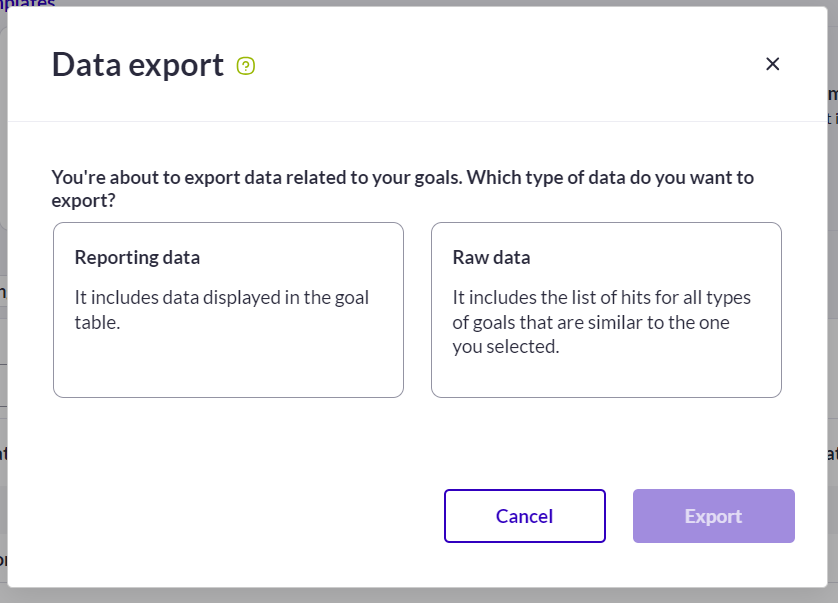
Data can be exported. You can either export the **Reporting data** or the **Raw data**. The Reporting data export contains only data displayed in the reporting whereas the Raw data export contains **hits** for all types of goal. For more information on data export, please refer to [Data export from the reporting](/reporting-and-performances/reporting/data-export-from-the-reporting.md).
## Secondary goal
The secondary goals are listed just after the primary goal table view and offers the same features as the primary goal table view.
To learn more about campaign goals, read [Campaign flow: Goals step](/web-experimentation-and-personalization/campaign-flow-goals-step.md)
You can now access and view campaign reporting and full analysis of your data.
To learn more about advanced features of the reporting, read [Reporting Filters](/reporting-and-performances/reporting/reporting-filters.md)
## Custom views
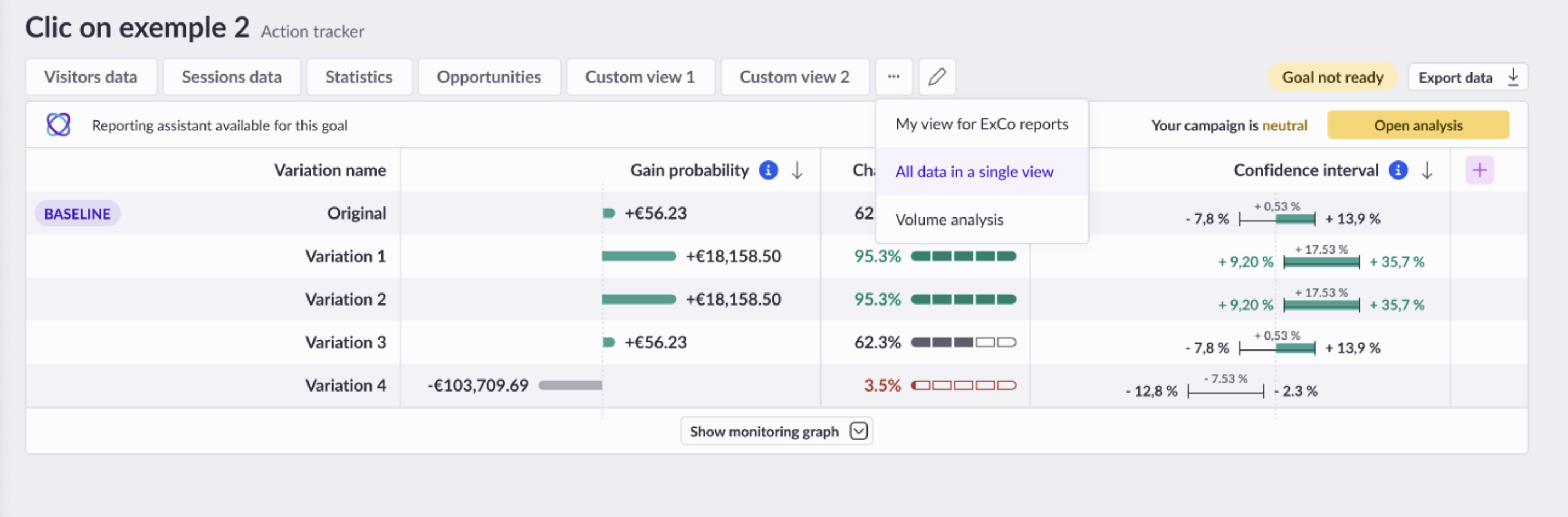
The **Custom Views** feature allows you to personalize your reporting experience by creating and selecting the metrics most relevant to your needs.
### Selecting views
You can switch to different views by clicking on the labelled **views button**, on top of the table.
### Managing metric views
Click on the **edit icon** to manage your metric views. You can add or remove metrics, as well as create new views. You can also select which view is displayed by default for each goal at your user level.
## Choosing the baseline
When having one or multiple variations, you can choose a baseline to which your data will be compared. By default, the baseline is set to the **original** website. However, you can set it to any variation.
To change the baseline, select any variation from the **Baseline** drop-down list in the reporting header.
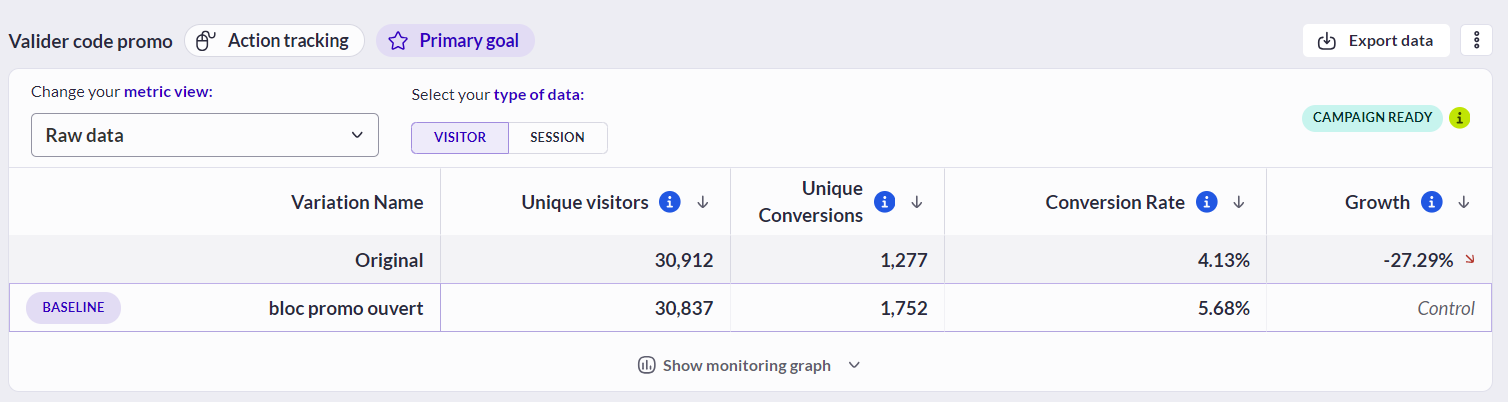
This will set the baseline indicator to the variation you chose and compare data to it.
## Sharing reporting
The reporting can also be shared to non AB Tasty users and will be available for 30 days.
To share the reporting, click on the **Share reporting** button in the reporting header.\
Next, click on **Create link**

### Data update
The reporting is refreshed in realtime if:
* The campaign has less than 1000 visitors (after that amount of visitors, realtime report will not process anymore)
* The campaign was created not longer than 7 days ago
* The campaign has started within the last 12 hours (so it will work only for the first 12 hours after the start)
After that, the Reporting data update frequencies are as follows:
| **Campaign Live** | **Frequency** |
| ---------------------- | ------------------------ |
| **Up to 96 hours** | Every hour |
| **4 to 7 days** | Every 4 hours |
| **8 to 14 days** | Every 8 hours |
| **15 to 30 days** | Every 24 hours |
| **31 days to 60 days** | Every 48 hours |
| **61 days and more** | Every 168 hours (1 week) |
| After **181 days** | No more updates |
{% hint style="success" %}
Scheduling is performed according to the "live" status, regardless of the QA status,\
A good practice is to clear the data after the QA to reset the scheduling
{% endhint %}
{% hint style="info" %}
Scheduling is not performed if the experience is in “pause” status.
Meaning that if the last update was on Monday and the experience is paused on Friday, there will be no update regarding the trafic from Monday to Friday.
We process campaings in active statuses: **DRAFT**, **IN QA**, **READY TO LAUNCH** or **PLAY**.\
We do not process **PAUSE**, **ANALYSIS**, **INTERRUPTED**, or **ENDED** campaigns.
{% endhint %}
Any live reporting that would not have been open for 20 days is not updated anymore until it is reloaded.
## Clearing data
You can reset the data at any time from the reporting page:
* Click the three dots icon next to the campaign status, in the header.
* Click the "Clear data" option.
* Confirm your choice in the warning popup
---
# Agent Instructions
This documentation is published with GitBook. GitBook is the documentation platform designed so that both humans and AI agents can read, navigate, and reason over technical content effectively. Learn more at gitbook.com.
## Querying This Documentation
If you need additional information that is not directly available in this page, you can query the documentation dynamically by asking a question.
Perform an HTTP GET request on the current page URL with the `ask` query parameter, and the optional `goal` query parameter:
```
GET https://docs.abtasty.com/reporting-and-performances/reporting/campaign-reporting.md?ask=&goal=
```
`ask` is the immediate question: it should be specific, self-contained, and written in natural language.
`goal` is optional and describes the broader end goal you are ultimately trying to accomplish on behalf of the user. GitBook uses it to tailor the answer towards what is most useful for that goal.
The response will contain a direct answer to the question and relevant excerpts and sources from the documentation.
Use this mechanism when the answer is not explicitly present in the current page, you need clarification or additional context, or you want to retrieve related documentation sections.

 The yellow button indicates that the campaign does not have enough data to fully analyze the primary goal.
 ## Reporting layout
A campaign reporting is composed of the following information and components
### Header
## Reporting layout
A campaign reporting is composed of the following information and components
### Header
 The reporting header shows when the campaign was created and for how long it has been **live**. It also indicates the total number of **unique visitors** on the campaign.
You can also trace back any modifications done to the campaign from the **Open campaign history** button.
The reporting header shows when the campaign was created and for how long it has been **live**. It also indicates the total number of **unique visitors** on the campaign.
You can also trace back any modifications done to the campaign from the **Open campaign history** button.
 {% hint style="success" %}
If you have opted in for AI features, a banner will automatically provide a quick, AI-generated summary of the A/B test campaign's results. The goal is to make campaign analysis more accessible, playful, and surprising with minimal effort.
{% hint style="success" %}
If you have opted in for AI features, a banner will automatically provide a quick, AI-generated summary of the A/B test campaign's results. The goal is to make campaign analysis more accessible, playful, and surprising with minimal effort.
.png?alt=media&token=b506bb4c-e005-48b5-b73e-2ae965ac4081) {% endhint %}
## Primary goal
### Monitoring graph
The reporting shows by default a **monitoring graph** of the **Primary goal**
Users can switch between **Day to Day** and **Cumulative** graph views. This is particularly beneficial for users who wish to monitor the stabilization of conversion rates over time at the goal level.
Day-to-day view:
{% endhint %}
## Primary goal
### Monitoring graph
The reporting shows by default a **monitoring graph** of the **Primary goal**
Users can switch between **Day to Day** and **Cumulative** graph views. This is particularly beneficial for users who wish to monitor the stabilization of conversion rates over time at the goal level.
Day-to-day view:
 Cumulative view:
 The graph switcher enables toggling between these views, with "Day to Day" as the default. The cumulative graph displays conversion rates accumulated over time, providing insights into long-term trends.
The availability of the cumulative graph depends on the selected data perspective: it is unavailable when **Sessions** is selected, but available when **Visitors** is chosen.
The cumulative graph can display data for up to 45 days, with a maximum of six variations, and users can interact with the graph to view detailed conversion statistics by hovering over the lines. Additionally, users can customize the displayed period using a date-picker, ensuring the graph reflects the desired timeframe.
You can select from either **Unique visitors** or **Unique sessions** for both the Original and variation(s) for the Primary goal of the campaign. Conversion rates are also graphed.
### Comparative chart
The comparative graph is based on all goals and show the number of **Unique visitors** per goal.
The graph switcher enables toggling between these views, with "Day to Day" as the default. The cumulative graph displays conversion rates accumulated over time, providing insights into long-term trends.
The availability of the cumulative graph depends on the selected data perspective: it is unavailable when **Sessions** is selected, but available when **Visitors** is chosen.
The cumulative graph can display data for up to 45 days, with a maximum of six variations, and users can interact with the graph to view detailed conversion statistics by hovering over the lines. Additionally, users can customize the displayed period using a date-picker, ensuring the graph reflects the desired timeframe.
You can select from either **Unique visitors** or **Unique sessions** for both the Original and variation(s) for the Primary goal of the campaign. Conversion rates are also graphed.
### Comparative chart
The comparative graph is based on all goals and show the number of **Unique visitors** per goal.
 #### Customization
Both graphs can be customized using the following filters:
#### Monitoring graph:
Select a date range
#### Customization
Both graphs can be customized using the following filters:
#### Monitoring graph:
Select a date range
 #### Comparative graph:
Select goals to compare
#### Comparative graph:
Select goals to compare
 ### Table view
The primary goal is also displayed in table view. The table view shows the name of the Primary goal and the type of tracking used. The table view also allows you to sort data and export them. The data can be viewed generally by either **Visitor** or **Session**. However, the options available will depend on the type of **metric** chosen.
The **Variation Name** column width can also be adjusted to ease reading.\
The **Variation ID** can be copied to the clipboard by clicking on it.
### Table view
The primary goal is also displayed in table view. The table view shows the name of the Primary goal and the type of tracking used. The table view also allows you to sort data and export them. The data can be viewed generally by either **Visitor** or **Session**. However, the options available will depend on the type of **metric** chosen.
The **Variation Name** column width can also be adjusted to ease reading.\
The **Variation ID** can be copied to the clipboard by clicking on it.
 ### EmotionsAI filter templates
User who subscribed to the EmotionsAI feature can apply EmotionsAI filter templates on the reporting:
### EmotionsAI filter templates
User who subscribed to the EmotionsAI feature can apply EmotionsAI filter templates on the reporting: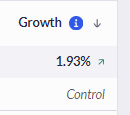


 ## Secondary goal
The secondary goals are listed just after the primary goal table view and offers the same features as the primary goal table view.
To learn more about campaign goals, read [Campaign flow: Goals step](/web-experimentation-and-personalization/campaign-flow-goals-step.md)
You can now access and view campaign reporting and full analysis of your data.
To learn more about advanced features of the reporting, read [Reporting Filters](/reporting-and-performances/reporting/reporting-filters.md)
## Custom views
The **Custom Views** feature allows you to personalize your reporting experience by creating and selecting the metrics most relevant to your needs.
### Selecting views
You can switch to different views by clicking on the labelled **views button**, on top of the table.
## Secondary goal
The secondary goals are listed just after the primary goal table view and offers the same features as the primary goal table view.
To learn more about campaign goals, read [Campaign flow: Goals step](/web-experimentation-and-personalization/campaign-flow-goals-step.md)
You can now access and view campaign reporting and full analysis of your data.
To learn more about advanced features of the reporting, read [Reporting Filters](/reporting-and-performances/reporting/reporting-filters.md)
## Custom views
The **Custom Views** feature allows you to personalize your reporting experience by creating and selecting the metrics most relevant to your needs.
### Selecting views
You can switch to different views by clicking on the labelled **views button**, on top of the table.
 ### Managing metric views
Click on the **edit icon** to manage your metric views. You can add or remove metrics, as well as create new views. You can also select which view is displayed by default for each goal at your user level.
### Managing metric views
Click on the **edit icon** to manage your metric views. You can add or remove metrics, as well as create new views. You can also select which view is displayed by default for each goal at your user level.
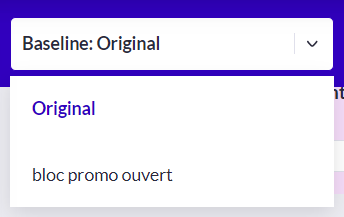 This will set the baseline indicator to the variation you chose and compare data to it.
 ## Sharing reporting
The reporting can also be shared to non AB Tasty users and will be available for 30 days.
To share the reporting, click on the **Share reporting** button in the reporting header.\
## Sharing reporting
The reporting can also be shared to non AB Tasty users and will be available for 30 days.
To share the reporting, click on the **Share reporting** button in the reporting header.\  Next, click on **Create link**

### Data update
The reporting is refreshed in realtime if:
* The campaign has less than 1000 visitors (after that amount of visitors, realtime report will not process anymore)
* The campaign was created not longer than 7 days ago
* The campaign has started within the last 12 hours (so it will work only for the first 12 hours after the start)
After that, the Reporting data update frequencies are as follows:
| **Campaign Live** | **Frequency** |
| ---------------------- | ------------------------ |
| **Up to 96 hours** | Every hour |
| **4 to 7 days** | Every 4 hours |
| **8 to 14 days** | Every 8 hours |
| **15 to 30 days** | Every 24 hours |
| **31 days to 60 days** | Every 48 hours |
| **61 days and more** | Every 168 hours (1 week) |
| After **181 days** | No more updates |
{% hint style="success" %}
Scheduling is performed according to the "live" status, regardless of the QA status,\
A good practice is to clear the data after the QA to reset the scheduling
{% endhint %}
{% hint style="info" %}
Scheduling is not performed if the experience is in “pause” status.
Meaning that if the last update was on Monday and the experience is paused on Friday, there will be no update regarding the trafic from Monday to Friday.
We process campaings in active statuses: **DRAFT**, **IN QA**, **READY TO LAUNCH** or **PLAY**.\
We do not process **PAUSE**, **ANALYSIS**, **INTERRUPTED**, or **ENDED** campaigns.
{% endhint %}
Any live reporting that would not have been open for 20 days is not updated anymore until it is reloaded.
## Clearing data
You can reset the data at any time from the reporting page:
* Click the three dots icon next to the campaign status, in the header.
* Click the "Clear data" option.
* Confirm your choice in the warning popup
Next, click on **Create link**

### Data update
The reporting is refreshed in realtime if:
* The campaign has less than 1000 visitors (after that amount of visitors, realtime report will not process anymore)
* The campaign was created not longer than 7 days ago
* The campaign has started within the last 12 hours (so it will work only for the first 12 hours after the start)
After that, the Reporting data update frequencies are as follows:
| **Campaign Live** | **Frequency** |
| ---------------------- | ------------------------ |
| **Up to 96 hours** | Every hour |
| **4 to 7 days** | Every 4 hours |
| **8 to 14 days** | Every 8 hours |
| **15 to 30 days** | Every 24 hours |
| **31 days to 60 days** | Every 48 hours |
| **61 days and more** | Every 168 hours (1 week) |
| After **181 days** | No more updates |
{% hint style="success" %}
Scheduling is performed according to the "live" status, regardless of the QA status,\
A good practice is to clear the data after the QA to reset the scheduling
{% endhint %}
{% hint style="info" %}
Scheduling is not performed if the experience is in “pause” status.
Meaning that if the last update was on Monday and the experience is paused on Friday, there will be no update regarding the trafic from Monday to Friday.
We process campaings in active statuses: **DRAFT**, **IN QA**, **READY TO LAUNCH** or **PLAY**.\
We do not process **PAUSE**, **ANALYSIS**, **INTERRUPTED**, or **ENDED** campaigns.
{% endhint %}
Any live reporting that would not have been open for 20 days is not updated anymore until it is reloaded.
## Clearing data
You can reset the data at any time from the reporting page:
* Click the three dots icon next to the campaign status, in the header.
* Click the "Clear data" option.
* Confirm your choice in the warning popup

