> For the complete documentation index, see [llms.txt](https://docs.abtasty.com/llms.txt). Markdown versions of documentation pages are available by appending `.md` to page URLs; this page is available as [Markdown](https://docs.abtasty.com/reporting-and-performances/reporting/refresh-reporting-data-using-refresh-on-demand.md).
# Refresh reporting data using Refresh On Demand
## Introduction
The "Refresh on Demand" feature allows users to manually refresh their report statistics, providing up-to-date data without waiting for the next scheduled refresh. This feature is particularly useful for campaigns that have been running for more than 14 days and need immediate data updates.
This feature complements the real-time mode, which becomes active as soon as the campaign goes live and continues until either 12 hours have elapsed or 1,000 users have interacted with the campaign.
## Using Refresh on Demand
### Step 1: Access the reporting dashboard
Log in to your AB Tasty account. Navigate to the reporting section, where your campaign data is displayed.
### Step 2: Check campaign eligibility
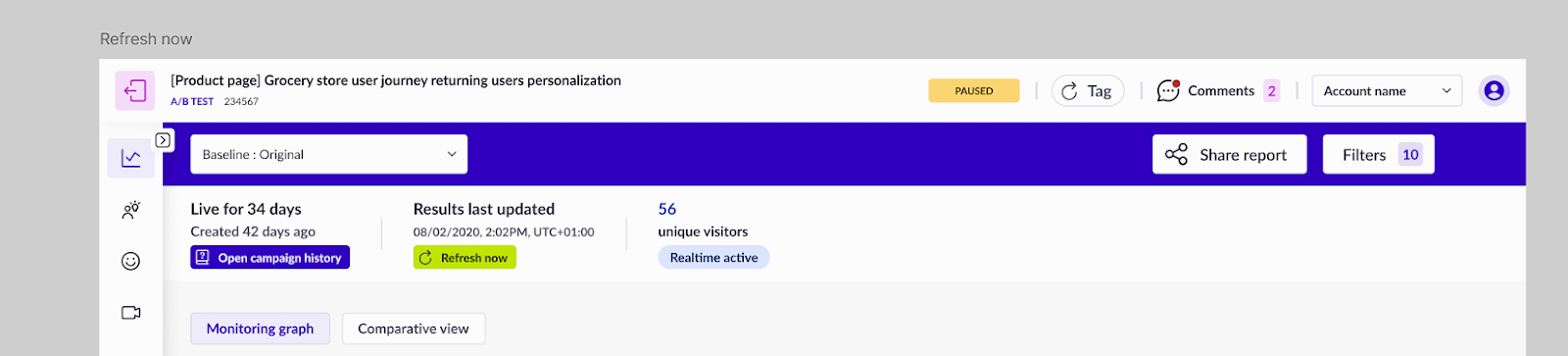
Ensure your campaign is older than 14 days. The refresh button is only available for campaigns that meet this criterion.
### Step 3: Initiate the refresh
Click the "Refresh Now" button. A confirmation modal will appear asking if you want to refresh the data.
 ### Step 4: Confirm the refresh
In the modal, click "Refresh Data Anyway" to proceed. This action will trigger the refresh process.
### Step 4: Confirm the refresh
In the modal, click "Refresh Data Anyway" to proceed. This action will trigger the refresh process.
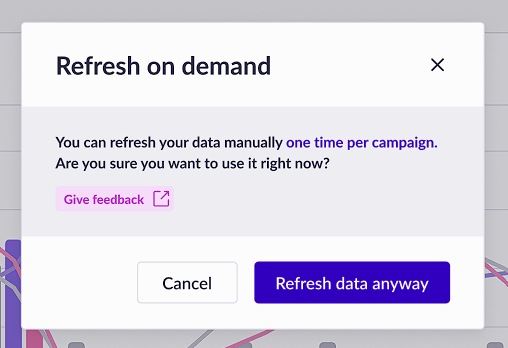 You can only manually refresh your data one time per campaign.
### Step 5: Wait for the refresh to complete
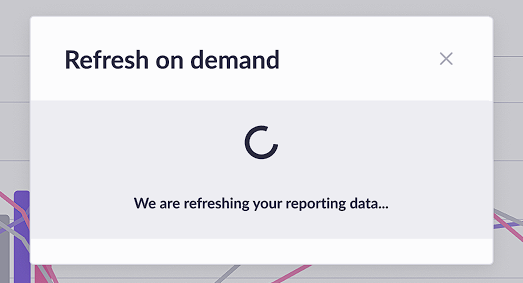
The modal will display a loading status while the refresh is in progress. Once completed, a success message will appear, and the report stats will be updated.
You can only manually refresh your data one time per campaign.
### Step 5: Wait for the refresh to complete
The modal will display a loading status while the refresh is in progress. Once completed, a success message will appear, and the report stats will be updated.
 ### Step 7: Verify the update
Check the "Results last updated" section to ensure the data has been refreshed. The updated time should reflect the recent refresh.
## Use Case
The "Refresh on Demand" feature is ideal for users who need to
* Quickly access the latest data for decision-making without waiting for the next scheduled refresh.
* Ensure data accuracy before presenting reports to stakeholders.
---
# Agent Instructions
This documentation is published with GitBook. GitBook is the documentation platform designed so that both humans and AI agents can read, navigate, and reason over technical content effectively. Learn more at gitbook.com.
## Querying This Documentation
If you need additional information that is not directly available in this page, you can query the documentation dynamically by asking a question.
Perform an HTTP GET request on the current page URL with the `ask` query parameter, and the optional `goal` query parameter:
```
GET https://docs.abtasty.com/reporting-and-performances/reporting/refresh-reporting-data-using-refresh-on-demand.md?ask=&goal=
```
`ask` is the immediate question: it should be specific, self-contained, and written in natural language.
`goal` is optional and describes the broader end goal you are ultimately trying to accomplish on behalf of the user. GitBook uses it to tailor the answer towards what is most useful for that goal.
The response will contain a direct answer to the question and relevant excerpts and sources from the documentation.
Use this mechanism when the answer is not explicitly present in the current page, you need clarification or additional context, or you want to retrieve related documentation sections.
### Step 7: Verify the update
Check the "Results last updated" section to ensure the data has been refreshed. The updated time should reflect the recent refresh.
## Use Case
The "Refresh on Demand" feature is ideal for users who need to
* Quickly access the latest data for decision-making without waiting for the next scheduled refresh.
* Ensure data accuracy before presenting reports to stakeholders.
---
# Agent Instructions
This documentation is published with GitBook. GitBook is the documentation platform designed so that both humans and AI agents can read, navigate, and reason over technical content effectively. Learn more at gitbook.com.
## Querying This Documentation
If you need additional information that is not directly available in this page, you can query the documentation dynamically by asking a question.
Perform an HTTP GET request on the current page URL with the `ask` query parameter, and the optional `goal` query parameter:
```
GET https://docs.abtasty.com/reporting-and-performances/reporting/refresh-reporting-data-using-refresh-on-demand.md?ask=&goal=
```
`ask` is the immediate question: it should be specific, self-contained, and written in natural language.
`goal` is optional and describes the broader end goal you are ultimately trying to accomplish on behalf of the user. GitBook uses it to tailor the answer towards what is most useful for that goal.
The response will contain a direct answer to the question and relevant excerpts and sources from the documentation.
Use this mechanism when the answer is not explicitly present in the current page, you need clarification or additional context, or you want to retrieve related documentation sections.