> For the complete documentation index, see [llms.txt](https://docs.abtasty.com/llms.txt). Markdown versions of documentation pages are available by appending `.md` to page URLs; this page is available as [Markdown](https://docs.abtasty.com/server-side/integrations/visual-studio-code-extension/codebase-analyzer-with-vscode-extension.md).
# Codebase Analyzer with VSCode Extension
Managing feature flags spread across multiple providers can be a headache: jumping between dashboards, hunting in code, and hoping you didn’t miss anything. With the Codebase Analyzer VS Code extension, you get a unified view of every flag key and its default value—directly in your editor.
### How It Works Inside VS Code
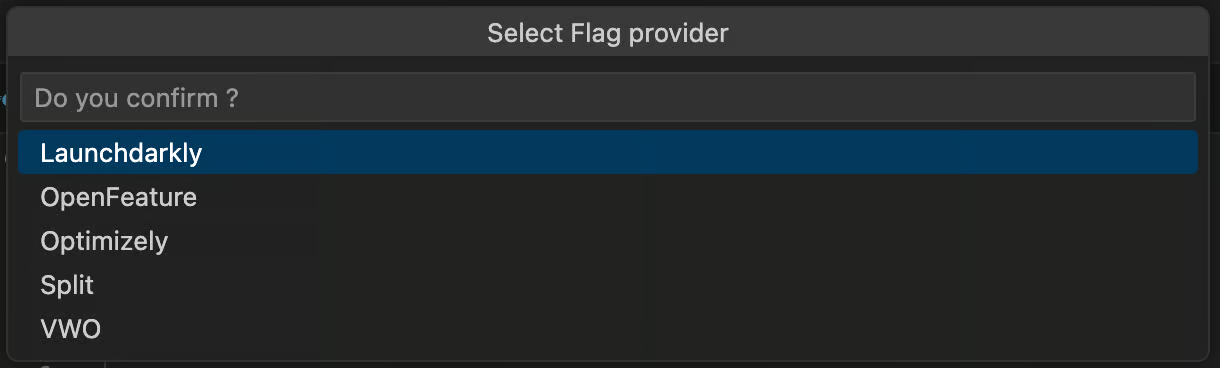
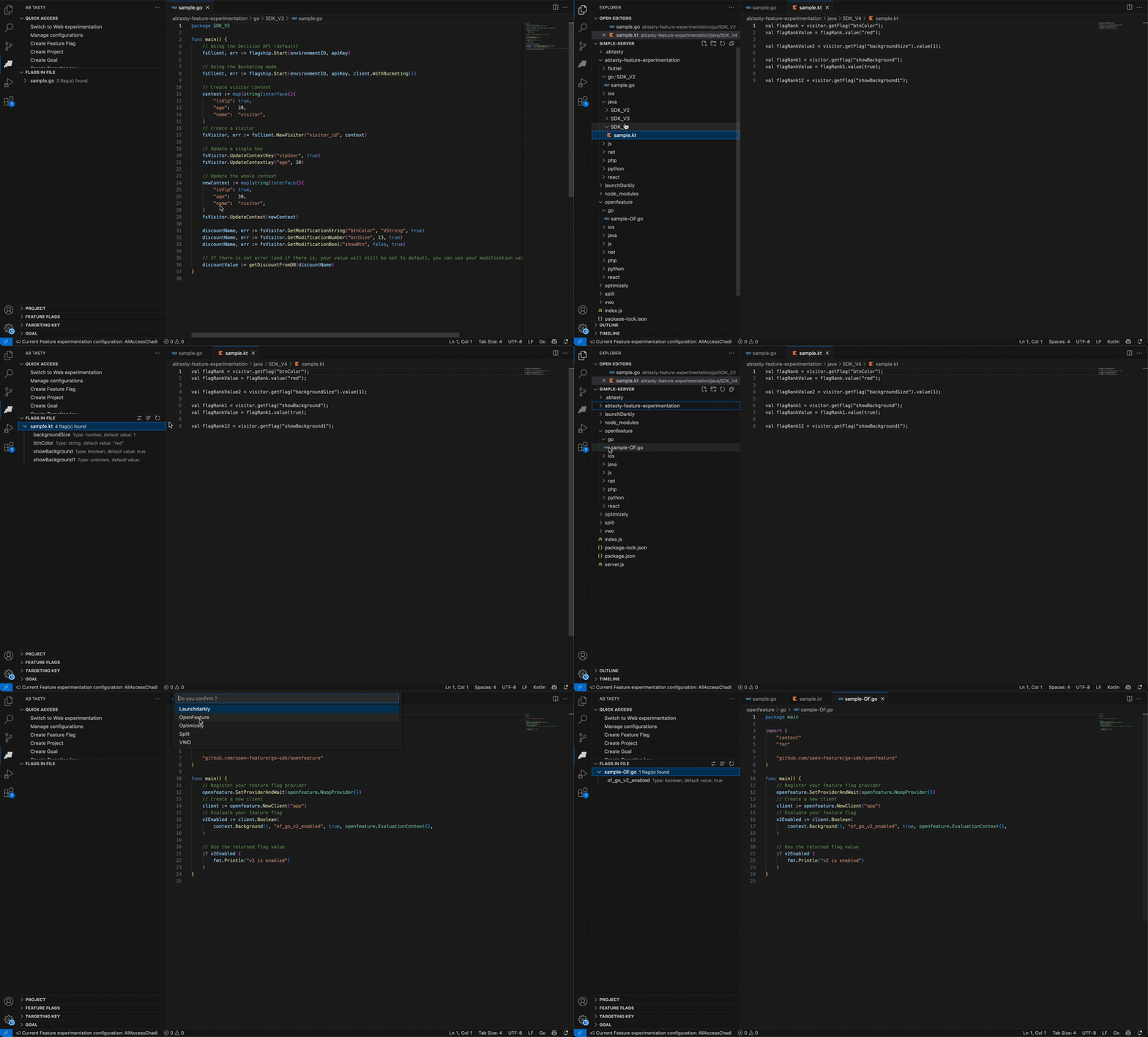
1. **Trigger the Scan**
Open the Command Palette (Ctrl+Shift+P / Cmd+Shift+P) and run “Feature Experimentation: Set flag provider to analyze”. The extension launches the analyzer binary under the hood, passing your workspace or file path.
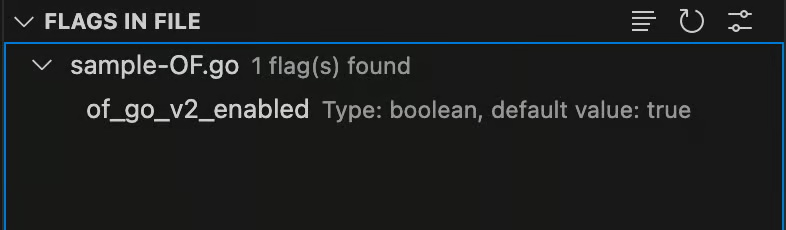
2. **View the Results**
A side panel appears showing:
* Provider Tabs: Switch between LaunchDarkly, OpenFeature, and more providers.
* Flag List: Each entry shows the flag key, its default value, and the file(s) where it’s declared.
* Quick Actions: Click on any flag to jump to its definition or copy the key to your clipboard, or create it.
3. **Inline Decorations**
As the panel renders, the extension also decorates your code:
* Gutter Icons beside each flag declaration.
* Hover Cards reveal default values and provider details when you hover over a flag key in the editor.
---
# Agent Instructions
This documentation is published with GitBook. GitBook is the documentation platform designed so that both humans and AI agents can read, navigate, and reason over technical content effectively. Learn more at gitbook.com.
## Querying This Documentation
If you need additional information that is not directly available in this page, you can query the documentation dynamically by asking a question.
Perform an HTTP GET request on the current page URL with the `ask` query parameter, and the optional `goal` query parameter:
```
GET https://docs.abtasty.com/server-side/integrations/visual-studio-code-extension/codebase-analyzer-with-vscode-extension.md?ask=&goal=
```
`ask` is the immediate question: it should be specific, self-contained, and written in natural language.
`goal` is optional and describes the broader end goal you are ultimately trying to accomplish on behalf of the user. GitBook uses it to tailor the answer towards what is most useful for that goal.
The response will contain a direct answer to the question and relevant excerpts and sources from the documentation.
Use this mechanism when the answer is not explicitly present in the current page, you need clarification or additional context, or you want to retrieve related documentation sections.