> For the complete documentation index, see [llms.txt](https://docs.abtasty.com/llms.txt). Markdown versions of documentation pages are available by appending `.md` to page URLs; this page is available as [Markdown](https://docs.abtasty.com/web-experimentation-and-personalization/campaign-creation-and-dashboard/how-to-create-a-campaign.md).
# How to create a campaign
AB Tasty enables you to create several types of campaign according to the hypothesis you want to test:
#### Tests/ Experimentations:
* [A/A test](/web-experimentation-and-personalization/campaign-creation-and-dashboard/how-to-create-a-campaign/experimentations/how-to-create-an-aa-test.md)
* [A/B test](/web-experimentation-and-personalization/campaign-creation-and-dashboard/how-to-create-a-campaign/experimentations/how-to-create-an-ab-test.md)
* [Multipage test](/web-experimentation-and-personalization/campaign-creation-and-dashboard/how-to-create-a-campaign/experimentations/how-to-create-a-multipage-test.md)
* [Multivariate test](/web-experimentation-and-personalization/campaign-creation-and-dashboard/how-to-create-a-campaign/experimentations/how-to-create-a-multivariate-test.md)
* [Patch](/web-experimentation-and-personalization/campaign-creation-and-dashboard/how-to-create-a-campaign/experimentations/how-to-create-a-patch--multipage-patch.md)
* [Multipage patch](/web-experimentation-and-personalization/campaign-creation-and-dashboard/how-to-create-a-campaign/experimentations/how-to-create-a-patch--multipage-patch.md)
#### Personalizations:
* [Simple personalization](/web-experimentation-and-personalization/campaign-creation-and-dashboard/how-to-create-a-campaign/personalizations/how-to-create-a-simple-personalization.md)
* [Multipage personalization](/web-experimentation-and-personalization/campaign-creation-and-dashboard/how-to-create-a-campaign/personalizations/how-to-create-a-multipage-personalization.md)
* [Multiexperience personalization](/web-experimentation-and-personalization/campaign-creation-and-dashboard/how-to-create-a-campaign/personalizations/how-to-create-a-multi-experience-personalization.md)
You can create a campaign from different locations of the platform.
## With the Create Button of the campaign list
The main way to create a campaign is from the campaign list page:
1. Go to the [Web Experimentation](https://app2.abtasty.com/experiments) or [Personalization](https://app2.abtasty.com/customizations) page.
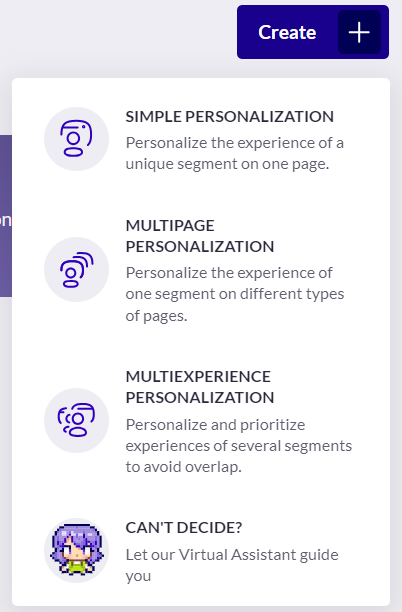
2. Hover over the *Create* button.
3. Click on the type of campaign you want to create:\
You will be redirected to the [Main information step](/web-experimentation-and-personalization/campaign-creation-and-dashboard/how-to-set-up-main-information-step.md).
 To create a Split Test, you must create an A/B test and activate the *redirection* option in the visual editor.
If you're not sure which type of campaign to choose, you can use our [Virtual Assistant Ally](/web-experimentation-and-personalization/campaign-creation-and-dashboard/types-of-campaigns/choosing-the-right-type-of-campaign-with-ally-our-assistant.md).
## From a library element (widget, segment or trigger)
### From a widget
You can create a campaign from a specific widget. In this case, the chosen widget will be added by default in the editor. To do so, apply the following steps:
1. Go to *Library* > *Widgets*.
2. Select the widget from which you want to create a campaign and click *Use*.
3. Select the campaign type and enter a name and URL.
4. Click *Go to the editor*:\
The URL of the page you specified will display in the visual editor with the widget already added and ready to be configured.
To create a Split Test, you must create an A/B test and activate the *redirection* option in the visual editor.
If you're not sure which type of campaign to choose, you can use our [Virtual Assistant Ally](/web-experimentation-and-personalization/campaign-creation-and-dashboard/types-of-campaigns/choosing-the-right-type-of-campaign-with-ally-our-assistant.md).
## From a library element (widget, segment or trigger)
### From a widget
You can create a campaign from a specific widget. In this case, the chosen widget will be added by default in the editor. To do so, apply the following steps:
1. Go to *Library* > *Widgets*.
2. Select the widget from which you want to create a campaign and click *Use*.
3. Select the campaign type and enter a name and URL.
4. Click *Go to the editor*:\
The URL of the page you specified will display in the visual editor with the widget already added and ready to be configured.
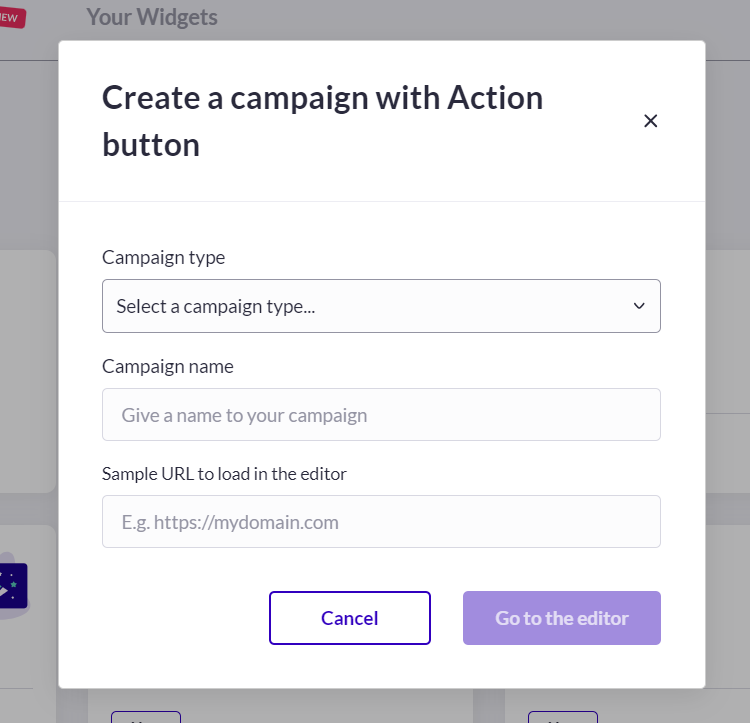 You can also create a campaign from a widget preset (*Presets* tab) or from a custom widget (*Your widgets* tab) by following the same procedure.
### From a segment or trigger
You can create a campaign from a specific segment (or trigger). In this case, the segment (or trigger) will be automatically selected in the *who* section (or *how* section) of the Targeting step of your campaign. To do so, apply the following step:
1. Go to **Library > Segments** (or *Triggers*).
2. Select the segment/trigger from which you want to create a campaign and click the **+** icon at the end of the line.
3. Select the type of campaign: personalization or test.
4. From the [Main information page](/web-experimentation-and-personalization/campaign-creation-and-dashboard/how-to-set-up-main-information-step.md), select the campaign type and enter a name and URL.
5. Click **Save**:\
Your segment/trigger is already added to the targeting step.
## 
## With the Chrome extension
AB Tasty has released a Chrome extension to create a campaign directly from your website page.
To download the Chrome extension, please follow this [link](https://chrome.google.com/webstore/detail/ab-tasty/bdiahcebghgckgbgmjhdbecjkedpcidn).
For more information about the AB Tasty Chrome extension, please visit our specific section about the Chrome extension in the[ visual editor guide.](/web-experimentation-and-personalization/editors-and-widget/visual-editor/discovering-the-visual-editor.md)
This option is useful for loading logged pages.
## With the Duplicate option
If you want to duplicate an existing campaign and create a new one (and potentially modify some elements of the original test setup), you can use the *Duplicate* option in the campaign list.
You can also create a campaign from a widget preset (*Presets* tab) or from a custom widget (*Your widgets* tab) by following the same procedure.
### From a segment or trigger
You can create a campaign from a specific segment (or trigger). In this case, the segment (or trigger) will be automatically selected in the *who* section (or *how* section) of the Targeting step of your campaign. To do so, apply the following step:
1. Go to **Library > Segments** (or *Triggers*).
2. Select the segment/trigger from which you want to create a campaign and click the **+** icon at the end of the line.
3. Select the type of campaign: personalization or test.
4. From the [Main information page](/web-experimentation-and-personalization/campaign-creation-and-dashboard/how-to-set-up-main-information-step.md), select the campaign type and enter a name and URL.
5. Click **Save**:\
Your segment/trigger is already added to the targeting step.
## 
## With the Chrome extension
AB Tasty has released a Chrome extension to create a campaign directly from your website page.
To download the Chrome extension, please follow this [link](https://chrome.google.com/webstore/detail/ab-tasty/bdiahcebghgckgbgmjhdbecjkedpcidn).
For more information about the AB Tasty Chrome extension, please visit our specific section about the Chrome extension in the[ visual editor guide.](/web-experimentation-and-personalization/editors-and-widget/visual-editor/discovering-the-visual-editor.md)
This option is useful for loading logged pages.
## With the Duplicate option
If you want to duplicate an existing campaign and create a new one (and potentially modify some elements of the original test setup), you can use the *Duplicate* option in the campaign list.
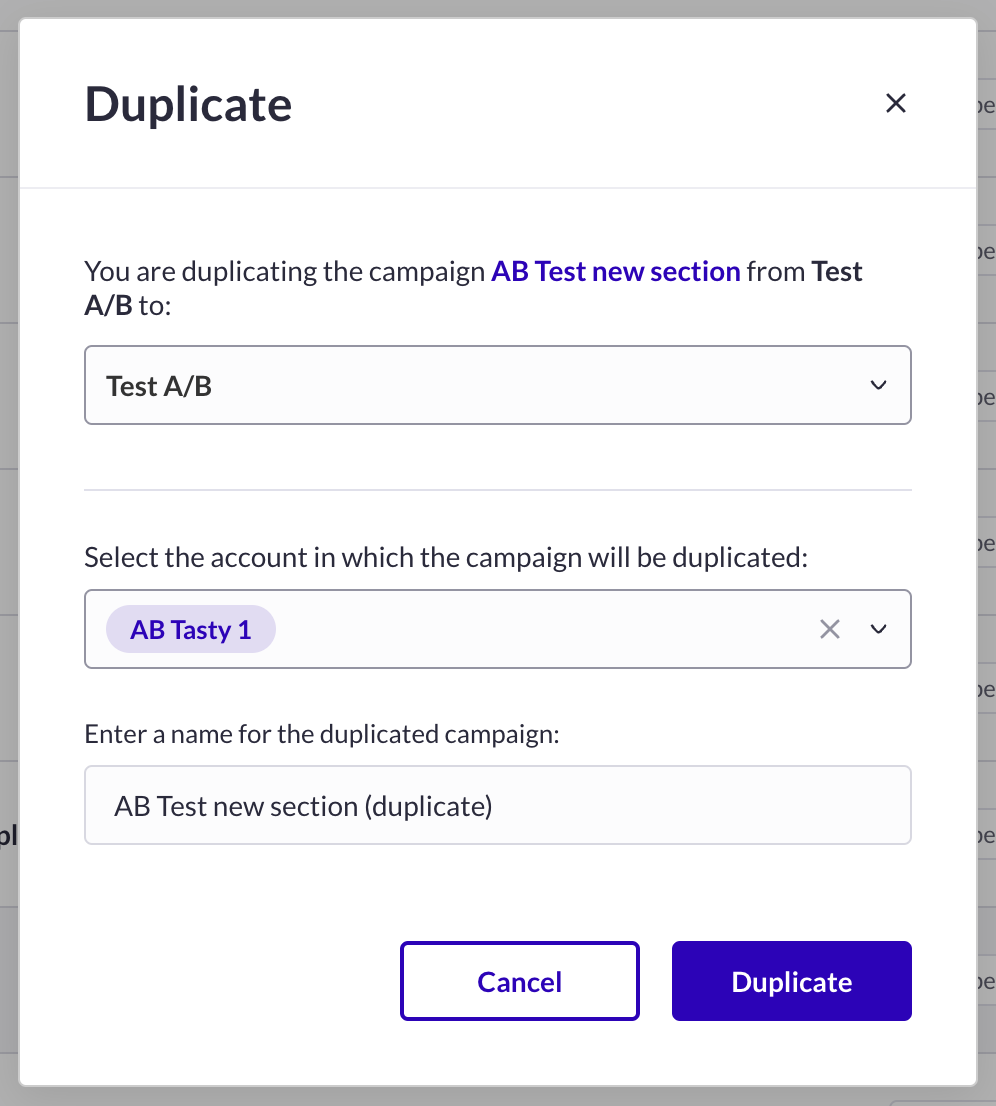 1. Click on the three dots on the right side of the campaign line you want to duplicate.
2. Click on the first option: **Duplicate***.*\
The duplication modal opens. From here, you can:
* Modify the account where you want to create your new campaign.
* Modify the name of your new campaign (otherwise the name will be the same with **(duplicate)** added at the end).
For more information about duplication and transformation use cases, please refer to [this](/web-experimentation-and-personalization/campaign-creation-and-dashboard/campaign-duplication.md) article.
---
# Agent Instructions
This documentation is published with GitBook. GitBook is the documentation platform designed so that both humans and AI agents can read, navigate, and reason over technical content effectively. Learn more at gitbook.com.
## Querying This Documentation
If you need additional information that is not directly available in this page, you can query the documentation dynamically by asking a question.
Perform an HTTP GET request on the current page URL with the `ask` query parameter, and the optional `goal` query parameter:
```
GET https://docs.abtasty.com/web-experimentation-and-personalization/campaign-creation-and-dashboard/how-to-create-a-campaign.md?ask=&goal=
```
`ask` is the immediate question: it should be specific, self-contained, and written in natural language.
`goal` is optional and describes the broader end goal you are ultimately trying to accomplish on behalf of the user. GitBook uses it to tailor the answer towards what is most useful for that goal.
The response will contain a direct answer to the question and relevant excerpts and sources from the documentation.
Use this mechanism when the answer is not explicitly present in the current page, you need clarification or additional context, or you want to retrieve related documentation sections.
1. Click on the three dots on the right side of the campaign line you want to duplicate.
2. Click on the first option: **Duplicate***.*\
The duplication modal opens. From here, you can:
* Modify the account where you want to create your new campaign.
* Modify the name of your new campaign (otherwise the name will be the same with **(duplicate)** added at the end).
For more information about duplication and transformation use cases, please refer to [this](/web-experimentation-and-personalization/campaign-creation-and-dashboard/campaign-duplication.md) article.
---
# Agent Instructions
This documentation is published with GitBook. GitBook is the documentation platform designed so that both humans and AI agents can read, navigate, and reason over technical content effectively. Learn more at gitbook.com.
## Querying This Documentation
If you need additional information that is not directly available in this page, you can query the documentation dynamically by asking a question.
Perform an HTTP GET request on the current page URL with the `ask` query parameter, and the optional `goal` query parameter:
```
GET https://docs.abtasty.com/web-experimentation-and-personalization/campaign-creation-and-dashboard/how-to-create-a-campaign.md?ask=&goal=
```
`ask` is the immediate question: it should be specific, self-contained, and written in natural language.
`goal` is optional and describes the broader end goal you are ultimately trying to accomplish on behalf of the user. GitBook uses it to tailor the answer towards what is most useful for that goal.
The response will contain a direct answer to the question and relevant excerpts and sources from the documentation.
Use this mechanism when the answer is not explicitly present in the current page, you need clarification or additional context, or you want to retrieve related documentation sections.