> For the complete documentation index, see [llms.txt](https://docs.abtasty.com/llms.txt). Markdown versions of documentation pages are available by appending `.md` to page URLs; this page is available as [Markdown](https://docs.abtasty.com/web-experimentation-and-personalization/campaign-creation-and-dashboard/how-to-set-up-main-information-step.md).
# How to set-up Main Information step
The Main Information page is the first step toward all new campaigns.
In this page, you'll have to choose:
* The type of your campaign
* The name of your campaign
* The hypothesis of your campaign
* One URL as a sample of the page you want to optimize
* The type of editor you want to use (visual editor/ code editor)
* The method to load the visual editor
This page has 2 status:
* **The draft status,** before you click "Save" for the first time. At this point, you can quit without saving, and you won't create any new campaign at all.
* **The saved status**, after you click "Save"
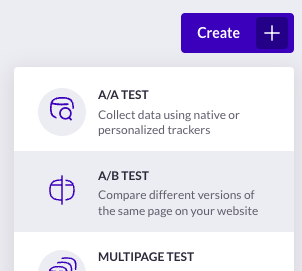
Generally you'll land on this page after having clicked on "Create" campaign on [**dashboards**](/web-experimentation-and-personalization/campaign-creation-and-dashboard/campaigns-dashboard.md).
## Step 1: campaign type
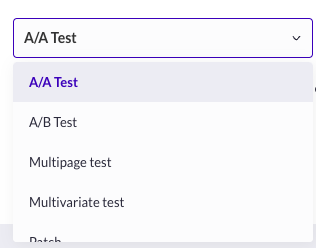
At the top of the page, the dropdown pre-selects the type of campaign you've chosen via the dropdown in the campaigns dashboard. At this stage, **you can still change your mind and select a different type of test**, as the step status is *draft*.
## Step 2: Write your campaign hypothesis
Write a clear hypothesis for your A/B test to define its objective. A well-written hypothesis helps your team distinguish between versions in the Visual Editor. You can use the **Hypothesis Helper** to help formulate your hypothesis.
### Evi Hypothesize
The **Evi Hypothesize** helps you write the perfect hypothesis. It provides an automatic checklist that tracks all essential hypothesis elements as you enter your text. Your hypothesis is considered well-formulated when all checklist items are complete.
You can also interact with the **AB Tasty's AI** through a CTA as soon as you started typing a bit of your hypothesis. Click on **Go Further with AI** to receive insights about what is missing in your hypothesis. You can also directly apply one of the hypothesis suggested by clicking on the **Use this** button.
Note that, as soon as you changed your hypothesis, you can reload the AB Tasty's AI to receive the updated insights and suggestions.
{% hint style="info" %}
The field *hypothesis* becomes *description* for AA Tests and Patches.
{% endhint %}
## Step 3: the sample URL
The ***Sample URL*** is the exact page, or a sample of the pages that share the same layout, that you want to test/ personalize/ patch/ track.
In your campaign, this URL will be used:
* **To load the Editor of your choice (Visual or Code)**
* **As a pre-filled targeted URL in the targeting step**
This **won’t necessarily be the final targeted page** of your campaign. See the [targeting article](/web-experimentation-and-personalization/targeting-step.md) for more information.
{% hint style="warning" %}
**Don’t use URL parameters in the sample URL field**, otherwise, you won't be able to save the step.
{% endhint %}
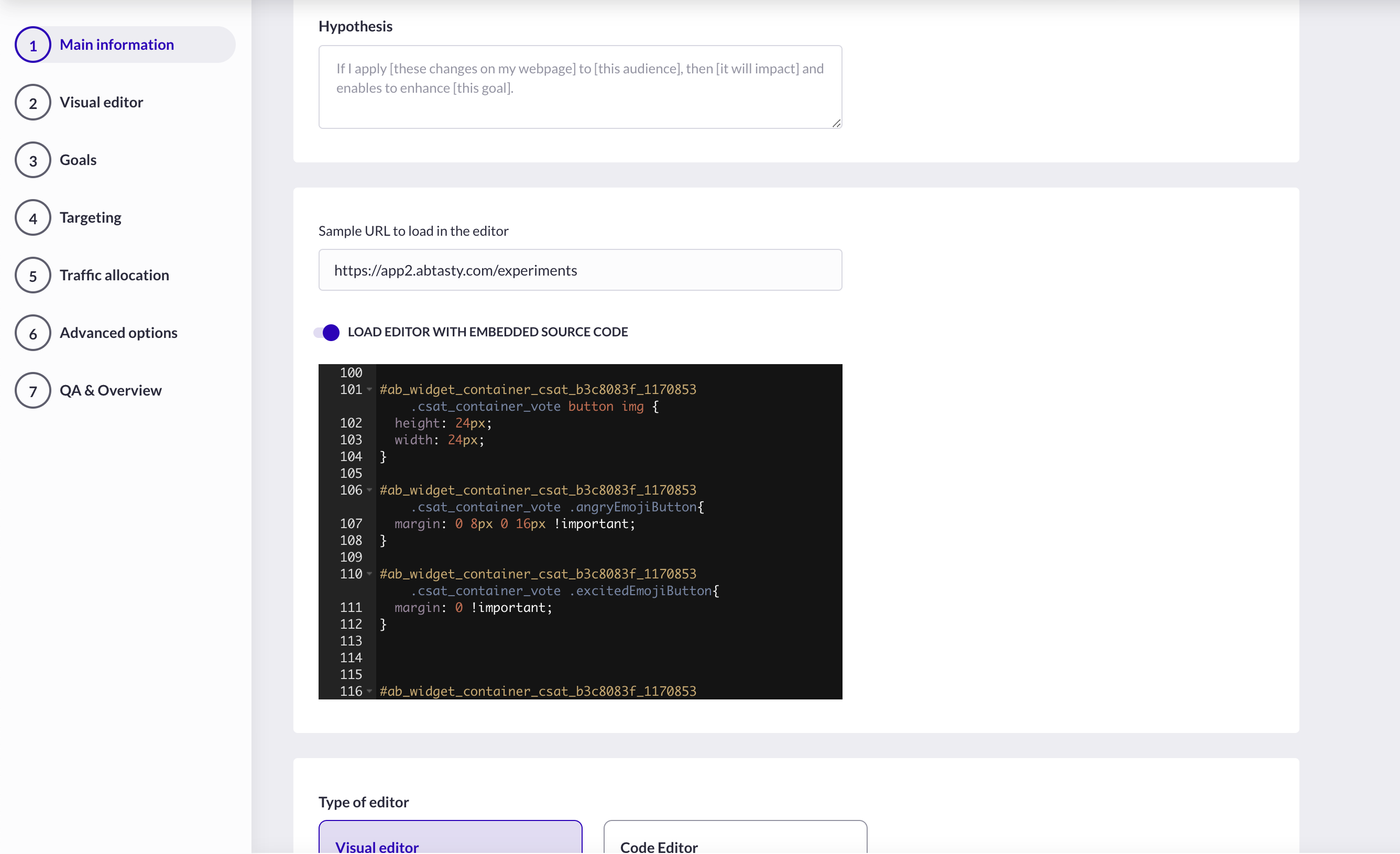
## Step 4: the option "Load editor with embedded source code" for logged pages
By default, when you load a page that requires authentication (e.g. a client account page) in the URL field, or a conversion funnel page, the page displayed in the editor will be empty or will show an error because it often requires session information (e.g. products to be displayed in the cart page).
To work around this issue, you need to inject the source code of the page within the Main Information step of the creation flow.
There are two ways to do this:
* Using the **Load Editor with embedded source code** option manually, available here in the Main Information page
* Or using the **Apply HTML** option within the **AB Tasty Chrome extension** (see this [article](/web-experimentation-and-personalization/editors-and-widget/chrome-extension.md))
The first method with source code consists of pasting the page’s source code directly into AB Tasty. To do this:
* Go to the URL that you want to load in the editor
* Right-click on the page, and select Inspect
* In the Elements tab of the console, go to the first line of code: the \ tag
* Right-click on it, then select Copy → outerHTML. You will get the entire source code of the page with all the scripts and information needed
* Paste this code into the dedicated window within the Main Information step
* Click SaveThe page will load in the editor and you can apply your desired changes.
The URL field needs to remain filled with your URL - this is mandatory to save and go to the next step.
## Step 5: the choice of the editor
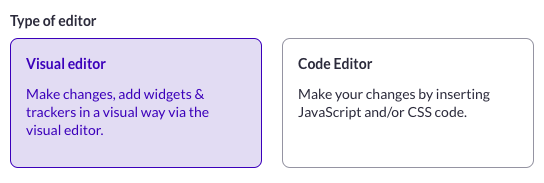
At this point, you can select one of two ways to create your A/B Test variation(s):
* Using the Visual Editor (and WYSIWYG features, widgets, and the possibility to add some JS and CSS code)
* Using the Code Editor to fully implement your campaign with code
Either way, you’ll be able to come back to the Main Information page to switch the editor, or to change from the Code Editor to the Visual Editor, and vice versa.
Once your choices and setup are completed, you can click Save & Go to the Next Step.
## Saving the Main information page configuration
Once you click Save, your A/B Test will be generated (with a unique ID) and will appear in the Tests dashboard. When you come back to the Main Information Page, everything will be editable, except for the type of test (the dropdown menu will no longer be available). At this point, if you need to change the type of campaign, you’ll have to start from scratch or transform your current A/B Test to another type of test directly on the dashboard, using the [duplication action.](/web-experimentation-and-personalization/campaign-creation-and-dashboard/campaign-duplication.md)
---
# Agent Instructions
This documentation is published with GitBook. GitBook is the documentation platform designed so that both humans and AI agents can read, navigate, and reason over technical content effectively. Learn more at gitbook.com.
## Querying This Documentation
If you need additional information that is not directly available in this page, you can query the documentation dynamically by asking a question.
Perform an HTTP GET request on the current page URL with the `ask` query parameter, and the optional `goal` query parameter:
```
GET https://docs.abtasty.com/web-experimentation-and-personalization/campaign-creation-and-dashboard/how-to-set-up-main-information-step.md?ask=&goal=
```
`ask` is the immediate question: it should be specific, self-contained, and written in natural language.
`goal` is optional and describes the broader end goal you are ultimately trying to accomplish on behalf of the user. GitBook uses it to tailor the answer towards what is most useful for that goal.
The response will contain a direct answer to the question and relevant excerpts and sources from the documentation.
Use this mechanism when the answer is not explicitly present in the current page, you need clarification or additional context, or you want to retrieve related documentation sections.
 ## Step 2: Write your campaign hypothesis
Write a clear hypothesis for your A/B test to define its objective. A well-written hypothesis helps your team distinguish between versions in the Visual Editor. You can use the **Hypothesis Helper** to help formulate your hypothesis.
### Evi Hypothesize
The **Evi Hypothesize** helps you write the perfect hypothesis. It provides an automatic checklist that tracks all essential hypothesis elements as you enter your text. Your hypothesis is considered well-formulated when all checklist items are complete.
## Step 2: Write your campaign hypothesis
Write a clear hypothesis for your A/B test to define its objective. A well-written hypothesis helps your team distinguish between versions in the Visual Editor. You can use the **Hypothesis Helper** to help formulate your hypothesis.
### Evi Hypothesize
The **Evi Hypothesize** helps you write the perfect hypothesis. It provides an automatic checklist that tracks all essential hypothesis elements as you enter your text. Your hypothesis is considered well-formulated when all checklist items are complete.


 To work around this issue, you need to inject the source code of the page within the Main Information step of the creation flow.
There are two ways to do this:
* Using the **Load Editor with embedded source code** option manually, available here in the Main Information page
* Or using the **Apply HTML** option within the **AB Tasty Chrome extension** (see this [article](/web-experimentation-and-personalization/editors-and-widget/chrome-extension.md))
The first method with source code consists of pasting the page’s source code directly into AB Tasty. To do this:
* Go to the URL that you want to load in the editor
* Right-click on the page, and select Inspect
* In the Elements tab of the console, go to the first line of code: the \ tag
* Right-click on it, then select Copy → outerHTML. You will get the entire source code of the page with all the scripts and information needed
* Paste this code into the dedicated window within the Main Information step
* Click SaveThe page will load in the editor and you can apply your desired changes.
The URL field needs to remain filled with your URL - this is mandatory to save and go to the next step.
## Step 5: the choice of the editor
To work around this issue, you need to inject the source code of the page within the Main Information step of the creation flow.
There are two ways to do this:
* Using the **Load Editor with embedded source code** option manually, available here in the Main Information page
* Or using the **Apply HTML** option within the **AB Tasty Chrome extension** (see this [article](/web-experimentation-and-personalization/editors-and-widget/chrome-extension.md))
The first method with source code consists of pasting the page’s source code directly into AB Tasty. To do this:
* Go to the URL that you want to load in the editor
* Right-click on the page, and select Inspect
* In the Elements tab of the console, go to the first line of code: the \ tag
* Right-click on it, then select Copy → outerHTML. You will get the entire source code of the page with all the scripts and information needed
* Paste this code into the dedicated window within the Main Information step
* Click SaveThe page will load in the editor and you can apply your desired changes.
The URL field needs to remain filled with your URL - this is mandatory to save and go to the next step.
## Step 5: the choice of the editor
 At this point, you can select one of two ways to create your A/B Test variation(s):
* Using the Visual Editor (and WYSIWYG features, widgets, and the possibility to add some JS and CSS code)
* Using the Code Editor to fully implement your campaign with code
Either way, you’ll be able to come back to the Main Information page to switch the editor, or to change from the Code Editor to the Visual Editor, and vice versa.
Once your choices and setup are completed, you can click Save & Go to the Next Step.
## Saving the Main information page configuration
Once you click Save, your A/B Test will be generated (with a unique ID) and will appear in the Tests dashboard. When you come back to the Main Information Page, everything will be editable, except for the type of test (the dropdown menu will no longer be available). At this point, if you need to change the type of campaign, you’ll have to start from scratch or transform your current A/B Test to another type of test directly on the dashboard, using the [duplication action.](/web-experimentation-and-personalization/campaign-creation-and-dashboard/campaign-duplication.md)
---
# Agent Instructions
This documentation is published with GitBook. GitBook is the documentation platform designed so that both humans and AI agents can read, navigate, and reason over technical content effectively. Learn more at gitbook.com.
## Querying This Documentation
If you need additional information that is not directly available in this page, you can query the documentation dynamically by asking a question.
Perform an HTTP GET request on the current page URL with the `ask` query parameter, and the optional `goal` query parameter:
```
GET https://docs.abtasty.com/web-experimentation-and-personalization/campaign-creation-and-dashboard/how-to-set-up-main-information-step.md?ask=
At this point, you can select one of two ways to create your A/B Test variation(s):
* Using the Visual Editor (and WYSIWYG features, widgets, and the possibility to add some JS and CSS code)
* Using the Code Editor to fully implement your campaign with code
Either way, you’ll be able to come back to the Main Information page to switch the editor, or to change from the Code Editor to the Visual Editor, and vice versa.
Once your choices and setup are completed, you can click Save & Go to the Next Step.
## Saving the Main information page configuration
Once you click Save, your A/B Test will be generated (with a unique ID) and will appear in the Tests dashboard. When you come back to the Main Information Page, everything will be editable, except for the type of test (the dropdown menu will no longer be available). At this point, if you need to change the type of campaign, you’ll have to start from scratch or transform your current A/B Test to another type of test directly on the dashboard, using the [duplication action.](/web-experimentation-and-personalization/campaign-creation-and-dashboard/campaign-duplication.md)
---
# Agent Instructions
This documentation is published with GitBook. GitBook is the documentation platform designed so that both humans and AI agents can read, navigate, and reason over technical content effectively. Learn more at gitbook.com.
## Querying This Documentation
If you need additional information that is not directly available in this page, you can query the documentation dynamically by asking a question.
Perform an HTTP GET request on the current page URL with the `ask` query parameter, and the optional `goal` query parameter:
```
GET https://docs.abtasty.com/web-experimentation-and-personalization/campaign-creation-and-dashboard/how-to-set-up-main-information-step.md?ask=