> For the complete documentation index, see [llms.txt](https://docs.abtasty.com/llms.txt). Markdown versions of documentation pages are available by appending `.md` to page URLs; this page is available as [Markdown](https://docs.abtasty.com/web-experimentation-and-personalization/editors-and-widget/chrome-extension.md).
# Chrome extension
AB Tasty has developed a Chrome extension that enables you to :
* Instantly access key information about the AB Tasty setup on the current page, including tag version, active campaigns, and visitor data.
* Jump directly into the AB Tasty Visual Editor from any website. No need to navigate through dashboards – go straight to editing.
* Enable debug mode to troubleshoot configurations, inspect variations, and manage cookies with ease.
* Test responsive setups even on domains with restrictive security settings. Force configurations to preview mobile experiences in secure environments.
Whether you're QAing, optimizing, or debugging, this extension simplifies your workflow and gives you full control over your AB Tasty experience – right from your browser.
## Actions with the Chrome extension
The add-on enables you to carry out the following operations (click on it to know more):
* [**Open the visual editor of any campaign**](#h_01jtk5jwe0xdz6fqvx0nhssw3c)\
Load the exact page you need, with forced HTML injection—even for tricky sites.
* [**Clear AB Tasty cookies**](#h_01jtk5jwe0egyj3tdb2e911x6g)\
Reset user attribution instantly for accurate QA.
* [**Activate debug mode**](#h_01jtmv26ggb16tp12ntkgr1q29)\
Easily activate or deactivate debug settings to test campaign behavior.
* [**Inject your AB Tasty tag**](#h_01jtk5jwe093g7xemwhascpyrb)\
Useful for demos or quick tests on sites that don’t have the tag installed.
* [**Access tag and campaign information**](#h_01jtk5jwe1ck64591xz3msq0sv)\
See tag version, weight, and live campaign status for any site you're on.
## Download the AB Tasty add-on
The AB Tasty add-on is available in the Chrome web store at the following address:[ https://chromewebstore.google.com/detail/ab-tasty/liaeijonjkogflicmmlcdhckabgmhjdp?hl=en-US\&utm\_source=ext\_sidebar](https://chromewebstore.google.com/detail/ab-tasty/liaeijonjkogflicmmlcdhckabgmhjdp?hl=en-US\&utm_source=ext_sidebar)
1. Click **Add to Chrome.**
2. Click **Add extension** to confirm installation.\
Once installation is complete, the add-on icon is displayed in the top right-hand corner of your browser or stored in your extension menu (last extension icon).
3. On the top right end corner of your browser, click on the AB Tasty extension icon.
4. If you are not connected to your account, this window appears on a click.
Click on **Login to AB Tasty** and follow the login instructions as usual.
5. Once connected, the extension displays:
* Account name
* Tag version
* Number of live campaigns and total number of campaigns on the account
* A block to allow you to directly charge the editor on your web page
* A debug mode activation option
* A button to clear AB Tasty cookies.
## Open the visual editor of any campaign
This option can only be used on a campaign previously created in the account.\
Read [How to create a campaign](/web-experimentation-and-personalization/campaign-creation-and-dashboard/how-to-create-a-campaign.md) article to know more.
1. [Connect to AB Tasty](https://auth.abtasty.com/login).
2. Navigate to the URL you wish to load into your campaign editor.
3. Open the extension.
4. Click on the Campaign selection field.
* Either select the campaign in the dropdown list;
* or use the search to find it; the search works on the campaign name and id.
5. Click on **Load editor**.
The source code is injected into the editor and the editor opens with the page loaded in a new tab.
### Force open the Visual Editor
When opening the editor, this kind of text "?abtasty\_editor=1468354" is appended at the end of the URL, which can be problematic for certain websites that are set up to prevent anything being added to their URLs.\
\
If this is the case for your website, the editor won't be usable with the regular option. That is why you have the possibility to force open the editor.
1. Repeat steps 1 to 4 from "[*Open the visual editor*](#h_01jtk5jwe0xdz6fqvx0nhssw3c)" process.
2. Check **Force open Editor** Option.
3. Click on **Load editor**.
## Clear AB Tasty cookies
You can delete AB Tasty cookies (ABTasty and ABTastySession **cookies**) from the current page.
This enables you to delete information regarding the version of the test that a visitor sees.
To do this, follow these steps:
1. Go to the desired web page
2. Open the extension.
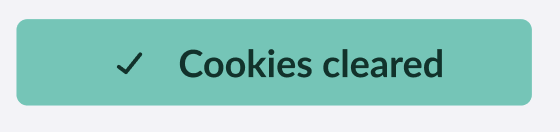
3. Click on **Clear ABTasty Cookies**. /
When done, the button displays “Cookies cleared”.
This feature can be useful when running a test through the QA process: You can make sure to be shown a different variation from the one previously shown.
## Activate debug mode
Debug Mode provides a detailed view of how the platform operates on your website. It’s especially useful for identifying issues when a campaign isn’t behaving as expected.
When Debug Mode is enabled, the extension:
* Creates a cookie in your browser storage
* Automatically refreshes the page
When Debug Mode is disabled, the extension removes the cookie.
## Inject your AB Tasty Tag
To launch campaign or track your account information on your website, you need to set-it up:
1. Navigate to your website.
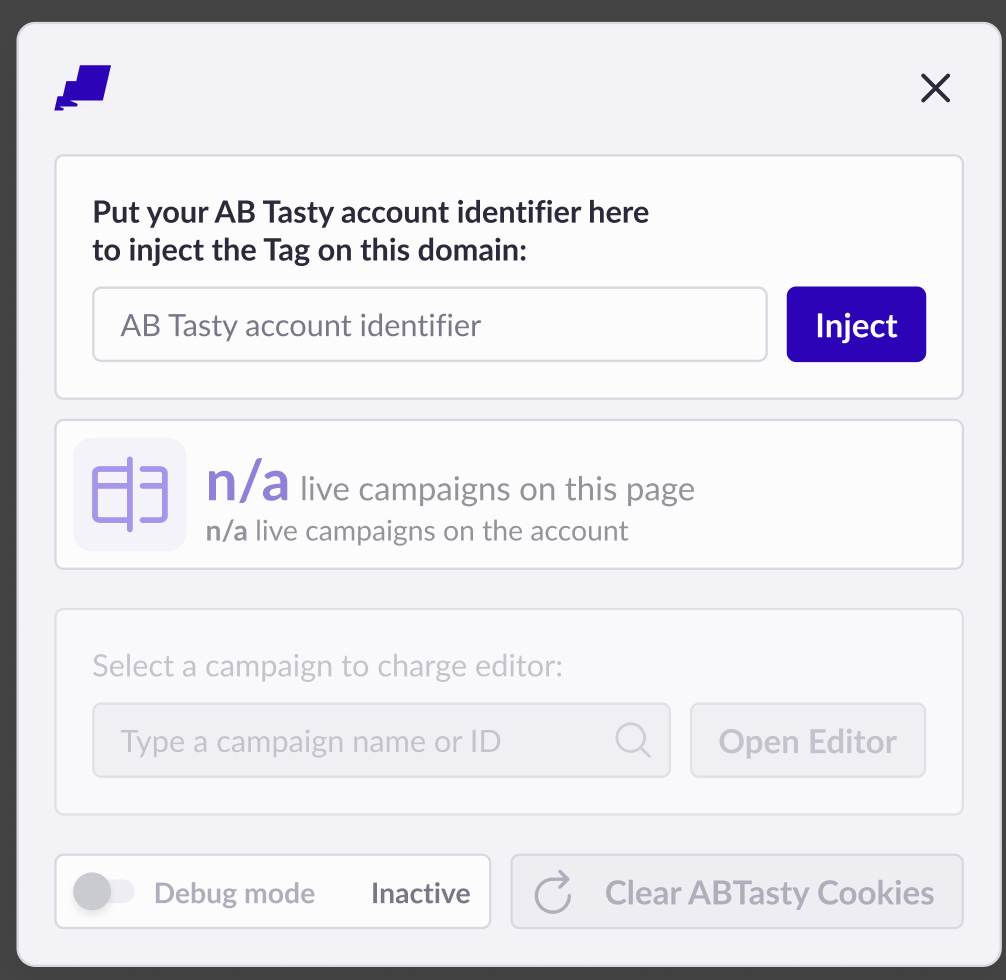
2. Open the extension. The set-up mode opens.
3. To retrieve your AB Tasty identifier:
1. Open a new browsing tab.
2. Access the [Generic tag page](https://app2.abtasty.com/settings/installation-code/tag)
3. In the *Implement the AB Tasty tag* section, copy your AB Tasty account identifier.
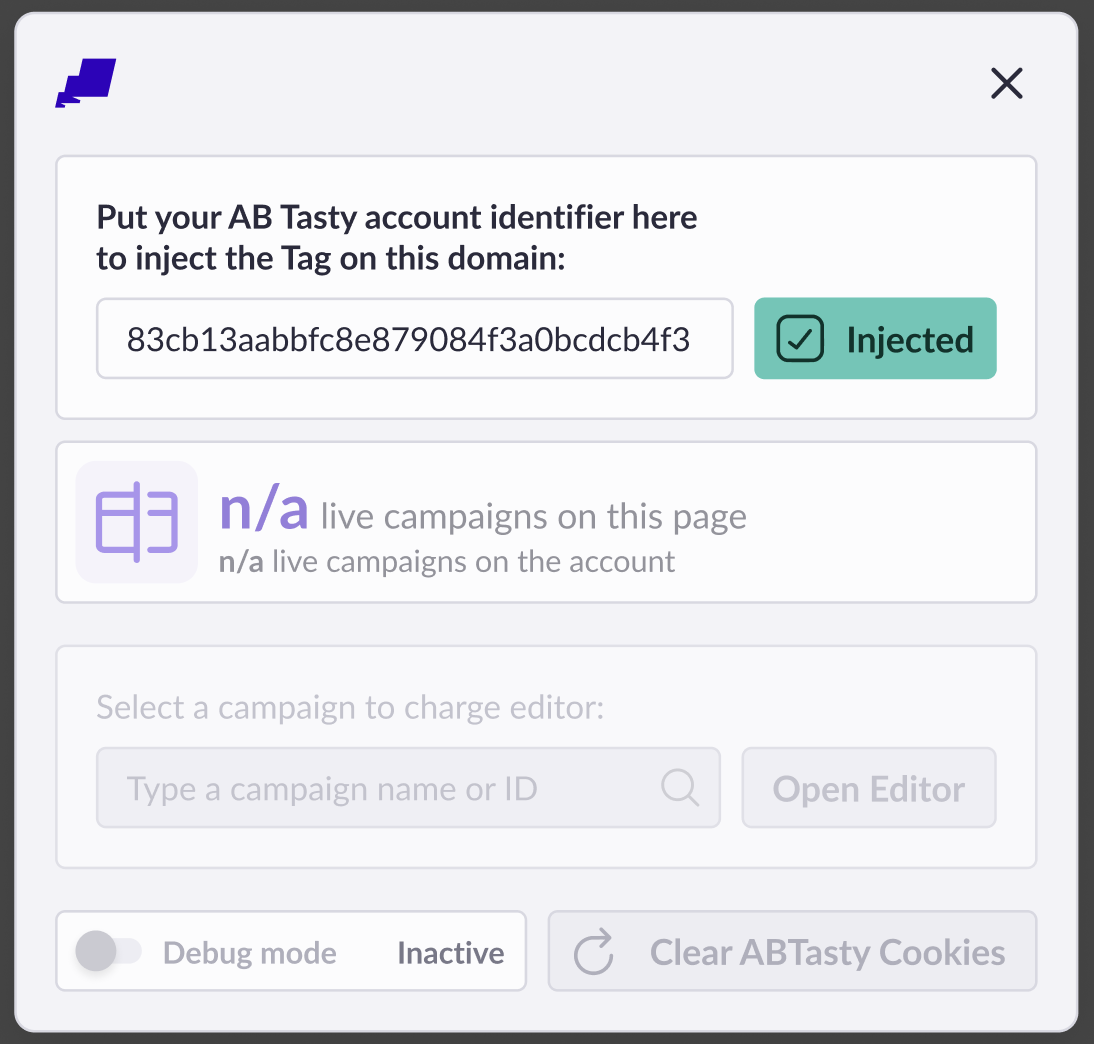
4. Paste your identifier in the extension.
5. Click on **Inject**. Once injected, a confirmation appears.
6. The extension is automatically refreshed and starts displaying information.
## Access tag and campaign information
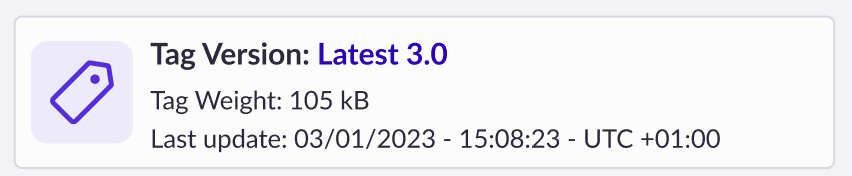
By clicking on the extension Icon, you can access the following information for the accountID related to the domains:
### About tag:
* Tag version
* Tag Weight
* Last update of the tag
### About campaigns:
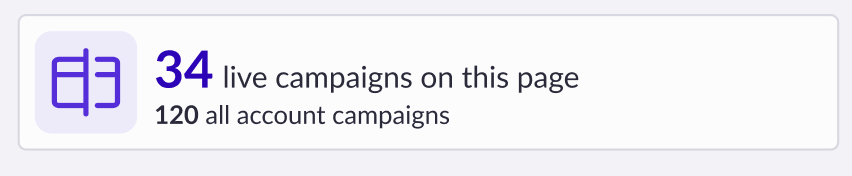
* Number of live campaigns on the page
* Total number of campaigns on the account
---
# Agent Instructions
This documentation is published with GitBook. GitBook is the documentation platform designed so that both humans and AI agents can read, navigate, and reason over technical content effectively. Learn more at gitbook.com.
## Querying This Documentation
If you need additional information that is not directly available in this page, you can query the documentation dynamically by asking a question.
Perform an HTTP GET request on the current page URL with the `ask` query parameter, and the optional `goal` query parameter:
```
GET https://docs.abtasty.com/web-experimentation-and-personalization/editors-and-widget/chrome-extension.md?ask=&goal=
```
`ask` is the immediate question: it should be specific, self-contained, and written in natural language.
`goal` is optional and describes the broader end goal you are ultimately trying to accomplish on behalf of the user. GitBook uses it to tailor the answer towards what is most useful for that goal.
The response will contain a direct answer to the question and relevant excerpts and sources from the documentation.
Use this mechanism when the answer is not explicitly present in the current page, you need clarification or additional context, or you want to retrieve related documentation sections.


 This feature can be useful when running a test through the QA process: You can make sure to be shown a different variation from the one previously shown.
## Activate debug mode
Debug Mode provides a detailed view of how the platform operates on your website. It’s especially useful for identifying issues when a campaign isn’t behaving as expected.
When Debug Mode is enabled, the extension:
* Creates a cookie in your browser storage
* Automatically refreshes the page
When Debug Mode is disabled, the extension removes the cookie.
## Inject your AB Tasty Tag
To launch campaign or track your account information on your website, you need to set-it up:
1. Navigate to your website.
2. Open the extension. The set-up mode opens.
This feature can be useful when running a test through the QA process: You can make sure to be shown a different variation from the one previously shown.
## Activate debug mode
Debug Mode provides a detailed view of how the platform operates on your website. It’s especially useful for identifying issues when a campaign isn’t behaving as expected.
When Debug Mode is enabled, the extension:
* Creates a cookie in your browser storage
* Automatically refreshes the page
When Debug Mode is disabled, the extension removes the cookie.
## Inject your AB Tasty Tag
To launch campaign or track your account information on your website, you need to set-it up:
1. Navigate to your website.
2. Open the extension. The set-up mode opens.
 3. To retrieve your AB Tasty identifier:
1. Open a new browsing tab.
2. Access the [Generic tag page](https://app2.abtasty.com/settings/installation-code/tag)
3. In the *Implement the AB Tasty tag* section, copy your AB Tasty account identifier.
3. To retrieve your AB Tasty identifier:
1. Open a new browsing tab.
2. Access the [Generic tag page](https://app2.abtasty.com/settings/installation-code/tag)
3. In the *Implement the AB Tasty tag* section, copy your AB Tasty account identifier.
 6. The extension is automatically refreshed and starts displaying information.
## Access tag and campaign information
By clicking on the extension Icon, you can access the following information for the accountID related to the domains:
### About tag:
* Tag version
* Tag Weight
* Last update of the tag
6. The extension is automatically refreshed and starts displaying information.
## Access tag and campaign information
By clicking on the extension Icon, you can access the following information for the accountID related to the domains:
### About tag:
* Tag version
* Tag Weight
* Last update of the tag
 ### About campaigns:
* Number of live campaigns on the page
* Total number of campaigns on the account
### About campaigns:
* Number of live campaigns on the page
* Total number of campaigns on the account
 ---
# Agent Instructions
This documentation is published with GitBook. GitBook is the documentation platform designed so that both humans and AI agents can read, navigate, and reason over technical content effectively. Learn more at gitbook.com.
## Querying This Documentation
If you need additional information that is not directly available in this page, you can query the documentation dynamically by asking a question.
Perform an HTTP GET request on the current page URL with the `ask` query parameter, and the optional `goal` query parameter:
```
GET https://docs.abtasty.com/web-experimentation-and-personalization/editors-and-widget/chrome-extension.md?ask=
---
# Agent Instructions
This documentation is published with GitBook. GitBook is the documentation platform designed so that both humans and AI agents can read, navigate, and reason over technical content effectively. Learn more at gitbook.com.
## Querying This Documentation
If you need additional information that is not directly available in this page, you can query the documentation dynamically by asking a question.
Perform an HTTP GET request on the current page URL with the `ask` query parameter, and the optional `goal` query parameter:
```
GET https://docs.abtasty.com/web-experimentation-and-personalization/editors-and-widget/chrome-extension.md?ask=