> For the complete documentation index, see [llms.txt](https://docs.abtasty.com/llms.txt). Markdown versions of documentation pages are available by appending `.md` to page URLs; this page is available as [Markdown](https://docs.abtasty.com/web-experimentation-and-personalization/editors-and-widget/list-of-widgets/ab-tasty-prebuilt-widgets/banner-widget.md).
# Banner Widget
The Banner widget is part of the **Promotional Content** widget category. For more information on the widgets, please refer to [Widgets configuration in the visual editor](/web-experimentation-and-personalization/editors-and-widget/list-of-widgets/widgets-configuration-in-the-visual-editor.md).
## Introduction
The Banner widget enables you to display a banner and possibly a button linking to a specific URL.\
Images can be added as background images.


## Configuration
### Layout tab
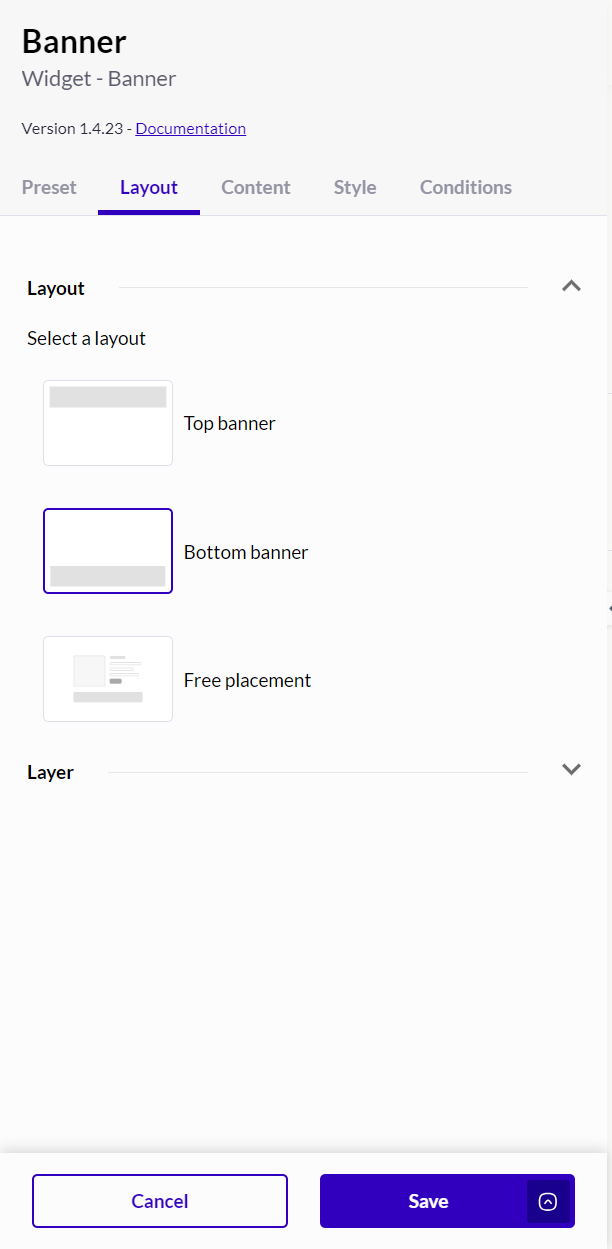 #### Layout
Three layouts are available:
* top banner
* bottom banner (by default)
* free placement (which allows you to place the widget where you want in the page)
Layouts are natively responsive.
#### Layer
**Layer Position (z-index)**
#### Layout
Three layouts are available:
* top banner
* bottom banner (by default)
* free placement (which allows you to place the widget where you want in the page)
Layouts are natively responsive.
#### Layer
**Layer Position (z-index)**
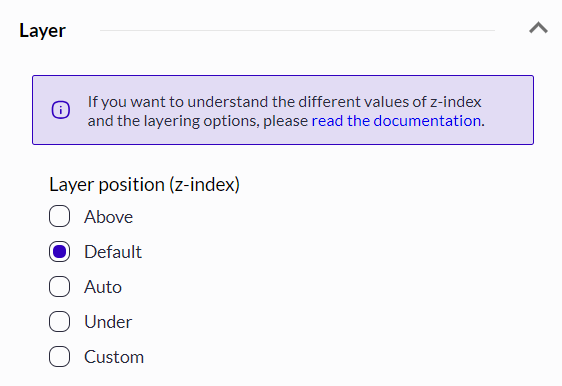 If you have selected the "top banner" or "bottom banner" layout, you can define the position of the widget on the z-axis to manage the widget position: above everything, below everything, or precisely fine-tuned.
### Content tab
If you have selected the "top banner" or "bottom banner" layout, you can define the position of the widget on the z-axis to manage the widget position: above everything, below everything, or precisely fine-tuned.
### Content tab
 #### Message (text or HTML)
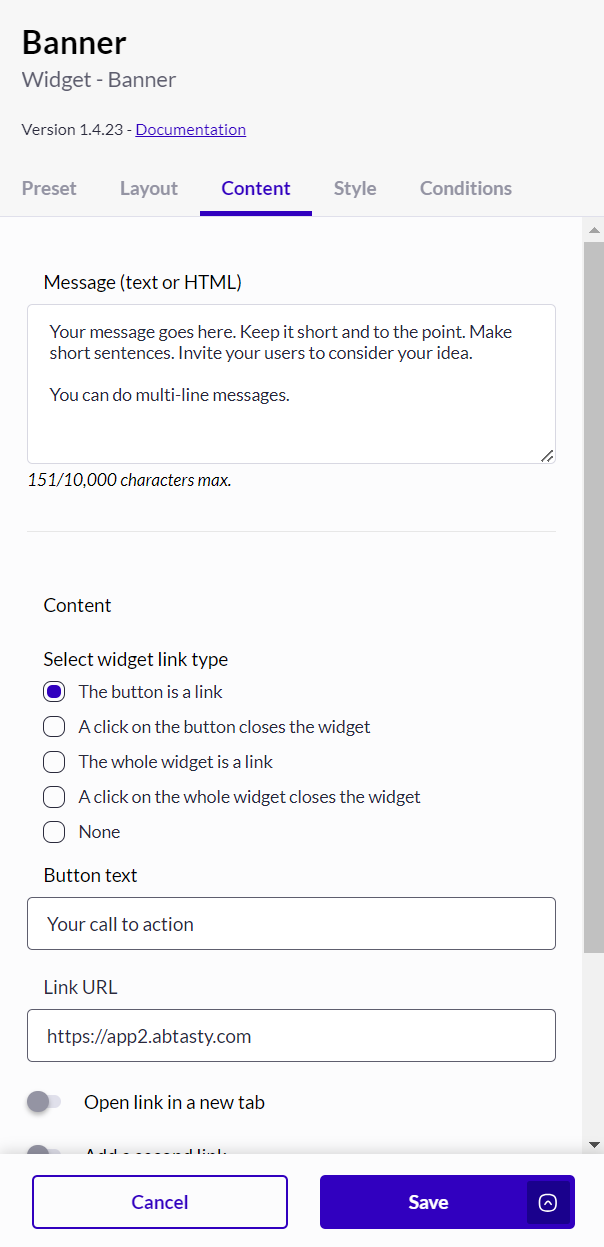
As the Banner widget is mainly designed to contain text, you have to fill in the text area. It supports multi-line messages.\
You can use HTML markup to add ordered or unordered lists. All the other styling aspects should be done through the *Style* tab. You can also add emojis.
#### Widget link type
You can decide whether your widget should contain a clickable button (to close or redirect), whether it should be entirely clickable (to close or redirect) or whether it should have no link at all.
* "The button is a link": you will have to specify a button URL and a button text. The widget will display a button.
* "A click on the button closes the widget": you will have to specify a button text. The widget will display a button.
* "The whole widget is a link": you will have to specify a URL. The widget will not display a button.
* "A click on the whole widget closes the widget": you won't have anything to add. The widget will not display a button.
* "None": the widget will not be clickable.\
If you use a background image that looks like a "big ad", we recommend that you select "The whole widget is a link" and remove the paragraph with the editor once the widget is set.
#### Second CTA/link option
#### Message (text or HTML)
As the Banner widget is mainly designed to contain text, you have to fill in the text area. It supports multi-line messages.\
You can use HTML markup to add ordered or unordered lists. All the other styling aspects should be done through the *Style* tab. You can also add emojis.
#### Widget link type
You can decide whether your widget should contain a clickable button (to close or redirect), whether it should be entirely clickable (to close or redirect) or whether it should have no link at all.
* "The button is a link": you will have to specify a button URL and a button text. The widget will display a button.
* "A click on the button closes the widget": you will have to specify a button text. The widget will display a button.
* "The whole widget is a link": you will have to specify a URL. The widget will not display a button.
* "A click on the whole widget closes the widget": you won't have anything to add. The widget will not display a button.
* "None": the widget will not be clickable.\
If you use a background image that looks like a "big ad", we recommend that you select "The whole widget is a link" and remove the paragraph with the editor once the widget is set.
#### Second CTA/link option
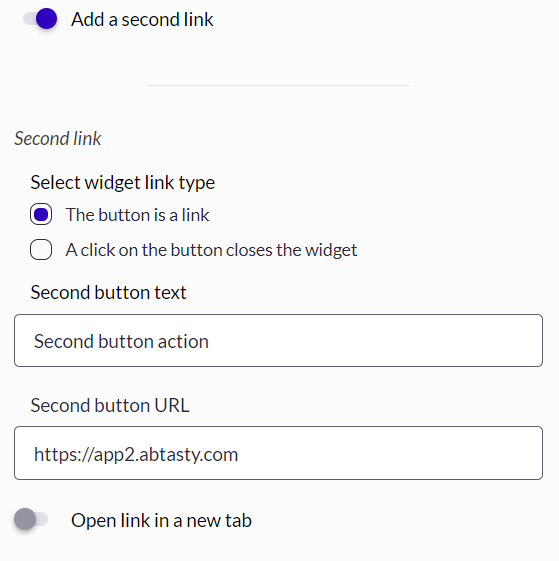 Toggle the “Add a second link” option to configure a second link/ CTA in your widget, the same way as the first one.
### Style tab
Select the style options (Text, Buttons, Container, Border, Close button) you want to apply to your widget and customize the banner.
Background can be set up with an image using the image-fitting policy
4 options are provided:
* "Cover": the image is resized keeping the aspect ratio to fill the background container even if, by doing this resize, the image may overflow the background container.
* "Contains": the image is resized keeping the aspect ratio so that the whole image is included in the background container (no overflow)
* "Fill": the image is resized to fill the background container without keeping the aspect ratio
* "None": the image is left unchanged.
### Conditions tab
Select the Triggering and Recurrence options you want to apply to the Banner widget.
---
# Agent Instructions
This documentation is published with GitBook. GitBook is the documentation platform designed so that both humans and AI agents can read, navigate, and reason over technical content effectively. Learn more at gitbook.com.
## Querying This Documentation
If you need additional information that is not directly available in this page, you can query the documentation dynamically by asking a question.
Perform an HTTP GET request on the current page URL with the `ask` query parameter, and the optional `goal` query parameter:
```
GET https://docs.abtasty.com/web-experimentation-and-personalization/editors-and-widget/list-of-widgets/ab-tasty-prebuilt-widgets/banner-widget.md?ask=&goal=
```
`ask` is the immediate question: it should be specific, self-contained, and written in natural language.
`goal` is optional and describes the broader end goal you are ultimately trying to accomplish on behalf of the user. GitBook uses it to tailor the answer towards what is most useful for that goal.
The response will contain a direct answer to the question and relevant excerpts and sources from the documentation.
Use this mechanism when the answer is not explicitly present in the current page, you need clarification or additional context, or you want to retrieve related documentation sections.
Toggle the “Add a second link” option to configure a second link/ CTA in your widget, the same way as the first one.
### Style tab
Select the style options (Text, Buttons, Container, Border, Close button) you want to apply to your widget and customize the banner.
Background can be set up with an image using the image-fitting policy
4 options are provided:
* "Cover": the image is resized keeping the aspect ratio to fill the background container even if, by doing this resize, the image may overflow the background container.
* "Contains": the image is resized keeping the aspect ratio so that the whole image is included in the background container (no overflow)
* "Fill": the image is resized to fill the background container without keeping the aspect ratio
* "None": the image is left unchanged.
### Conditions tab
Select the Triggering and Recurrence options you want to apply to the Banner widget.
---
# Agent Instructions
This documentation is published with GitBook. GitBook is the documentation platform designed so that both humans and AI agents can read, navigate, and reason over technical content effectively. Learn more at gitbook.com.
## Querying This Documentation
If you need additional information that is not directly available in this page, you can query the documentation dynamically by asking a question.
Perform an HTTP GET request on the current page URL with the `ask` query parameter, and the optional `goal` query parameter:
```
GET https://docs.abtasty.com/web-experimentation-and-personalization/editors-and-widget/list-of-widgets/ab-tasty-prebuilt-widgets/banner-widget.md?ask=&goal=
```
`ask` is the immediate question: it should be specific, self-contained, and written in natural language.
`goal` is optional and describes the broader end goal you are ultimately trying to accomplish on behalf of the user. GitBook uses it to tailor the answer towards what is most useful for that goal.
The response will contain a direct answer to the question and relevant excerpts and sources from the documentation.
Use this mechanism when the answer is not explicitly present in the current page, you need clarification or additional context, or you want to retrieve related documentation sections.