> For the complete documentation index, see [llms.txt](https://docs.abtasty.com/llms.txt). Markdown versions of documentation pages are available by appending `.md` to page URLs; this page is available as [Markdown](https://docs.abtasty.com/web-experimentation-and-personalization/editors-and-widget/list-of-widgets/ab-tasty-prebuilt-widgets/iframe-widget.md).
# IFrame Widget
The iframe widget is part of the **Promotional Content** widget category. For more information on the widgets, please refer to [Widgets configuration in the visual editor](/web-experimentation-and-personalization/editors-and-widget/list-of-widgets/widgets-configuration-in-the-visual-editor.md).
## Introduction
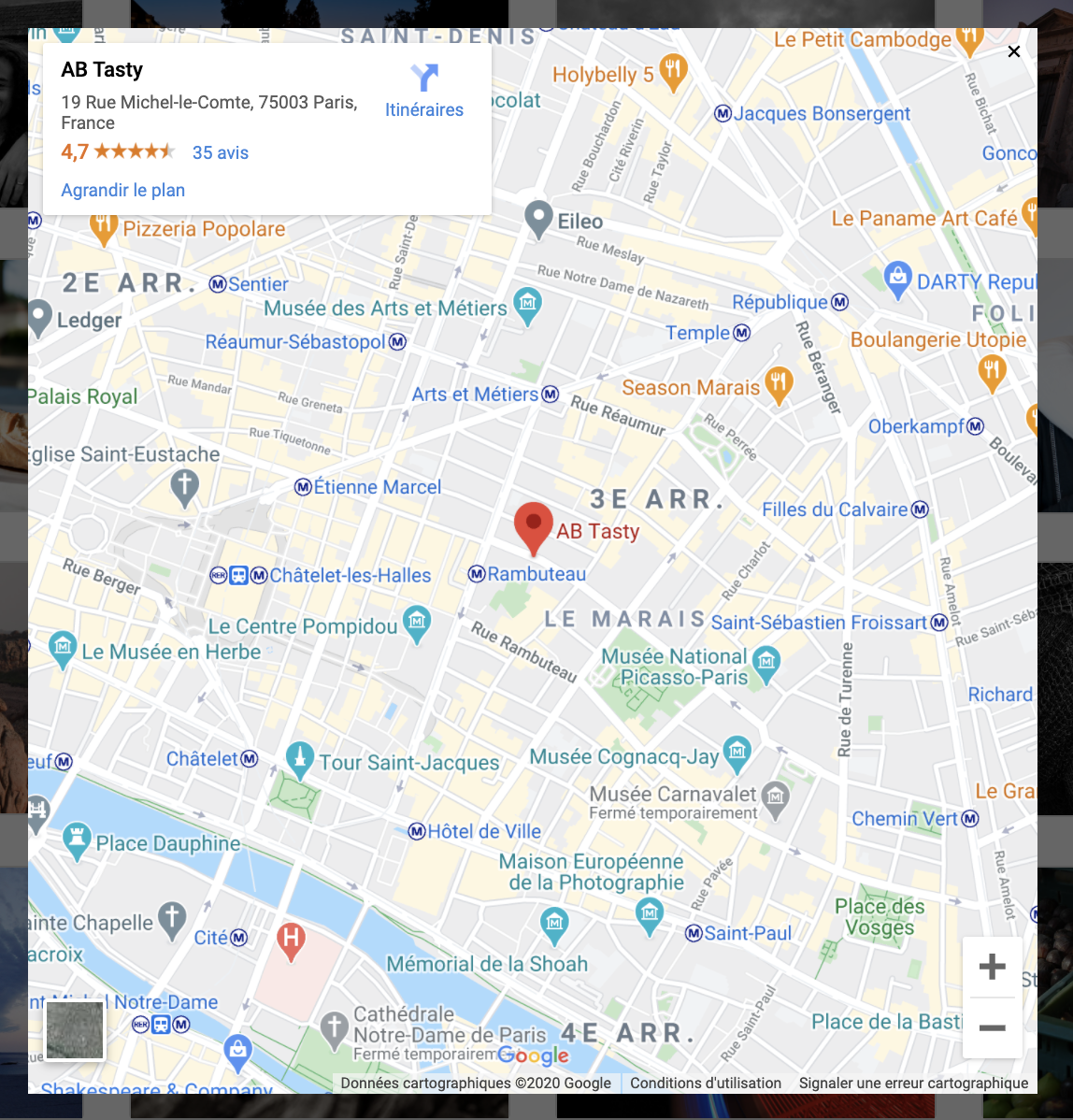
The iframe widget lets you embed any embeddable iframe.
An iframe is an HTML element that lets you display content from another web page (the same site or another site). It is similar to a link, but you don’t have to leave the page you are browsing to view the content. It creates a "frame" that encapsulates the remote page.
For example, YouTube videos are displayed in an iframe when you embed them into your website. It is pretty much the same thing for any web app which lets you embed part or all the content of a page. Generally speaking, except in cases where websites forbid it, any web page can be embedded into an iframe.
Here is a short list of what can be embedded: Videos (YouTube, Vimeo, TikTok, etc.), Images (Giphy, Facebook, 500px, etc.), Forms (Google Form, Typeform, SurveyMonkey, etc.), Maps (Google Maps, Mapbox, OpenStreetMap, etc.), Calendar/Agendas (Google Calendar, Calendly, etc.), Articles (Wikipedia, Imdb, etc.), Sound (Soundcloud, Bandcamp, etc.) and so forth.
## Configuration
### Layout tab
#### Layout
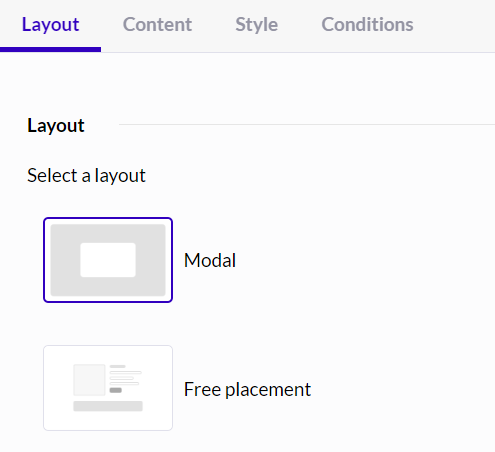
There are two different layouts:
* modal (pop-in)
* free placement (which allows you to place the widget wherever you want in the page flow)
If the "free placement" layout is selected, you won't see the two following blocks (Dimensions & Layer).
#### Dimensions
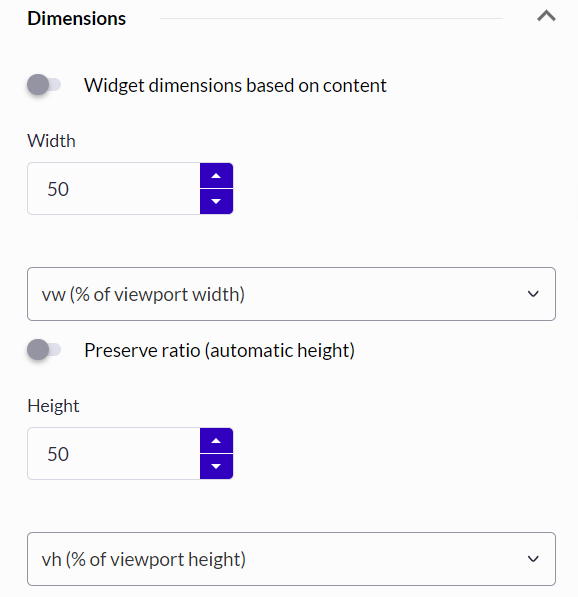
**Widget dimensions based on content**
By default, the "Widget dimensions based on content" toggler is toggled. It saves you from having to worry about modal dimensions. If you upload a very large image, your pop-in will adapt accordingly based on the image (and text) ratio (length).
If you untoggle the toggler, you will be able to define both the width and the height of the pop-in. Last but not least, they can be configured (independently) in several dimensional units:
* px (pixels)
* % (percentage)
* em (element, which actually means that it is based on the size of the text of the element: if your font size is 18 px, then 1 em = 18 px)
* vw (1/100th of the window's (or viewport) width)
* vh (1/100th of the window's (or viewport) height)
* vmin (whichever is the smallest of vw or vh)
* vmax (whichever is the highest of vw or vh)
Depending on what you want to achieve and how responsive your pop-in needs to be, you may select one unit or another.
If you're digging the dimensional units in CSS, we strongly recommend reading this W3C article.
*Preserve ratio (automatic height)*
By default, the height toggler of the modal is enabled and set to "Preserve ratio (automatic height)". This way, you don't have to set a height, it takes what the modal needs and can even reach 100% of the available height in the viewport.
If you do define a height and your content is longer than the defined modal height, the modal will be scrollable so users can scroll down to read everything.
*Known issue: the widget configuration form not overlapping the website*
Once you're finished editing the pop-in dimensions and click on save or hide the widget configuration form, the modal is re-dimensioned to the available viewport/window's width.
#### Layer
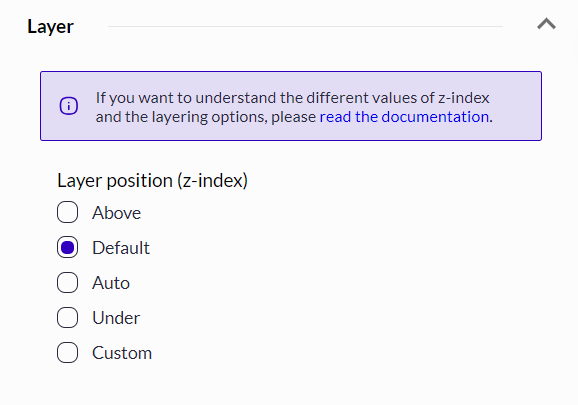
**Layer Position (z-index)**
Suppose you've selected the "modal", "top banner" or "bottom banner" layout. In that case, you can define the position of the widget on the z-axis in order to manage the widget’s position: above everything, below everything, or precisely fine-tuned.
Please read the dedicated article on the matter: z-index article.
### Content tab
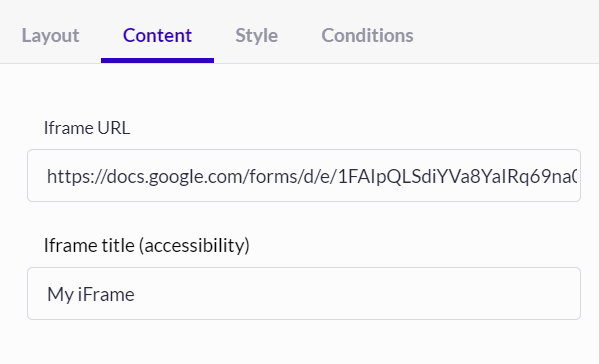
As you can see, there is not much in the Content tab for this widget. The only required input is the URL of any embeddable web page.
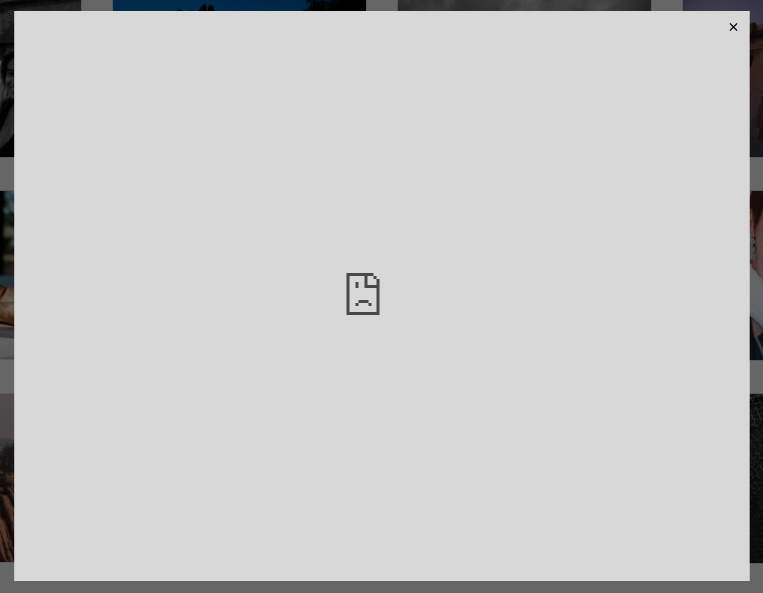
For example, in Chrome, If you see this in the widget rendering:
It means that the web page you are trying to embed is blocking its native embeddability. Any other web page should work.
Some web apps provide copy-and-paste-ready HTML snippets. Most of the time, you will need to delete the extra HTML and just keep the value of the src="" attribute; which is the iframe URL in short.
Here is an example with the Google Form provided embed code:
```
```
What you need to paste in the input:
```
https://docs.google.com/forms/d/e/1FAIpQLSdiYVa8YaIRq69na0g-s8GJQBBDKK3T7luWb4xYH5B2yYEytw/viewform?embedded=true
```
Here is another example for Sketchab 3D models. The embeddable code is as follows:
```
```
What you need to paste in the input:
```
https://sketchfab.com/models/ec283d217efe4ef39f0e19ae3b3396a1/embed?autostart=1&preload=1&ui_controls=1&ui_infos=1&ui_inspector=1&ui_stop=1&ui_watermark=1&ui_watermark_link=1
```
This is an example of a YouTube video (although we recommend using the Video Pop-in widget instead).
```
```
Here is what you need to paste:
```
https://www.youtube.com/embed/C71YkqN0pEA
```
### Style tab
Select the style options (Container, Border, Close button) you want to apply to your widget and customize it.
Background can be set up with an image using the image-fitting policy
4 options are provided:
* "Cover": the image is resized keeping the aspect ratio to fill the background container even if, by doing this resize, the image may overflow the background container.
* "Contains": the image is resized keeping the aspect ratio so that the whole image is included in the background container (no overflow)
* "Fill": the image is resized to fill the background container without keeping the aspect ratio
* "None": the image is left unchanged.
### Conditions tab
Select the Triggering and Recurrence options you want to apply to your widget.
---
# Agent Instructions
This documentation is published with GitBook. GitBook is the documentation platform designed so that both humans and AI agents can read, navigate, and reason over technical content effectively. Learn more at gitbook.com.
## Querying This Documentation
If you need additional information that is not directly available in this page, you can query the documentation dynamically by asking a question.
Perform an HTTP GET request on the current page URL with the `ask` query parameter, and the optional `goal` query parameter:
```
GET https://docs.abtasty.com/web-experimentation-and-personalization/editors-and-widget/list-of-widgets/ab-tasty-prebuilt-widgets/iframe-widget.md?ask=&goal=
```
`ask` is the immediate question: it should be specific, self-contained, and written in natural language.
`goal` is optional and describes the broader end goal you are ultimately trying to accomplish on behalf of the user. GitBook uses it to tailor the answer towards what is most useful for that goal.
The response will contain a direct answer to the question and relevant excerpts and sources from the documentation.
Use this mechanism when the answer is not explicitly present in the current page, you need clarification or additional context, or you want to retrieve related documentation sections.
 The iframe widget lets you embed any embeddable iframe.
An iframe is an HTML element that lets you display content from another web page (the same site or another site). It is similar to a link, but you don’t have to leave the page you are browsing to view the content. It creates a "frame" that encapsulates the remote page.
For example, YouTube videos are displayed in an iframe when you embed them into your website. It is pretty much the same thing for any web app which lets you embed part or all the content of a page. Generally speaking, except in cases where websites forbid it, any web page can be embedded into an iframe.
Here is a short list of what can be embedded: Videos (YouTube, Vimeo, TikTok, etc.), Images (Giphy, Facebook, 500px, etc.), Forms (Google Form, Typeform, SurveyMonkey, etc.), Maps (Google Maps, Mapbox, OpenStreetMap, etc.), Calendar/Agendas (Google Calendar, Calendly, etc.), Articles (Wikipedia, Imdb, etc.), Sound (Soundcloud, Bandcamp, etc.) and so forth.
## Configuration
### Layout tab
#### Layout
The iframe widget lets you embed any embeddable iframe.
An iframe is an HTML element that lets you display content from another web page (the same site or another site). It is similar to a link, but you don’t have to leave the page you are browsing to view the content. It creates a "frame" that encapsulates the remote page.
For example, YouTube videos are displayed in an iframe when you embed them into your website. It is pretty much the same thing for any web app which lets you embed part or all the content of a page. Generally speaking, except in cases where websites forbid it, any web page can be embedded into an iframe.
Here is a short list of what can be embedded: Videos (YouTube, Vimeo, TikTok, etc.), Images (Giphy, Facebook, 500px, etc.), Forms (Google Form, Typeform, SurveyMonkey, etc.), Maps (Google Maps, Mapbox, OpenStreetMap, etc.), Calendar/Agendas (Google Calendar, Calendly, etc.), Articles (Wikipedia, Imdb, etc.), Sound (Soundcloud, Bandcamp, etc.) and so forth.
## Configuration
### Layout tab
#### Layout
 There are two different layouts:
* modal (pop-in)
* free placement (which allows you to place the widget wherever you want in the page flow)
If the "free placement" layout is selected, you won't see the two following blocks (Dimensions & Layer).
#### Dimensions
There are two different layouts:
* modal (pop-in)
* free placement (which allows you to place the widget wherever you want in the page flow)
If the "free placement" layout is selected, you won't see the two following blocks (Dimensions & Layer).
#### Dimensions
 **Widget dimensions based on content**
By default, the "Widget dimensions based on content" toggler is toggled. It saves you from having to worry about modal dimensions. If you upload a very large image, your pop-in will adapt accordingly based on the image (and text) ratio (length).
If you untoggle the toggler, you will be able to define both the width and the height of the pop-in. Last but not least, they can be configured (independently) in several dimensional units:
* px (pixels)
* % (percentage)
* em (element, which actually means that it is based on the size of the text of the element: if your font size is 18 px, then 1 em = 18 px)
* vw (1/100th of the window's (or viewport) width)
* vh (1/100th of the window's (or viewport) height)
* vmin (whichever is the smallest of vw or vh)
* vmax (whichever is the highest of vw or vh)
Depending on what you want to achieve and how responsive your pop-in needs to be, you may select one unit or another.
If you're digging the dimensional units in CSS, we strongly recommend reading this W3C article.
*Preserve ratio (automatic height)*
By default, the height toggler of the modal is enabled and set to "Preserve ratio (automatic height)". This way, you don't have to set a height, it takes what the modal needs and can even reach 100% of the available height in the viewport.
If you do define a height and your content is longer than the defined modal height, the modal will be scrollable so users can scroll down to read everything.
*Known issue: the widget configuration form not overlapping the website*
Once you're finished editing the pop-in dimensions and click on save or hide the widget configuration form, the modal is re-dimensioned to the available viewport/window's width.
#### Layer
**Layer Position (z-index)**
**Widget dimensions based on content**
By default, the "Widget dimensions based on content" toggler is toggled. It saves you from having to worry about modal dimensions. If you upload a very large image, your pop-in will adapt accordingly based on the image (and text) ratio (length).
If you untoggle the toggler, you will be able to define both the width and the height of the pop-in. Last but not least, they can be configured (independently) in several dimensional units:
* px (pixels)
* % (percentage)
* em (element, which actually means that it is based on the size of the text of the element: if your font size is 18 px, then 1 em = 18 px)
* vw (1/100th of the window's (or viewport) width)
* vh (1/100th of the window's (or viewport) height)
* vmin (whichever is the smallest of vw or vh)
* vmax (whichever is the highest of vw or vh)
Depending on what you want to achieve and how responsive your pop-in needs to be, you may select one unit or another.
If you're digging the dimensional units in CSS, we strongly recommend reading this W3C article.
*Preserve ratio (automatic height)*
By default, the height toggler of the modal is enabled and set to "Preserve ratio (automatic height)". This way, you don't have to set a height, it takes what the modal needs and can even reach 100% of the available height in the viewport.
If you do define a height and your content is longer than the defined modal height, the modal will be scrollable so users can scroll down to read everything.
*Known issue: the widget configuration form not overlapping the website*
Once you're finished editing the pop-in dimensions and click on save or hide the widget configuration form, the modal is re-dimensioned to the available viewport/window's width.
#### Layer
**Layer Position (z-index)**
 Suppose you've selected the "modal", "top banner" or "bottom banner" layout. In that case, you can define the position of the widget on the z-axis in order to manage the widget’s position: above everything, below everything, or precisely fine-tuned.
Please read the dedicated article on the matter: z-index article.
### Content tab
Suppose you've selected the "modal", "top banner" or "bottom banner" layout. In that case, you can define the position of the widget on the z-axis in order to manage the widget’s position: above everything, below everything, or precisely fine-tuned.
Please read the dedicated article on the matter: z-index article.
### Content tab
 As you can see, there is not much in the Content tab for this widget. The only required input is the URL of any embeddable web page.
For example, in Chrome, If you see this in the widget rendering:
As you can see, there is not much in the Content tab for this widget. The only required input is the URL of any embeddable web page.
For example, in Chrome, If you see this in the widget rendering:
 It means that the web page you are trying to embed is blocking its native embeddability. Any other web page should work.
Some web apps provide copy-and-paste-ready HTML snippets. Most of the time, you will need to delete the extra HTML and just keep the value of the src="" attribute; which is the iframe URL in short.
Here is an example with the Google Form provided embed code:
```
```
What you need to paste in the input:
```
https://docs.google.com/forms/d/e/1FAIpQLSdiYVa8YaIRq69na0g-s8GJQBBDKK3T7luWb4xYH5B2yYEytw/viewform?embedded=true
```
Here is another example for Sketchab 3D models. The embeddable code is as follows:
```
```
What you need to paste in the input:
```
https://sketchfab.com/models/ec283d217efe4ef39f0e19ae3b3396a1/embed?autostart=1&preload=1&ui_controls=1&ui_infos=1&ui_inspector=1&ui_stop=1&ui_watermark=1&ui_watermark_link=1
```
This is an example of a YouTube video (although we recommend using the Video Pop-in widget instead).
```
```
Here is what you need to paste:
```
https://www.youtube.com/embed/C71YkqN0pEA
```
### Style tab
Select the style options (Container, Border, Close button) you want to apply to your widget and customize it.
Background can be set up with an image using the image-fitting policy
4 options are provided:
* "Cover": the image is resized keeping the aspect ratio to fill the background container even if, by doing this resize, the image may overflow the background container.
* "Contains": the image is resized keeping the aspect ratio so that the whole image is included in the background container (no overflow)
* "Fill": the image is resized to fill the background container without keeping the aspect ratio
* "None": the image is left unchanged.
### Conditions tab
Select the Triggering and Recurrence options you want to apply to your widget.
---
# Agent Instructions
This documentation is published with GitBook. GitBook is the documentation platform designed so that both humans and AI agents can read, navigate, and reason over technical content effectively. Learn more at gitbook.com.
## Querying This Documentation
If you need additional information that is not directly available in this page, you can query the documentation dynamically by asking a question.
Perform an HTTP GET request on the current page URL with the `ask` query parameter, and the optional `goal` query parameter:
```
GET https://docs.abtasty.com/web-experimentation-and-personalization/editors-and-widget/list-of-widgets/ab-tasty-prebuilt-widgets/iframe-widget.md?ask=
It means that the web page you are trying to embed is blocking its native embeddability. Any other web page should work.
Some web apps provide copy-and-paste-ready HTML snippets. Most of the time, you will need to delete the extra HTML and just keep the value of the src="" attribute; which is the iframe URL in short.
Here is an example with the Google Form provided embed code:
```
```
What you need to paste in the input:
```
https://docs.google.com/forms/d/e/1FAIpQLSdiYVa8YaIRq69na0g-s8GJQBBDKK3T7luWb4xYH5B2yYEytw/viewform?embedded=true
```
Here is another example for Sketchab 3D models. The embeddable code is as follows:
```
```
What you need to paste in the input:
```
https://sketchfab.com/models/ec283d217efe4ef39f0e19ae3b3396a1/embed?autostart=1&preload=1&ui_controls=1&ui_infos=1&ui_inspector=1&ui_stop=1&ui_watermark=1&ui_watermark_link=1
```
This is an example of a YouTube video (although we recommend using the Video Pop-in widget instead).
```
```
Here is what you need to paste:
```
https://www.youtube.com/embed/C71YkqN0pEA
```
### Style tab
Select the style options (Container, Border, Close button) you want to apply to your widget and customize it.
Background can be set up with an image using the image-fitting policy
4 options are provided:
* "Cover": the image is resized keeping the aspect ratio to fill the background container even if, by doing this resize, the image may overflow the background container.
* "Contains": the image is resized keeping the aspect ratio so that the whole image is included in the background container (no overflow)
* "Fill": the image is resized to fill the background container without keeping the aspect ratio
* "None": the image is left unchanged.
### Conditions tab
Select the Triggering and Recurrence options you want to apply to your widget.
---
# Agent Instructions
This documentation is published with GitBook. GitBook is the documentation platform designed so that both humans and AI agents can read, navigate, and reason over technical content effectively. Learn more at gitbook.com.
## Querying This Documentation
If you need additional information that is not directly available in this page, you can query the documentation dynamically by asking a question.
Perform an HTTP GET request on the current page URL with the `ask` query parameter, and the optional `goal` query parameter:
```
GET https://docs.abtasty.com/web-experimentation-and-personalization/editors-and-widget/list-of-widgets/ab-tasty-prebuilt-widgets/iframe-widget.md?ask=