> For the complete documentation index, see [llms.txt](https://docs.abtasty.com/llms.txt). Markdown versions of documentation pages are available by appending `.md` to page URLs; this page is available as [Markdown](https://docs.abtasty.com/web-experimentation-and-personalization/editors-and-widget/visual-editor/shadow-doms-and-iframes/how-to-edit-shadow-dom-in-the-visual-editor.md).
# How to edit Shadow DOM in the visual editor
This guide will walk you through the process of editing Shadow DOM elements using the visual editor. [Shadow DOM](/web-experimentation-and-personalization/editors-and-widget/visual-editor/shadow-doms-and-iframes/understanding-shadow-dom.md) is a powerful feature that allows for encapsulation of DOM and CSS, creating self-contained components. With the latest updates, our visual editor now supports editing these elements, enhancing your ability to personalize and experiment with modern web technologies.
## Prerequisites
Before you begin, ensure that:
* You have access to the visual editor with the Shadow DOM feature enabled.
* You are familiar with the basic navigation and functionality of the visual editor.
## Step-by-Step Guide
### Step 1: Access the visual editor
* Open the Visual Editor: Navigate to your project and launch the visual editor. Ensure you are working on a campaign that supports Shadow DOM editing.
### Step 2: Edit Shadow DOM Elements
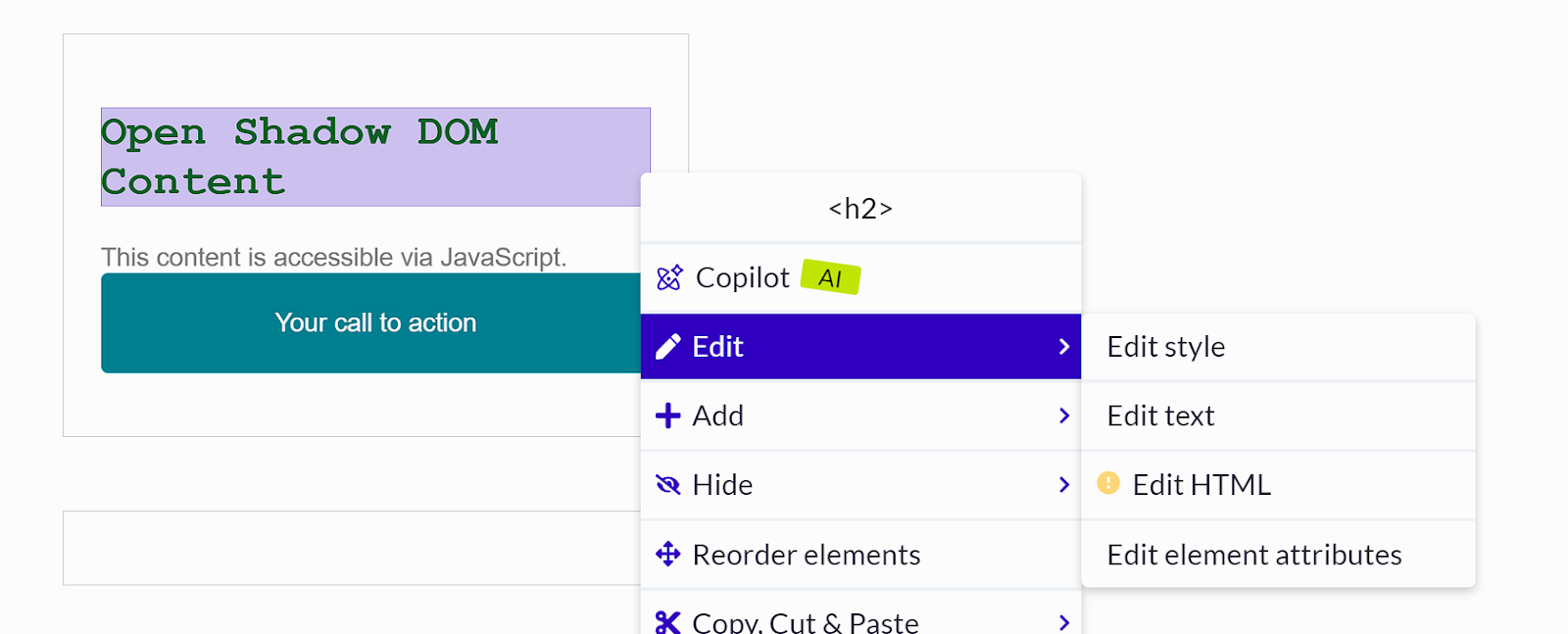
* Edit Shadow DOMs elements including styles, text and HTML
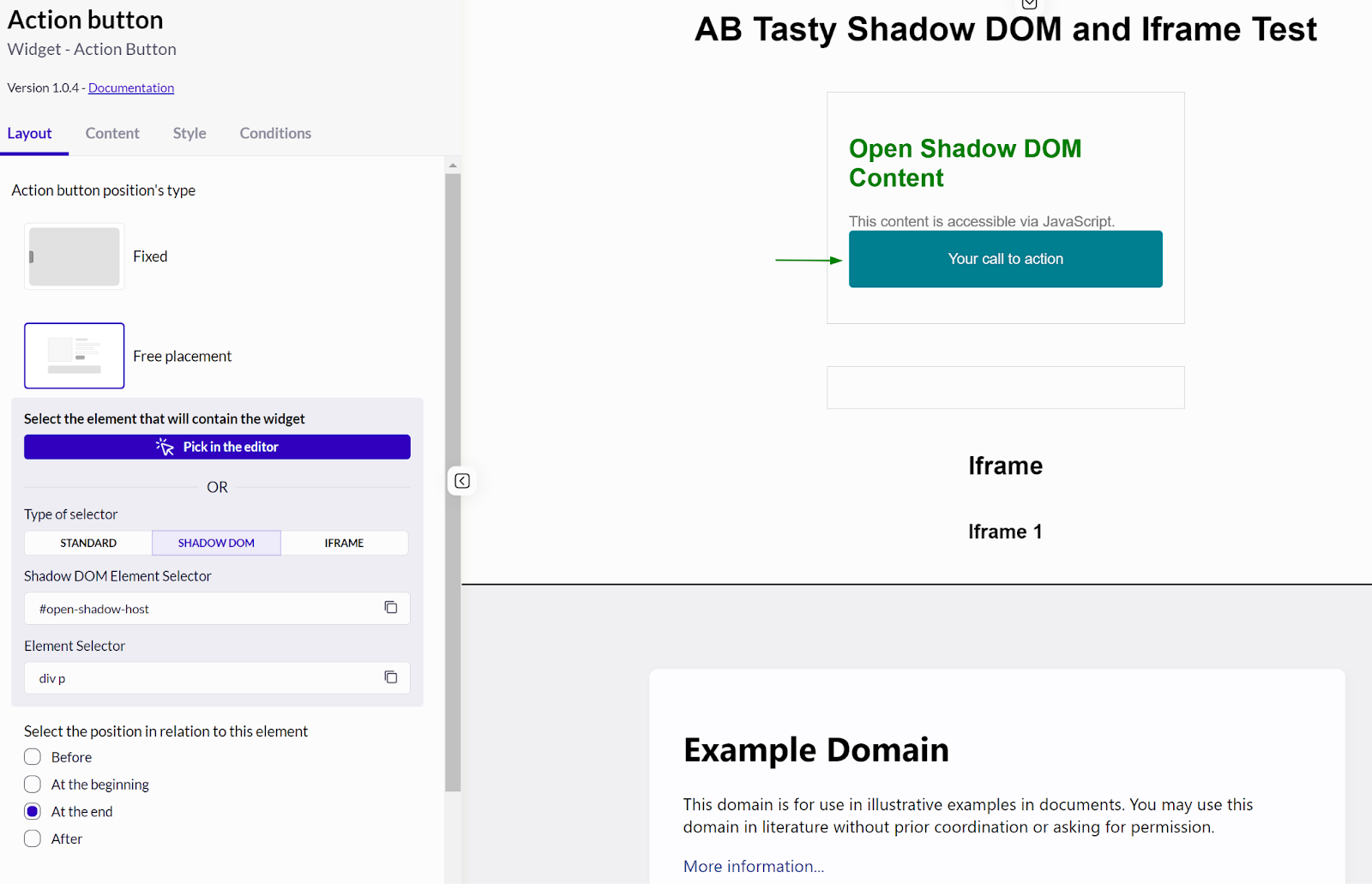
 * Add Widgets: You can add predefined widgets to elements within the Shadow DOM. Note that custom widgets are not supported.
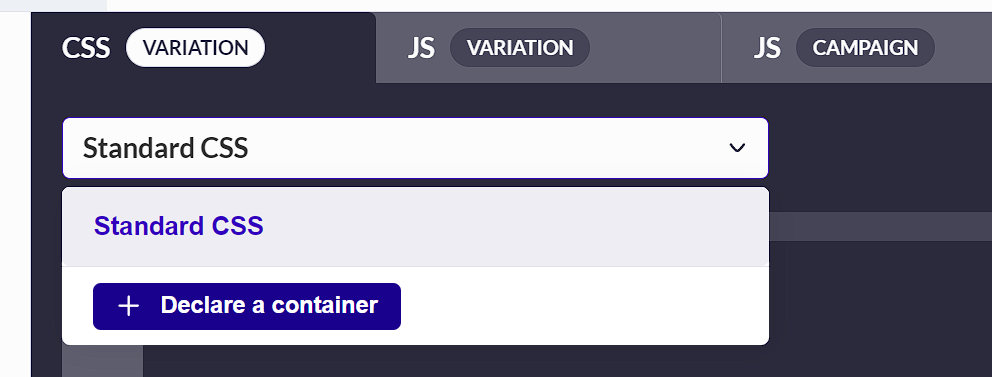
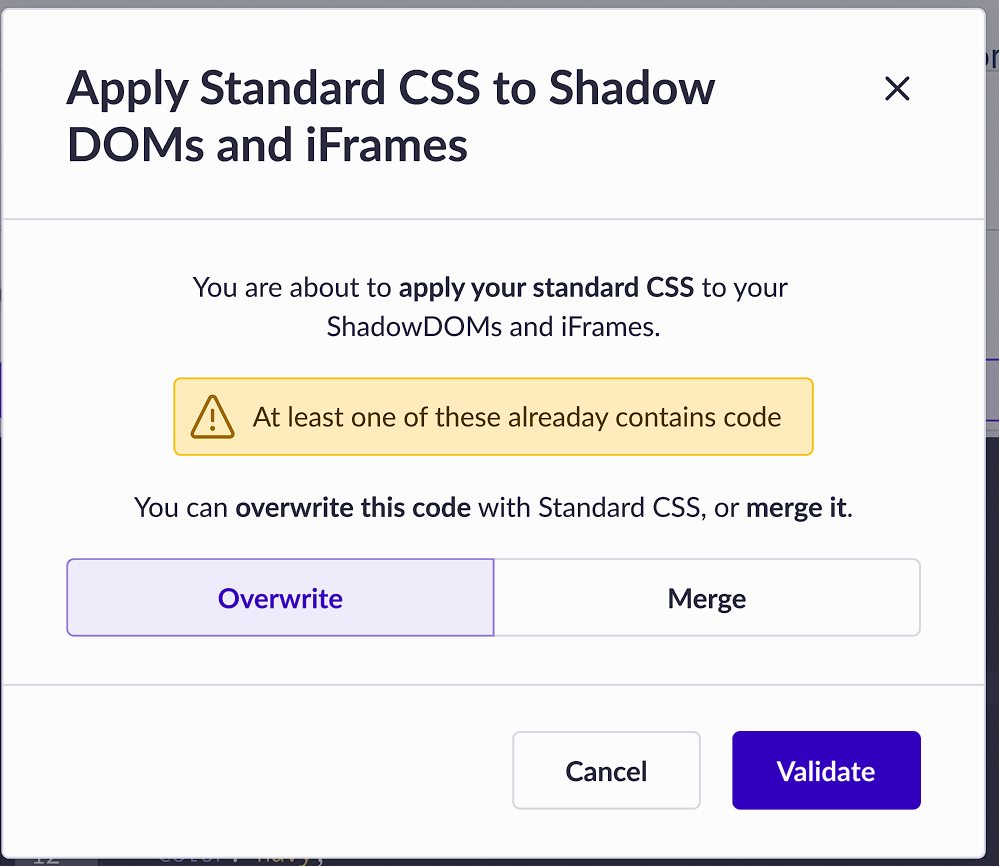
 * Modify Styles: Use the CSS Variation Modal to apply styles specifically to Shadow DOM elements.
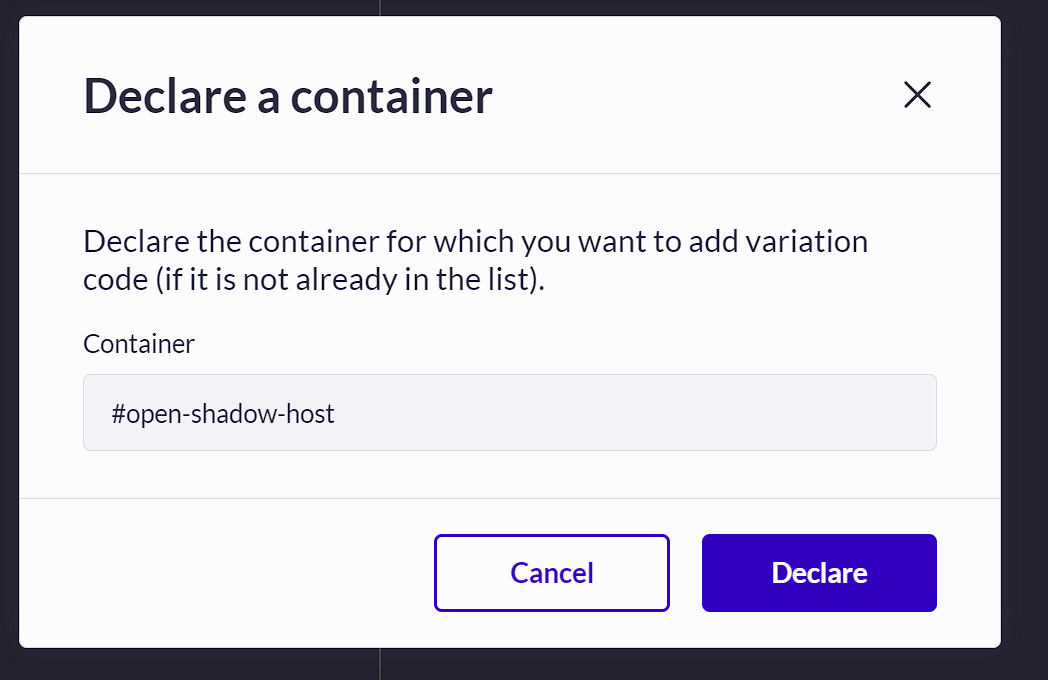
* Declare a container for the Shadow DOM
* Modify Styles: Use the CSS Variation Modal to apply styles specifically to Shadow DOM elements.
* Declare a container for the Shadow DOM
 * CSS Overwrite or Merge: Choose whether to overwrite existing styles or merge new styles with existing ones.

* CSS Overwrite or Merge: Choose whether to overwrite existing styles or merge new styles with existing ones.

 ### Step 3: Apply JavaScript
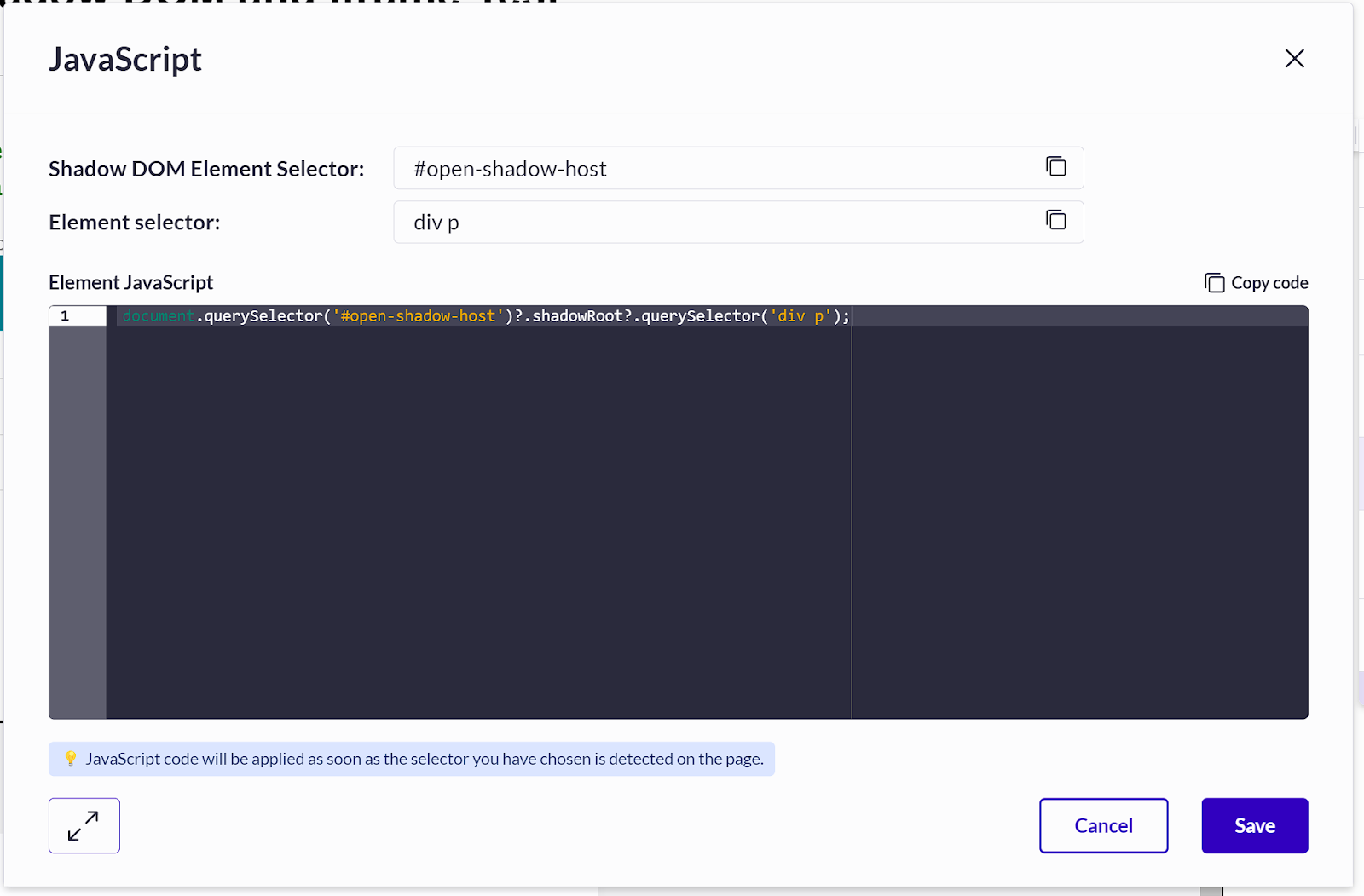
The editor supports JavaScript functionality for elements within Shadow DOMs. Use the modal to specify selectors for both the container and the element.
### Step 3: Apply JavaScript
The editor supports JavaScript functionality for elements within Shadow DOMs. Use the modal to specify selectors for both the container and the element.
 ### Step 4: Save and review changes
* Save Changes: After making your edits, ensure you save your changes within the editor.
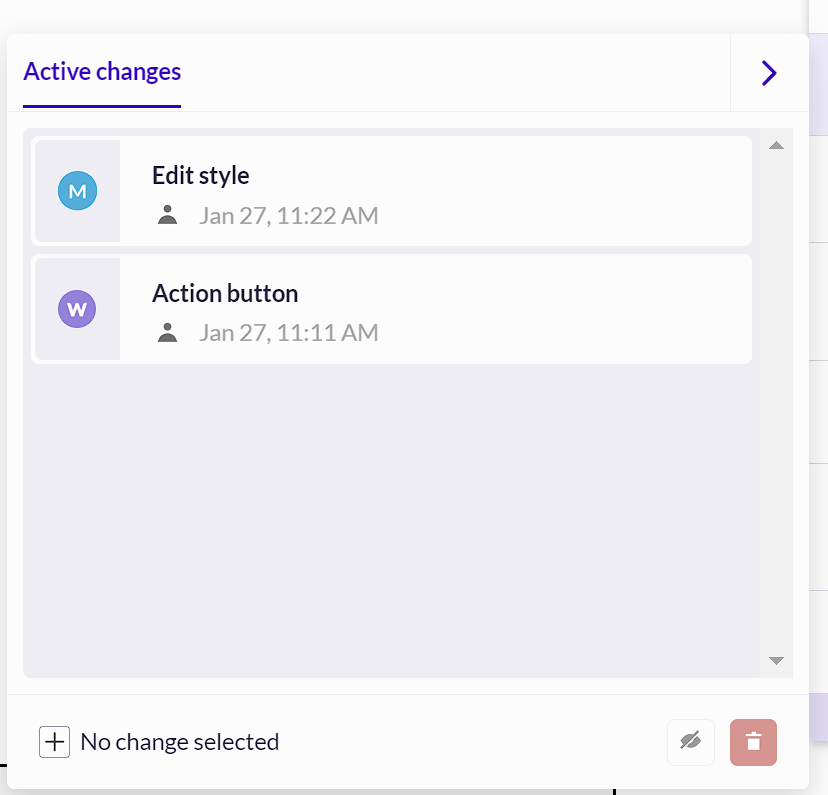
* Review Modifications: Use the Active Changes panel to review all modifications made to Shadow DOM elements.
### Step 4: Save and review changes
* Save Changes: After making your edits, ensure you save your changes within the editor.
* Review Modifications: Use the Active Changes panel to review all modifications made to Shadow DOM elements.
 Although it is technically possible to add a Shadow DOM inside another Shadow DOM, this approach is not supported by our solution. Additionally, note that this feature does not work with 'closed Shadow DOM
---
# Agent Instructions
This documentation is published with GitBook. GitBook is the documentation platform designed so that both humans and AI agents can read, navigate, and reason over technical content effectively. Learn more at gitbook.com.
## Querying This Documentation
If you need additional information that is not directly available in this page, you can query the documentation dynamically by asking a question.
Perform an HTTP GET request on the current page URL with the `ask` query parameter, and the optional `goal` query parameter:
```
GET https://docs.abtasty.com/web-experimentation-and-personalization/editors-and-widget/visual-editor/shadow-doms-and-iframes/how-to-edit-shadow-dom-in-the-visual-editor.md?ask=&goal=
```
`ask` is the immediate question: it should be specific, self-contained, and written in natural language.
`goal` is optional and describes the broader end goal you are ultimately trying to accomplish on behalf of the user. GitBook uses it to tailor the answer towards what is most useful for that goal.
The response will contain a direct answer to the question and relevant excerpts and sources from the documentation.
Use this mechanism when the answer is not explicitly present in the current page, you need clarification or additional context, or you want to retrieve related documentation sections.
Although it is technically possible to add a Shadow DOM inside another Shadow DOM, this approach is not supported by our solution. Additionally, note that this feature does not work with 'closed Shadow DOM
---
# Agent Instructions
This documentation is published with GitBook. GitBook is the documentation platform designed so that both humans and AI agents can read, navigate, and reason over technical content effectively. Learn more at gitbook.com.
## Querying This Documentation
If you need additional information that is not directly available in this page, you can query the documentation dynamically by asking a question.
Perform an HTTP GET request on the current page URL with the `ask` query parameter, and the optional `goal` query parameter:
```
GET https://docs.abtasty.com/web-experimentation-and-personalization/editors-and-widget/visual-editor/shadow-doms-and-iframes/how-to-edit-shadow-dom-in-the-visual-editor.md?ask=&goal=
```
`ask` is the immediate question: it should be specific, self-contained, and written in natural language.
`goal` is optional and describes the broader end goal you are ultimately trying to accomplish on behalf of the user. GitBook uses it to tailor the answer towards what is most useful for that goal.
The response will contain a direct answer to the question and relevant excerpts and sources from the documentation.
Use this mechanism when the answer is not explicitly present in the current page, you need clarification or additional context, or you want to retrieve related documentation sections.