
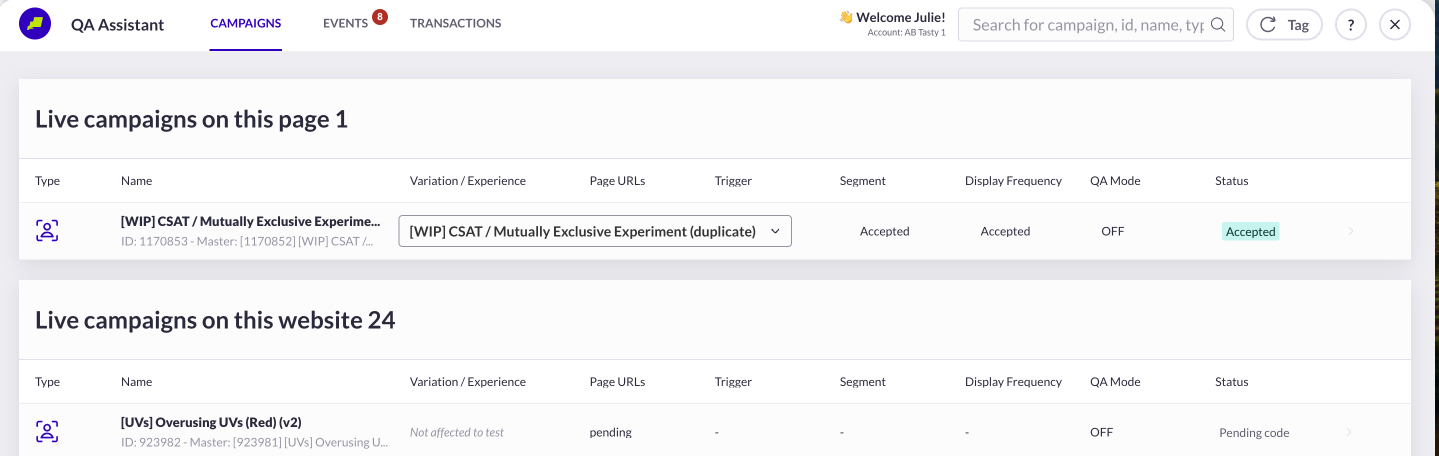
 * **Live campaigns on this page:** the top section displays **all campaigns that are live on the active page** (the campaigns you are assigned to)
From there, you can visualize the variations of your campaigns from the *Variation/ experience Dropdown:*
* **Live campaigns on this page:** the top section displays **all campaigns that are live on the active page** (the campaigns you are assigned to)
From there, you can visualize the variations of your campaigns from the *Variation/ experience Dropdown:*If one of the targeting criteria is rejected (page, audience, or trigger), the user will be rejected from the whole campaign.
You can see the targeting details by clicking on the campaign row from the QA Assistant.
| | **QA rejected** | The campaign is currently in QA and the user does not match at least one of the QA conditions. | | **Traffic rejected** |Less than 100% of the traffic is allocated to the campaign and the user is not exposed to it. This status means that the user is being part of “untracked traffic” (visitors who see the original version of your website but whose actions won’t be collected at all).
The information is stored in the AB Tasty cookie, so to avoid it, you must either clear your cookies or navigate to a new incognito window (and close all previous incognito windows).
| | **Pending** | The campaign is configured in AJAX mode and the tag always checks the targeting. | | **1-visitor 1-test** | The one visitor one test option is activated on your account and the user has already been exposed to another campaign. | | **Missing data** |Some information is missing to validate the targeting. This can happen for geolocation or userAgent data, for example.
You can see the targeting details by clicking on the campaign row from the QA Assistant.
| | **Exposed to another experience** | The user is rejected from this experience because they have already been exposed to another experience of the same personalization campaign. | | **Timeout loading variation data** | For deferred campaigns, variation data has taken more than 3 seconds to load so tag stop and don't execute the campaign.[ ***More details are here.***](https://developers.abtasty.com/docs/tag/tag-campaigns-types#campaign-status) | ### **Events tab** The Events tab enables you to perform QA in real-time and to verify that **actions and custom trackings have been correctly implemented on your campaign**.\ The following tracking types can be verified with the QA Assistant: * [Campaign Action tracking (XAT) and Account Action trackings (AAT)](/assets-library/trackers-page/action-trackers/how-to-create-and-manage-action-trackers.md) * [Custom tracking](/assets-library/trackers-page/how-to-create-a-custom-tracker-via-the-datalayer.md) * [Transaction tracking](broken://pages/Vcf2nmWwkzOAg642d5hu) * [Element visible tracking](/web-experimentation-and-personalization/editors-and-widget/list-of-widgets/ab-tasty-prebuilt-widgets/element-visible-tracking-widget.md) * [Dwell time tracking](/web-experimentation-and-personalization/editors-and-widget/list-of-widgets/ab-tasty-prebuilt-widgets/dwell-time-tracking-widget.md) * [Scroll rate tracking](/web-experimentation-and-personalization/editors-and-widget/list-of-widgets/ab-tasty-prebuilt-widgets/scroll-rate-tracking-widget.md) * [Iframe click tracking](/web-experimentation-and-personalization/editors-and-widget/list-of-widgets/ab-tasty-prebuilt-widgets/iframe-widget.md) **Page tracking is not compatible with the QA Assistant** - your page goals won’t appear in the Events tab but will be displayed in the reporting interface. As soon as the AB Tasty tag is installed on a page, pageviews are automatically collected and stored, even without a Page Tracker. Pageviews data is retroactive. That's why you can't QA a Page Tracker with the QA Assistant. {% hint style="warning" %} **Heads up ⚡️** To perform the QA, you must be on a page included in the targeting of your campaign or on a page where tracking has been configured. {% endhint %} To do so, click the element of the page where action tracking has been configured. The action name will automatically appear in the Events section, with the following information: * Event name * Event type (action or custom tracking) * Campaign name and ID where the event will be recorded * Variation name and ID where the event will be recorded * Time at which the event was triggered\ When clicking on the event name, you can see the corresponding element highlighted on the web page.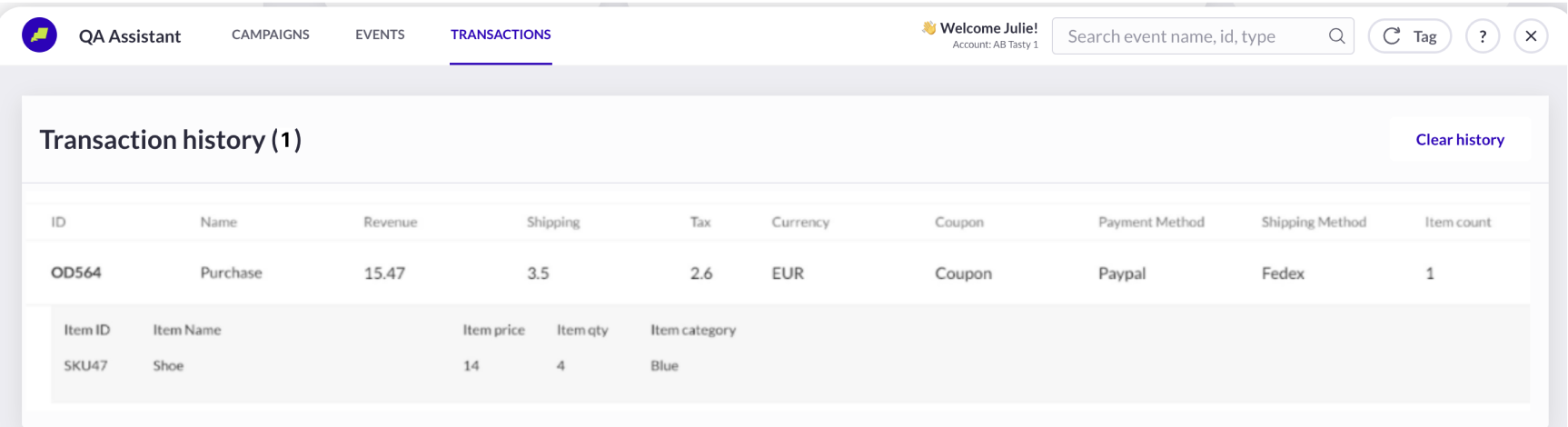 You can place a fake order on your website and access the confirmation page. If the transaction tag is correctly installed, you should see the transaction data accordingly. If nothing is sent to the QA Assistant, it means that data is not collected and that the transaction tag has not been implemented correctly. If that is the case, refer to [***How to implement the transaction tag?***](broken://pages/Vcf2nmWwkzOAg642d5hu) or to the [***Transaction tag FAQ***.](/help-center/faq/faq-about-the-transaction-tag.md)
### Troubleshooting area
In case you need support, follow the instructions given in the articles below:
{% content-ref url="/spaces/hZIDRsh66I8ikipjy42H/pages/U0MOST27mXt1YQj8tKHl" %}
[\[Troubleshooting\] QA Assistant doesn’t load on my website](/help-center/troubleshooting/troubleshooting-qa-assistant-doesnt-load-on-my-website.md)
{% endcontent-ref %}
{% content-ref url="/spaces/hZIDRsh66I8ikipjy42H/pages/VCyEKMted2wlKxv4osLD" %}
[\[Troubleshooting\] My modifications are not displayed](/help-center/troubleshooting/troubleshooting-my-modifications-are-not-displayed.md)
{% endcontent-ref %}
{% content-ref url="/spaces/hZIDRsh66I8ikipjy42H/pages/5kj45Xp89MCgZFfbx2ns" %}
[\[Troubleshooting\] How to Force the Display of a Variation?](/help-center/troubleshooting/troubleshooting-how-to-force-the-display-of-a-variation.md)
{% endcontent-ref %}
{% content-ref url="/spaces/hZIDRsh66I8ikipjy42H/pages/kmCsnqwjenENNx3tGXAL" %}
[\[Troubleshooting\] I see the original version very briefly before I see the variation (flickering)](/help-center/troubleshooting/troubleshooting-i-see-the-original-version-very-briefly-before-i-see-the-variation-flickering.md)
{% endcontent-ref %}
{% content-ref url="/spaces/hZIDRsh66I8ikipjy42H/pages/9tuCoLTkb2GEBk5ZKYk5" %}
[\[Troubleshooting\] Checking why you are not assigned to a campaign or variation](/help-center/troubleshooting/troubleshooting-checking-why-you-are-not-assigned-to-a-campaign-or-variation.md)
{% endcontent-ref %}
{% content-ref url="/spaces/hZIDRsh66I8ikipjy42H/pages/qpTyf49qG8bg4OijA889" %}
[\[Troubleshooting\] Checking if a page is assigned to a campaign](/help-center/troubleshooting/troubleshooting-checking-if-a-page-is-assigned-to-a-campaign.md)
{% endcontent-ref %}
{% content-ref url="/spaces/hZIDRsh66I8ikipjy42H/pages/1mZRn85gum6H26OjmgBJ" %}
[\[Troubleshooting\] I deactivated a variation in the traffic allocation step but still see it online](/help-center/troubleshooting/troubleshooting-i-deactivated-a-variation-in-the-traffic-allocation-step-but-still-see-it-online.md)
{% endcontent-ref %}
{% content-ref url="/spaces/hZIDRsh66I8ikipjy42H/pages/tDRVD2K2MxahDbHaMsol" %}
[\[Troubleshooting\] How to avoid being assigned to a test – the optout method](/help-center/troubleshooting/troubleshooting-how-to-avoid-being-assigned-to-a-test-the-optout-method.md)
{% endcontent-ref %}
---
# Agent Instructions
This documentation is published with GitBook. GitBook is the documentation platform designed so that both humans and AI agents can read, navigate, and reason over technical content effectively. Learn more at gitbook.com.
## Querying This Documentation
If you need additional information that is not directly available in this page, you can query the documentation dynamically by asking a question.
Perform an HTTP GET request on the current page URL with the `ask` query parameter, and the optional `goal` query parameter:
```
GET https://docs.abtasty.com/web-experimentation-and-personalization/qa-step/qa-mode--qa-assistant.md?ask=
You can place a fake order on your website and access the confirmation page. If the transaction tag is correctly installed, you should see the transaction data accordingly. If nothing is sent to the QA Assistant, it means that data is not collected and that the transaction tag has not been implemented correctly. If that is the case, refer to [***How to implement the transaction tag?***](broken://pages/Vcf2nmWwkzOAg642d5hu) or to the [***Transaction tag FAQ***.](/help-center/faq/faq-about-the-transaction-tag.md)
### Troubleshooting area
In case you need support, follow the instructions given in the articles below:
{% content-ref url="/spaces/hZIDRsh66I8ikipjy42H/pages/U0MOST27mXt1YQj8tKHl" %}
[\[Troubleshooting\] QA Assistant doesn’t load on my website](/help-center/troubleshooting/troubleshooting-qa-assistant-doesnt-load-on-my-website.md)
{% endcontent-ref %}
{% content-ref url="/spaces/hZIDRsh66I8ikipjy42H/pages/VCyEKMted2wlKxv4osLD" %}
[\[Troubleshooting\] My modifications are not displayed](/help-center/troubleshooting/troubleshooting-my-modifications-are-not-displayed.md)
{% endcontent-ref %}
{% content-ref url="/spaces/hZIDRsh66I8ikipjy42H/pages/5kj45Xp89MCgZFfbx2ns" %}
[\[Troubleshooting\] How to Force the Display of a Variation?](/help-center/troubleshooting/troubleshooting-how-to-force-the-display-of-a-variation.md)
{% endcontent-ref %}
{% content-ref url="/spaces/hZIDRsh66I8ikipjy42H/pages/kmCsnqwjenENNx3tGXAL" %}
[\[Troubleshooting\] I see the original version very briefly before I see the variation (flickering)](/help-center/troubleshooting/troubleshooting-i-see-the-original-version-very-briefly-before-i-see-the-variation-flickering.md)
{% endcontent-ref %}
{% content-ref url="/spaces/hZIDRsh66I8ikipjy42H/pages/9tuCoLTkb2GEBk5ZKYk5" %}
[\[Troubleshooting\] Checking why you are not assigned to a campaign or variation](/help-center/troubleshooting/troubleshooting-checking-why-you-are-not-assigned-to-a-campaign-or-variation.md)
{% endcontent-ref %}
{% content-ref url="/spaces/hZIDRsh66I8ikipjy42H/pages/qpTyf49qG8bg4OijA889" %}
[\[Troubleshooting\] Checking if a page is assigned to a campaign](/help-center/troubleshooting/troubleshooting-checking-if-a-page-is-assigned-to-a-campaign.md)
{% endcontent-ref %}
{% content-ref url="/spaces/hZIDRsh66I8ikipjy42H/pages/1mZRn85gum6H26OjmgBJ" %}
[\[Troubleshooting\] I deactivated a variation in the traffic allocation step but still see it online](/help-center/troubleshooting/troubleshooting-i-deactivated-a-variation-in-the-traffic-allocation-step-but-still-see-it-online.md)
{% endcontent-ref %}
{% content-ref url="/spaces/hZIDRsh66I8ikipjy42H/pages/tDRVD2K2MxahDbHaMsol" %}
[\[Troubleshooting\] How to avoid being assigned to a test – the optout method](/help-center/troubleshooting/troubleshooting-how-to-avoid-being-assigned-to-a-test-the-optout-method.md)
{% endcontent-ref %}
---
# Agent Instructions
This documentation is published with GitBook. GitBook is the documentation platform designed so that both humans and AI agents can read, navigate, and reason over technical content effectively. Learn more at gitbook.com.
## Querying This Documentation
If you need additional information that is not directly available in this page, you can query the documentation dynamically by asking a question.
Perform an HTTP GET request on the current page URL with the `ask` query parameter, and the optional `goal` query parameter:
```
GET https://docs.abtasty.com/web-experimentation-and-personalization/qa-step/qa-mode--qa-assistant.md?ask=