This is my Cloudflare Worker using Flagship for the visitorID : ${visitorId} assigned on flag ${flagValue}.
`; const FS_VISITOR_ID_COOKIE_NAME = "fs_visitor_id"; export default { async fetch( request: Request, env: Env, ctx: ExecutionContext ): PromiseThis is my Cloudflare Worker using Flagship for the visitorID : ${visitorId} assigned on flag ${flagValue}.
`; const FS_VISITOR_ID_COOKIE_NAME = "fs_visitor_id"; export default { async fetch(request, env, ctx) { // Start the SDK Flagship.start(env.ENV_ID, env.API_KEY, { decisionMode: DecisionMode.BUCKETING_EDGE, // Set decisionMode to BUCKETING_EDGE initialBucketing: bucketingData, // Set bucketing data fetched from flagship CDN }); const cookies = cookie.parse(request.headers.get("Cookie") || ""); //Get visitor Id from cookies const visitorId = cookies[FS_VISITOR_ID_COOKIE_NAME]; const visitor = Flagship.newVisitor({ visitorId, // if no visitor id exists from the cookie, the SDK will generate one hasConsented: true }); await visitor.fetchFlags(); const flag = visitor.getFlag("my_flag_key"); const flagValue = flag.getValue("default-value"); await visitor.sendHit({ type: HitType.PAGE, documentLocation: "page", }); // close the SDK to batch and send all hits ctx.waitUntil(Flagship.close()); return new Response( html(flagValue, visitor.visitorId, request?.cf?.region), { headers: { "content-type": "text/html;charset=UTF-8", "Set-Cookie": cookie.serialize( FS_VISITOR_ID_COOKIE_NAME, visitor.visitorId ), }, } ); }, }; ``` ### 4. Managing visitor cache On `BUCKETING_EDGE` mode, assignation is made on local so changing campaigns allocation in the platform would make the visitors to see different campaigns. Visitor cache will help you to always keep visitor in variation where he was allocated first, in the case of traffic allocation modifications (made by you or by the dynamic allocation). [See more](doc:js-v3-1#managing-visitor-cache) Here we use Workers KV to store visitor cache ```typescript const visitorCacheImplementation: IVisitorCacheImplementation = { cacheVisitor: async ( visitorId: string, data: VisitorCacheDTO ): PromiseThis is my Cloudflare Worker using Flagship for the visitorID : ${visitorId} assigned on flag ${flagValue}.
`; const FS_VISITOR_ID_COOKIE_NAME = "fs_visitor_id"; export default { async fetch( request: Request, env: Env, ctx: ExecutionContext ): PromiseThis is my Cloudflare Worker using Flagship for the visitorID : ${visitorId} assigned on flag ${flagValue}.
`; const FS_VISITOR_ID_COOKIE_NAME = "fs_visitor_id"; export default { async fetch(request, env, ctx) { const visitorCacheImplementation = { cacheVisitor: async (visitorId, data) => { await env.VISITOR_CACHE_KV.put(visitorId, JSON.stringify(data)); }, lookupVisitor: async (visitorId) => { const caches = await env.VISITOR_CACHE_KV.get(visitorId); return caches ? JSON.parse(caches) : caches; }, flushVisitor: async (visitorId) => { await env.VISITOR_CACHE_KV.delete(visitorId); }, } // Start the SDK Flagship.start(env.ENV_ID, env.API_KEY, { decisionMode: DecisionMode.BUCKETING_EDGE, // Set decisionMode to BUCKETING_EDGE visitorCacheImplementation, // set visitorCacheImplementation initialBucketing: bucketingData, // Set bucketing data fetched from flagship CDN }); const cookies = cookie.parse(request.headers.get("Cookie") || ""); //Get visitor Id from cookies const visitorId = cookies[FS_VISITOR_ID_COOKIE_NAME]; const visitor = Flagship.newVisitor({ visitorId, // if no visitor id exists from the cookie, the SDK will generate one hasConsented: true }); await visitor.fetchFlags(); const flag = visitor.getFlag("my_flag_key"); const flagValue = flag.getValue("default-value"); await visitor.sendHit({ type: HitType.PAGE, documentLocation: "page", }); // close the SDK to batch and send all hits ctx.waitUntil(Flagship.close()); return new Response( html(flagValue, visitor.visitorId, request?.cf?.region), { headers: { "content-type": "text/html;charset=UTF-8", "Set-Cookie": cookie.serialize( FS_VISITOR_ID_COOKIE_NAME, visitor.visitorId ), }, } ); }, }; ``` ### How to download bucketing file Downloading The bucketing file is done by calling the Flagship CDN `https://cdn.flagship.io/{FLAGSHIP_ENV_ID}/bucketing.json` replacing `FLAGSHIP_ENV_ID` with your `Environment ID` from [Flagship](https://app.flagship.io/) and place the JSON file where you can import it easily in your script. You can manually download it in your code and deploy them together or you can use your CI/CD pipeline. Here is an example of Github action workflow that downloads bucketing file and deploys application. ```yaml #.github/workflows/deploy.yml # This is a basic workflow to help you get started with Actions name: CI # Controls when the workflow will run on: # Triggers the workflow on push or pull request events but only for the "main" branch push: branches: [ "main" ] # Allows you to run this workflow manually from the Actions tab workflow_dispatch: # A workflow run is made up of one or more jobs that can run sequentially or in parallel jobs: # This workflow contains a single job called "build" build: environment: cloudflare # The type of runner that the job will run on runs-on: ubuntu-latest # Steps represent a sequence of tasks that will be executed as part of the job steps: # Checks-out your repository under $GITHUB_WORKSPACE, so your job can access it - uses: actions/checkout@v3 # Runs a single command using the runners shell - uses: actions/setup-node@v2 with: node-version: '16.x' registry-url: 'https://registry.npmjs.org' - run: yarn install - name: Download bucketing file # Downloads bucketing file and stores it in src/bucketing.json run: curl https://cdn.flagship.io/${{secrets.FLAGSHIP_ENV_ID}}/bucketing.json -o src/bucketing.json - name: Publish run: env CLOUDFLARE_API_TOKEN=${{ secrets.CLOUDFLARE_API_TOKEN }} CLOUDFLARE_ACCOUNT_ID=${{ secrets.CLOUDFLARE_ACCOUNT_ID }} yarn deploy ``` ### When does the bucketing file is required ? The bucketing file must be downloaded the first time you deploy your app and each time you update your campaigns from Flagship. Flagship has [Webhooks Integrations](doc:webhooks-integrations) that can help us to trigger our CI/CD pipeline when a campaing is updated. When your campaign is updated, a hook called `[environment] synchronized` will be triggered. and we will use this event to trigger our CI/CD pipeline which will download the updated bucketing file and deploy our app. \\  \\ Follow this [link](https://docs.github.com/en/rest/actions/workflows?apiVersion=2022-11-28#create-a-workflow-dispatch-event) to know how to manually trigger a GitHub Actions workflow. From Flagship plateforme go to **settings** -> **integrations** and webhooks tab Choose \[environment] synchronized event and set your Github api 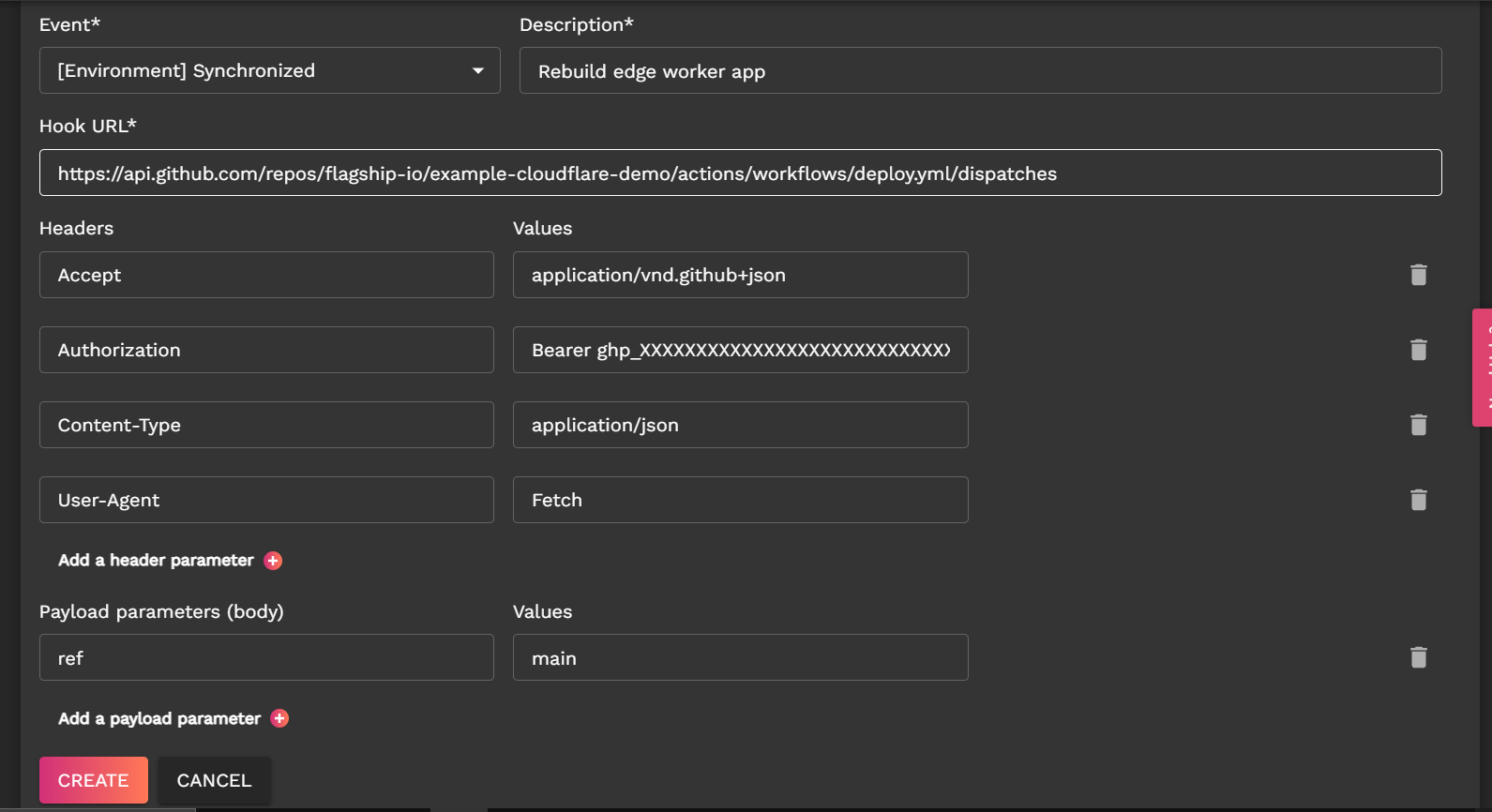 Any feedback?\ Want another tutorial? [Contact us](mailto:product.feedback@abtasty.com?subject=NextJS%20Tutorial) See full code here : [github](https://github.com/flagship-io/example-cloudflare-demo) --- # Agent Instructions This documentation is published with GitBook. GitBook is the documentation platform designed so that both humans and AI agents can read, navigate, and reason over technical content effectively. Learn more at gitbook.com. ## Querying This Documentation If you need additional information that is not directly available in this page, you can query the documentation dynamically by asking a question. Perform an HTTP GET request on the current page URL with the `ask` query parameter, and the optional `goal` query parameter: ``` GET https://docs.abtasty.com/server-side/concepts/jamstack/case-study-how-to-use-flagship-in-serverless-edge-services.md?ask=