> For the complete documentation index, see [llms.txt](https://docs.abtasty.com/llms.txt). Markdown versions of documentation pages are available by appending `.md` to page URLs; this page is available as [Markdown](https://docs.abtasty.com/feature-experimentation-and-rollout/user-and-access-management/teams-management.md).
# Teams Management
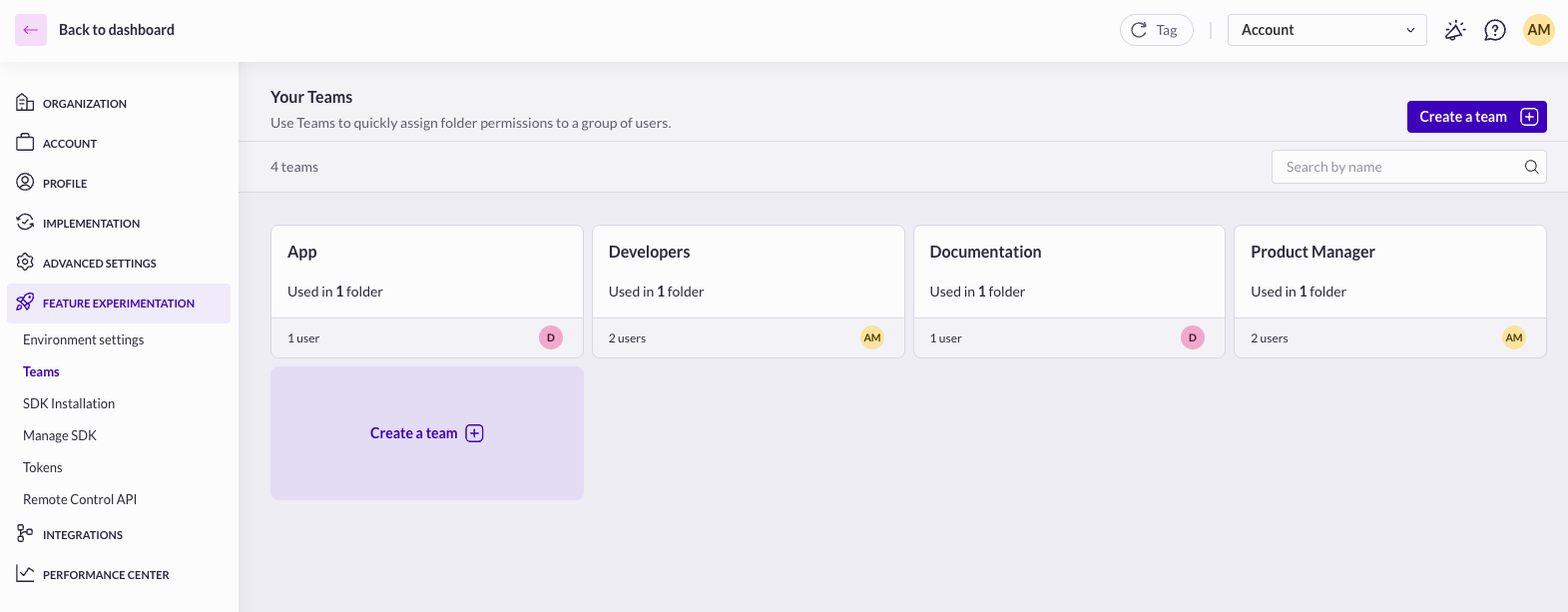
Teams in Feature Experimentation & Rollouts (FE\&R) allow you to assign folder permissions to a group of users at once.
A team is a group of **FE\&R users** who share the same folder access and operational permissions.
Instead of assigning permissions individually, teams allow you to:
* Grant folder access to multiple users at once
* Maintain consistent governance across squads
* Simplify onboarding and offboarding
* Reduce the risk of permission misconfiguration
* Scale access management in multi-team organizations
**📍 Access path:** [**Settings > Feature Experimentation > Teams**](https://app2.abtasty.com/settings/feature-experimentation/teams)
{% hint style="info" %}
Teams apply only to **Feature Experimentation & Rollouts** users, they do not impact Web Experimentation permissions.
{% endhint %}
### Creating a Team
To create a new team:
1. Go to **Settings > Feature Experimentation > Teams**
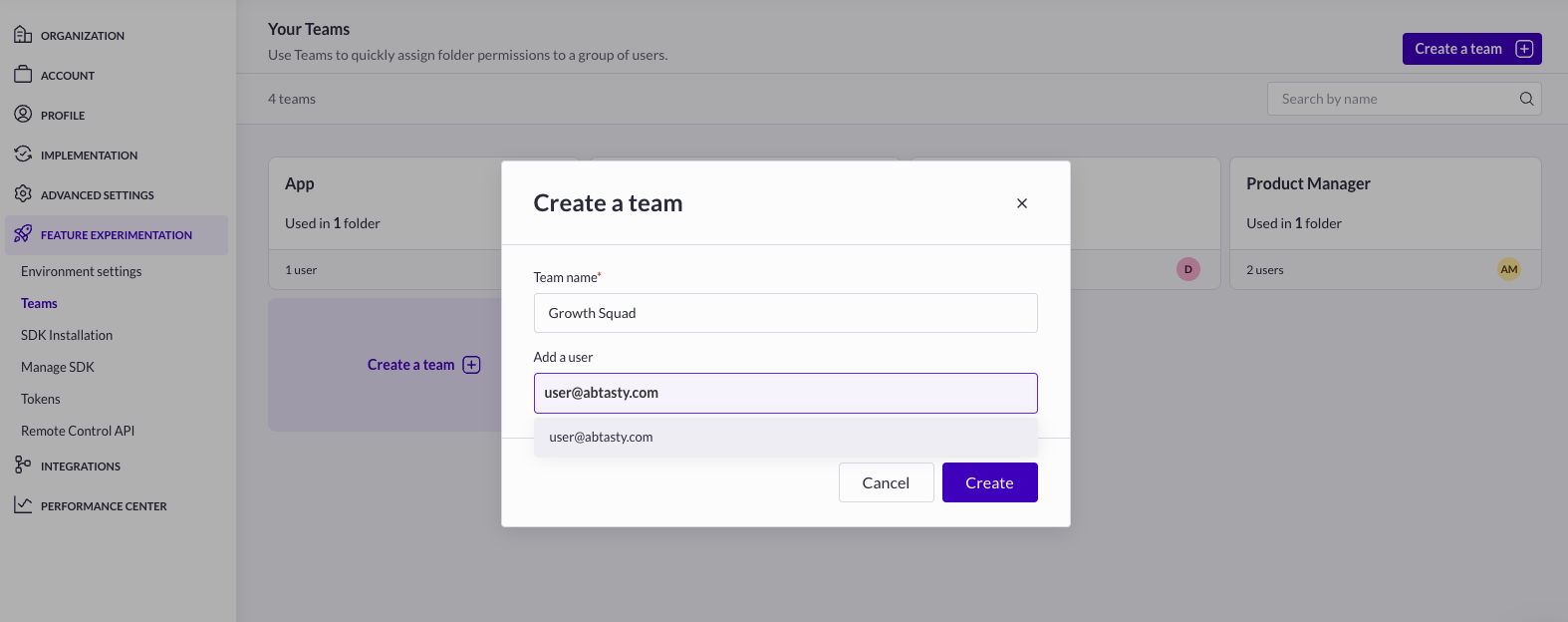
2. Click **Create a team**
3. Enter a team name
4. Add existing FE\&R users
5. Save
You can create multiple teams depending on your organizational structure.
### Assigning the Team to a folder (optional)
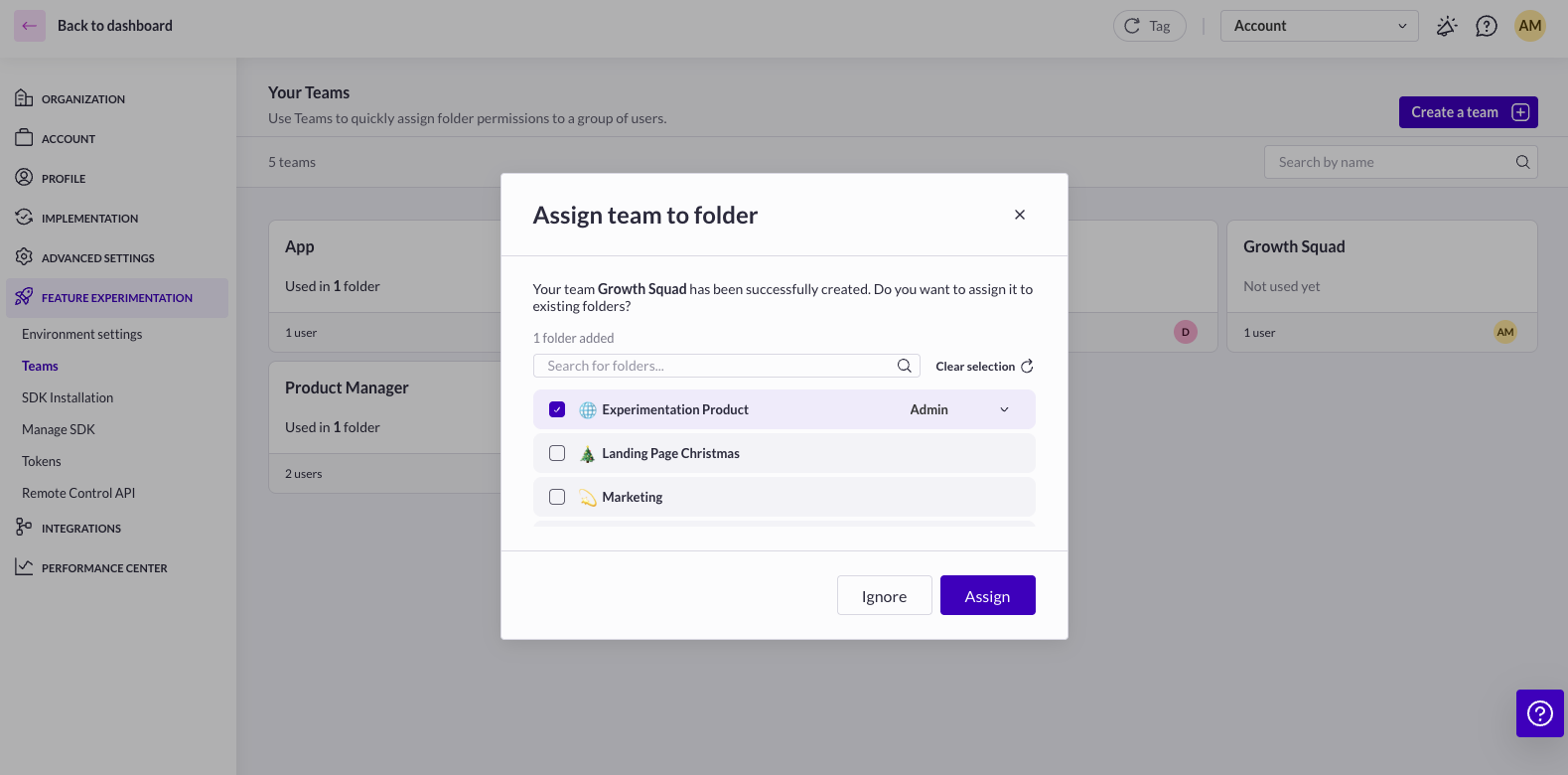
Once your team is created, you can assign it to one or multiple folders and define its role within each folder.
When assigning a team to a folder, you must select a **folder-level role** (e.g., Admin, User, Viewer).
All users within the team will inherit the role assigned to that folder.
***Example**** **:**If you create a team called “Growth Squad“, assign it to the folder “Experimentation Product“ and grant the role Admin. Then all users in the “Growth Squad“ team will have Admin permissions in the folder “Experimentation Product.”*
{% hint style="warning" %}
## Permission Inheritance & Priority
Folder permissions assigned to a team are automatically inherited by all team members.
If a user has multiple roles within the same folder (for example, individually assigned as User and part of a team assigned as Admin), **the highest permission level applies**.
{% endhint %}
### Editing a Team
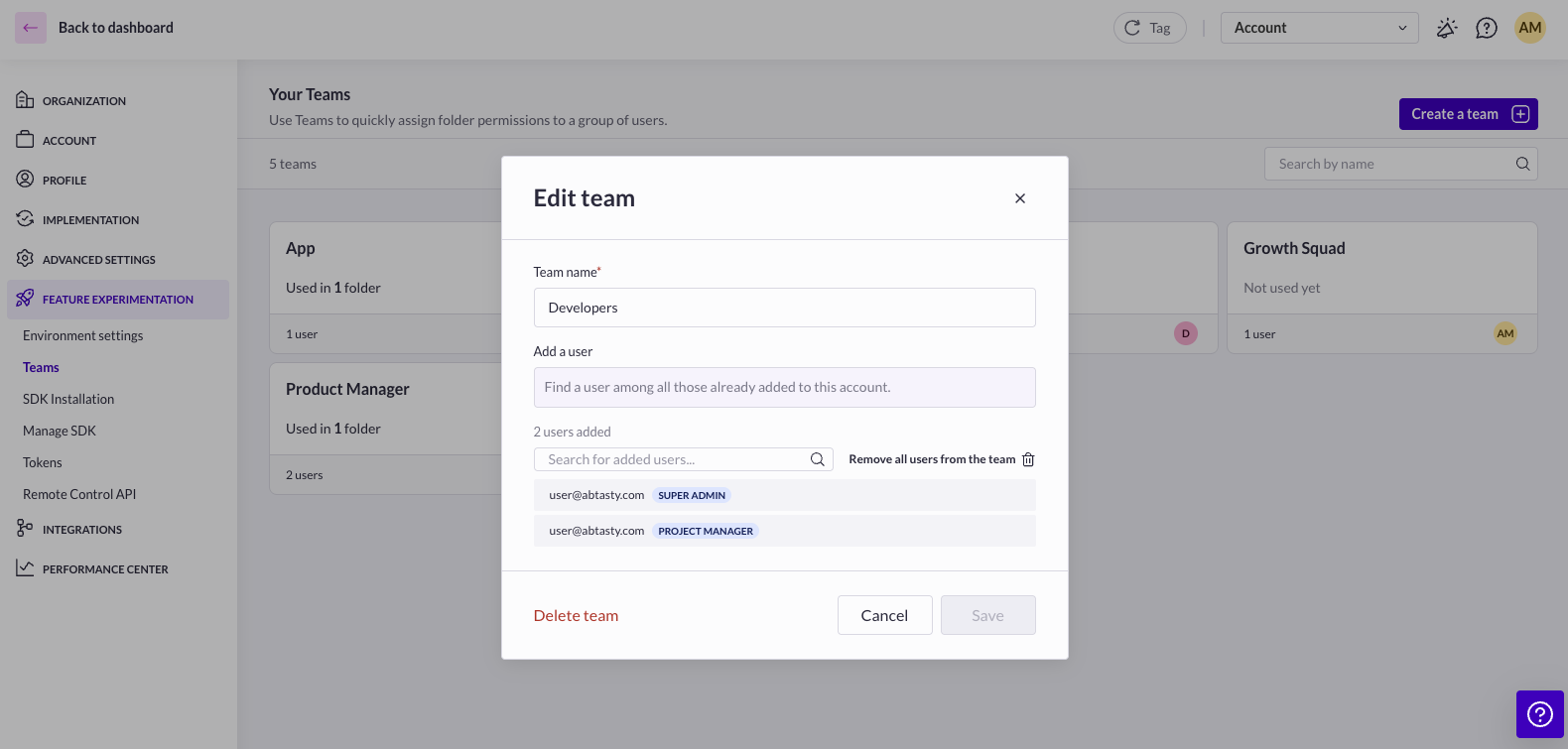
To edit a team:
1. Go to **Settings > Feature Experimentation > Teams**
2. Select the team
3. Modify:
* Team name
* Members
4. Save changes
Updates apply immediately to all associated folder permissions.
### Deleting a Team
To delete a team:
1. Go to **Settings > Feature Experimentation > Teams**
2. Select the team
3. Click **Delete**
Deleting a team removes its folder access configuration.
Users assigned through that team will lose access unless they:
* Have individual permissions
* Belong to another team
### Next step: Assign Teams to folders
Once your teams are created, the next step is to assign them to one or multiple folders.
Folder-level permissions determine what team members can do within a folder (create campaigns, launch campaigns, view reports, etc.).
To configure folder access and permissions, refer to the dedicated documentation on **Folder Management and Permissions**.
### Common Teams use cases
{% columns %}
{% column %}
#### 🚀 Product Squad Structure
Create one team per product squad:
* Mobile App
* Web Platform
* Checkout
Each team accesses only its relevant folders.
{% endcolumn %}
{% column %}
#### 👥 Role-Based Structure
Create teams based on responsibilities:
* Developers
* Product Managers
* QA
* Data Analysts
Each team receives appropriate folder-level permissions.
{% endcolumn %}
{% endcolumns %}
{% columns %}
{% column %}
#### 🌍 Multi-Brand or Multi-Market Organization
For organizations managing multiple brands or markets:
* France
* US
* Germany
Each team accesses only its corresponding folders.
{% endcolumn %}
{% column %}
#### 🔒 Controlled Rollout Governance
Separate creation and launch responsibilities:
* Experimentation Team (create & edit campaigns)
* Release Managers (launch & pause campaigns)
This reduces production risks in high-governance environments.
{% endcolumn %}
{% endcolumns %}
---
# Agent Instructions
This documentation is published with GitBook. GitBook is the documentation platform designed so that both humans and AI agents can read, navigate, and reason over technical content effectively. Learn more at gitbook.com.
## Querying This Documentation
If you need additional information that is not directly available in this page, you can query the documentation by asking a question.
Perform an HTTP GET request on the following URL with the `ask` and `goal` query parameters:
```
GET https://docs.abtasty.com/feature-experimentation-and-rollout/user-and-access-management/teams-management.md?ask=&goal=
```
`ask` is the immediate question: it should be specific, self-contained, and written in natural language.
`goal` is what the user is ultimately trying to achieve, the reason they need the answer. Sharing it helps GitBook give you a better, more relevant answer. A goal is most helpful when it describes the outcome the user wants rather than restating the question. For example, with `ask=how do I create an API token`, a goal like `automate deployments from our CI pipeline` lets GitBook tailor the answer to that use case.
The response will contain a direct answer to the question and relevant excerpts and sources from the documentation.
Use this mechanism when the answer is not explicitly present in the current page, you need clarification or additional context, or you want to retrieve related documentation sections.