> For the complete documentation index, see [llms.txt](https://docs.abtasty.com/llms.txt). Markdown versions of documentation pages are available by appending `.md` to page URLs; this page is available as [Markdown](https://docs.abtasty.com/assets-library/widget-library/how-to-create-a-custom-widget/how-to-configure-custom-widgets-custom-forms.md).
# How to configure Custom Widgets Custom Forms
This article focuses on how to configure Custom Widgets Custom Forms, a specific step of the [***Custom Widget set-up***](/assets-library/widget-library/how-to-create-a-custom-widget.md).
This content is also available in our [developer documentation](/client-side/custom-widgets/widgets-getting-started.md)***.***
## Definition
The custom widget form is a **custom configurator** your team has built when it has created a custom widget.
As a reminder, a custom widget is a piece of code developed in the AB Tasty platform.
Once created, this snippet can be used in every kind of campaign (test, personalization) and be customized to fit the campaign’s purpose.
**Example:**
You have created a custom widget named **Shop opening announcement pop-in** to have a custom pop-in already ready in AB Tasty, each time you need to announce the opening of a brand new shop on your company website.
You need to fix one part of the set-up of this custom widget (the way it is triggered, its general layout, the cross’s store, etc.), but you would like to let some fields be customizable to help your marketing team to customize it easily, without having to dig in the code.
To get an invitation, you should make the following items customizable: the name of the city, the date and time of the opening, and the label of the CTA. As a result, you will need to create a **custom form** to let your colleagues customize only this information.
## Configuration Step
Custom widget forms are an array of objects, displayed as a form.
The custom widget feature works as follows:
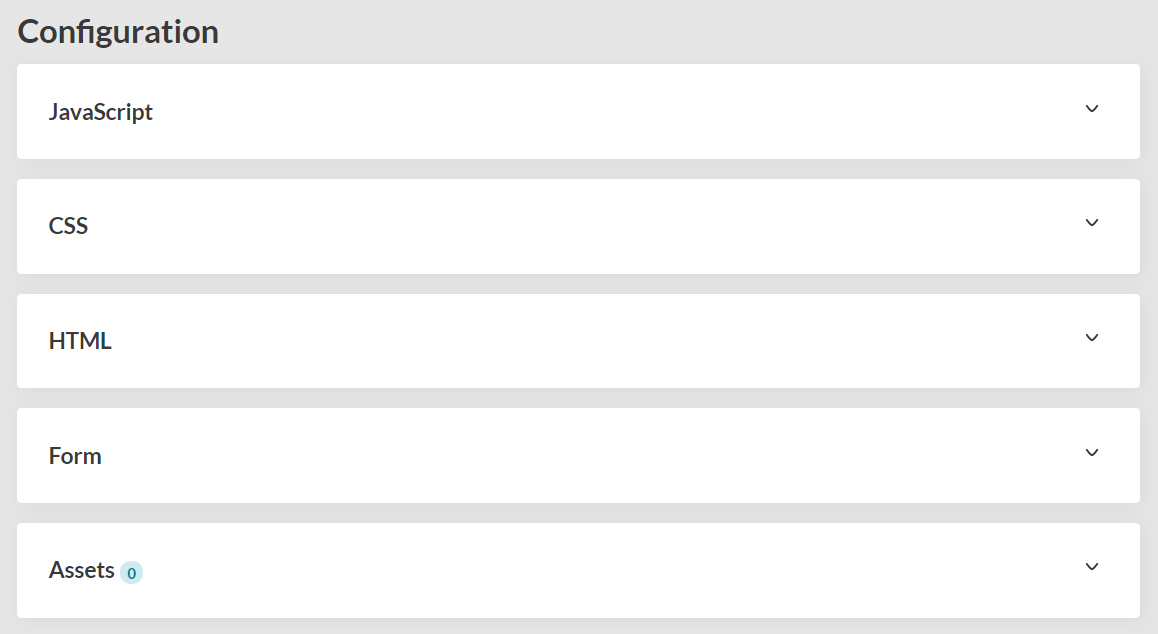
1. **A technical user of the account creates a custom widget** from scratch by configuring the JS, HTML, and CSS code;
2. At the end of the configuration, he chooses **what kind of fields should be customizable** and how to customize them (color, words, etc.);
3. He fills in the **Form** code box to create this custom form.
 ## Properties[](https://developers.abtasty.com/docs/components/components-form#properties)
Defined properties to display forms:
### **`type`**
Character string
Defines the type of form that will be displayed.\
Find the list of allowed types [***in this article***](https://docs.abtasty.com/web-experimentation-and-personalization/editors-and-widget/list-of-widgets/custom-widget/custom-widgets-list-of-propname-fields-and-their-specificities)
### **`propName`**
Character string
Key that will be used in the DATA object to get the value
### **`label`**
Character string or object
Defines the label of your form. It will be displayed to help the user understand the purpose of the form. It supports strings but also objects to translate into the following languages: English (en), French (fr), Spanish (sp), and German (de).
### **`value`**
Any - Form’s default value
Here is an example with a simple text input :
```
const buttonTextForm = {
type: 'text',
propName: 'buttonText',
label: 'Button text',
value: 'This is a simple text input',
};
```
## Specific properties to build your look and feel configurator
When you set up your form, you want to make it as easy as possible to be understood and used by your colleagues.
For example, you should add section titles, descriptions, and separators to make the customization of the custom widget more guided.
Here are the properties you should add to structure your final form:
### **Titles**
The **title** snippets should be added right above the first property of the section and right above the separator of the previous section.
### **Description**
The **description** snippets should be added right after the **title** snippet and right above the first property of the section.
### **Separator**
The **separator** snippets should be added right after the last property of the section and right before the **title** snippet of the next section.
{% hint style="success" %}
Find all Properties, condition management, propName fields and their specificities in [our developer documentation](/client-side/custom-widgets/widgets-getting-started/custom-widgets-form.md).
{% endhint %}
---
# Agent Instructions
This documentation is published with GitBook. GitBook is the documentation platform designed so that both humans and AI agents can read, navigate, and reason over technical content effectively. Learn more at gitbook.com.
## Querying This Documentation
If you need additional information that is not directly available in this page, you can query the documentation dynamically by asking a question.
Perform an HTTP GET request on the current page URL with the `ask` query parameter, and the optional `goal` query parameter:
```
GET https://docs.abtasty.com/assets-library/widget-library/how-to-create-a-custom-widget/how-to-configure-custom-widgets-custom-forms.md?ask=&goal=
```
`ask` is the immediate question: it should be specific, self-contained, and written in natural language.
`goal` is optional and describes the broader end goal you are ultimately trying to accomplish on behalf of the user. GitBook uses it to tailor the answer towards what is most useful for that goal.
The response will contain a direct answer to the question and relevant excerpts and sources from the documentation.
Use this mechanism when the answer is not explicitly present in the current page, you need clarification or additional context, or you want to retrieve related documentation sections.
## Properties[](https://developers.abtasty.com/docs/components/components-form#properties)
Defined properties to display forms:
### **`type`**
Character string
Defines the type of form that will be displayed.\
Find the list of allowed types [***in this article***](https://docs.abtasty.com/web-experimentation-and-personalization/editors-and-widget/list-of-widgets/custom-widget/custom-widgets-list-of-propname-fields-and-their-specificities)
### **`propName`**
Character string
Key that will be used in the DATA object to get the value
### **`label`**
Character string or object
Defines the label of your form. It will be displayed to help the user understand the purpose of the form. It supports strings but also objects to translate into the following languages: English (en), French (fr), Spanish (sp), and German (de).
### **`value`**
Any - Form’s default value
Here is an example with a simple text input :
```
const buttonTextForm = {
type: 'text',
propName: 'buttonText',
label: 'Button text',
value: 'This is a simple text input',
};
```
## Specific properties to build your look and feel configurator
When you set up your form, you want to make it as easy as possible to be understood and used by your colleagues.
For example, you should add section titles, descriptions, and separators to make the customization of the custom widget more guided.
Here are the properties you should add to structure your final form:
### **Titles**
The **title** snippets should be added right above the first property of the section and right above the separator of the previous section.
### **Description**
The **description** snippets should be added right after the **title** snippet and right above the first property of the section.
### **Separator**
The **separator** snippets should be added right after the last property of the section and right before the **title** snippet of the next section.
{% hint style="success" %}
Find all Properties, condition management, propName fields and their specificities in [our developer documentation](/client-side/custom-widgets/widgets-getting-started/custom-widgets-form.md).
{% endhint %}
---
# Agent Instructions
This documentation is published with GitBook. GitBook is the documentation platform designed so that both humans and AI agents can read, navigate, and reason over technical content effectively. Learn more at gitbook.com.
## Querying This Documentation
If you need additional information that is not directly available in this page, you can query the documentation dynamically by asking a question.
Perform an HTTP GET request on the current page URL with the `ask` query parameter, and the optional `goal` query parameter:
```
GET https://docs.abtasty.com/assets-library/widget-library/how-to-create-a-custom-widget/how-to-configure-custom-widgets-custom-forms.md?ask=&goal=
```
`ask` is the immediate question: it should be specific, self-contained, and written in natural language.
`goal` is optional and describes the broader end goal you are ultimately trying to accomplish on behalf of the user. GitBook uses it to tailor the answer towards what is most useful for that goal.
The response will contain a direct answer to the question and relevant excerpts and sources from the documentation.
Use this mechanism when the answer is not explicitly present in the current page, you need clarification or additional context, or you want to retrieve related documentation sections.